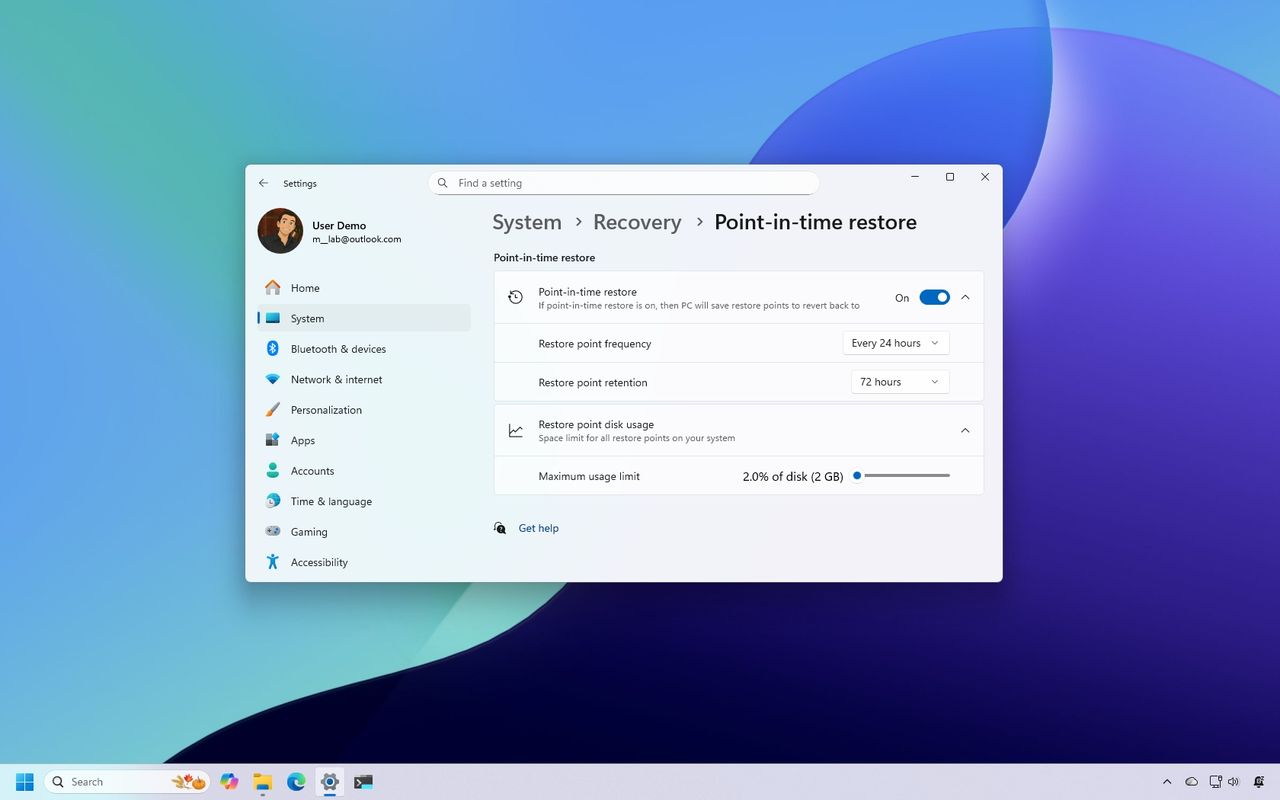
November is almost over, but Microsoft managed to pack in a bunch of cool new features for Windows 11 this month! I’m excited to share what they’ve been rolling out, so let’s jump right in and take a look.
Beyond the updates released earlier in November, Microsoft recently previewed versions 25H2 and 26H1 over the past two weeks.
Users in the Dev and Beta channels of the Windows Insider Program recently received build 26220.7271, which is part of the 25H2 development cycle. The Canary Channel received build 28000.1199 for the 26H1 version, but this update focused on standard improvements and bug fixes without introducing major new features. This guide will cover the most important changes currently available through the Windows Insider Program.
Biggest improvements from the Windows Insider Program in November 2025
These are the most significant changes Microsoft has unveiled since the last roundup.
Xbox Full Screen Experience for all PCs
The Xbox Full Screen Experience, which lets you play games in a truly full-screen mode, was first created for handheld devices. Now, Microsoft is testing it on computers as part of the operating system, starting with build 26220.7271.
This feature makes your computer feel more like a gaming console. It uses the Xbox app as the primary screen, simplifying things and reducing the demands on your system compared to regular Windows. Instead of the usual Windows 11 startup, it loads a streamlined experience and shuts down unnecessary tasks. Microsoft estimates this will free up around 2GB of memory.
Microsoft is releasing this feature slowly, but once you have it, you can turn it on in your device’s settings by navigating to Gaming, then Full screen experience.
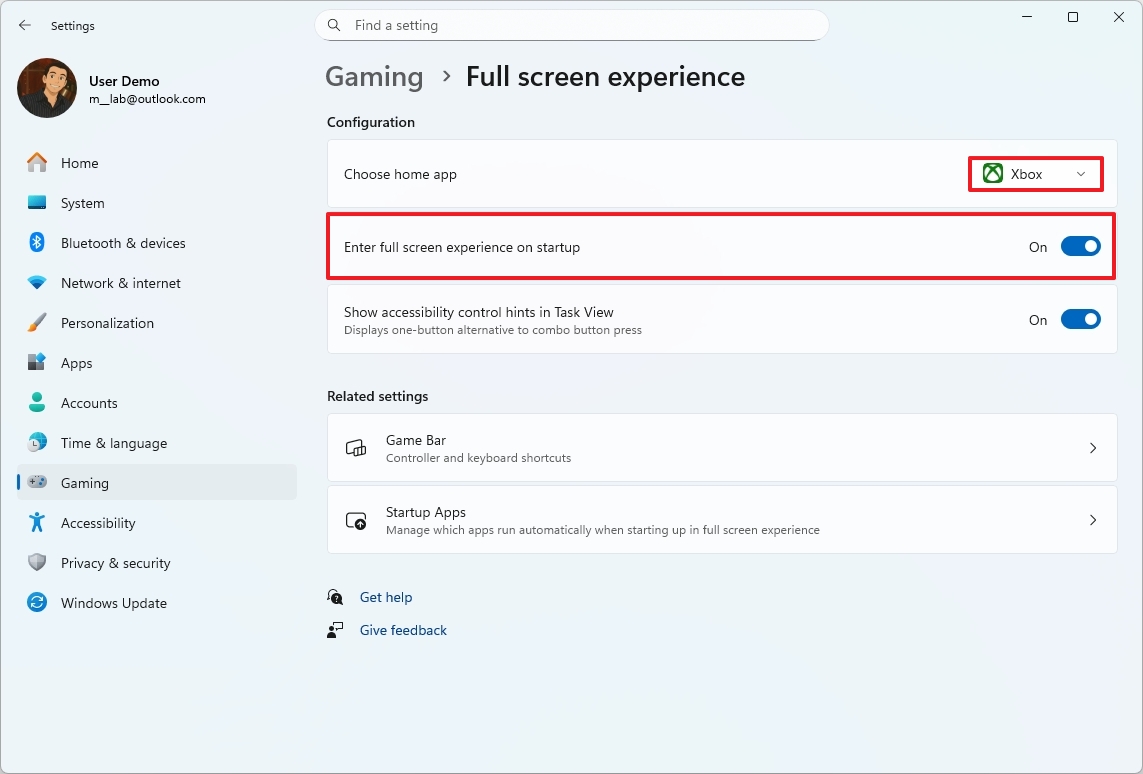
Okay, so to get this working, you’ll need to open the Xbox app settings. Then, find the option that lets the app automatically go full screen when you launch it – make sure that’s switched on. It’s a pretty simple setting, but it makes a big difference for a more immersive gaming experience, in my opinion!
Furthermore, there’s an option to add an FSE button in the Task View experience.
You can also find this feature within the Game Bar, or by pressing the Windows key and F11 at the same time.
This feature is being released slowly, and you’ll need to join the Xbox Insider program to get it on your device.
Point-in-time Restore
I recently tested build 26220.7271, and it includes a really useful feature called Point-in-time Restore. Basically, it lets you revert your PC to a previous state – a lifesaver if an update goes wrong, a driver causes issues, settings get messed up, or you even encounter malware. It’s like a ‘rewind’ button for your system!
You might recognize this feature as an updated version of System Restore. It’s been redesigned to be more user-friendly, reliable, and simpler to manage for both individuals and IT professionals.
Point-in-time Restore leverages Volume Shadow Copy Service (VSS) to create snapshots of your system, capturing everything – the operating system, applications, settings, saved passwords, sensitive information, and most importantly, your files. This allows you to revert to a previous state if needed.
This feature automatically works on devices that have 200GB or more of storage and use either the Home or Pro version of the operating system.
To enable this feature, go to Settings > Recovery > Point-in-time and switch the “Point-in-time Restore” option on.
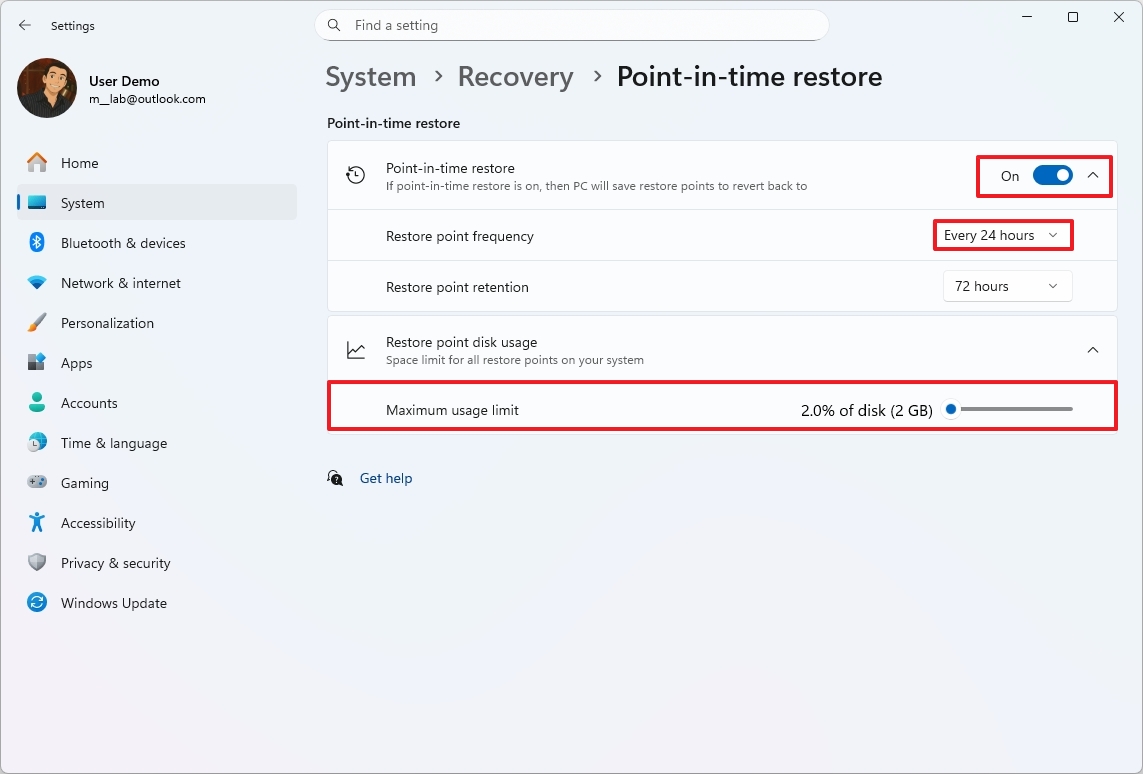
Okay, so once I turn this on, I’ll finally have control over how often the system automatically saves those ‘restore points’ – basically, snapshots of my system. And even better, I can also decide how long to keep those snapshots around, which is a huge relief! It’s nice to be able to customize that instead of having it decided for me.
In addition, there’s a slider to manage the maximum storage limit to store restore points.
The system automatically saves backup copies of your files once a day, keeping them for three days. This setting works well for most people.
If you’re going to use this feature, it’s important to know that it completely resets your device to a previous state, and any files you’ve created or changed since that point will be lost. It’s a powerful tool, but be aware it could affect your data.
File Explorer context menu redesign
Microsoft is updating the File Explorer context menu to simplify it and reduce clutter.
The design is largely unchanged from the preview, but this update organizes frequently used features into new submenus for easier access.
A new “Manage files” menu has been added, giving you options like compressing files into a ZIP, copying the file path, setting an image as your desktop background, and rotating images left or right.
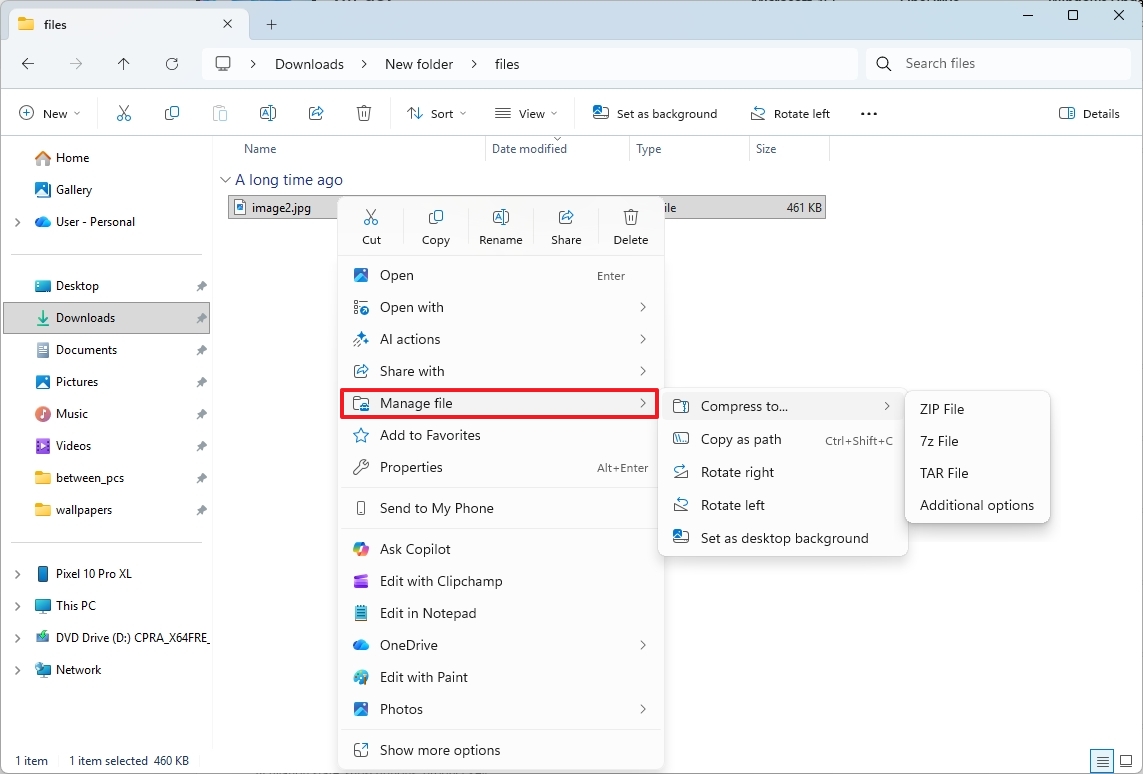
If you’re a OneDrive user, you’ll now see a “OneDrive” menu within this folder. It lets you choose to either “Always Keep on this Device” or “Free Up Space.”
How these updates appear will vary based on the type of file you’re working with and where you right-click in your operating system.
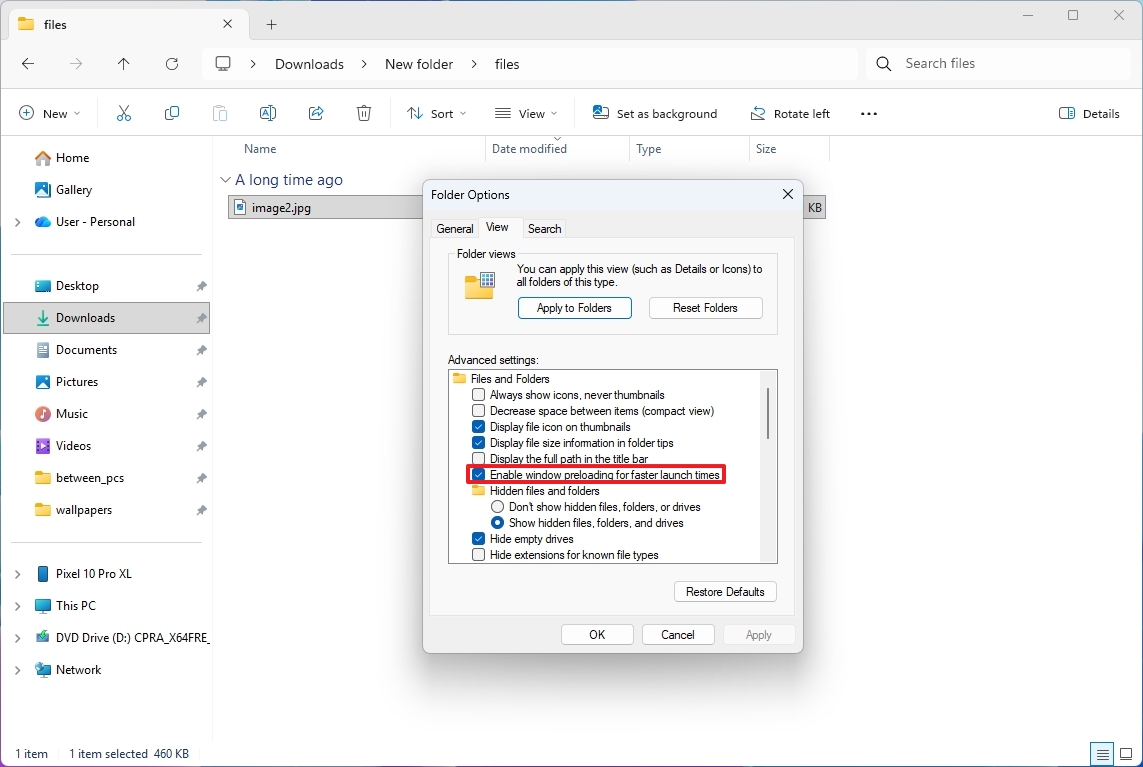
The company is also experimenting with a feature that loads File Explorer in the background, making it open faster. If you prefer not to have this happen, you can disable the “Enable window preloading for faster launch times” setting in the Folder Options.
Voice Typing with Fluid Dictation
We’ve expanded Fluid Dictation – previously only in Voice Access – to now work with Voice Typing as well.
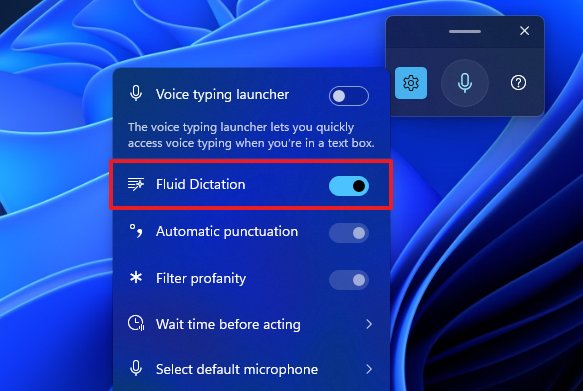
This feature improves voice typing by automatically fixing grammar and punctuation, and removing unwanted words, which saves you time on editing.
As an analyst, I’ve found that Fluid Dictation is automatically enabled on Copilot+ PCs. It’s really simple to use – just click into any text box and start Voice Access, and you’re good to go.
Microsoft Store app uninstall option
Even though the Microsoft Store is actually an application itself and not built into Windows, it’s great news that Microsoft is now letting users directly uninstall apps from within the store.
The option is available through the app’s context menu when browsing the “Library” page.
More resources

Stay up-to-date with the latest from Windows Central by following us on Google News! You’ll get our news, helpful insights, and feature articles right in your feed.
Read More
- FRONT MISSION 3: Remake coming to PS5, Xbox Series, PS4, Xbox One, and PC on January 30, 2026
- Best Controller Settings for ARC Raiders
- Mark Zuckerberg & Wife Priscilla Chan Make Surprise Debut at Met Gala
- Meet the cast of Good Omens season 3: All the actors and characters
- Welcome to Demon School! Iruma-kun season 4 release schedule: When are new episodes on Crunchyroll?
- The Boys Season 5 Officially Ends An Era For Jensen Ackles’ Soldier Boy
- 7 Great Marvel Villains Who Are Currently Dead
- Nippon Sangoku Is The Best New Post-Apocalyptic Anime of Spring 2026
- Wistoria: Wand and Sword Season 2 release schedule: When are new episodes out?
- Khloe, Kourtney Kardashian Call Out Kylie Jenner for Mother’s Day Post
2025-11-27 17:46