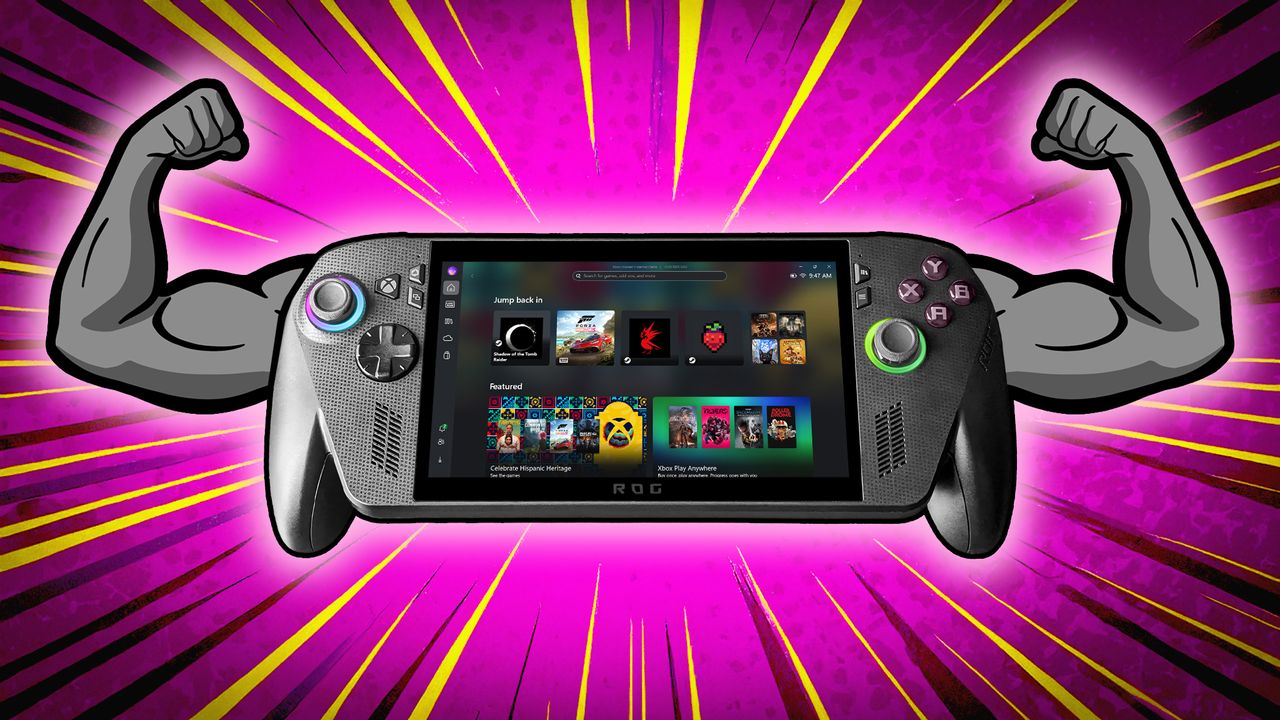
Portable gaming PCs, such as the Xbox Ally and previous ASUS ROG Ally models, offer a lot of power in a compact design, but maintaining that performance can have drawbacks. Specifically, constantly pushing the processor to run faster can cause problems.
In some games, this leads to overheating, choppy gameplay, and quickly draining the battery, shortening your gaming time. A simple fix is to disable CPU boost, which can create smoother performance, reduce stuttering, and keep your device cooler.
Here’s an explanation of how it works and why it can significantly improve your gaming experience in certain titles.
Why would I want to turn off CPU Boost on my handheld?
As a gamer, I’ve noticed that when my device’s CPU Boost is turned on, it really sucks up the power. That’s a problem because it leaves less power for the GPU, which is way more important for getting good performance in most games. These days, most games rely more on the graphics card than the processor, especially when you’re playing on a handheld console or at resolutions like 720p or 1080p. So, boosting the CPU doesn’t always help – sometimes it actually hurts!
While CPU Boost can improve performance, it can also reduce efficiency. It uses more power, draining the battery faster and causing the device to heat up more quickly. This overheating can lead to the system slowing down during extended gaming.
How to disable CPU Boost
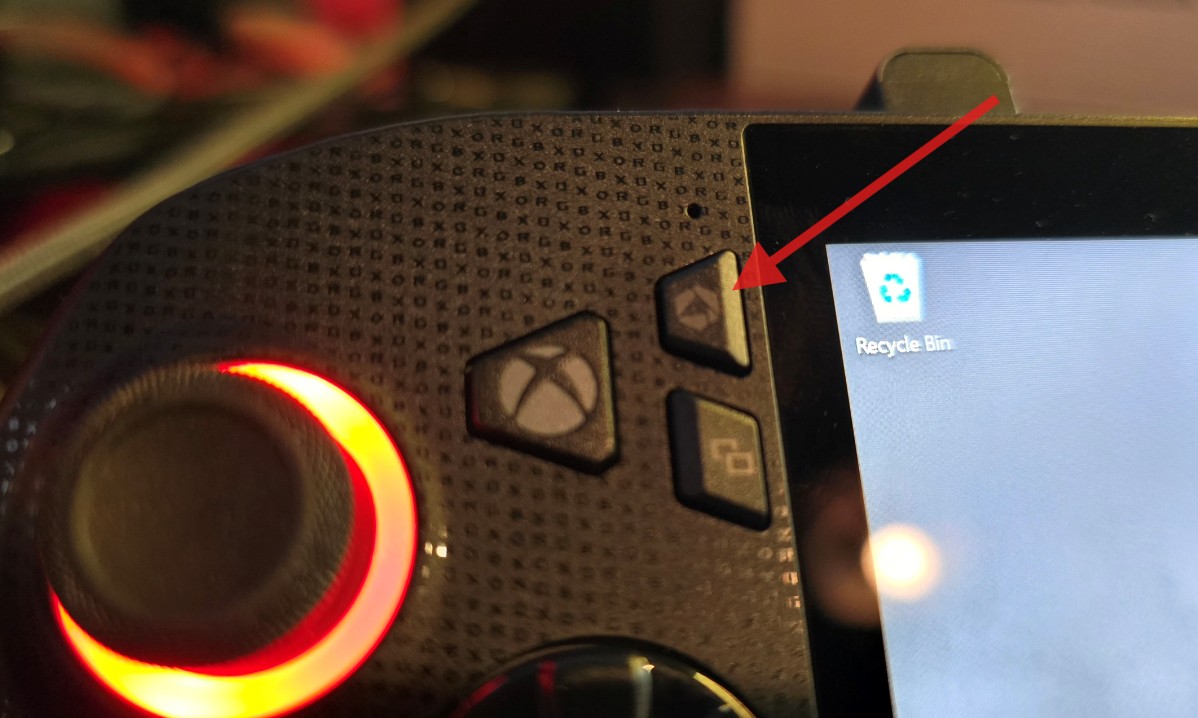
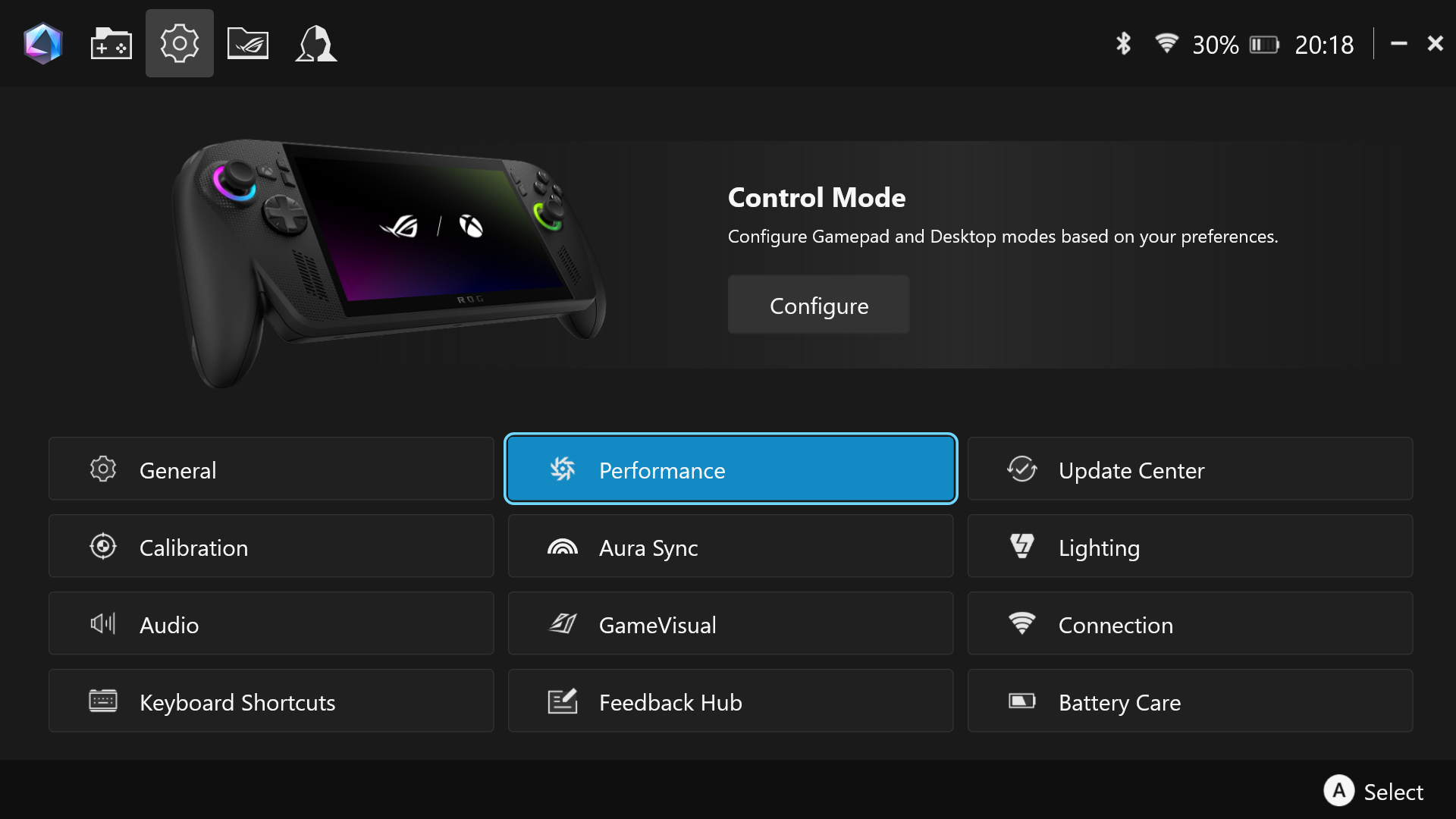
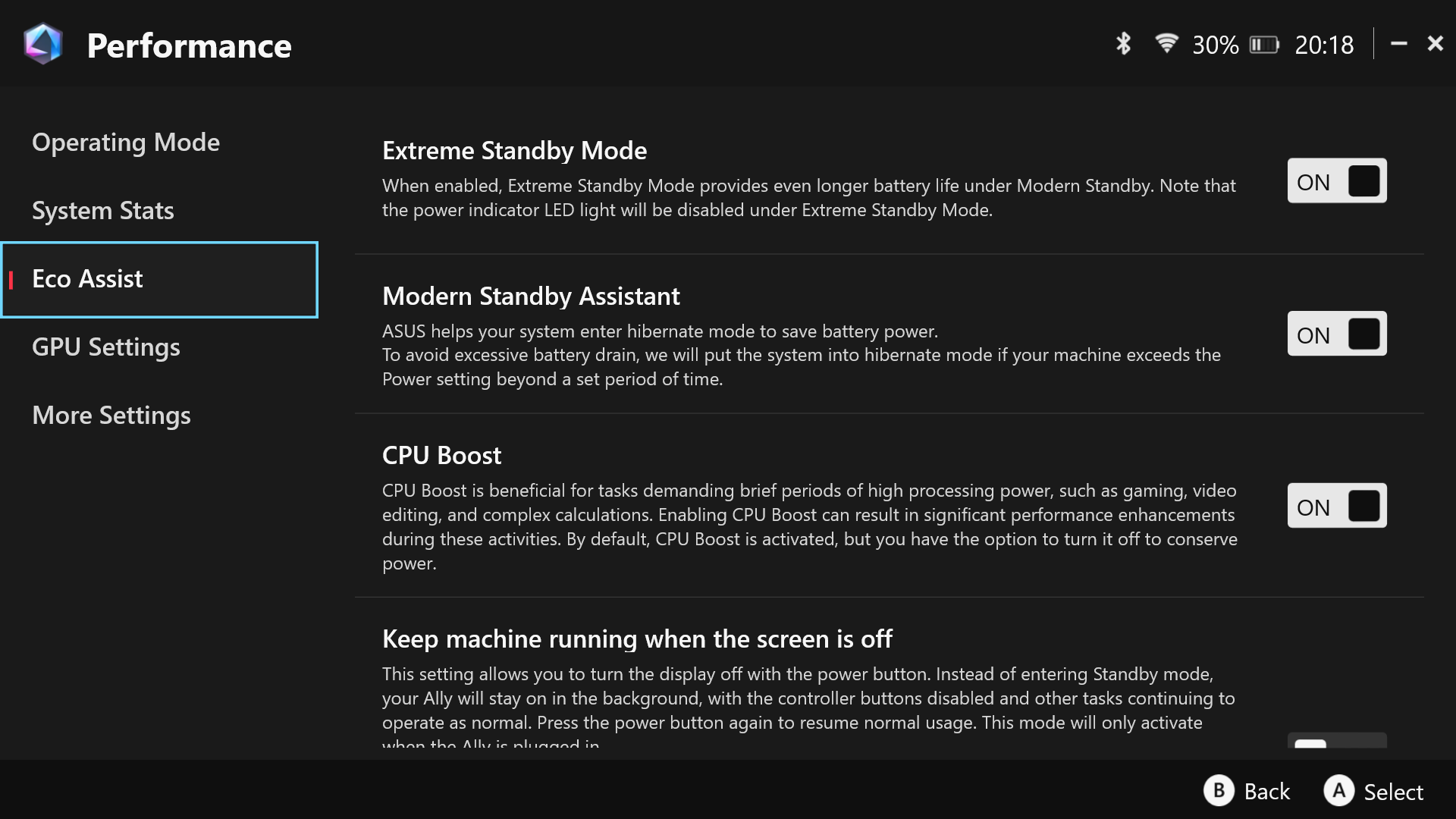
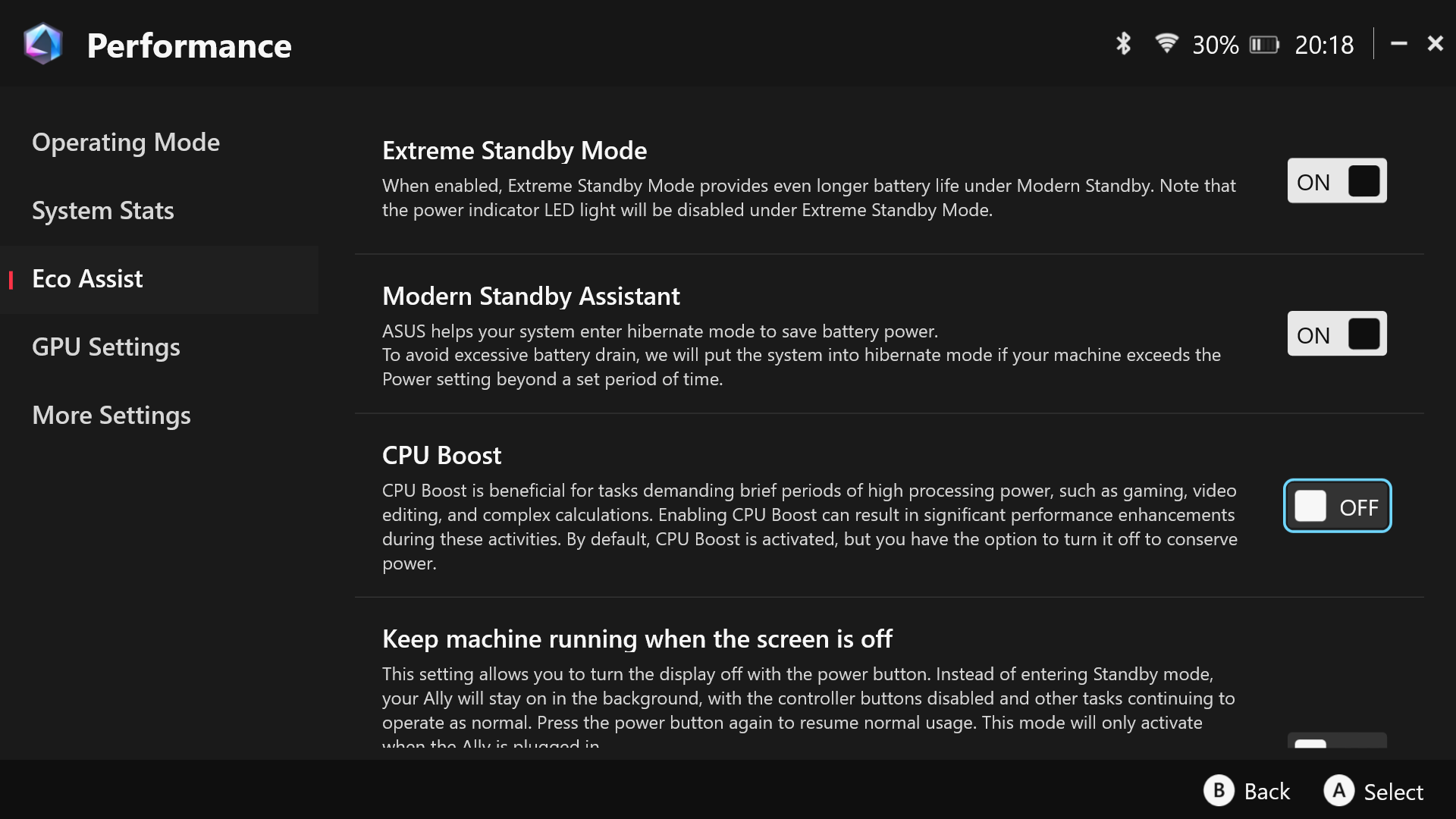
Turning off CPU Boost is simple. Just follow the steps in the images above, or use the guide below if you prefer.
- Open Armoury Crate SE either using the Armory Crate button or typing it in search.
- Once in Armoury Crate SE, navigate to the Settings menu.
- Within the Settings menu, select Performance.
- Within the Performance menu, choose the Eco Assist option.
- Turn off CPU Boost on the right-hand side.
When disabling CPU Boost makes sense
I’m really hoping this makes your device run a little smoother! Just like with anything like this, though, your experience might be a bit different than mine, depending on your specific setup.
This update should particularly improve performance in demanding games like Black Myth: Wukong, Kingdom Come: Deliverance 2, and Cyberpunk 2077, leading to smoother gameplay and better use of your graphics card.
Your experience may vary but re-enabling CPU Boost can be done by:
- Launch Armoury Crate SE using the dedicated Armory Crate button or by searching for it in Windows.
- From the main interface, open the Settings section.
- Select Performance from the available options.
- Open the Eco Assist menu within Performance.
- Toggle CPU Boost on from the right-hand side.
Turning off CPU boost won’t instantly fix every game, but it can often lead to a smoother, more consistent experience in games that overheat or have choppy frame rates on the Ally. It’s a simple fix that can make a noticeable difference.
You can easily turn this feature on or off, giving you the option to prioritize either maximum performance or a more stable, cooler gaming experience.
I’m really getting into these handheld gaming PCs – they’re amazing because they pack so much power into something you can take anywhere! And honestly, it’s the little things, like clever design choices, that really make a difference when you’re actually playing. They can totally change how a game *feels* in the moment, and that’s huge.

Read More
- Marvel Officially Confirms Deadpool’s Most Brutal Redesign
- Welcome to Demon School! Iruma-kun season 4 release schedule: When are new episodes on Crunchyroll?
- Gemma Arterton spy thriller Secret Service based on hit novel gets release date confirmed on ITV
- After 11 Years, Black Clover Officially Ends With Final Release (& Crowns a New Wizard King)
- The Boys Season 5, Episode 5 Ending Explained: Why Homelander Does THAT
- Invincible Creators Offer Promising Update on Season 5 Release Date
- Gold Rate Forecast
- Apex soundtrack: Every song featured in the Netflix thriller
- ‘You Can Play Your Purchased Games As Usual’: Sony Breaks Silence on PS5, PS4 Game Expiry DRM
- Frieren: Beyond Journey’s End Gets a New Release After Season 2 Finale
2025-12-20 19:09