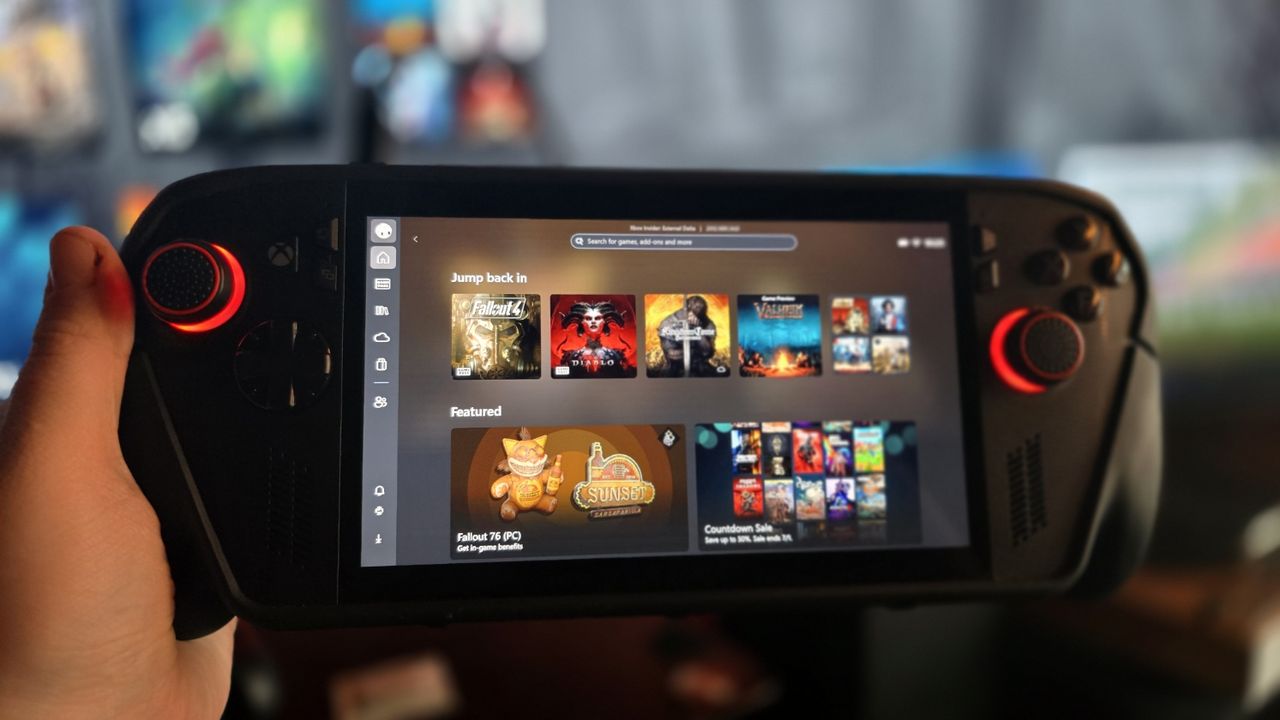
Playing PC games on portable devices is becoming more and more common. With the success of gadgets like the Steam Deck and Nintendo Switch, Microsoft has also recognized this trend and is working to make Windows better for handheld gaming.
The Xbox Ally and Xbox Ally X mark Microsoft’s initial step into handheld gaming. These devices, created by ASUS, build upon the foundation of the earlier ASUS ROG Ally and are powered by AMD’s Z2 platform.
The Xbox Ally devices were the first to use Windows’ new “Full Screen Experience” feature. This feature lets apps run like they have the whole system to themselves, similar to how a kiosk works, but with the added benefit of being able to multitask, use a gamepad easily, and enjoy a little extra performance. The Xbox app is set up to use this feature automatically, but now other apps can use it too.
Essentially, this still runs the complete Windows 11 operating system, with all its existing compatibility features and complexities.
1. Update EVERYTHING
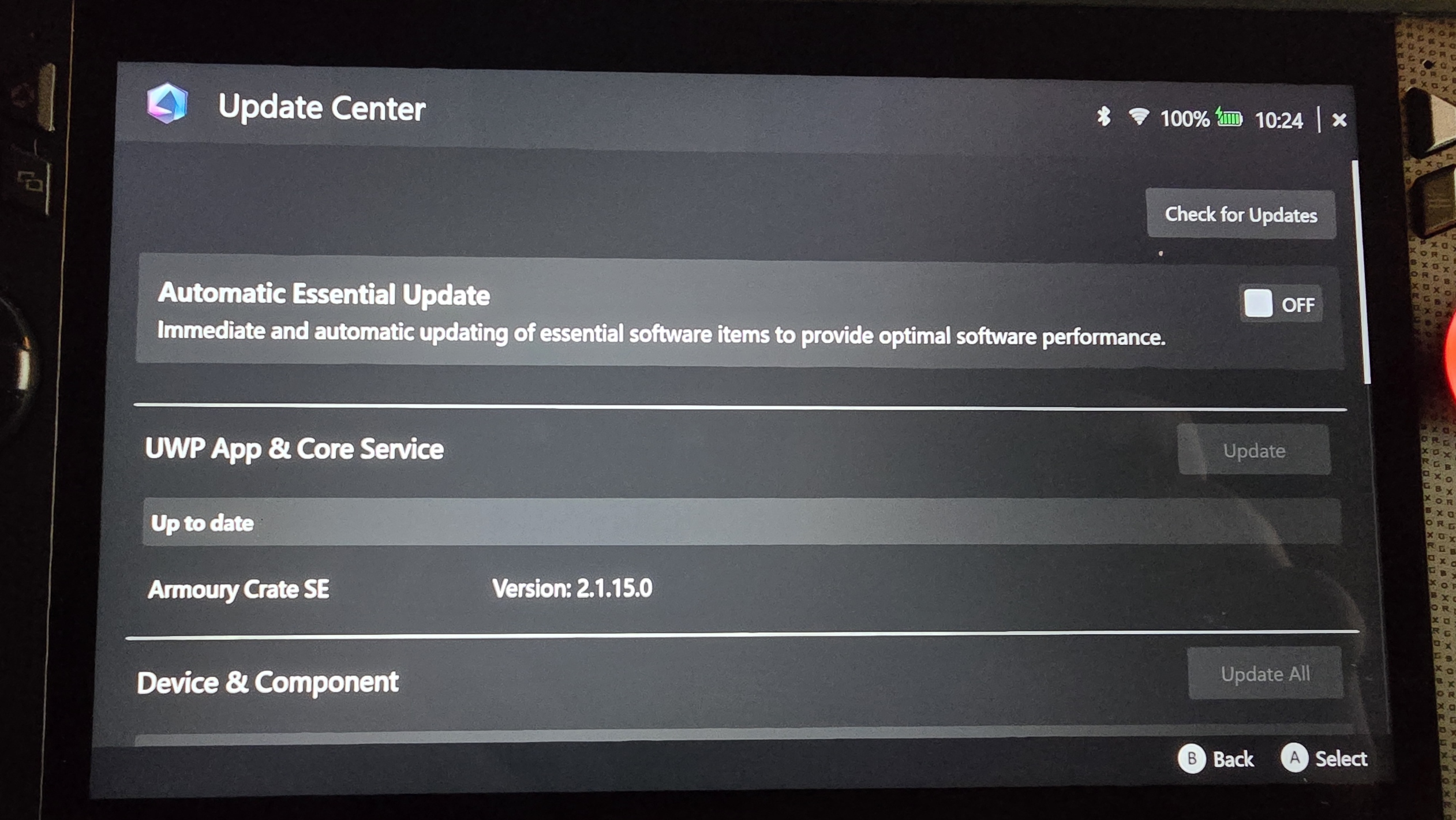
Your Xbox Ally or Xbox Ally X will need to update its software. Most updates happen during the initial setup process when you connect to Wi-Fi and sign in with your Microsoft account. However, it’s helpful to know where to find the update options. Here’s a quick guide to checking for updates.
- During the initial set up, Windows should run a lot of the updates automatically, but you’ll need to do even more after the fact.
- After the initial load and Microsoft Account set up, the Xbox app will load in. It might give you a notification for updates. If it does, navigate to the notification bell on the bottom left of the Xbox app, then hit A if there’s an update notification.
- The Xbox app will open up the Microsoft Store if it needs an update. Select “Downloads” in the bottom right on the Microsoft Store.
- In Downloads, select Check for Updates to see if you need to update any Windows system apps.
- Next, press the Armoury Crate button on the controller. It’s the spiral-looking button to the top right of the Xbox button, on the left side of the screen.
- This opens up the Armoury Crate Command Center. Select “Open Armory Crate” with A to access the settings.
- After some initial configuration, select the cogwheel settings icon either using the right bumper or by tapping on the screen.
- Tap on or select “Update Center” then “Check for Updates.”
- Plug your Xbox Ally in, then select “Update All.” You may need to restart afterwards.
- After the reboot, it’s worth checking on Windows Update for upgrades as well.
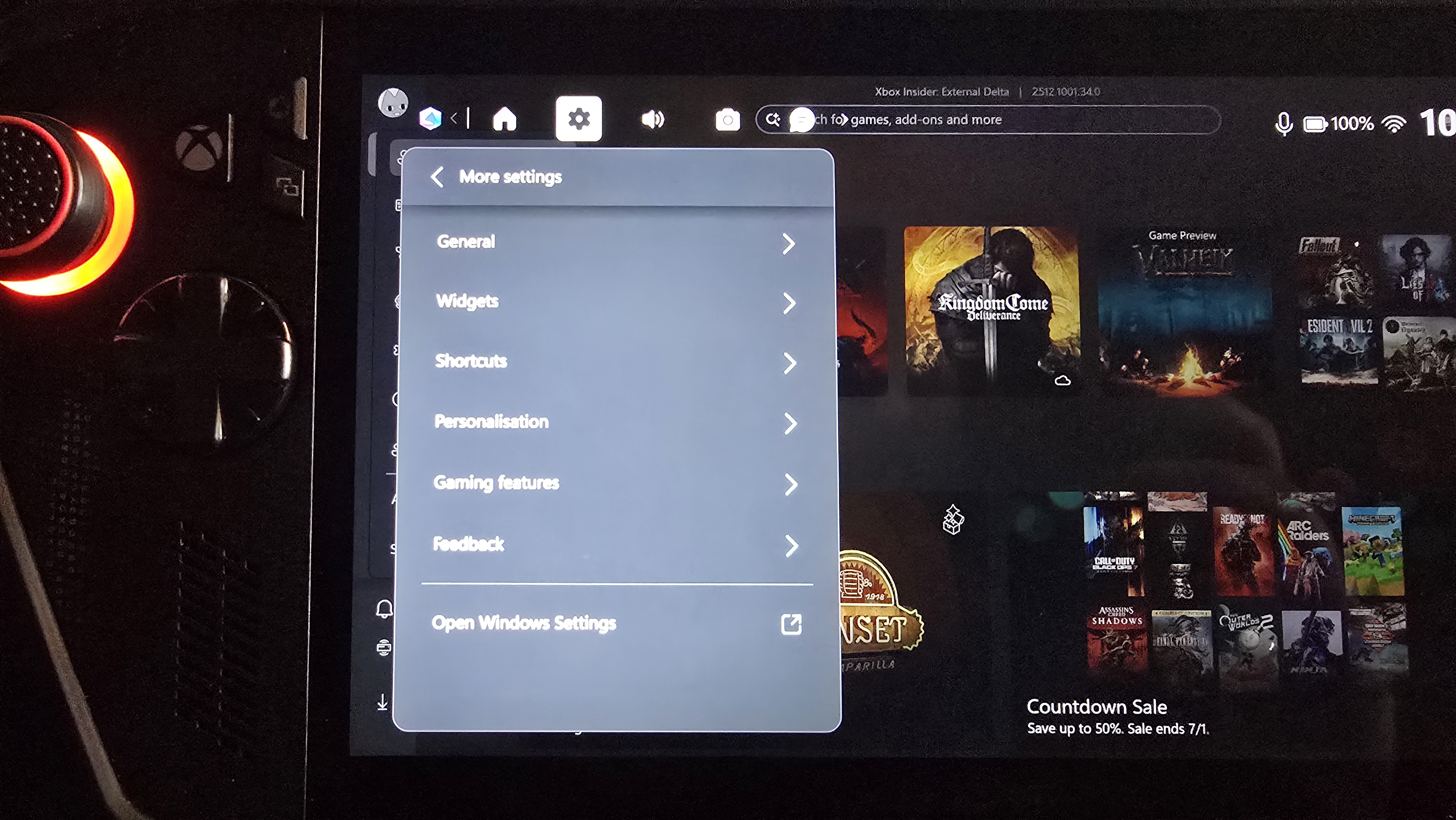
- Press the Xbox button on the left of the screen to open the Xbox Guide.
- Navigate right to the settings cogwheel.
- Scroll down and select “More Settings.”
- Click or select “Open Windows Settings.”
- Click “Windows Update” from the Settings menu on Windows.
- Click “Check for updates.”
- If there are updates available, be sure to download and install them. You might need to restart again.
2. Learn how the Xbox and Armory Crate buttons work
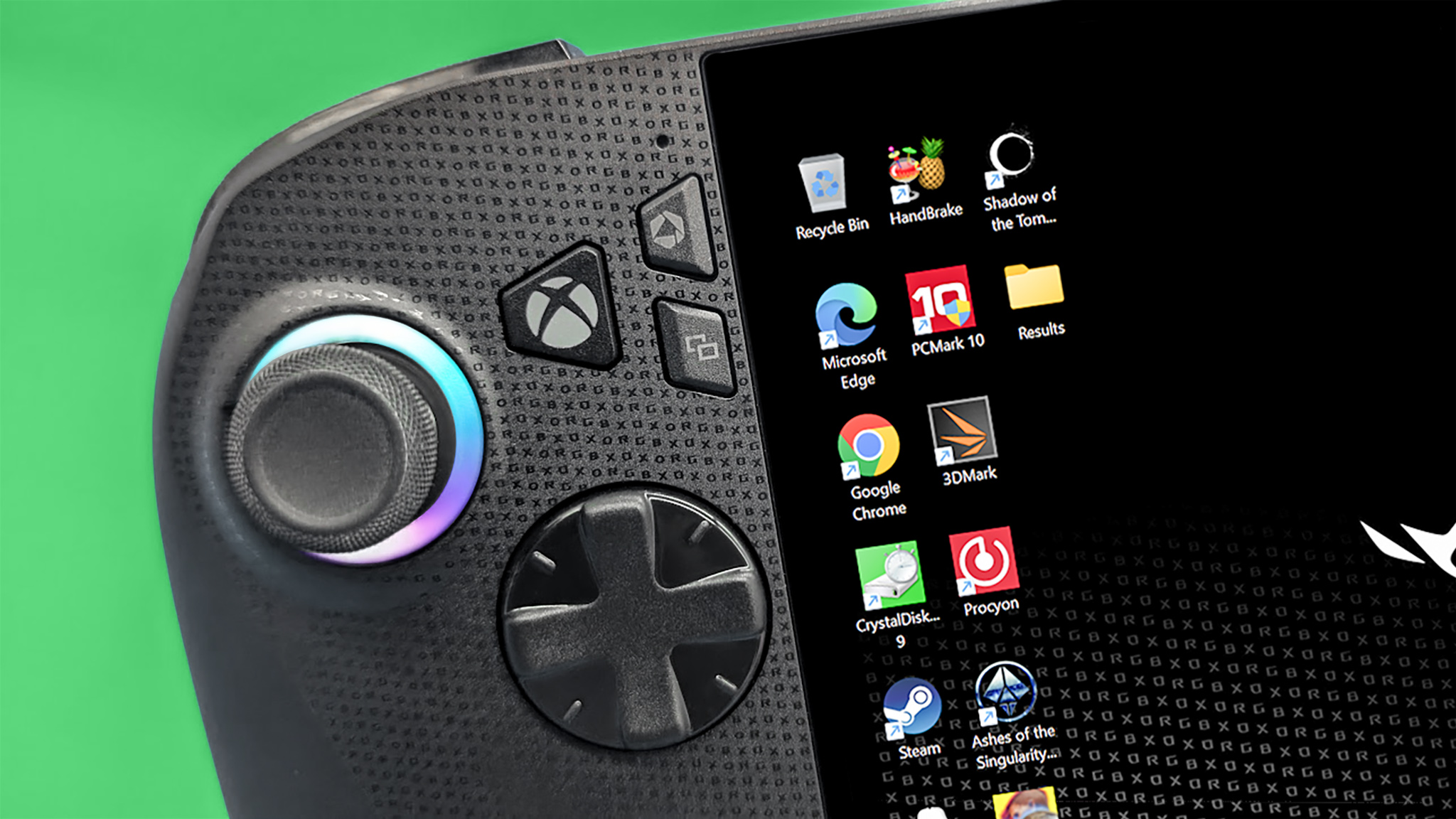
The Xbox Ally has several key buttons: the Xbox button, the Armoury Crate button (on the left), the View and Menu buttons (on either side), and the Xbox Library button (on the right). Because their functions aren’t immediately obvious, here’s a quick explanation of what each one does.
- The Xbox button on the left is your main menu button. A long press will start multi-tasking mode, which lets you navigate to other apps and screens you have open. It will also let you easily close those apps, and also exit to the Windows desktop. A quick press will open the Xbox Game Bar, giving you access to the wider menu options, including the Xbox friends list, game launchers, settings, game recording, and much more.
- The Armoury Crate icon above it is a shortcut to the ASUS Command Center. This lets you adjust operating mode and a variety of other hardware settings. For operating modes, lower watt means better battery life, but lower performance. 2D games and very optimized 3D games can run fine on the lower watt settings, but more intensive games may need 25w+ modes and for the device to be plugged in. A long press opens Xbox’s AI Gaming Copilot.
- The Library button is opposite the Armoury Crate on the right side of the screen, above the Xbox menu button. This gives you quick access to your Xbox PC game library. A long press will open Xbox’s Gaming Copilot voice mode, which can be handy inside games to get quick information.
- You cannot customize the behavior of these buttons using Armoury Crate, sadly, but you can customize other buttons from the Armoury Crate’s main settings menu.
3. Enable offline permissions (or don’t)
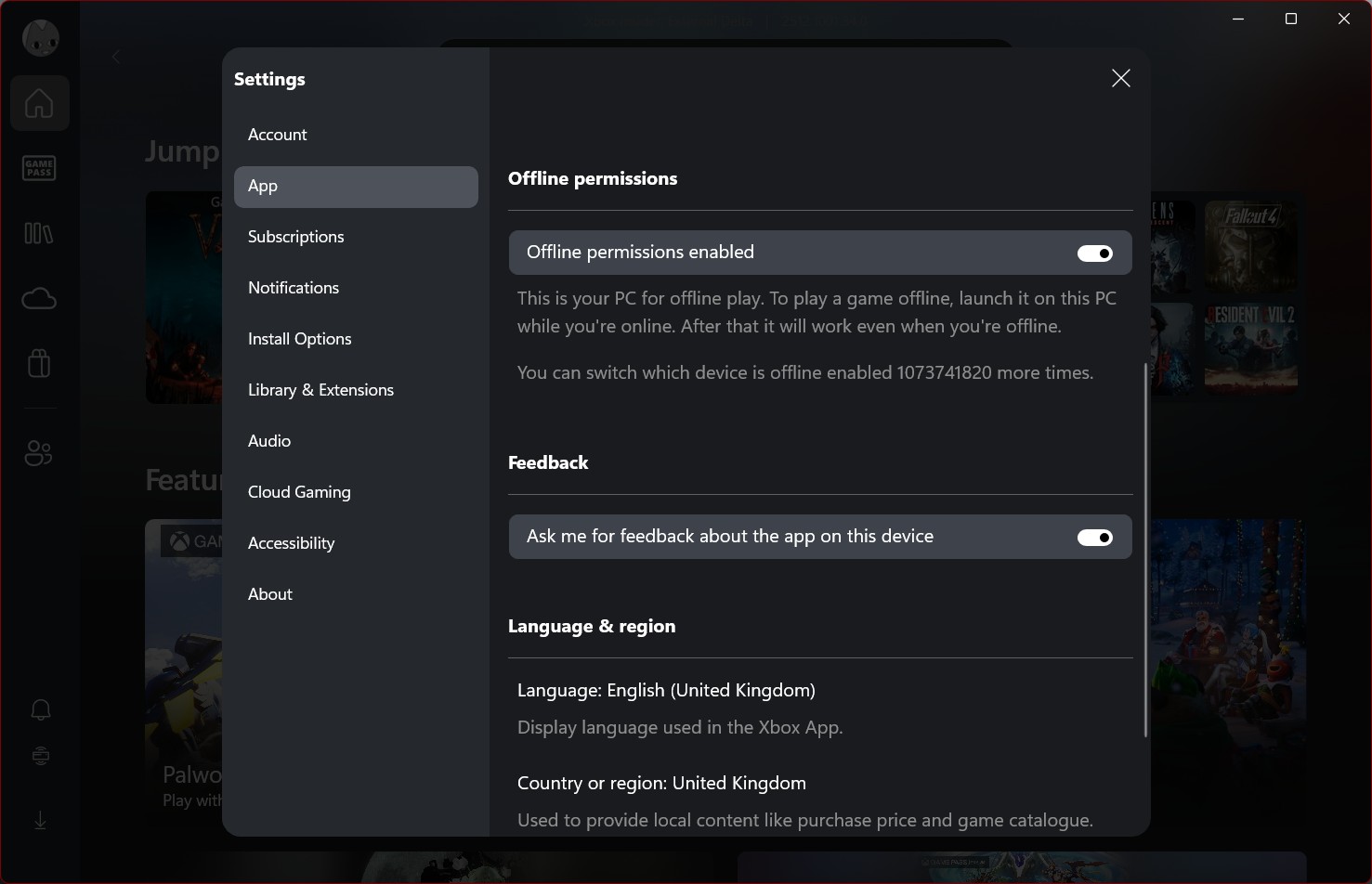
Offline permissions let you keep playing your Xbox games even when you don’t have an internet connection. This is perfect for when you’re traveling – on planes, trains, or anywhere with spotty Wi-Fi. Here’s how to enable it.
- Open the main Xbox app by hitting the Xbox button and selecting “Home.”
- Tap on your profile picture in the top left.
- Open up the Settings menu.
- Select “App” from the Settings menu’s side bar.
- Scroll down a bit and turn on “Sharing Permissions.
Note: Games still need to launch initially online to download permissions, but once they have, you’ll have 14 days of offline play before you need to re-download the license. You can only swap your offline permissions to another PC a few times a year.
4. Learn operating modes in Armory Crate
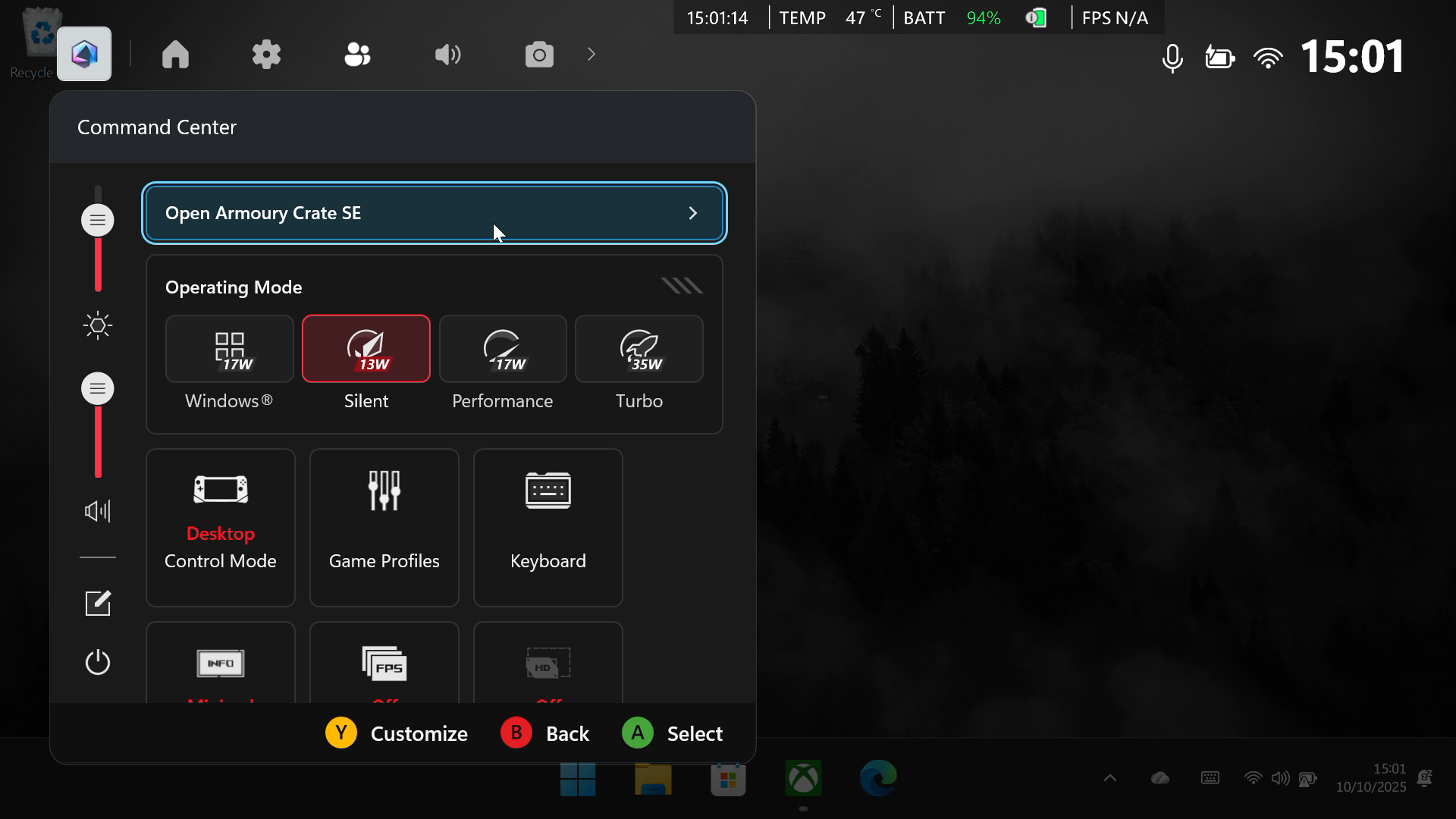
As I mentioned earlier, the key to getting the best performance from your gaming handheld is adjusting the power mode. You can access this setting through the Xbox Game Bar. Just press the Xbox button and go to the Command Center, or use the Armoury Crate button directly on your device.
⚠️Warning: Some anti-cheat systems in games like Call of Duty, Battlefield, Overwatch, and Valorant might mistakenly flag your account as using cheats if you change performance settings while playing. This isn’t common, but to be safe, always set your preferred performance mode *before* starting the game and avoid switching it while the game is running.
- By default, you’ll have access to three main power modes on your Xbox Ally and Xbox Ally X. You should consider your power setting for the type of game you’re playing. And type of scenario you’re in.
- If you need maximum battery life (without easy access to power outlets, etc.) consider playing less-intensive 2D games or well-optimized 3D games. The Silent Operating Mode will use the least amount of power, maximizing battery life. Many games run flawlessly at low wattages, especially more simple 2D titles. Games like Hollow Knight, Ball x Pit, Vampire Survivors, Darkest Dungeon, Monster Train run really well. You can even play some well-optimized past-gen or retro-styled 3D games like Cyberpunk 2077, Fallout 4, Valheim, Lies of P, and Dusk in low power mode too.
- Performance mode is when you need a bit more juice without blowing up your battery. If you’re trying to run a 3D game but find that it’s struggling or you want more smooth frame rates, consider bumping it up to Performance mode. You’ll lose around an hour of battery life (from 3 down to 2 hours maybe) roughly, but in some scenarios it might be worth it. You can tweak graphics performance per-game inside a game’s settings to get better performance too.
- Turbo mode is generally what you’d reserve for intensive, high-end AAA PC games, or scenarios where you have access to a power outlet. This mode will burn through the battery in less than an hour, but will also provide a far more impressive experience and allow you to run games on higher graphics settings.
- There’s also a Windows performance mode, which is designed for more traditional PC usage, browsing, basic apps, and so on. If you’re planning to use your device as a laptop replacement, setting it to Windows mode should give a more balanced experience. But much like for games, if you’re doing more intensive tasks like video editing or development, Turbo mode might be better again.
- In the Armoury Crate under Performance Settings, then Eco Assist, you also have the option to enable or disable CPU Boost. You can save some battery life by turning CPU Boost off, but it’s worth keeping it on if you’re doing very CPU-intensive tasks or gaming. Video editing, strategy and simulation games, and other physics-heavy games might benefit from CPU boost being turned on.
5. Enable Battery Care mode

Battery Care mode is a useful feature for all your devices, like the Xbox Ally or Ally X. Most phones, tablets, laptops, and handheld gaming devices now include it. When you turn it on, your battery will only charge up to 80%. This helps extend the battery’s life because constantly charging to 100% can reduce how long it holds a charge over time.
Here’s how to turn on Battery Care mode on Xbox Ally handhelds:
- Open the Armoury Crate by hitting the Command Center button on your gamepad, and hitting “Open Armoury Crate.”
- Select the settings menu via the cogwheel icon.
- Select Battery Care in the bottom right.
- Turn on Battery Care Mode. Now your device will only charge to 80%.
- If you need it to go to 100% because of a commute or something like that, head back to this menu and select Instant Full-Charge Mode. It will charge to 100% for the next 24 hours, then revert back to Battery Care Mode.
6. Consider installing other launchers and tools (and maybe uninstalling some too)

The included apps are perfectly usable, but you might find some extra features helpful. You can also customize things by going into Windows settings and uninstalling apps you don’t need, like Microsoft Teams.
To remove apps, first switch to Desktop mode. Then, swipe up from the bottom of the screen to open the menu. From there, go to Settings, then Apps, and finally select Installed Apps.
To remove a program from your Xbox Ally X, find the app you want to delete and press the “More Options” button (it looks like three dots) on the right. Then, choose “Uninstall”.
Here are some apps worth considering installing on your Xbox Ally.
7. Consider some of my personal favorite Xbox Ally accessories
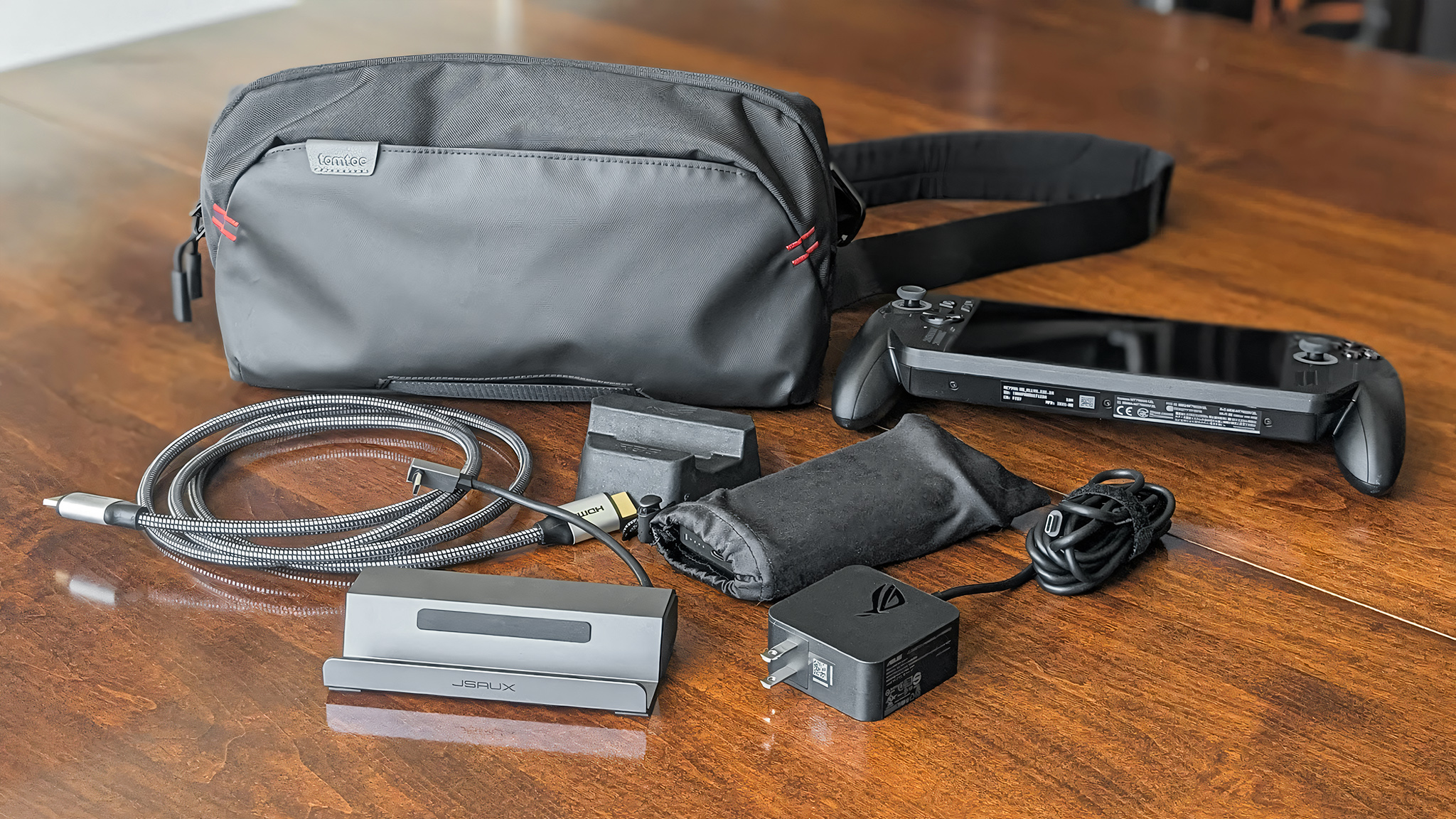
The Xbox Ally is a powerful and reliable handheld, and to get even more out of it – especially if you travel frequently or like to play on a TV – here are some accessories I recommend based on my own experience.
And that’s a wrap!
If you’re curious about the Xbox Ally – whether it’s how to set it up, what games are best to play, or anything else – feel free to ask your questions in the comments, and I’ll do my best to help!
Read More
- Trails in the Sky 2nd Chapter launches September 17
- After AI Controversy, Major Crunchyroll Anime Unveils Exciting Update
- Adam Levine Looks So Different After Shaving His Beard Off
- PRAGMATA ‘Eight’ trailer
- Hulu Just Added One of the Most Quotable Movies Ever Made (But It’s Sequel Is Impossible To Stream)
- Why is Tech Jacket gender-swapped in Invincible season 4 and who voices her?
- Dragon Quest Smash/Grow launches April 21
- How Could We Forget About SOL Shogunate, the PS5 Action RPG About Samurai on the Moon?
- Xbox Game Pass Users “Blown Away” by New Exclusive Game
- Dialoop coming to Switch on June 17
2025-12-25 18:11