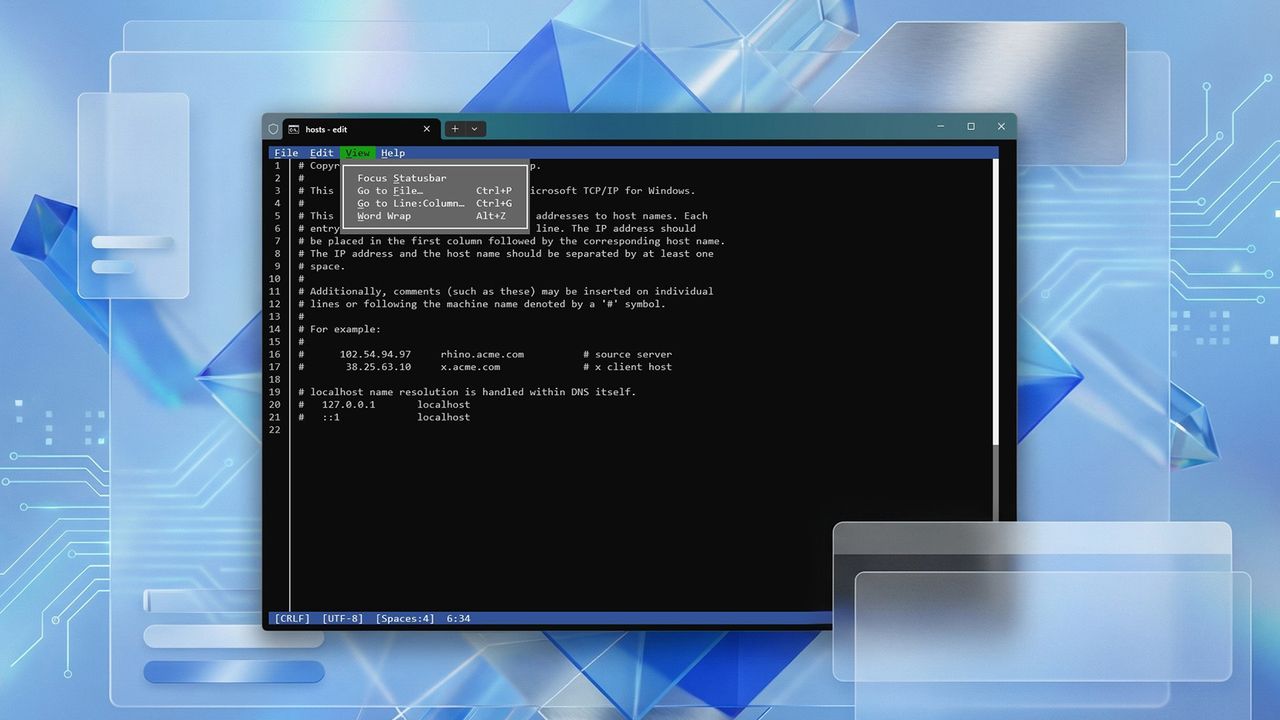
With Microsoft Edit on Windows 11, you can directly edit text files from within Command Prompt or PowerShell without needing to open a separate program. This guide will walk you through everything you need to know to start using it.
Microsoft Edit is a lightweight tool, less than 250KB in size, and works like common text editors on Linux, such as Nano, Vim, and Micro.
I’ve been using operating systems for a while now, and I remember Microsoft used to include a simple text editor called MS-DOS Editor. But I’m really excited about Microsoft Edit! It’s a newer, open-source option that works with 64-bit systems, which is great. And the best part? It’s not just for Windows 11 or 10 – you can even use it on Linux! It’s a really versatile editor, and I’m glad Microsoft is offering something more modern.
In this how-to guide, I’ll outline the steps to get started with Microsoft Edit on Windows 11.
How to use Microsoft Edit on Windows 11
The Edit tool is now included with the newest versions of Windows, but you can also install it separately if you don’t have it yet.
Installation
To install Microsoft Edit on Windows 11, use these steps:
- Open Start.
- Search for Command Prompt, right-click the top result, and choose the Run as administrator option.
- Type the following winget command to install Microsoft Edit and press Enter: winget install –id Microsoft.Edit
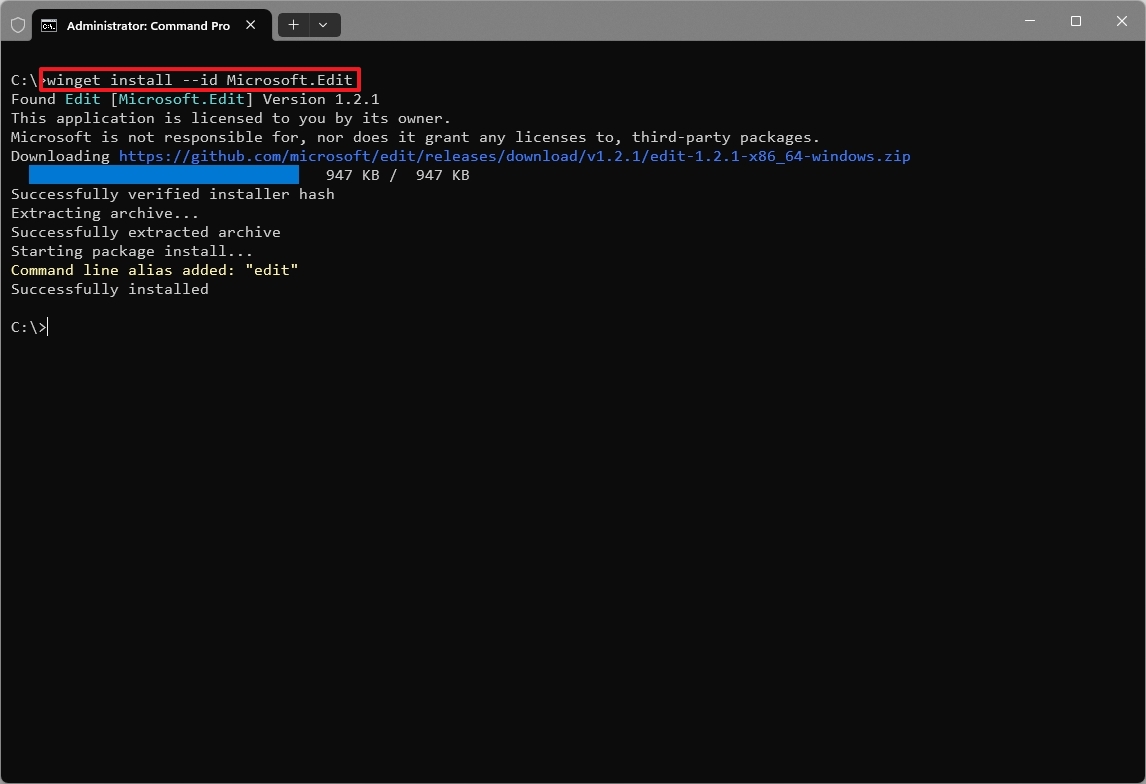
Microsoft Edit is a free, open-source tool you can find on GitHub. To download it directly, grab the latest zip file from the releases page, unzip it, and then run ‘edit.exe’ to start the program.
If you download the tool from GitHub, you’ll need to set it up yourself, which involves creating a new folder for the “edit.exe” file and adding an environment variable. To avoid these extra steps, we recommend installing it using the Windows Package Manager (winget).
Usage
The usage of the tool is really straightforward:
- Open Start.
- Search for Command Prompt and right-click the top result.
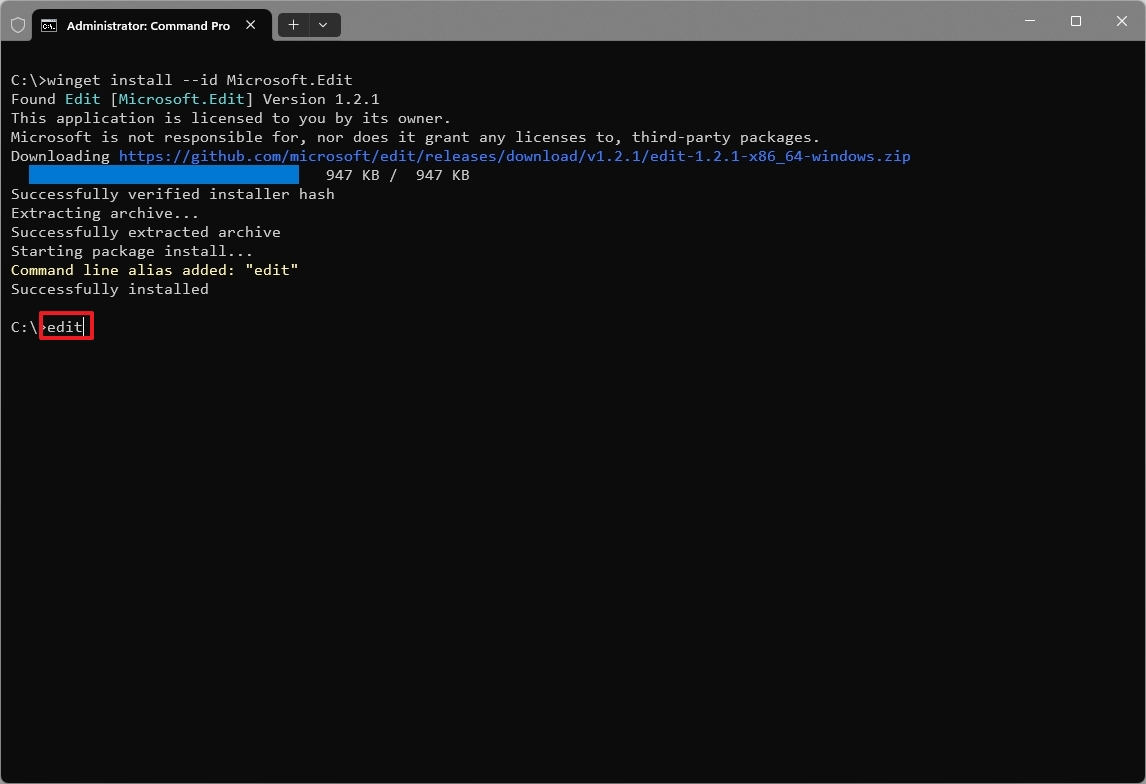
- (Option 1) Type this command to launch Microsoft Edit and press Enter: edit
- (Option 2) Type this command to launch the Edit command-line tool as an administrator and press Enter: sudo edit
- Quick note: If you need to edit a text file that requires higher privileges, you can also start the Command Prompt as an administrator.
Once you launch the text editor, you can start managing existing or new files.
Opening file
To edit an existing text file, use these commands: edit filename.txt
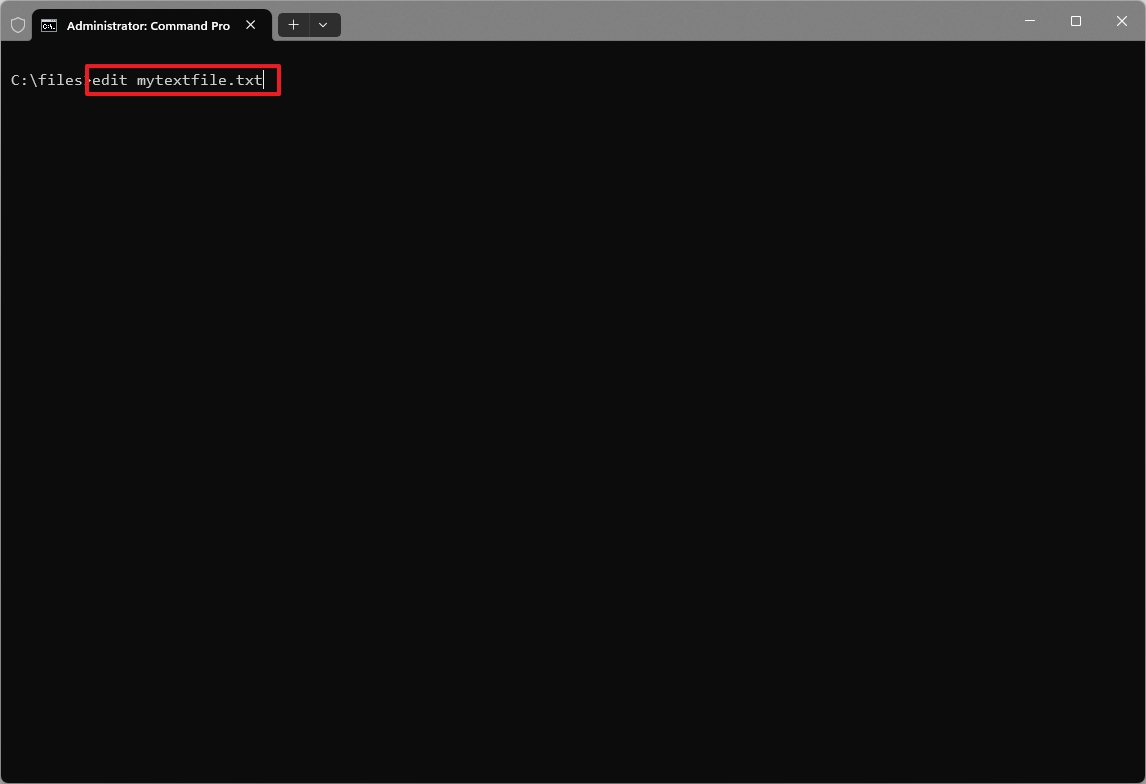
You can also launch the tool from any location, specifying the path: edit c:\path\filename.txt
It’s also possible to launch the editor and open the text file. First, type this command: edit
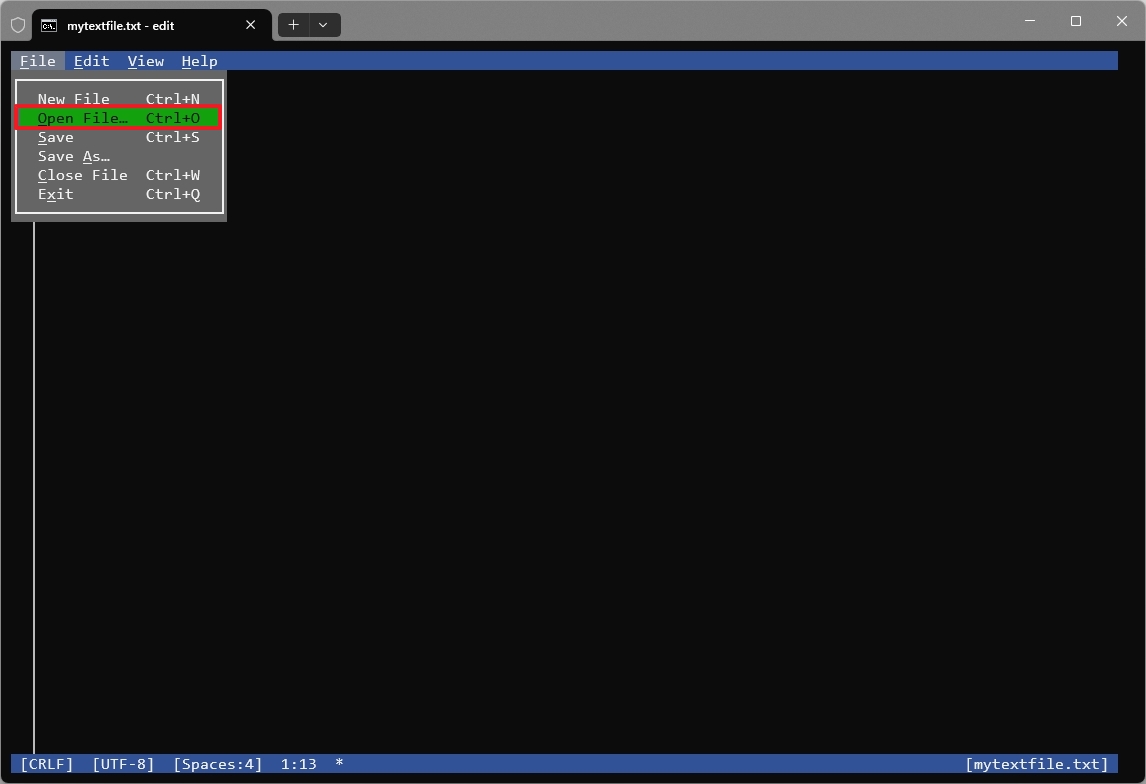
Once in the editor, click on “File,” choose “Open File,” and select the text file.
Creating file
To create a new text file, use these commands: edit filename.txt
It’s also possible to launch the editor and then create the text file. First type this command: edit
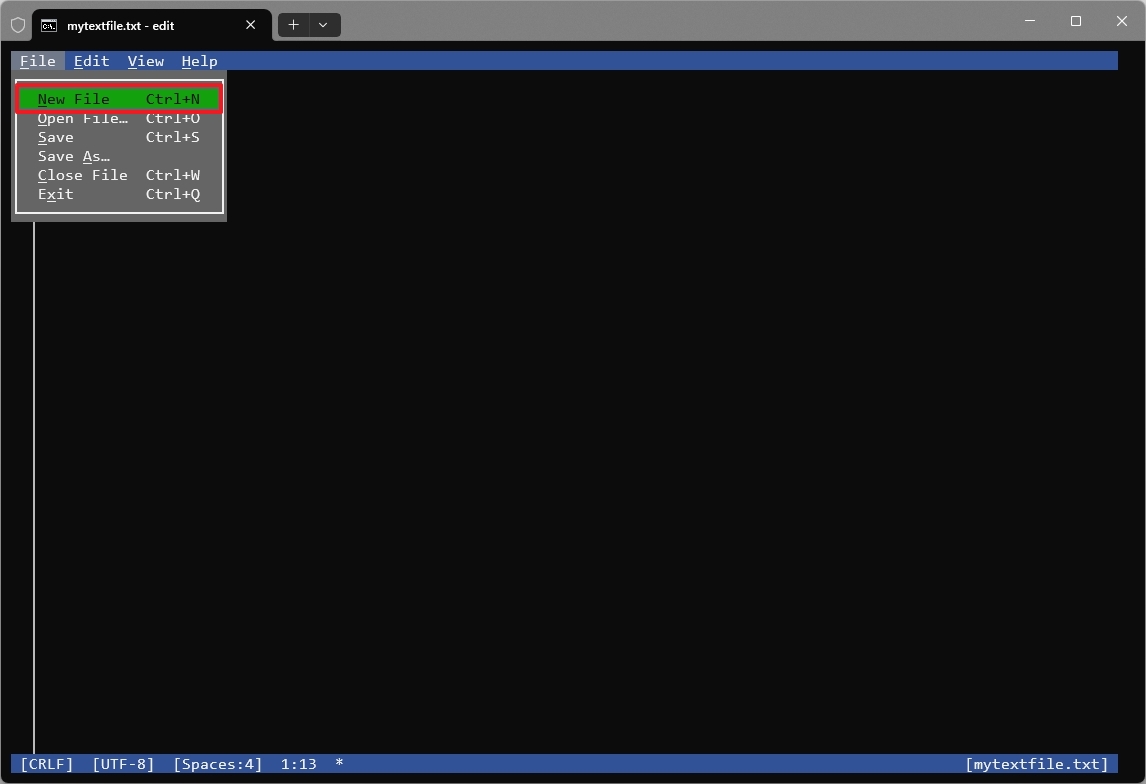
To start, click the “File” menu and select “New File.” This will open a blank document.
Editing file
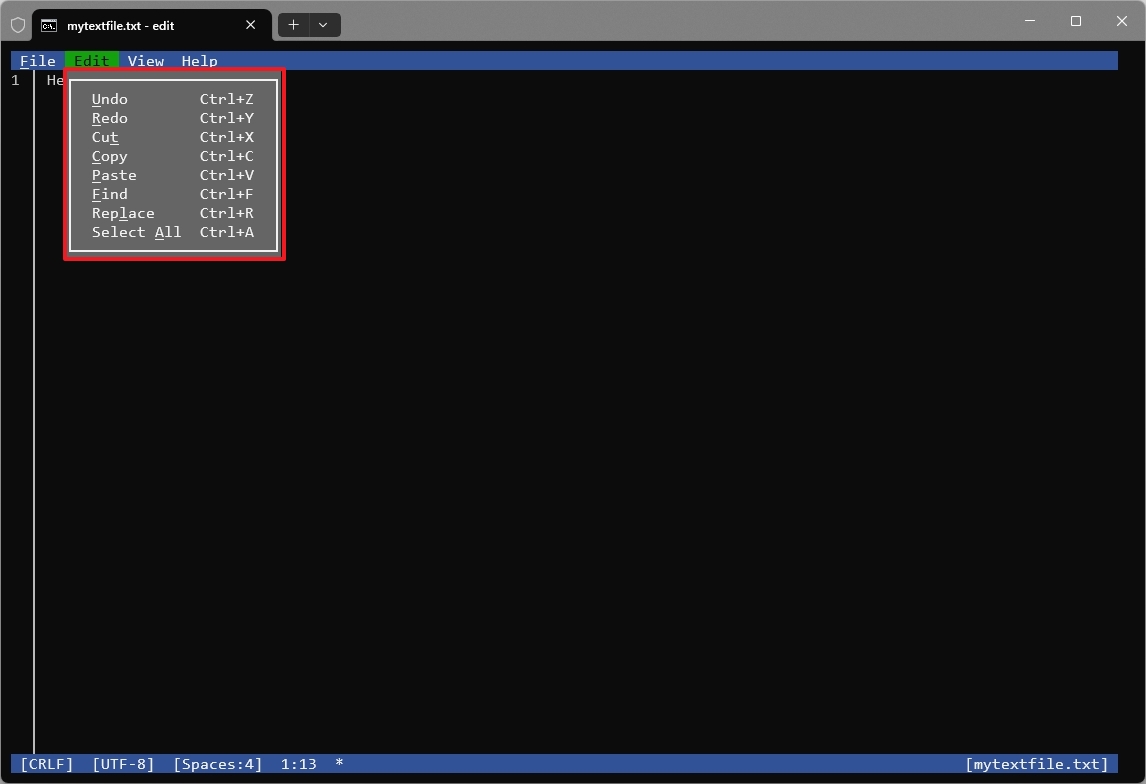
The Microsoft Edit tool offers standard text editing features, similar to what you’d find in a simple text editor. From the “Edit” menu, you can perform common actions like undoing and redoing changes, as well as cutting, copying, and pasting text.
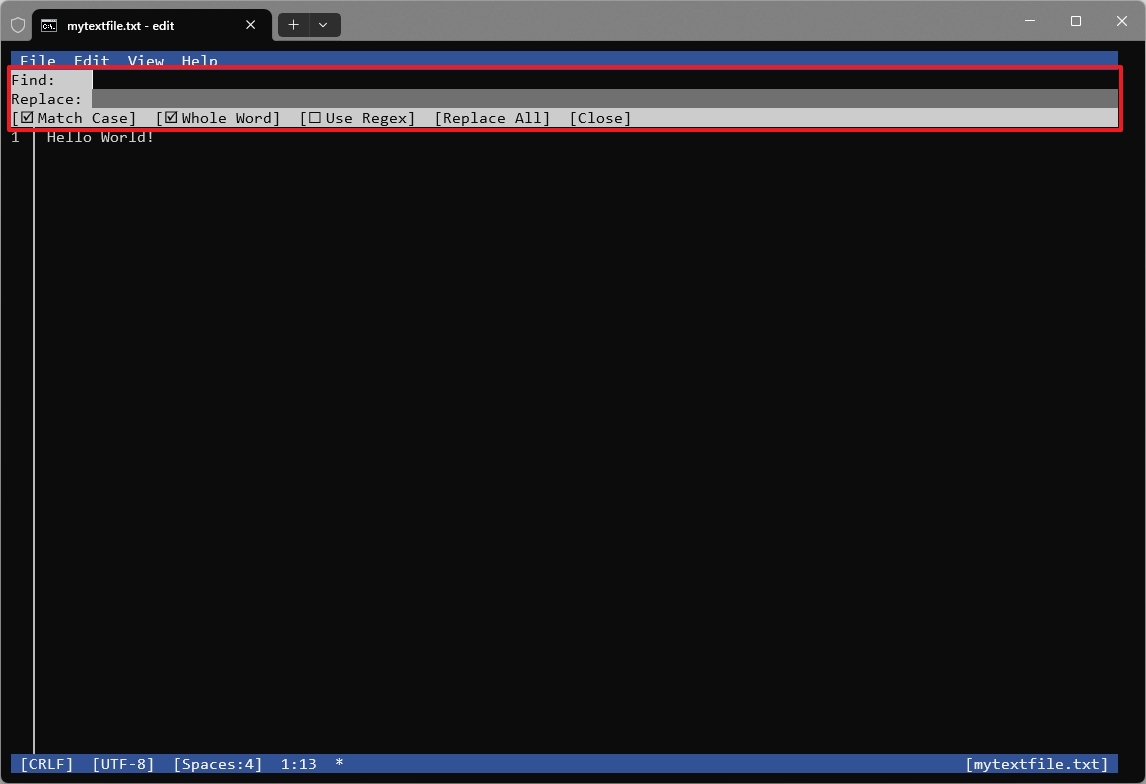
You can also use the find and replace functionality built into the tool.
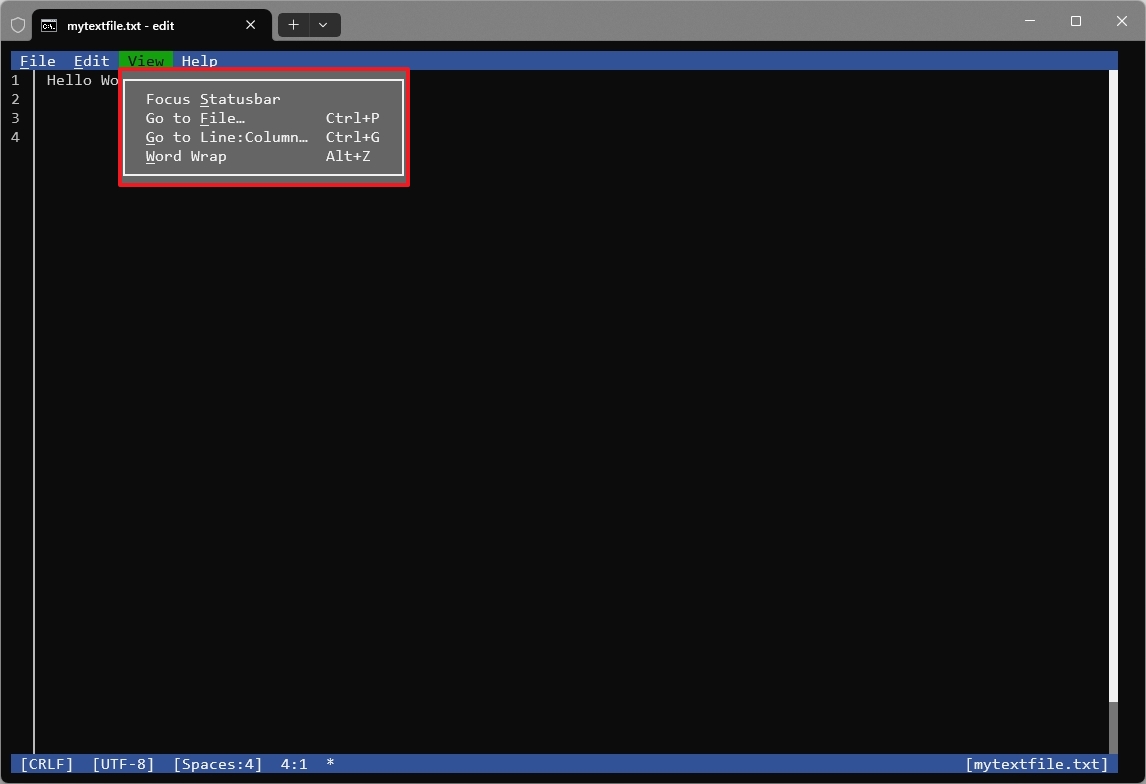
The “View” menu lets you customize how things look and work, including options like Work Wrap, the status bar, and how text files are displayed.
Saving file
Once you’re done editing a text file, you can save your changes quickly by pressing Ctrl + S, or you can go to the “File” menu and choose “Save” or “Save As”.
You can leave the editor by pressing Ctrl + Q, or by going to the File menu and selecting Exit.
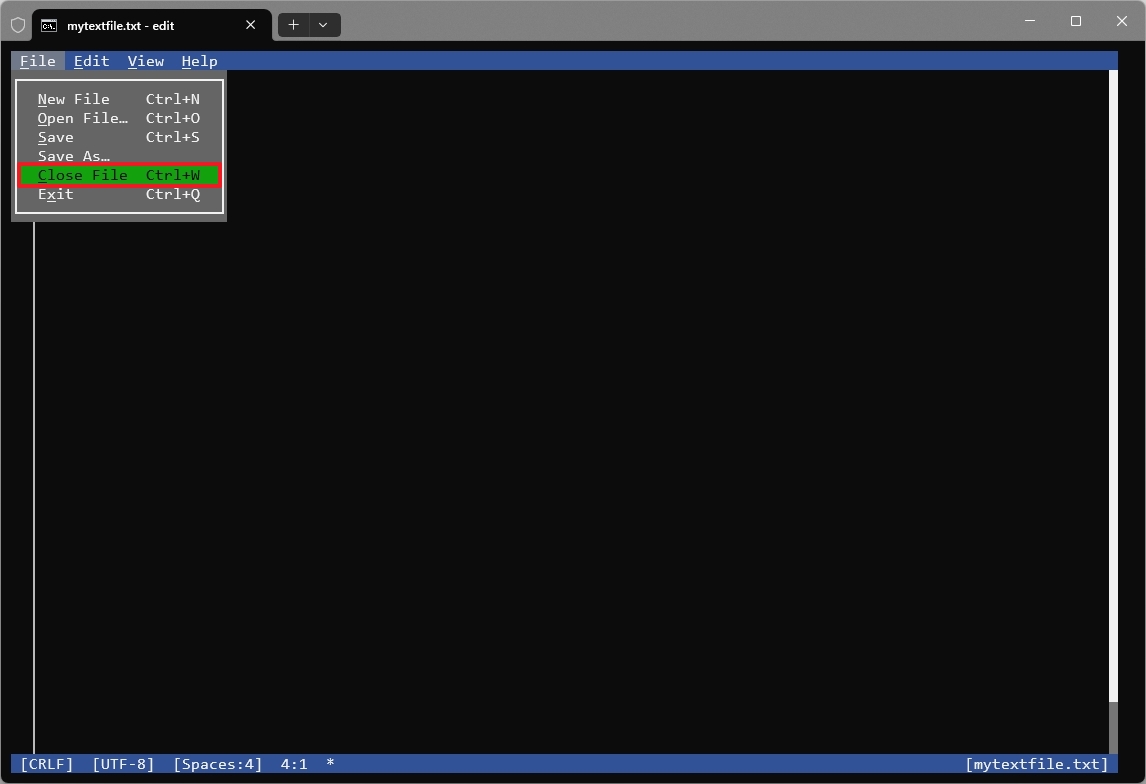
Before finishing up, you can press the Esc key to close menus or other on-screen items. Almost everything you do also has a keyboard shortcut, which you can find listed in each menu. Most shortcuts begin with Ctrl+, except for Word Wrap, which uses Alt + Z.
This tool isn’t about creating a brand new way to edit text files. Instead, it offers a simple text editor that works directly within Command Prompt and PowerShell, so you don’t have to open a separate application. While Notepad is becoming more advanced with features like AI, Microsoft Edit provides a fast and simple option for basic, focused text editing.
FAQs about Microsoft Edit
These are common questions regarding the Microsoft Edit tool on Windows 11.
What is Microsoft Edit on Windows 11?
Microsoft Edit is a simple text editor included with Windows 11. It lets you create and modify text files using the Command Prompt or PowerShell, so you don’t need to open a separate program.
Is Microsoft Edit the same as Notepad?
Notepad is a fully-featured text editor with growing capabilities, now including tools powered by AI. Microsoft Edit, on the other hand, is built for working in a terminal and prioritizes quick, simple, and focused text editing.
Do I need to install Microsoft Edit manually?
Microsoft Edit comes pre-installed on many Windows 11 computers. If you don’t have it, you can easily install it yourself using the Windows Package Manager. Just open the command prompt and type `winget install id Microsoft.Edit`.
Can I use Microsoft Edit on Windows 10 or Linux?
Microsoft Edit is available for Windows 11, Windows 10, and Linux. As an open-source project, its code is hosted on GitHub.
How is Microsoft Edit different from older MS-DOS Editor?
As a longtime fan, I’m really excited about Microsoft Edit! It feels like a fresh start – it’s built for today’s computers with 64-bit support, and it’s awesome to see that the developers are still actively working on it. Plus, being able to use it on different platforms is a huge win!
Can Microsoft Edit open and edit existing files?
You can open text files in two ways: either by typing the filename (or its complete location on your computer) when you start the tool, or by using the “File” menu after the editor has opened.
Can Microsoft Edit create new text files?
As an analyst, I can confirm you have a couple of options for starting a new file. You can do it right when you open the editor by giving the new file a name, or you can create a new file directly from within the editor itself.
Does Microsoft Edit support advanced editing features?
The editor is designed to be simple and straightforward. It includes essential functions like undo, redo, cut, copy, paste, find, replace, and text wrapping, but avoids unnecessary features.
More resources

Stay up-to-date with the latest from Windows Central by following us on Google News! You’ll get all our news, insights, and features right in your feed.
Read More
- Gold Rate Forecast
- 10 Movies That Were Banned in Different Countries For Random Reasons
- Nintendo Switch 2 Reportedly Getting Remake of One of the Best PS3 and Xbox 360 Games
- Tekken 8 Fans Furious as Tifa Tipped for Street Fighter 6 Instead
- Welcome to Demon School! Iruma-kun season 4 release schedule: When are new episodes on Crunchyroll?
- 9 Great Supernatural Characters Everyone Forgot About
- Michael Jackson Biopic’s Record-Breaking Debut Unseats 2026’s Biggest Box Office Hit On U.S. Chart
- See Kaia Gerber & Lewis Pullman’s Vanity Fair Oscars Party Date Night
- Crimson Desert Guide – How To Unlock All Elemental Skills
- Blake Lively Alleges $64 Million Fallout From Justin Baldoni Conflict
2026-01-09 16:11