
With 2026 underway, let’s take a look at what Microsoft has planned for Windows 11 this year. They’re working on several new features and improvements, and we’ve had a chance to test out many of them to give you a preview.
We’ve shared some of these upcoming features already, and they’re definitely on the way. Others are still being considered and might not launch. We’ve done our best to include everything we know about, but there are likely even more features in development that we haven’t discovered yet.
Microsoft plans to release two new Windows 11 updates in 2024. The first, version 26H1, will be available this spring only on new computers powered by the Snapdragon X2 chip. The second, version 26H2, is slated for release to all users this fall.
Ask Copilot on the Taskbar
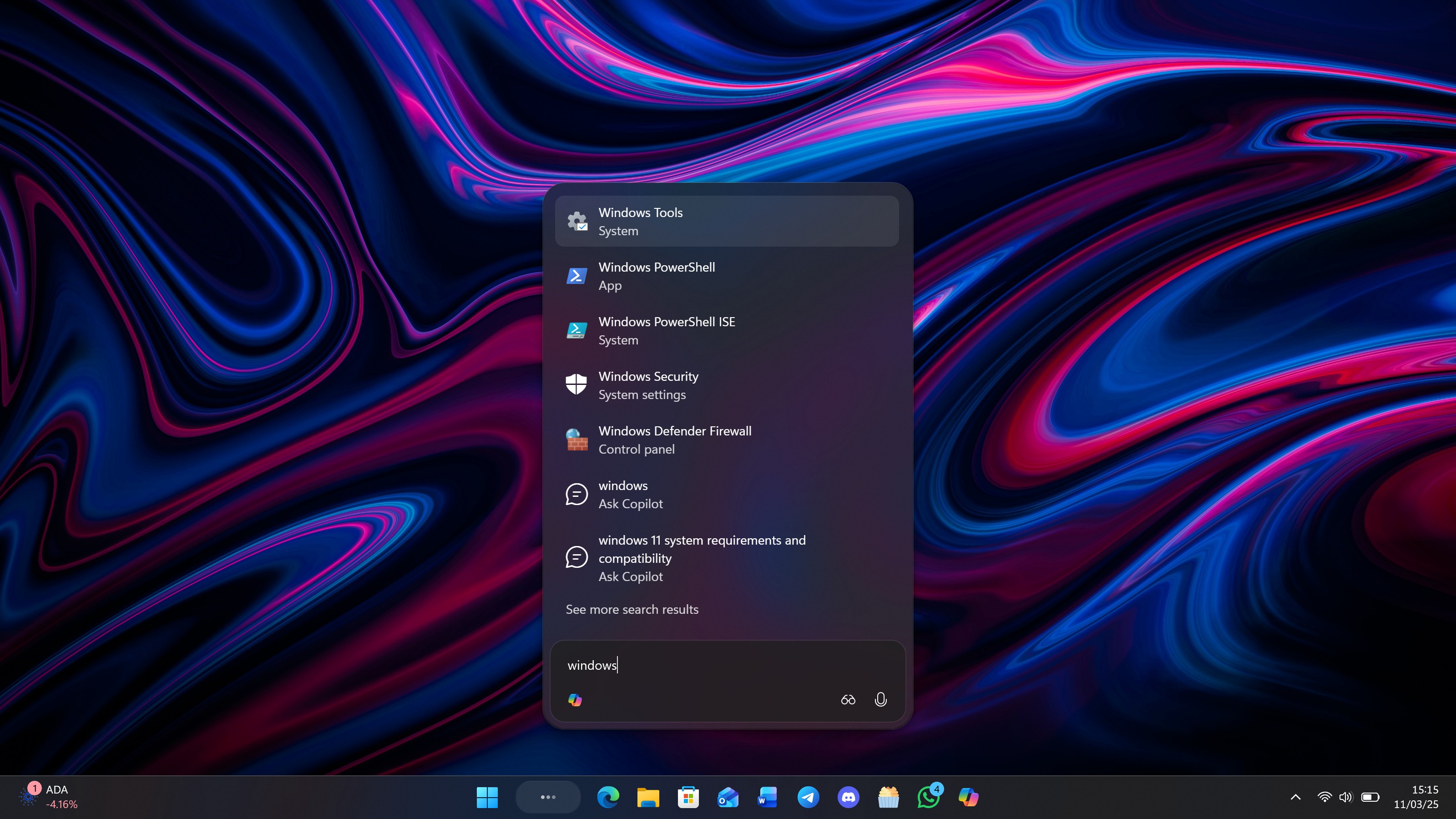
It was inevitable, and this year Microsoft plans to start letting Windows 11 users choose Copilot as their default search option on the Taskbar. Instead of the usual Windows Search box, clicking the new search area will bring up a floating panel above the Taskbar.
Now you can quickly find apps and files, start a conversation with Copilot, or browse the web. This new search experience is faster and cleaner than before, and it won’t automatically show web results unless you specifically ask for them.
Modern Run Dialog
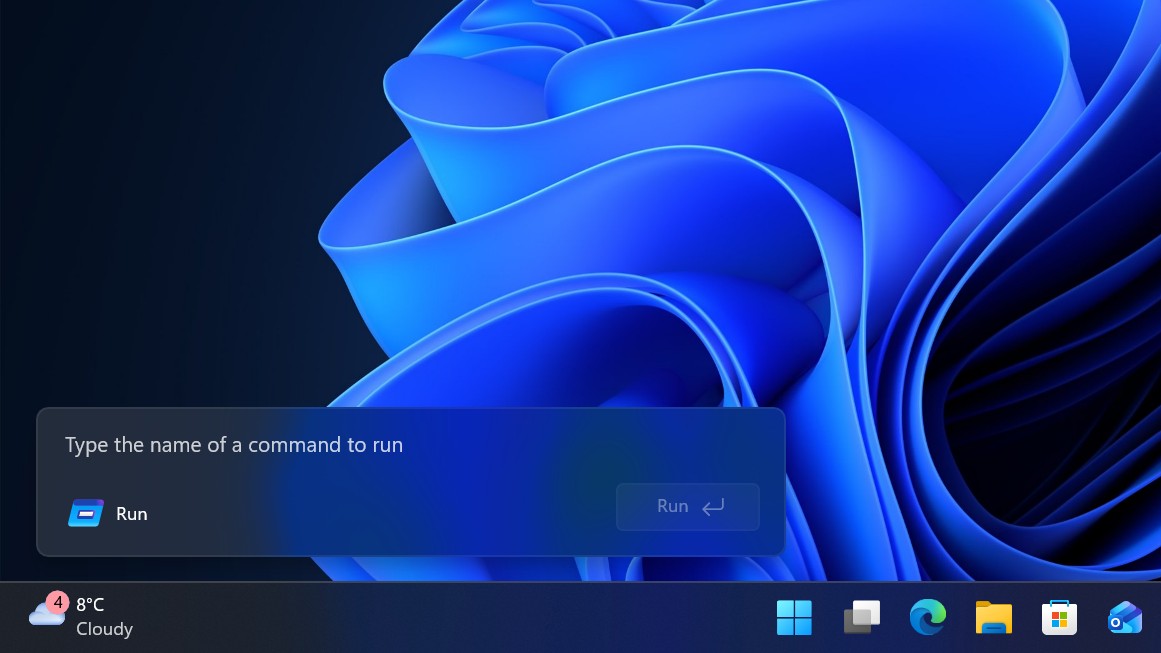
Many are surprised, but Microsoft is likely to release a redesigned Run dialog for Windows 11 later this year. This new version is being completely rebuilt with modern design tools and will be available as an optional update. If enabled, it will replace the older Run box with a more visually consistent experience for Windows 11.
The new Run box has a simpler, cleaner design than the old one. It doesn’t have a title bar, letting you focus on typing your command. Plus, it remembers your recent commands, making it easy to reuse them without retyping.
I’m glad they’re making this new interface optional. It looks like you’ll be able to switch between it and the old one right in the Windows Settings, which is great. If you don’t like the new look for any reason, you can just go back to how things were.
Agenda View on Taskbar
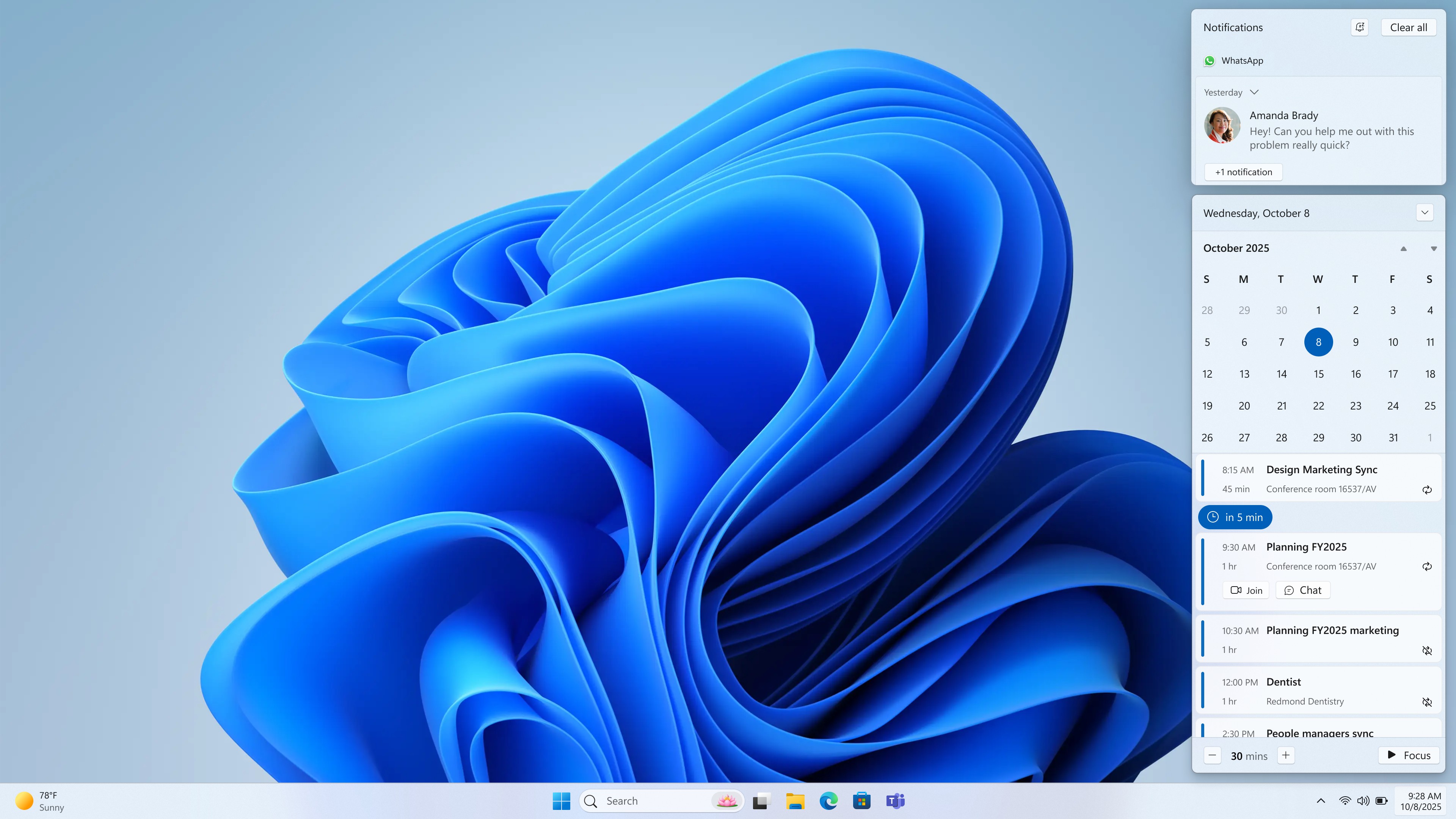
Windows 11 users have wanted this feature since the operating system first launched in 2021. Microsoft is bringing back the calendar flyout on the Taskbar – a popular feature from Windows 10 – which will show you upcoming events and reminders. That’s great news!
This new feature works with the Outlook app on Windows 11. Once you sign in, it automatically adds your events to your Outlook calendar and displays them in the calendar view on your taskbar. You can easily see what’s on your schedule for the day, create new events, and quickly join any meetings or calls that are part of your events.
As a fan, I’m really loving this new feature! It’s so handy for quickly glancing at my daily schedule without having to fully open and wait for Outlook. I was hoping it would be built with the normal Windows look and feel, but it looks like it’s using WebView instead. Honestly, though, I’m not complaining – it’s still a huge improvement and makes checking my day so much faster!
Xbox Full Screen Mode for PCs
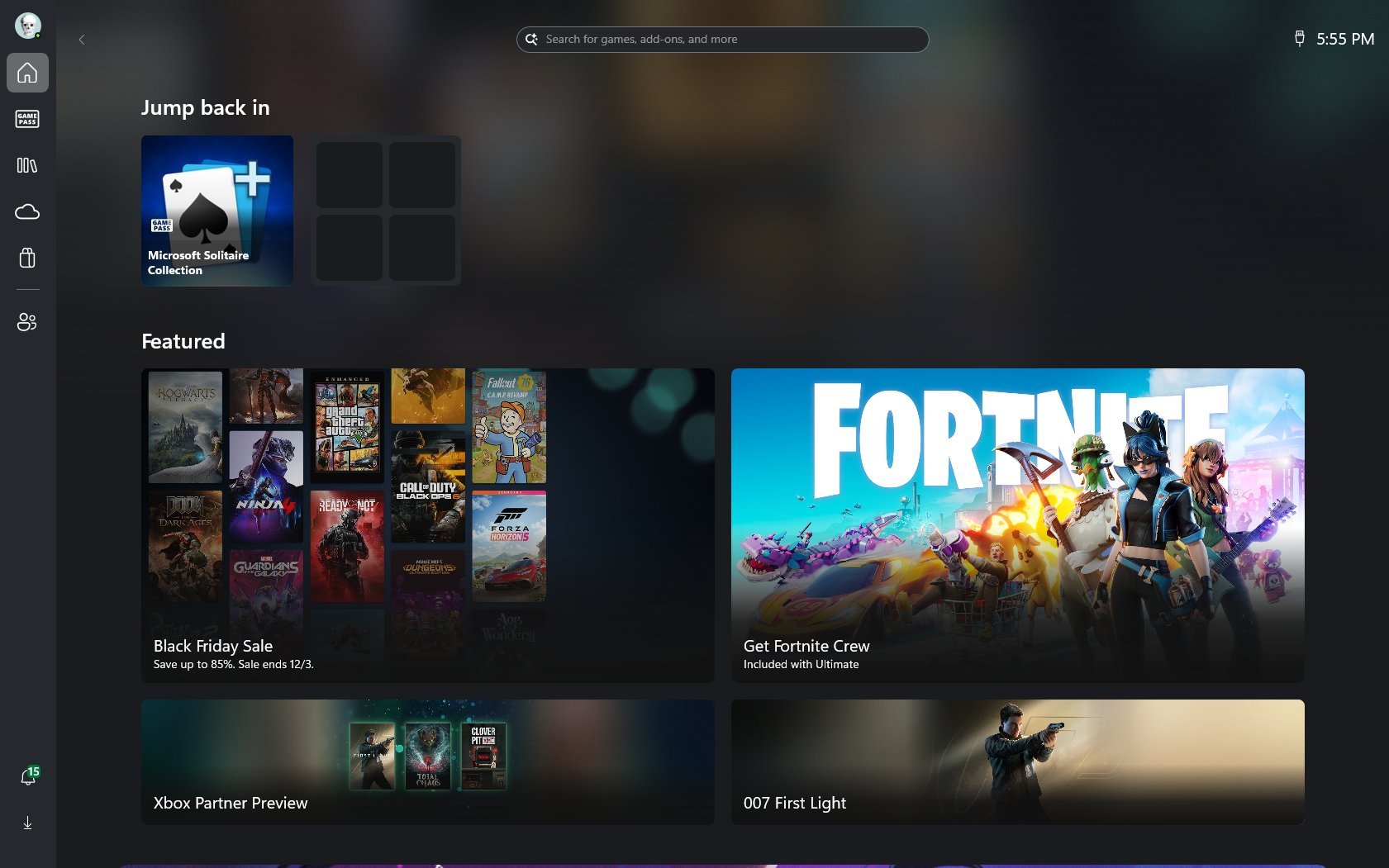
Originally launched on Windows handheld devices, the full Xbox experience is coming to all Windows 11 PCs this year. This will let you use your PC like an Xbox, focusing on controller support and improvements that help your games run as smoothly as possible.
Okay, so I’ve been trying out the new fullscreen mode on my Xbox, and it’s pretty cool! Basically, when you turn it on, it completely takes over your Windows 11 screen. Instead of seeing the usual Start menu and Taskbar when I boot up, I get something that looks just like the Xbox Dashboard. It’s actually the Xbox app running full screen, and it’s been tweaked to make launching games super fast and easy. It’s a really streamlined experience – I’m getting right into my games without any extra fuss.
I was really impressed with how far the optimizations go! When you turn it on, Windows actually pauses all those apps and services that automatically start up, and that’s a big deal. It’s designed to give your system more breathing room, which means games load faster and run smoother – less stuttering, you know? The cool thing is, you can totally customize this – decide what stays on and what doesn’t. But even as is, it definitely gives you a nice boost in performance and helps your battery last a little longer.
The Xbox guide button lets you quickly and easily switch between the Xbox interface and your Windows desktop. This makes Windows a much better experience for gamers, and when it becomes available on PCs later this year, gaming PCs will be significantly improved.
Windows Widgets
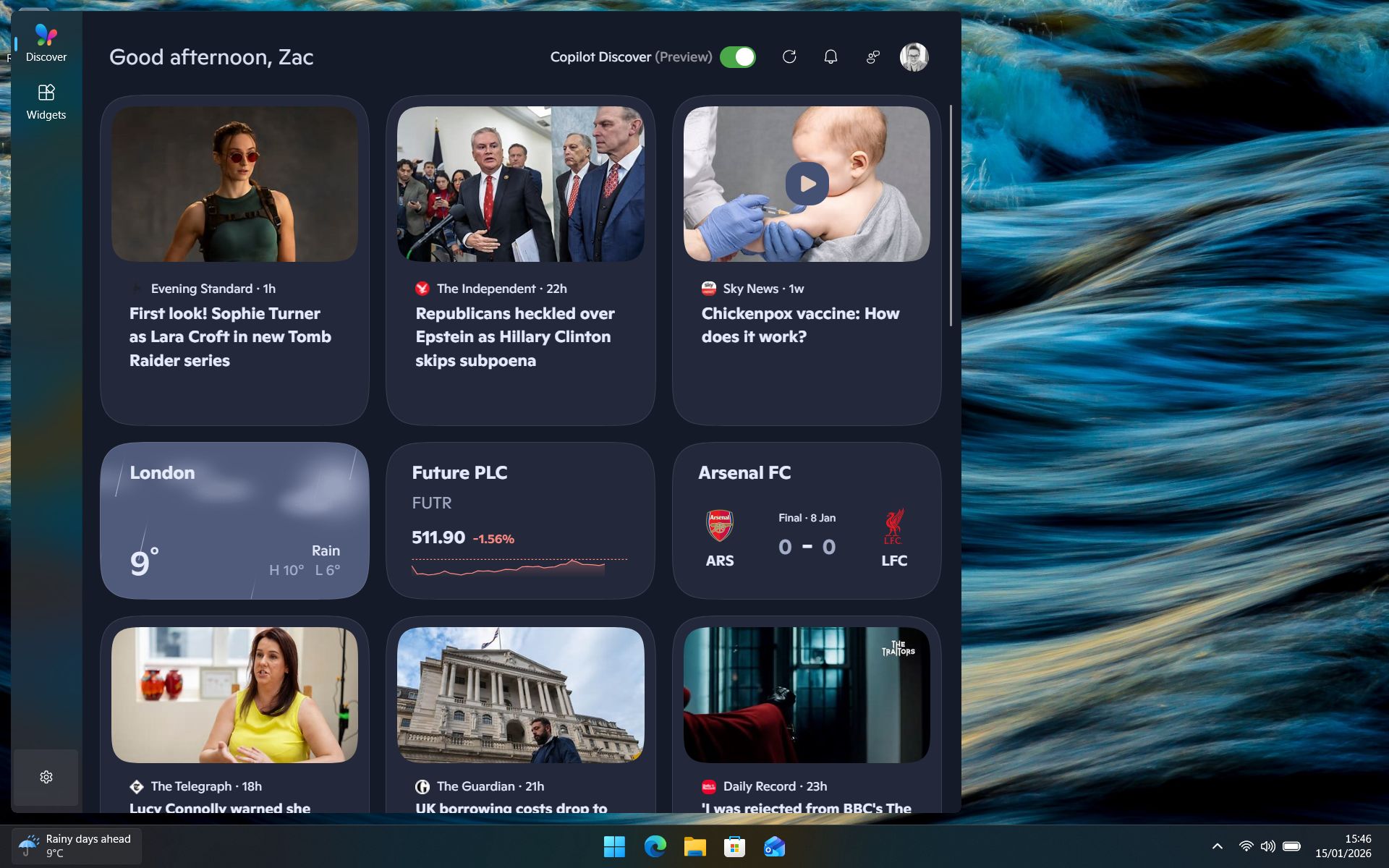
Microsoft plans to revamp the Windows Widgets board in 2026, replacing the current MSN news feed with a new experience powered by Copilot Discover. This updated feed will have a fresh, modern look with rounded elements and fonts, and use artificial intelligence to show you news articles that are more relevant to your interests.
The updated design now has its own separate tab for Windows Widgets. This lets you view just your widgets – without the Copilot suggestions – and gives you full control to resize and arrange them however you like, as they fill the entire panel.
The new Widgets board will work differently than the current one. Right now, widgets appear in a separate column beside the news feed, which limits how you can arrange them. The upcoming update will allow for more layout customization.
Agentic Features
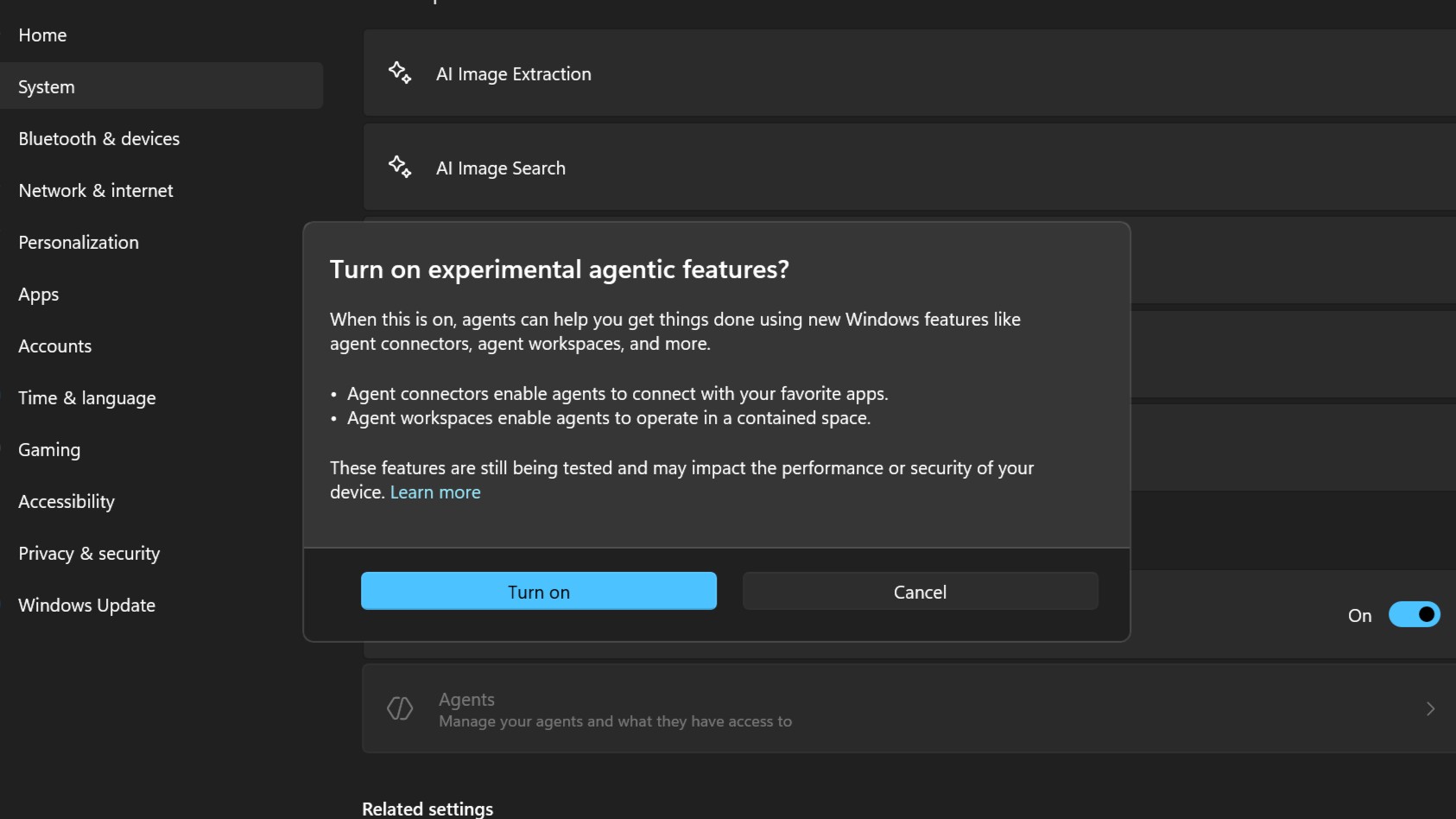
Starting in 2026, Windows 11 will be able to work with AI in a new way. This will allow developers to create tools that use AI assistants to automate tasks for users.
Microsoft has announced that Copilot will be among the first AI helpers to use the new Windows platform called Copilot Actions. This means you’ll be able to assign tasks to Copilot, and it will complete them independently within its own virtual workspace, visible right inside the Copilot app.
The new AI features in Windows won’t be turned on automatically. You’ll need to enable them yourself before things like Copilot Actions can start working.
Video wallpapers?
For the past few months, Microsoft has been testing a way to use videos as your desktop background on Windows 11. If all goes well, we expect this feature to be officially available later this year.
Having video as your Windows wallpaper isn’t a recent development. Microsoft first introduced this feature in Windows Vista Ultimate, calling it DreamScenes. However, DreamScenes didn’t continue with Windows 7, and users haven’t been able to use video as their desktop background since.
Windows 11 will let you use .MP4 videos as your desktop wallpaper, similar to how you’d use a picture. You can choose the video through the Settings menu, and it will play on repeat as your background.
Copilot Chat in File Explorer
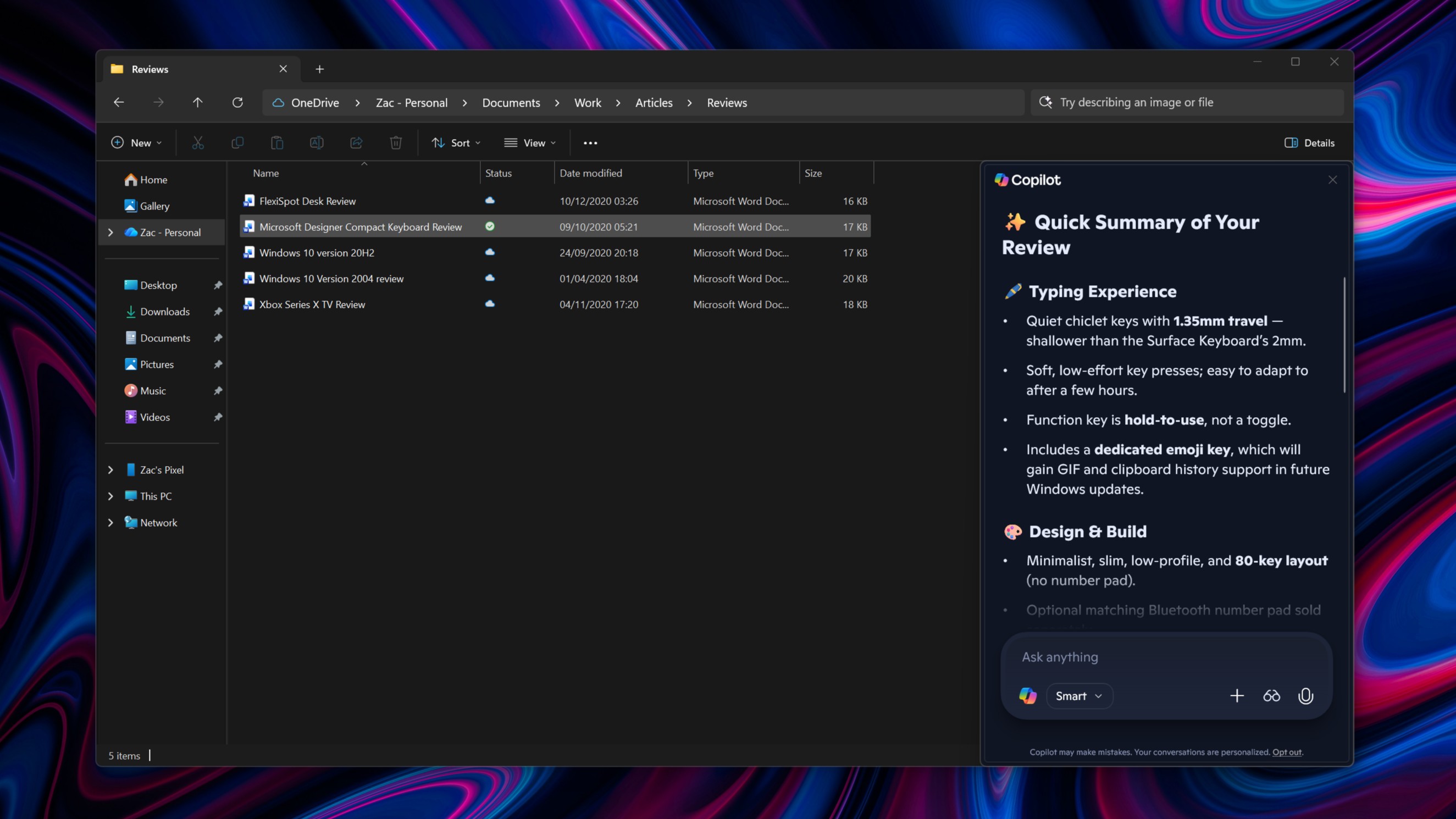
Microsoft is likely to integrate Copilot, its AI assistant, directly into File Explorer later this year. This will allow users to easily chat with Copilot about their files – getting summaries or making edits – without needing to open them first.
While not officially announced, a recent preview version of Windows 11 included code for a “Chat with Copilot” button within File Explorer. This suggests Microsoft is exploring the possibility of integrating Copilot directly into File Explorer, allowing users to interact with the AI assistant while browsing their files.
Read More
- Gold Rate Forecast
- 10 Most Powerful Versions of Superman, Ranked
- GBP CNY PREDICTION
- 10 Best Free Games on Steam in 2026, Ranked
- 007 First Light: Release Date, Story, Gameplay, Cast, Editions, and Platforms
- Superman’s 7 Best Power-Ups, Ranked
- Forza Horizon 6 Car List So Far: Confirmed Highlights, Cover Cars, DLC, and Rewards
- 10 Greatest Manga Endings of All Time
- DOGE PREDICTION. DOGE cryptocurrency
- The Boys Officially Sets Up 4 Supes for Jensen Ackles’ Soldier Boy Spinoff
2026-01-22 19:11