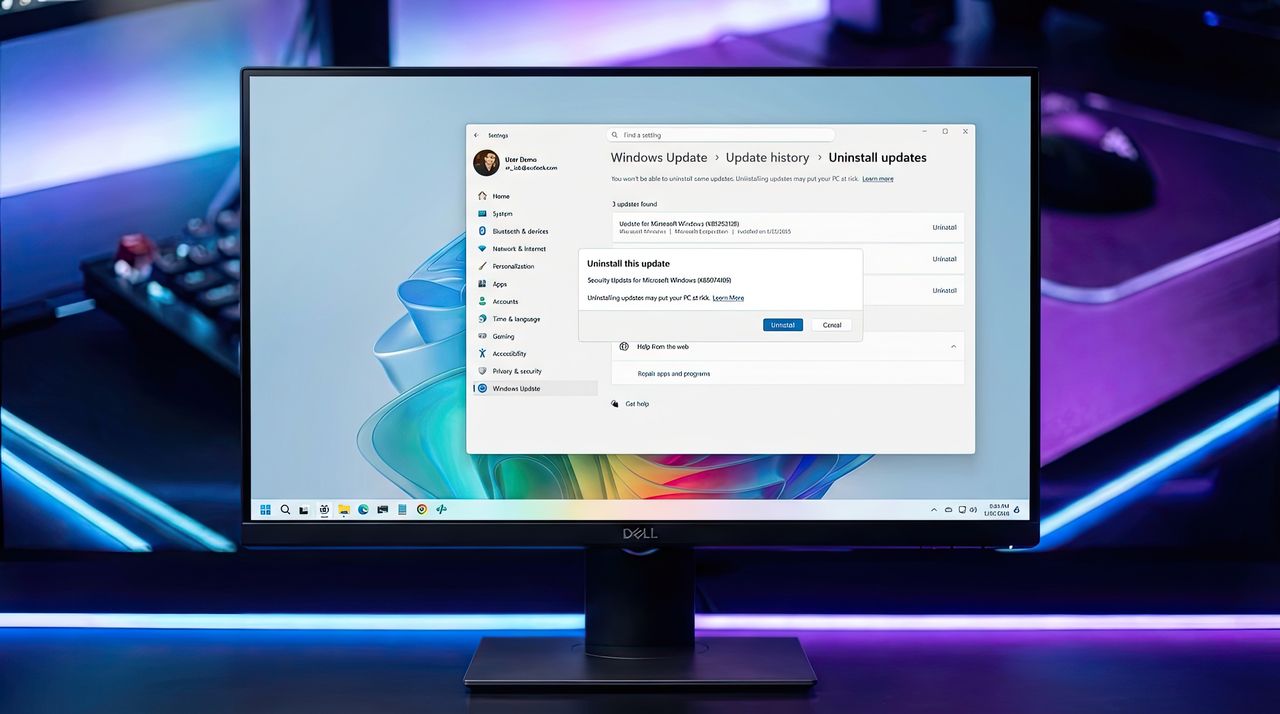
Some Windows 11 users are finding that trying to remove the problematic KB5074109 update is causing another issue: the uninstall process isn’t working and displays error code 0x800f0905. Instead of successfully reverting to a previous state, users are getting stuck with a broken update and a failed uninstall. Fortunately, there are a few things you can try to fix the uninstall and roll back the update.
Just a reminder that the January 2026 security update for Windows 11 (KB5074109) has been causing a lot of problems for users, including slow performance and broken features. Even after Microsoft advised people to uninstall it, some are now encountering an error code (0x800F0905) while trying to remove the update.
So, I tried removing that January 2026 security update – the one labeled KB5074109 – and I’m getting this error code, 0x800F0905. Apparently, it usually means something’s messed up with how Windows handles updates, either with the update ‘stack’ itself or the place where it stores important files.
Okay, so when a Windows update goes wrong, I usually try a few things, but honestly, System Restore is my go-to. It basically rolls your system back to how it was before the update, which often fixes things. There’s also this weird option to reinstall Windows through Windows Update, but it’s kind of a hassle and not always reliable, even though it *could* theoretically fix the problem and let you uninstall the update cleanly. I usually avoid that unless System Restore fails.
This guide explains how to fix the 0x800F0905 error so you can remove the KB5074109 update. We’ll cover two different solutions.
Just a heads up: These steps shouldn’t cause any data loss, but it’s always a good idea to back up your entire computer before making changes. We strongly recommend doing so.
How to rollback to a previous working state using System Restore
This feature will only function if you had System Restore turned on before and a restore point was created – either by you or automatically by your computer.
To rollback and remove the KB5074109 update from Windows 11 using System Restore, use these steps:
- Open Start.
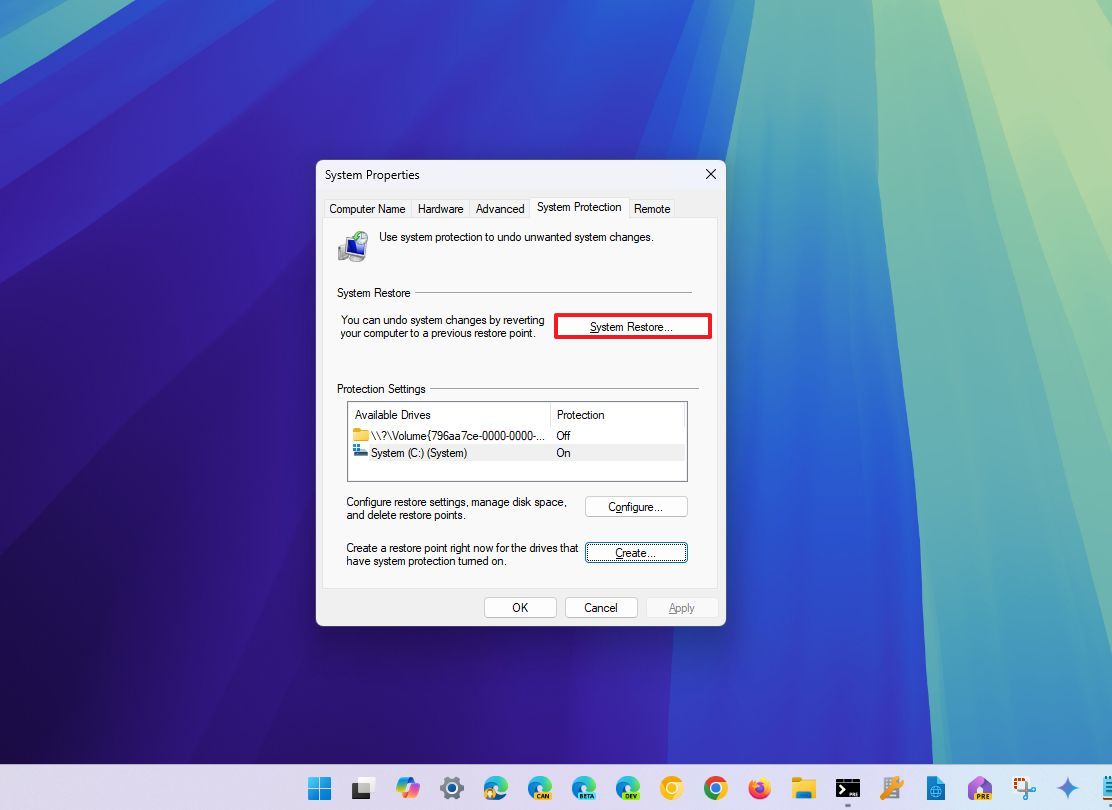
- Search for Create a restore point, and click the top result to open the System Properties page.
- Click the System Restore button.
- Click the Next button.
- Select the restore point dated before KB5074109 was installed on the computer.
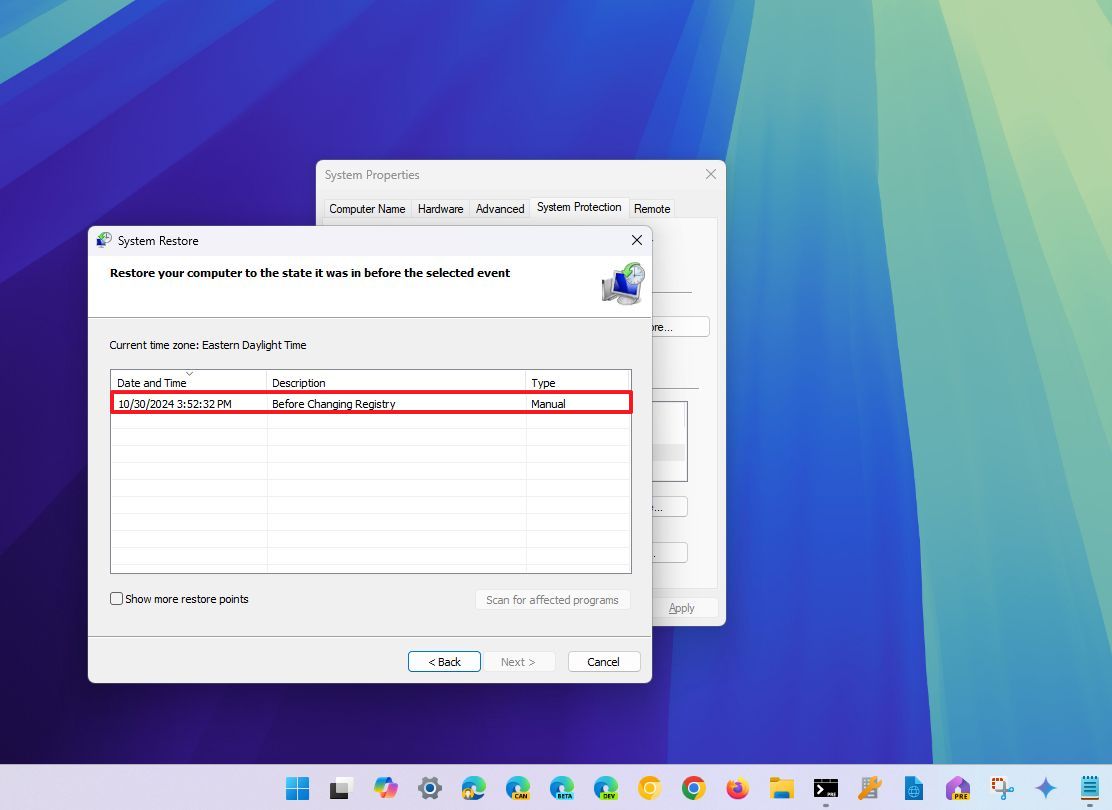
- (Optional) Click the “Scan for affected programs” button to view the apps that will be removed through this process.
- Click the Next button.
- Click the Finish button.
After finishing these steps, your device will revert to how it was working before the update. You may need to reinstall any apps that were impacted.
If this method worked, it’s a good idea to disable Windows Update at least temporarily.
How to repair current setup using Windows Update on Windows 11
If that doesn’t work, you can try a system repair using the “Fix problems using Windows Update” tool. This will reinstall Windows, but it will save your apps, files, and personal settings. After the reinstallation finishes, wait a bit and then try removing the problematic update again.
To repair the Windows 11 setup to resolve the 0x800F0905 error, use these steps:
- Open Settings.
- Click on System.
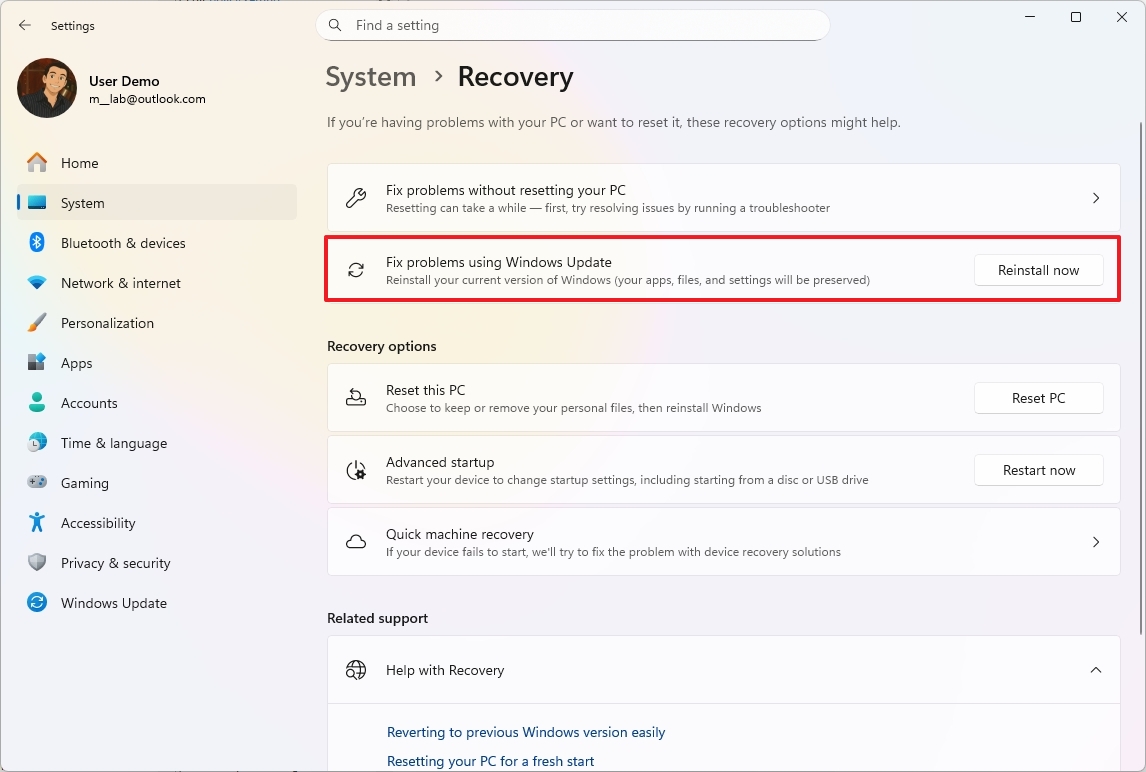
- Click the Recovery page on the right side.
- Click the Reinstall now button for the “Fix problems using Windows Update” setting.
- Check the “Automatically restart my PC 15 minutes after installation” option.
- Click the OK button.
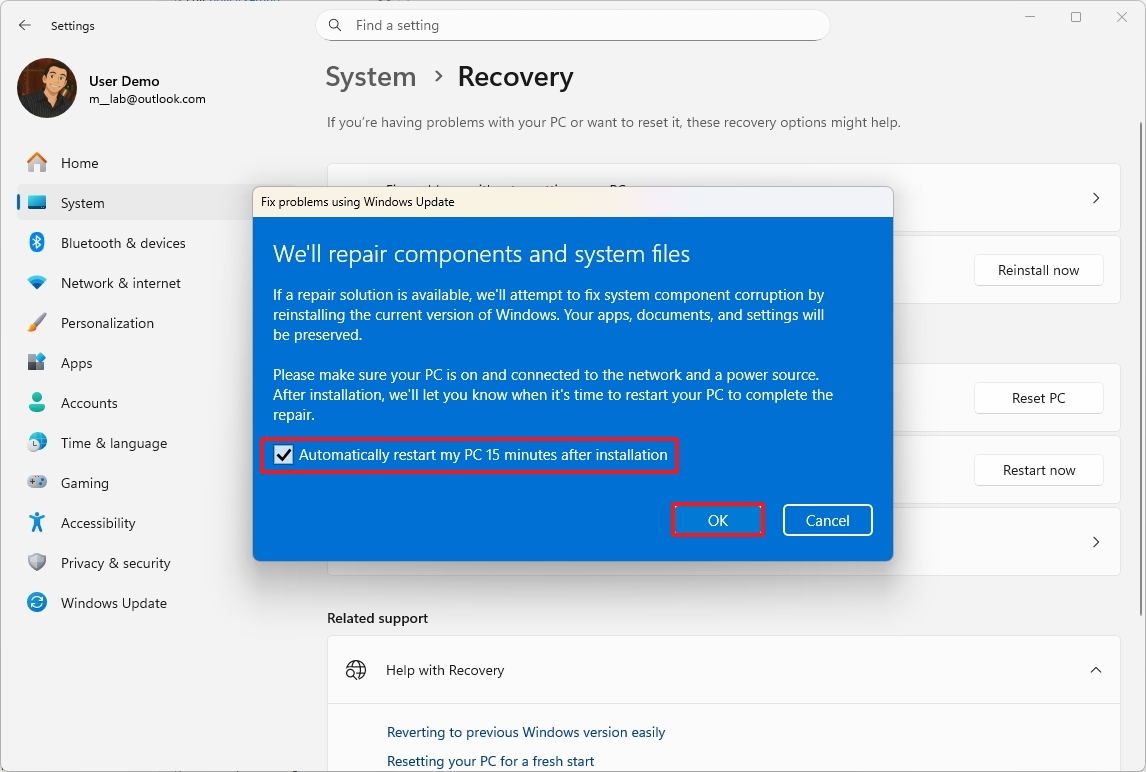
Once the process is finished, Windows 11 will be reinstalled using the version you already have, and then you can remove the problematic update.
Until Microsoft fixes the problem, these temporary solutions are the most reliable way to remove update KB5074109 without encountering error 0x800f0905. While problems with Windows Update happen sometimes, it’s particularly annoying when you can’t even uninstall an update properly.
As an analyst, I’m encouraging anyone who’s found a workaround for this recent update issue to share their solution in the comments. It could be a huge help to others who are experiencing the same problems.
More resources

Stay up-to-date with the latest from Windows Central by following us on Google News! You’ll get our news, insights, and features right in your feed.
Read More
- Gold Rate Forecast
- Dune 3 Gets the Huge Update Fans Have Been Waiting For
- Looks Like SEGA Is Reheating PS5, PS4 Fan Favourite Sonic Frontiers in Definitive Edition
- Arknights: Endfield – Everything You Need to Know Before You Jump In
- Pluribus Star Rhea Seehorn Weighs In On That First Kiss
- Jack Osbourne Shares Heartbreaking Tribute to Late Dad Ozzy Osbourne
- Disney Promotes Thomas Mazloum To Lead Parks and Experiences Division As Josh D’Amaro Prepares To Become CEO
- Every Upcoming Transformers Movie: Release Dates, Details, & Everything We Know
- 5 Weakest Akatsuki Members in Naruto, Ranked
- Dungeon Stalkers to end service on June 9
2026-01-24 02:11