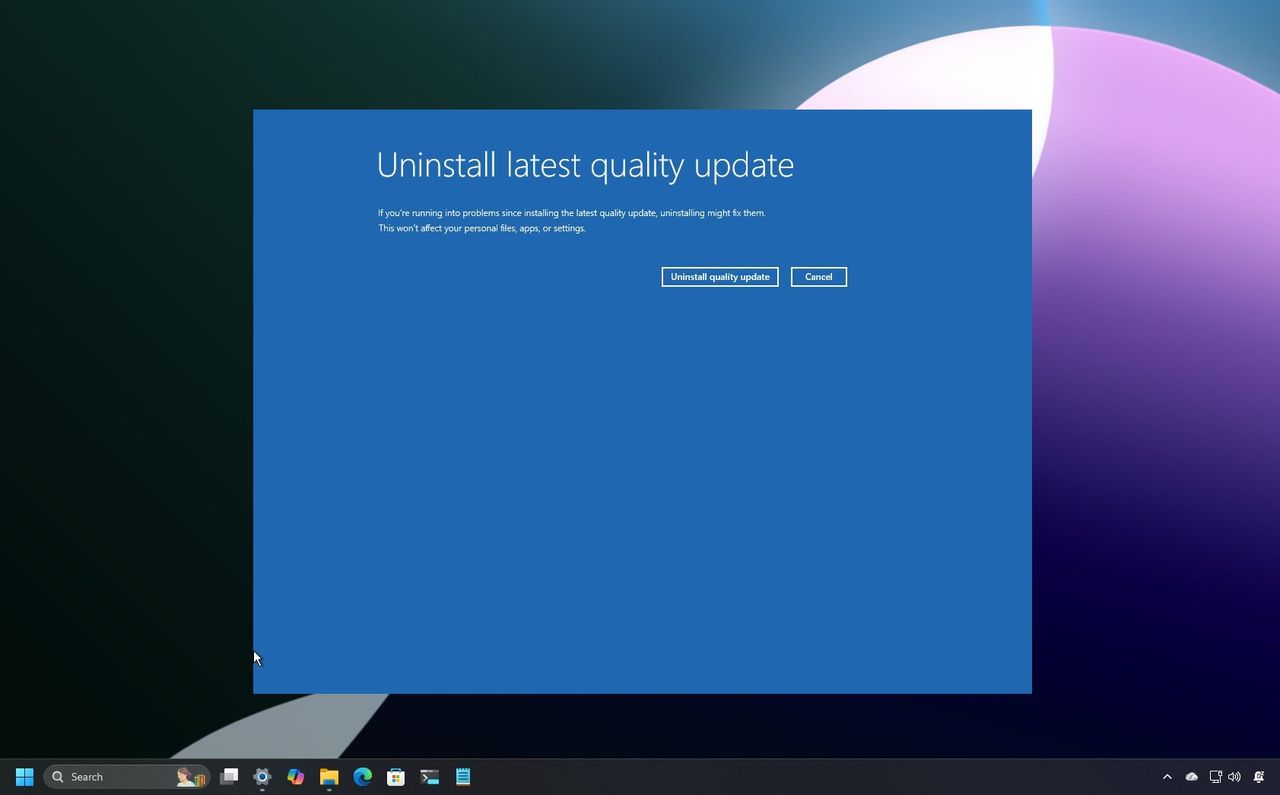
Microsoft has identified a problem with the January 2026 security update (KB5074109, build 26200.7623) for Windows 11. This update is causing some computers to fail to start up correctly.
Despite releasing two quick fixes for previous problems, Microsoft confirms this specific issue hasn’t been fixed. The recent emergency updates (KB5077744 and KB5078127) don’t resolve the problem with computers starting up.
Systems experiencing this issue are crashing when they start up, resulting in a blue screen (often referred to as the ‘Black Screen of Death’) and an error message saying, “Your device ran into a problem and needs a restart.”
Microsoft reports a problem affecting Windows 11 versions 25H2 and 24H2, and they’re currently developing solutions. Until a fix is available, users experiencing this issue will need to remove update KB5074109 through the Windows Recovery Environment, as it’s not possible to uninstall it from the usual Windows desktop.
In this how-to guide, I’ll outline two ways to uninstall the KB5074109 update from your computer.
How to uninstall the buggy January 2026 update from WinRE on Windows 11
If you need to remove a recent update while using the recovery environment, there are a couple of methods you can use to do so.
Option 1
To uninstall the latest buggy update using Automatic Repair to enter WinRE, use these steps:
- Power on the PC.
- After the Power-On Self-Test (POST), and you see the blue Windows logo (if applicable), press the power button again to shut down.
- Repeat steps 1 and 2 multiple times to trigger the Windows Recovery Environment (WinRE).
- Select your account (if applicable).
- Confirm the account password.
- Click the Continue button.
- Click the Advanced Startup button to continue.
- Click on Troubleshoot.
- Click on Advanced options.
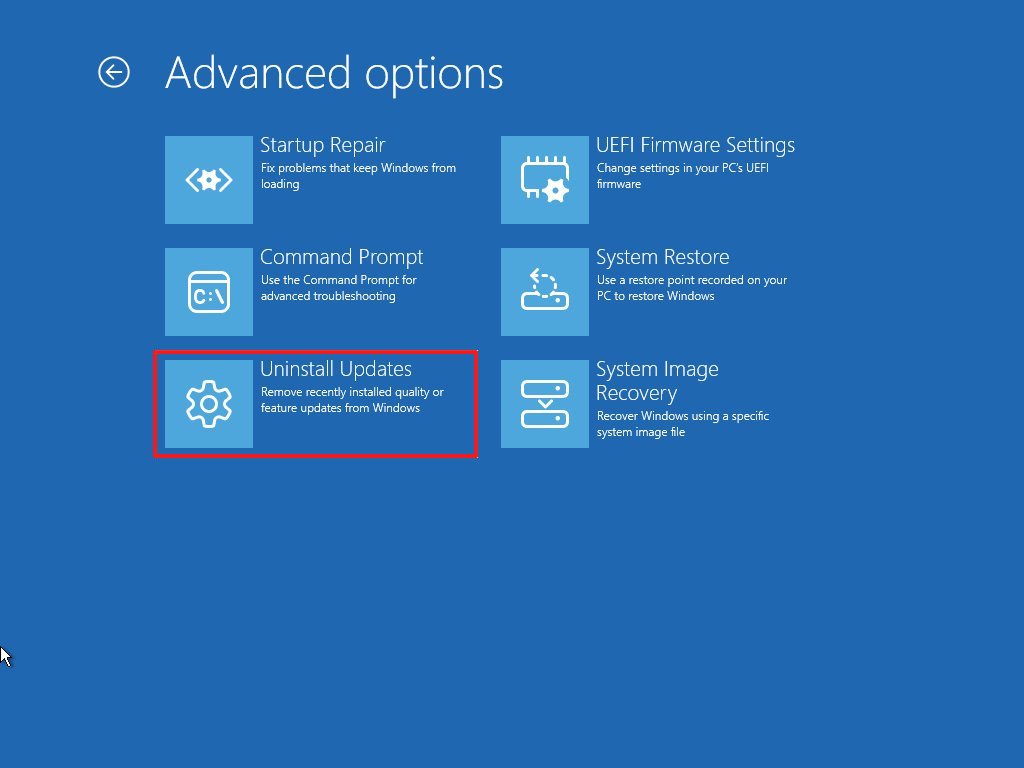
- Click on Uninstall Updates.
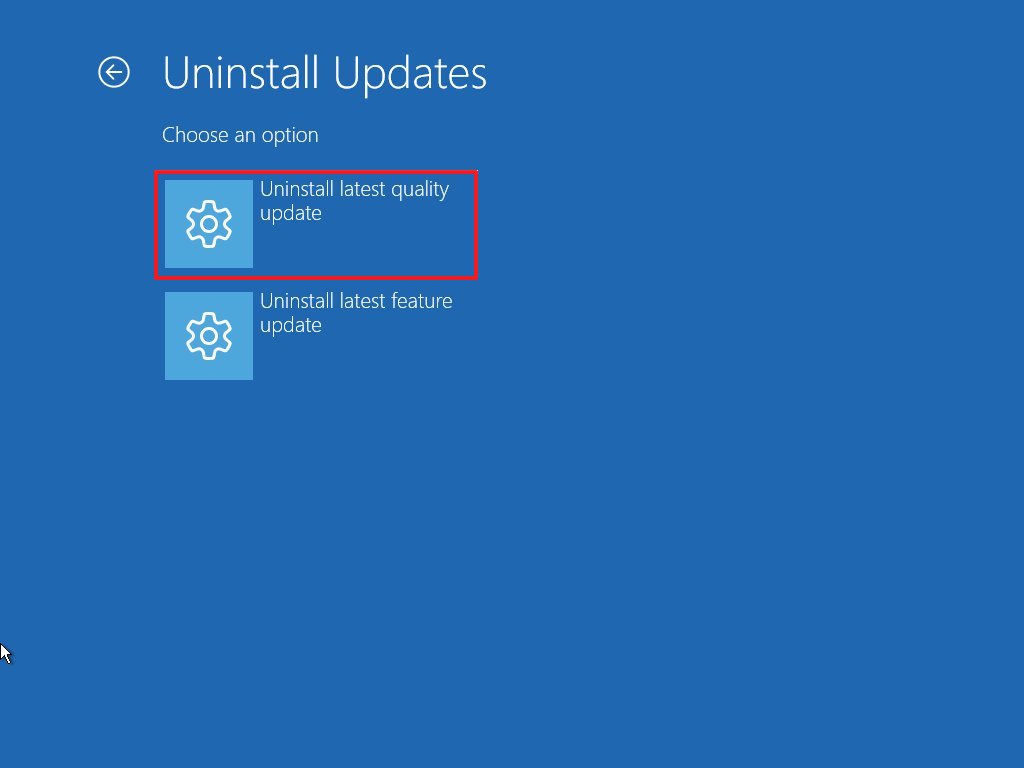
- Click the “Uninstall latest quality update” option.
- Sign in using your administrator credentials (if applicable).
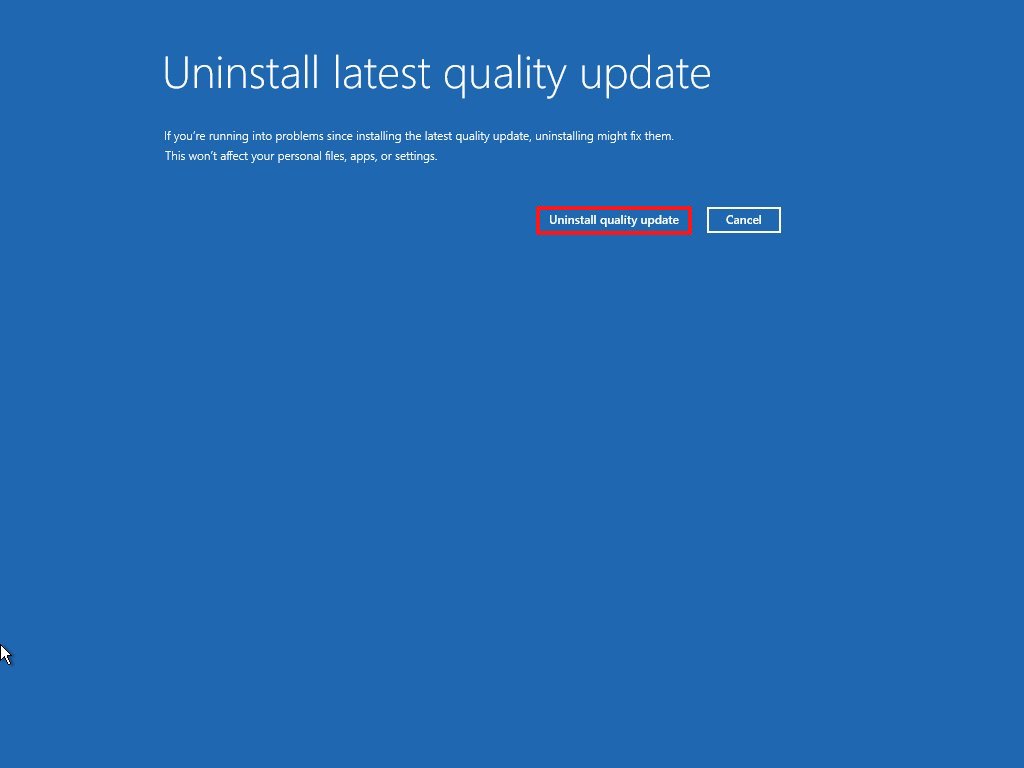
- Click the “Uninstall quality update” button.
If you cannot access the Windows Recovery Environment this way, then proceed with the steps below.
Option 2
Before you start, make sure your computer is set up to start from the USB drive. You’ll need to check the UEFI settings to do this.
I’ve noticed that computers all work a little differently, so the best way to get detailed instructions is usually to visit the website of whoever made your specific device. They’ll have the most accurate information for your model.
Many modern computers have a boot menu that allows you to select which drive to start from. If yours does, you can use it to begin the Windows 11 installation without altering your computer’s settings. Remember, the exact steps for accessing this menu vary by manufacturer, so check their website for instructions.
To uninstall the latest buggy update using a bootable media to enter WinRE, use these steps:
- Connect the Windows 11 USB flash drive to the device.
- Start the PC.
- Press any key to continue.
- Choose the installation language and format.
- Click the Next button.
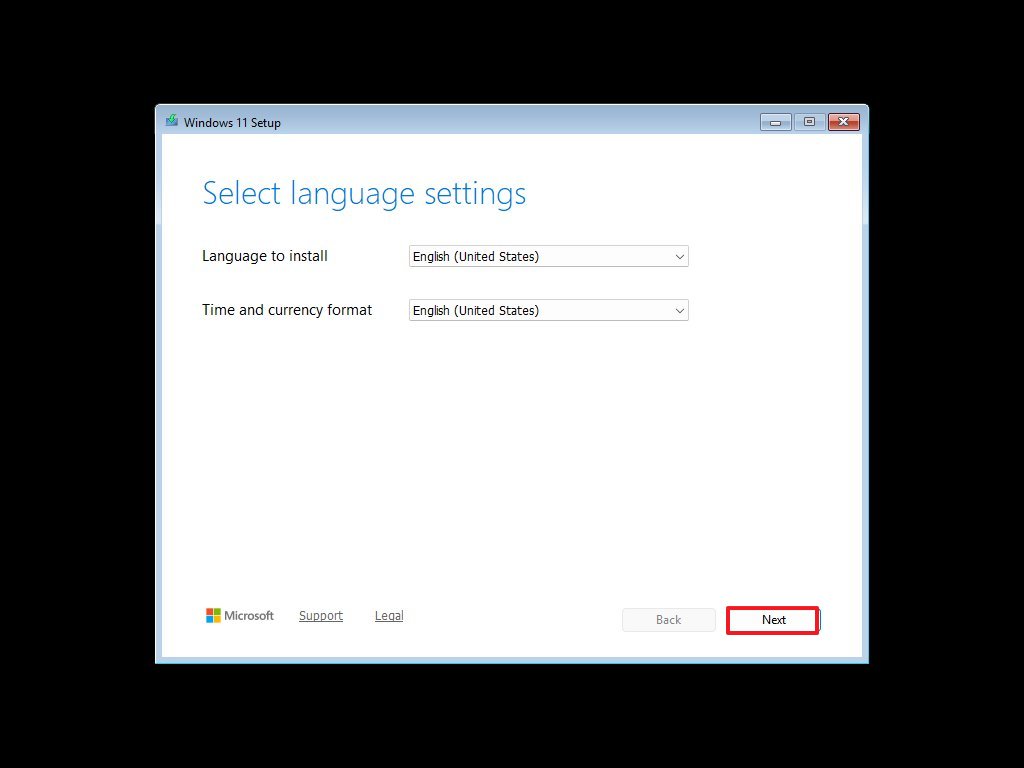
- Choose the keyboard and input method.
- Click the Next button.
- Select the “Repair my PC” option.
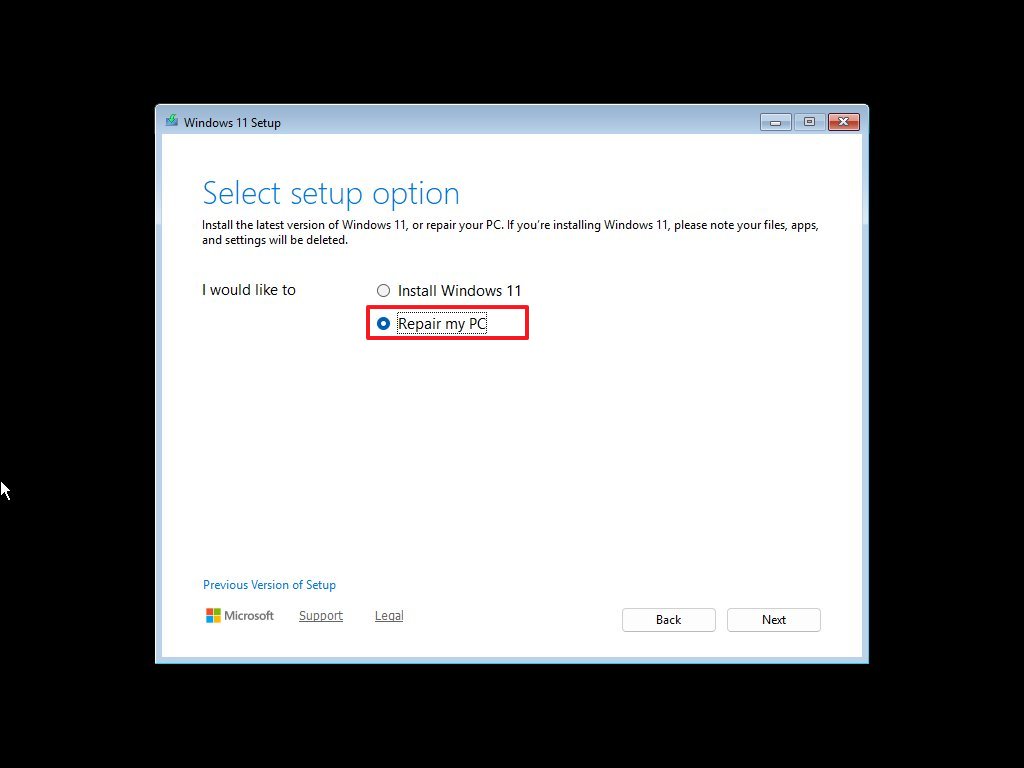
- Click the Next button.
- Choose the keyboard language.
- Click on Troubleshoot.
- Click on Uninstall Updates.
- Click the “Uninstall latest quality update” option.
- Choose the target operating system. For example, “Windows 11.”
- Sign in using your administrator credentials (if applicable).
- Click the “Uninstall quality update” button.
After finishing these steps, your device will remove the latest update, letting you start up directly to the desktop.
So, after I uninstall an update, I always like to make sure it doesn’t just automatically reinstall itself! To do that, I head into my Settings, then click on Windows Update, and pause updates for a bit. You can even use those same settings to turn Windows Update off completely if you want, which is pretty handy.
More resources

Stay up-to-date with the latest from Windows Central by following us on Google News! You’ll get our news, insights, and features right in your feed.
Read More
- Gold Rate Forecast
- 10 Most Powerful Versions of Superman, Ranked
- GBP CNY PREDICTION
- 007 First Light: Release Date, Story, Gameplay, Cast, Editions, and Platforms
- Superman’s 7 Best Power-Ups, Ranked
- 10 Greatest Wii U Games of All Time, Ranked
- DOGE PREDICTION. DOGE cryptocurrency
- Kingdom Come Deliverance Update 1.002 Enables Trophies to Be Transferred
- What happened to Soldier Boy in The Boys?
- Forza Horizon 6 Car List So Far: Confirmed Highlights, Cover Cars, DLC, and Rewards
2026-01-25 23:10