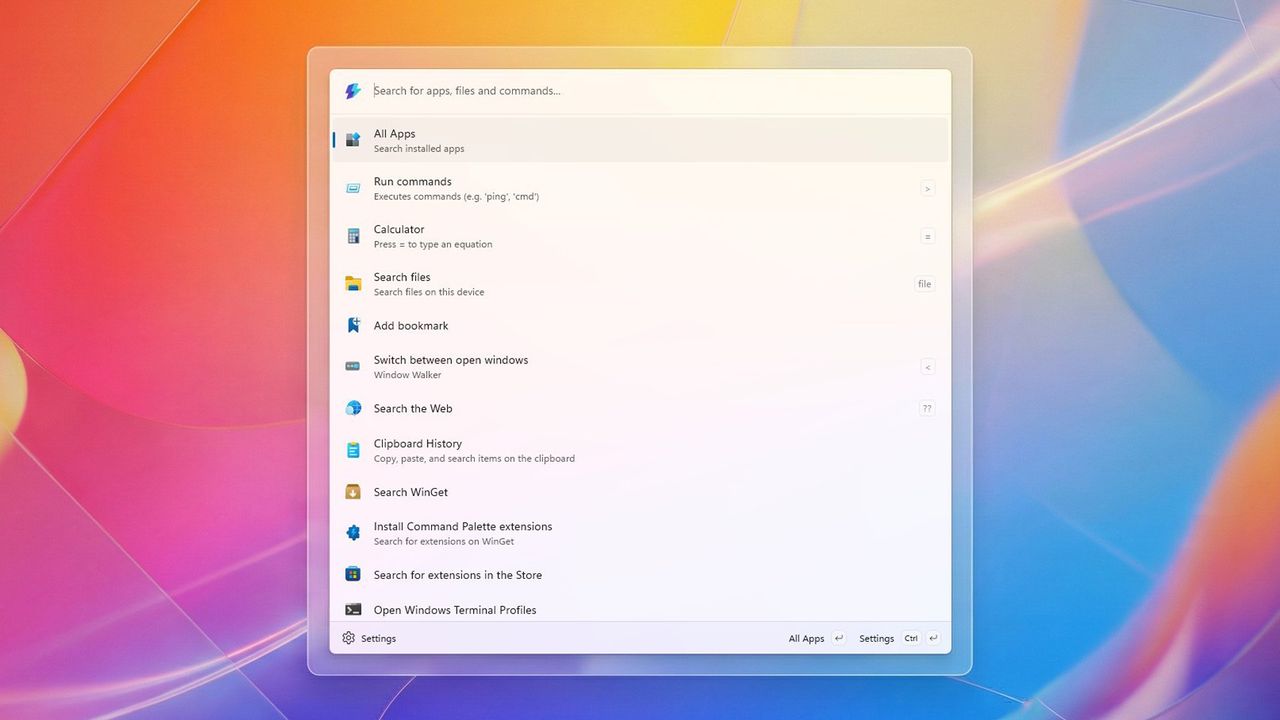
PowerToys for Windows 11 includes a Command Palette, a tool for experienced users who want a quick and easy way to open apps, access settings, and use system tools. It’s similar to Spotlight on macOS, letting you quickly find and launch things using just your keyboard.
The Command Palette lets you quickly open apps, access settings, and perform actions with just a few keystrokes. It’s usually faster and more reliable than using Windows Search or browsing through File Explorer.
One of the best things about this tool is how easily you can add to it. It comes with a good collection of features already built in, and you can install more directly from within the program, letting you expand what it can do without interrupting your work.
The Command Palette lets you do more than just open apps – it can also run system commands, so you can quickly handle everyday tasks without needing to open Command Prompt or PowerShell.
This tool mainly launches apps and settings, but you can also add an extension to search your entire computer for files, apps, and more. The only catch is you need to tell it *what* you’re looking for before the results appear.
This guide will show you how to best use the Windows 11 search feature, which is similar to Spotlight.
How to install Command Palette on Windows 11
To access the Command Palette, you have to install PowerToys with these steps:
- Open Start.
- Search for Command Prompt (or PowerShell), right-click the top result, and choose the Run as administrator option.
- Type the following command to install PowerToys and press Enter: winget install –id Microsoft.PowerToys
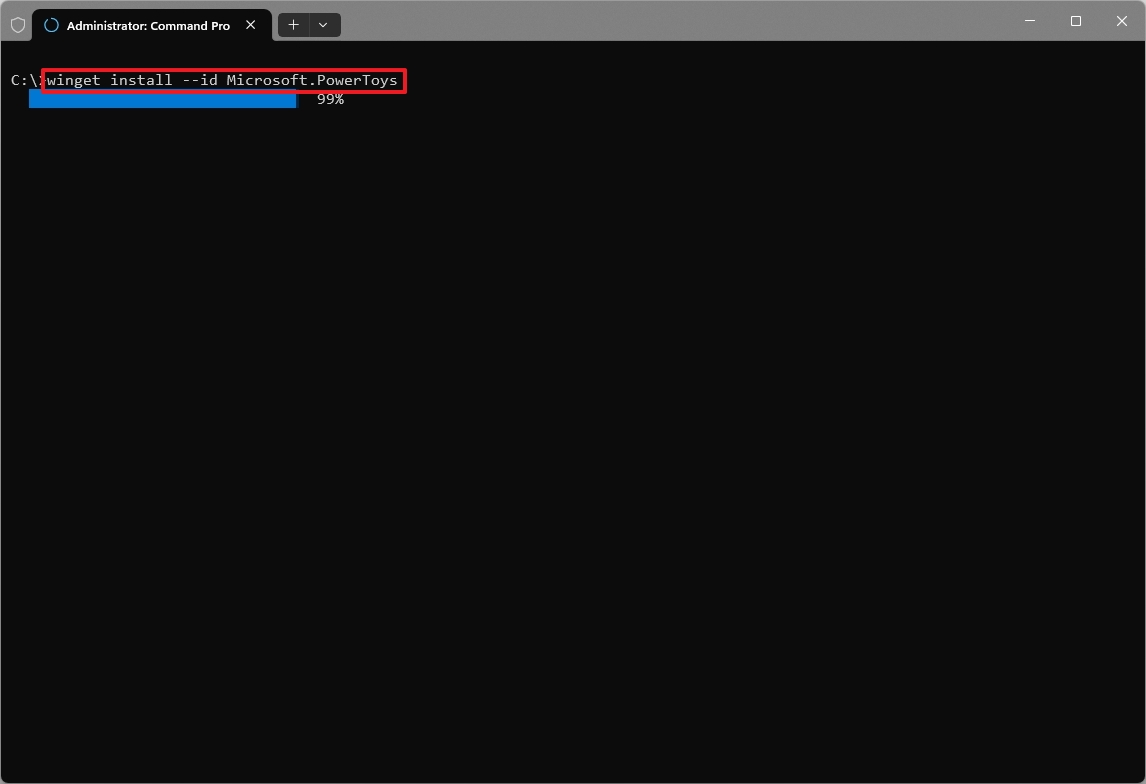
After finishing the setup, the tool will be installed, giving you access to the Command Palette.
You can also easily install the tool from the Microsoft Store’s PowerToys page. Simply click the “Install” button on the webpage, and then click “Install” again within the Store to begin the installation.
How to configure Command Palette on Windows 11
To manage the Command Palette settings, use these steps:
- Open Start.
- Search for PowerToys and click the top result to open the app.
- Click on System Tools.
- Click on Command Palette.
- Turn on the “Enable Command Palette” toggle switch (if applicable).
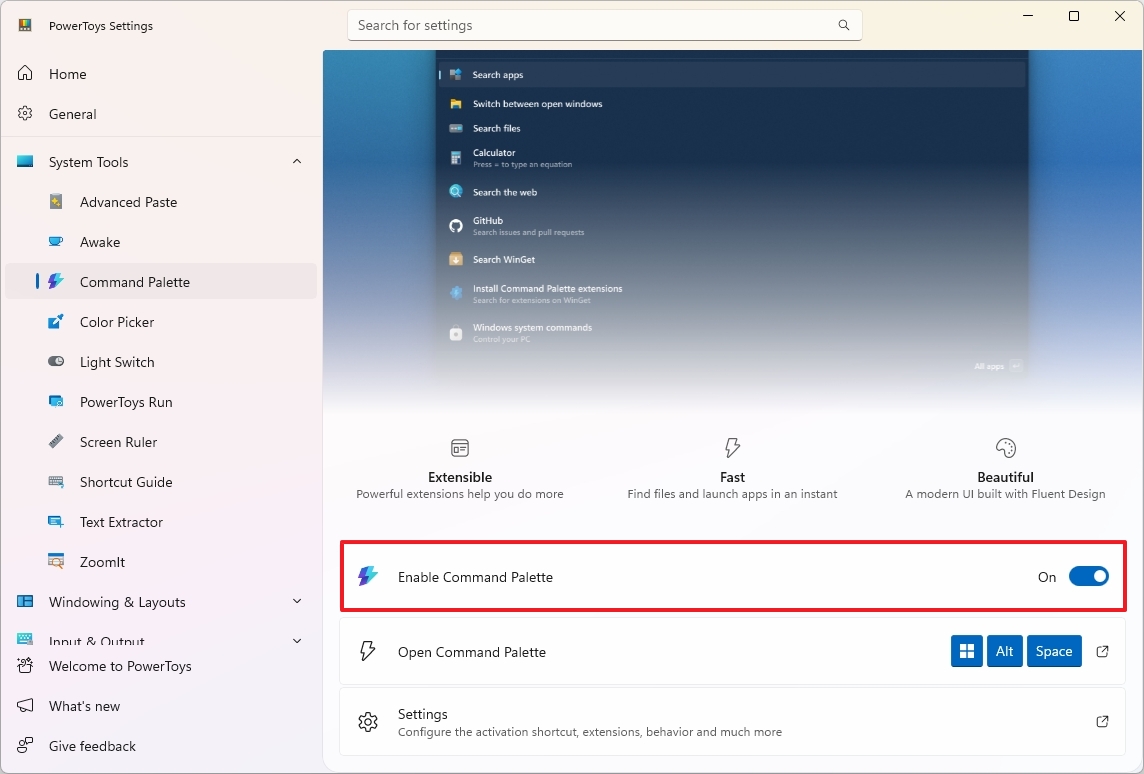
- Click on Settings.
- Customize the activation and behavior features (as necessary).
While using the Command Palette, you can adjust settings like the keyboard shortcut to open it, which screen it appears on, and other options to personalize your experience.
If you find the default keyboard shortcut for this tool difficult to use, you can change it. Use the “Activation key” setting to set up a shortcut that works better for you.
While it makes sense to display the interface on the monitor where your mouse is, you can actually choose which monitor the Command Palette appears on using the “Preferred monitor position” setting.
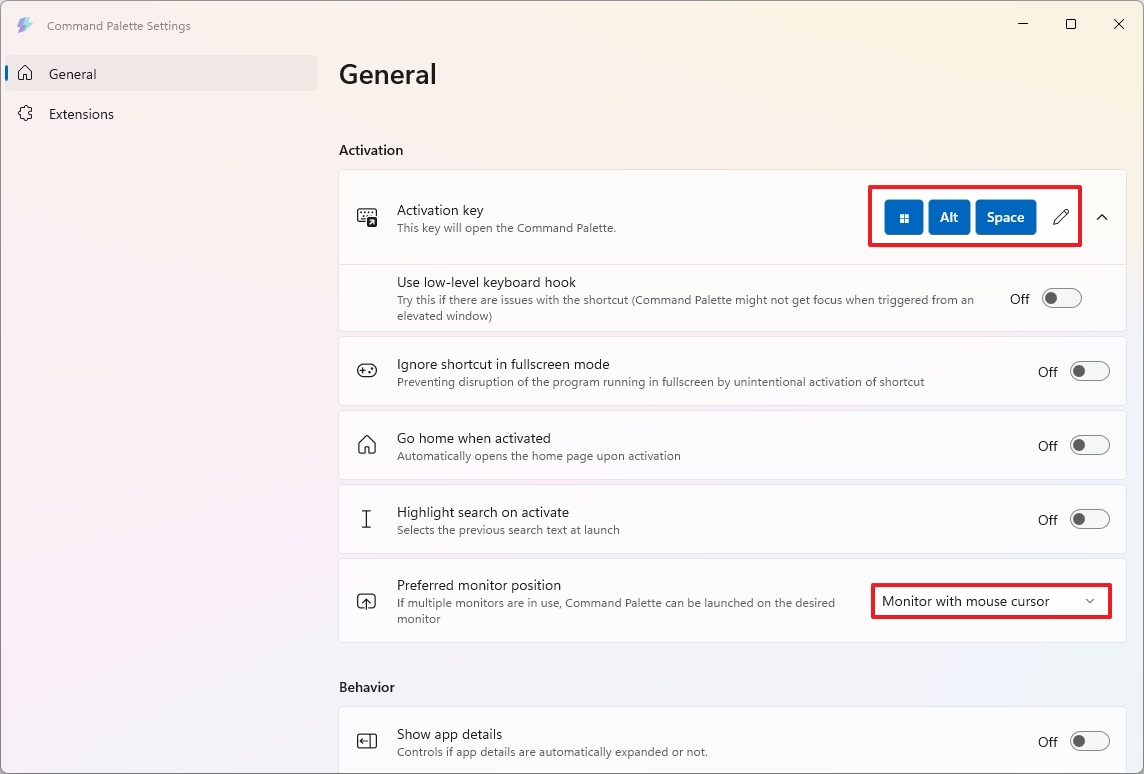
The “Activation” settings also let you customize how full-screen mode, the home page, and search highlights work.
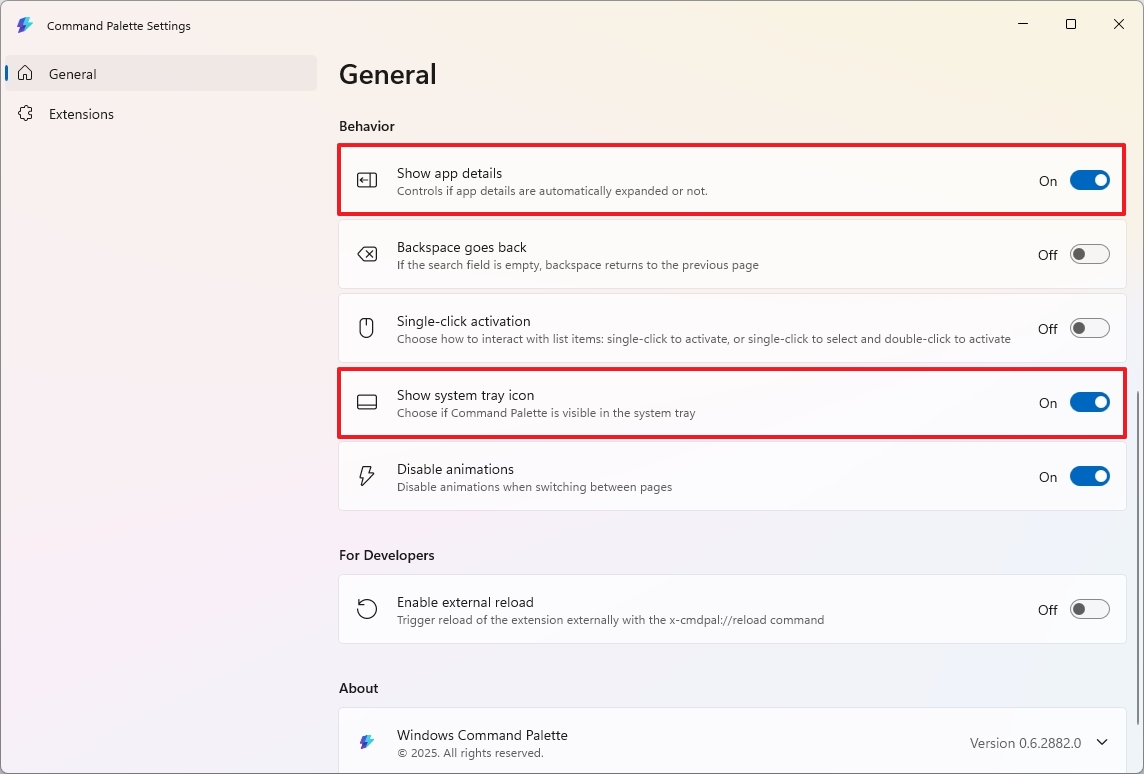
The “Behavior” section lets you customize how the app works. You can choose to display app information with each action, use the backspace key to go back, enable single-click selection, and decide whether the app icon appears in the system tray.
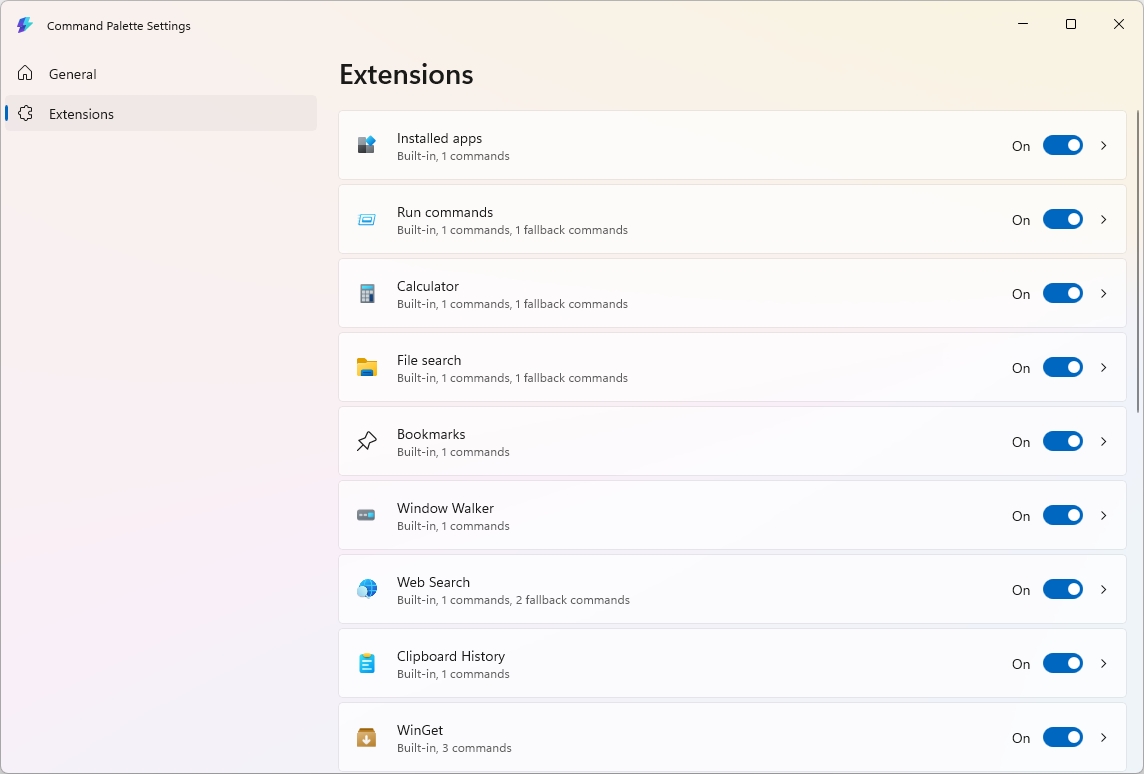
The Extensions page lets you manage several helpful features built into Command Palette. Currently, there are 16 extensions available, including tools for calculations, web searches, accessing your clipboard and bookmarks, installing apps, and much more.
You can do more than just enable or disable extensions—you can also tailor them to work the way you want. For instance, the Command Palette can search for files and web pages, but only if the “File search” and “Web Search” extensions are turned on.
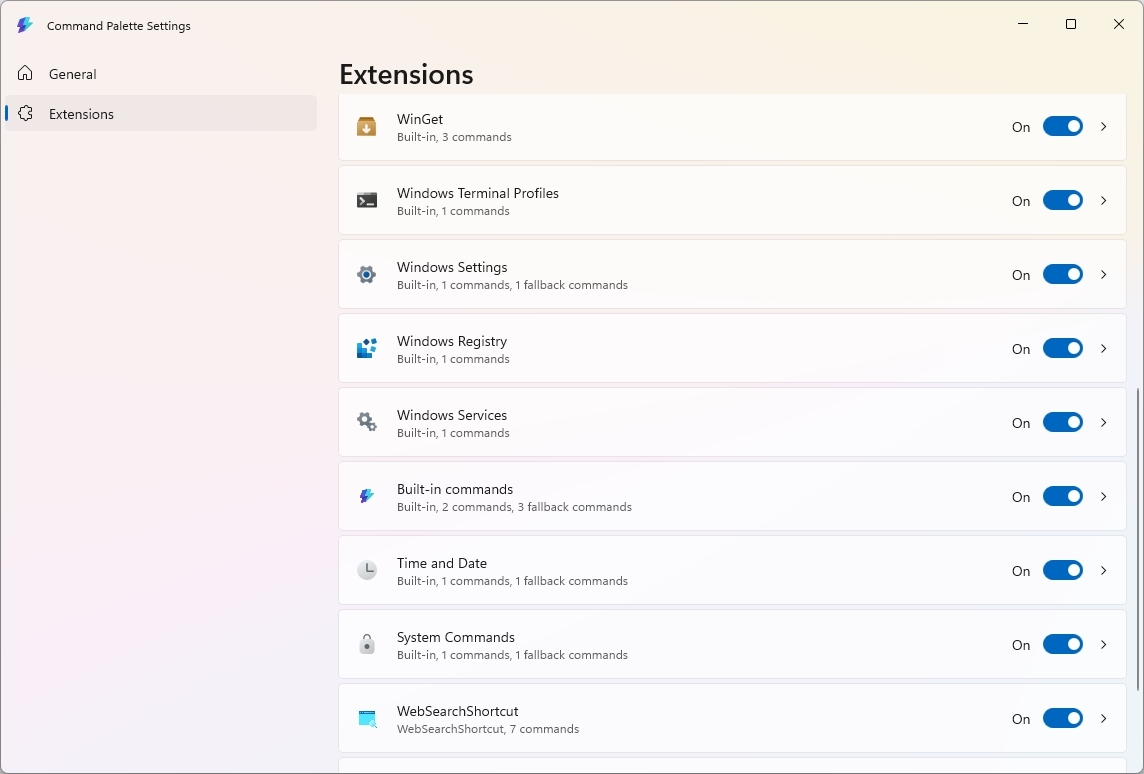
The WinGet extensions allow you to find and install apps from GitHub and the Microsoft Store right from the Command Palette, using the Windows Package Manager.
The “Window Walker” is a fast way to switch between open windows using text, similar to the “Alt + Tab” shortcut, but it’s accessed directly within the Command Palette.
Instead of clicking through all your open windows to find one, Window Walker lets you quickly search for what you need by typing in the application’s name (like “Chrome”) or the window’s title (like the name of a document or webpage).
How to use Command Palette on Windows 11
To get started with Command Palette, use the following steps:
- (Option 1) Open Start.
- Search for Command Palette and click the top result to launch the app.
- (Option 2) Click the Command Palette icon from the Taskbar’s System Tray.
- (Option 3) Use the “Windows key + Alt + Space” keyboard shortcut (assuming the default shortcut is configured on the tool).
Once you open the tool, you can quickly find almost anything – like apps, settings, and files – and even search the web. Plus, with certain add-ons enabled, you can do even more powerful searches. Here are a few examples of what’s possible.
Actions keywords
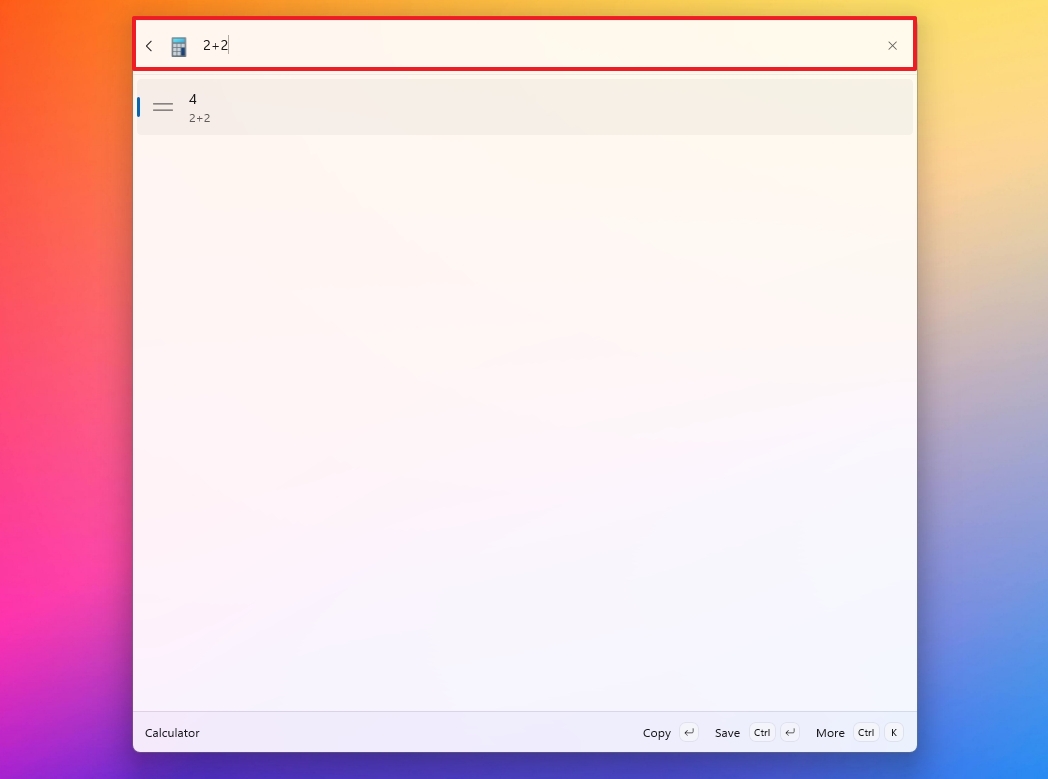
You can use the Command Palette as a calculator by typing an equals sign (=) followed by the equation you want to solve. For example, to calculate 2 plus 2, you would type =2+2.
Typing a less-than symbol (<) followed by a keyword will activate the “Window Walker” extension, which displays any open windows that match your search.
As I said before, Windows Walker is a simple way to switch between open windows using text instead of visuals. Instead of clicking through all your windows, you can quickly find the one you need by typing its app name (like “Chrome”) or the title of the window itself (like a specific webpage or document name).
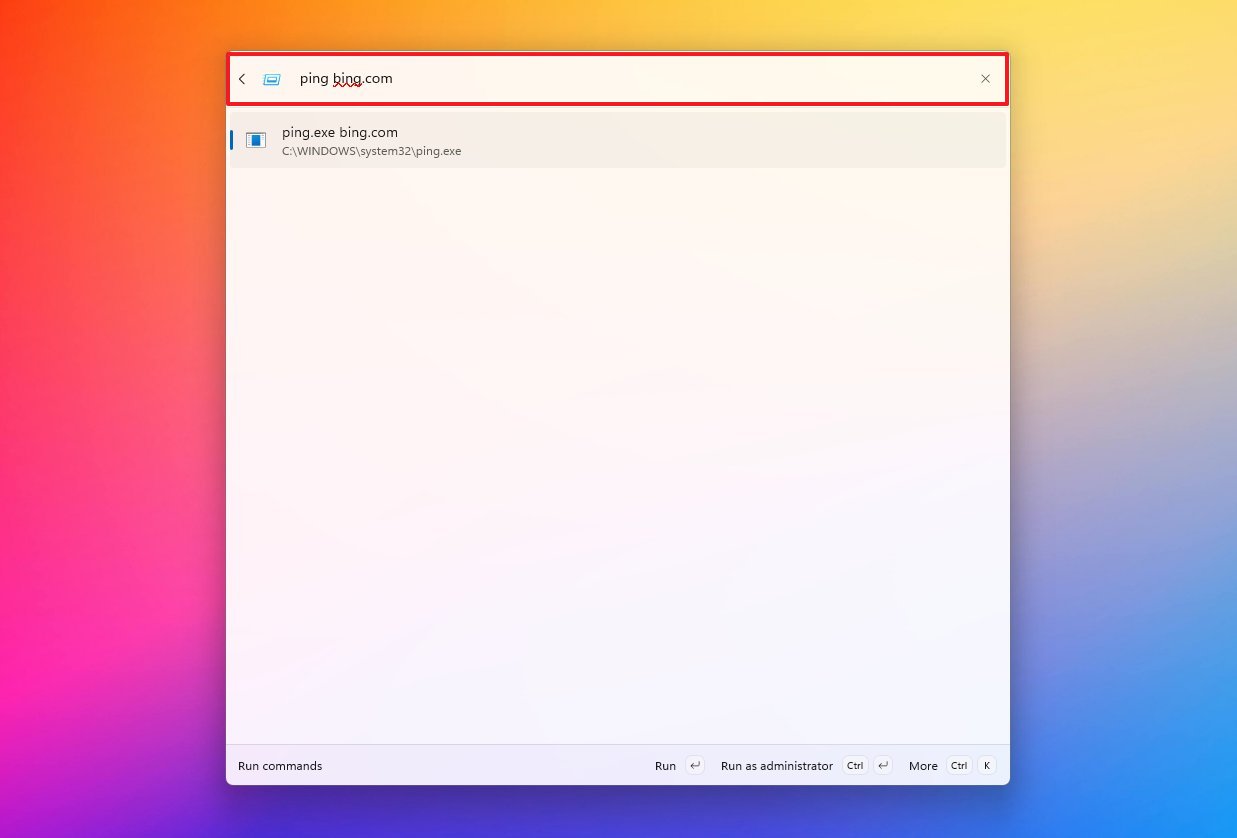
To execute a command like ping or cmd, simply type the greater-than symbol (>) followed by the command itself. For instance, to ping a website, you would type > ping.
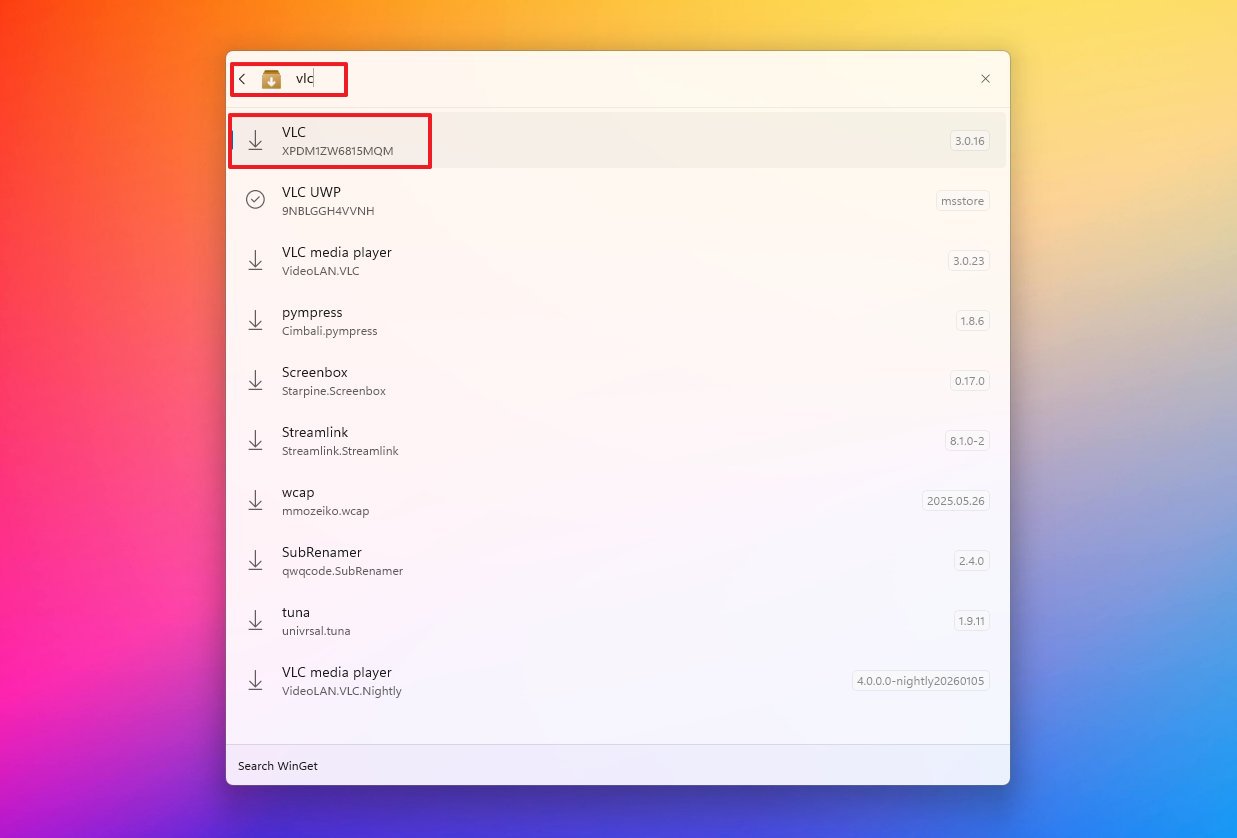
You can find and install apps using the Command Palette. Just type “winget”, choose the option that appears, then search for the app you want. Select the app from the results, and press “Enter” to begin the installation.
On Windows 11, you can quickly access previously copied items using the Clipboard History feature. Just open the Command Palette, search for “Clipboard history,” and select it to view your saved items.
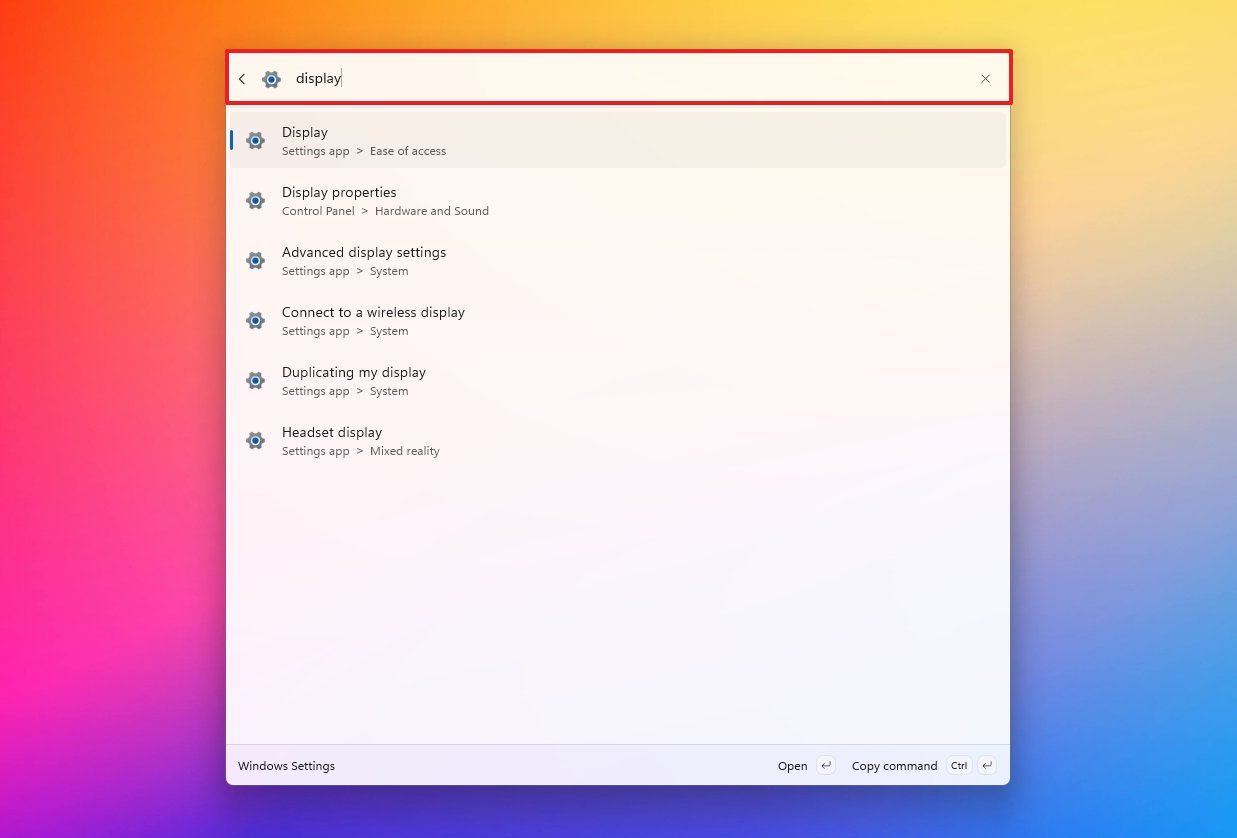
You can also search for Windows 11 settings. Just type a dollar sign ($) followed by what you’re looking for, like $ display, to quickly find the setting you need.
Instant system commands
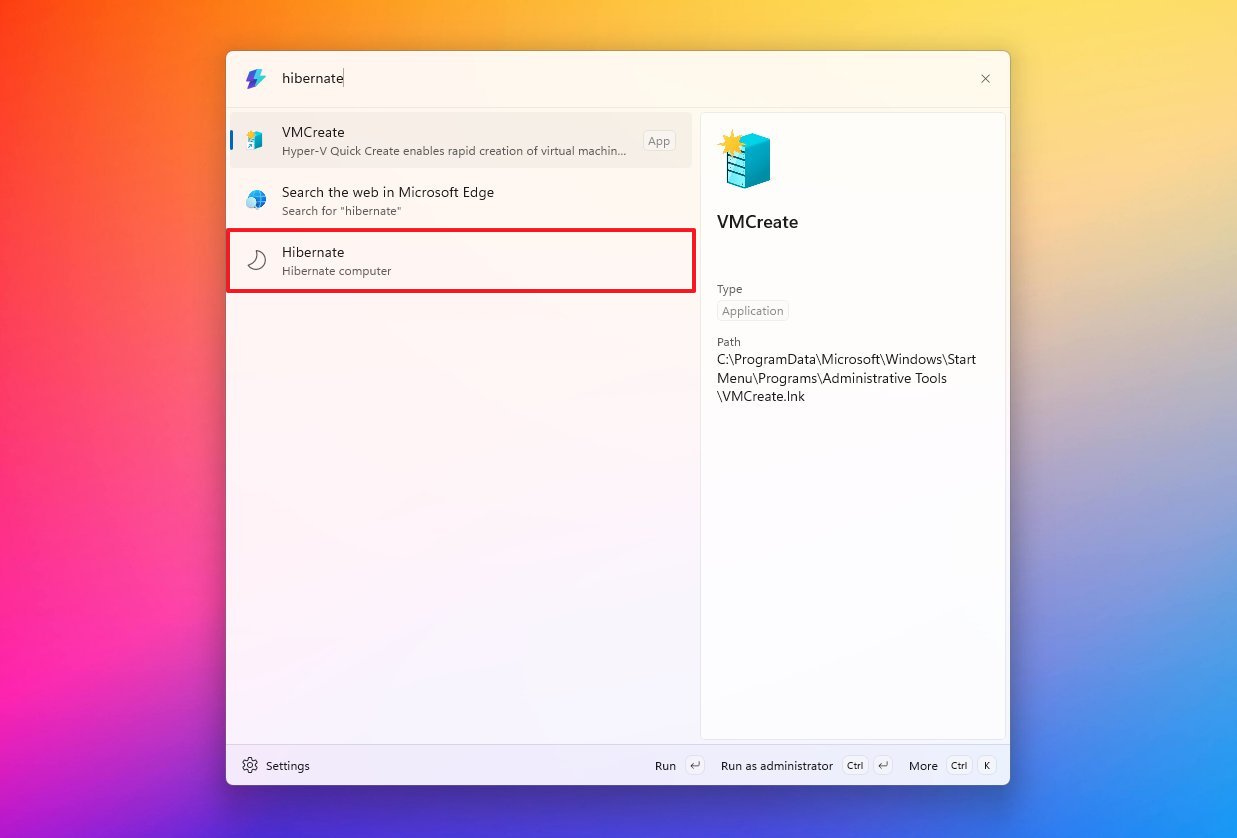
You can perform actions like locking your screen, putting the computer to sleep, hibernating, shutting down, restarting, or signing out – all without using your mouse.
Even further, you can use the “Empty Recycle Bin” to quickly free up space on your computer.
Contextual power actions
When you get a search result, like a file or application, don’t simply press “Enter.” Instead, try using modifier keys to do more. For example, pressing “Ctrl + Shift + Enter” will launch the selected application with administrator access.
Pressing “Ctrl + Shift + E” will open the folder where the file is located. Then, “Ctrl + C” copies either the file’s location or the search result to your clipboard.
Web searches
Pressing the keyboard shortcut ‘??’ will begin a web search, but the results will appear in your web browser instead of directly within the Command Palette.
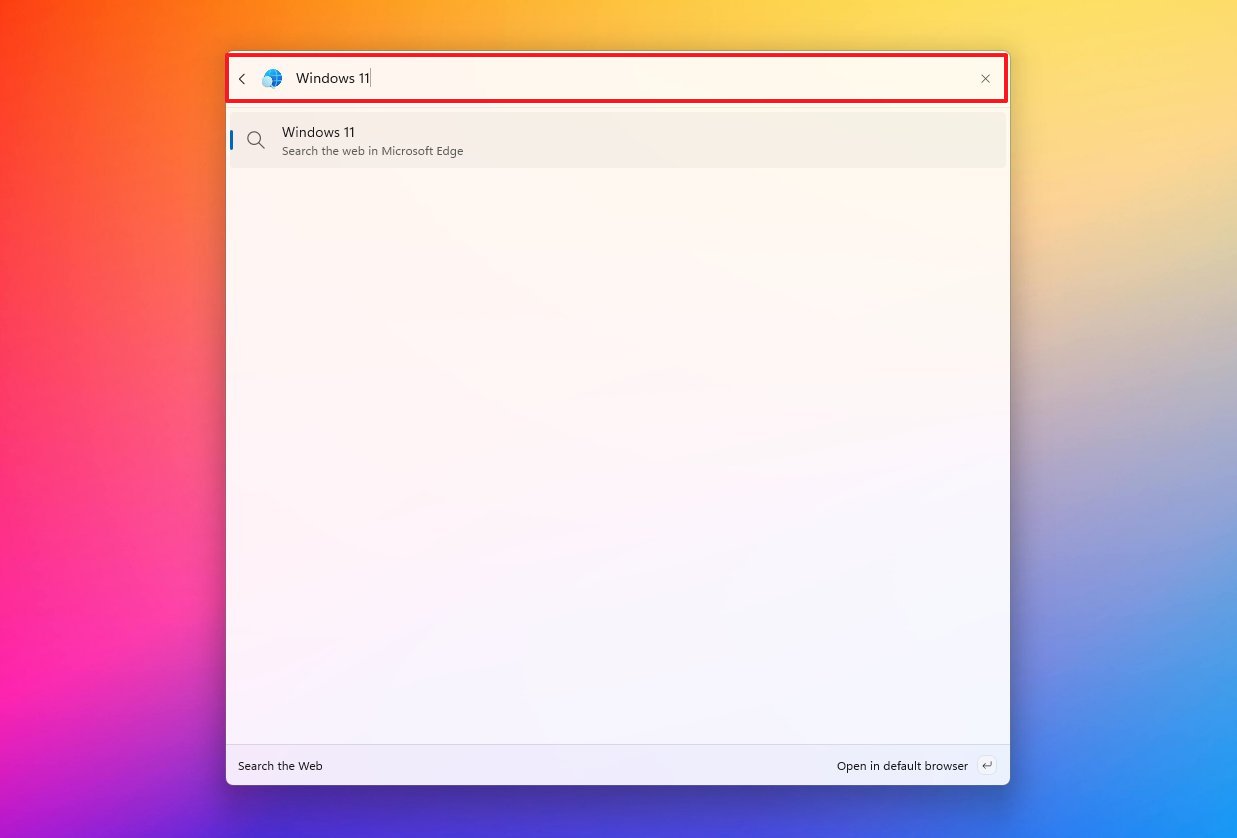
Web search usually starts with a general query, but you can quickly search specific websites using plugins or by creating your own shortcuts. For instance, the WebSearchShortcut plugin, available from the Microsoft Store, lets you easily set up these custom shortcuts.
The extension comes with pre-set shortcuts for popular sites like Google, Bing, and YouTube, but you can easily create custom shortcuts for almost any website you use.
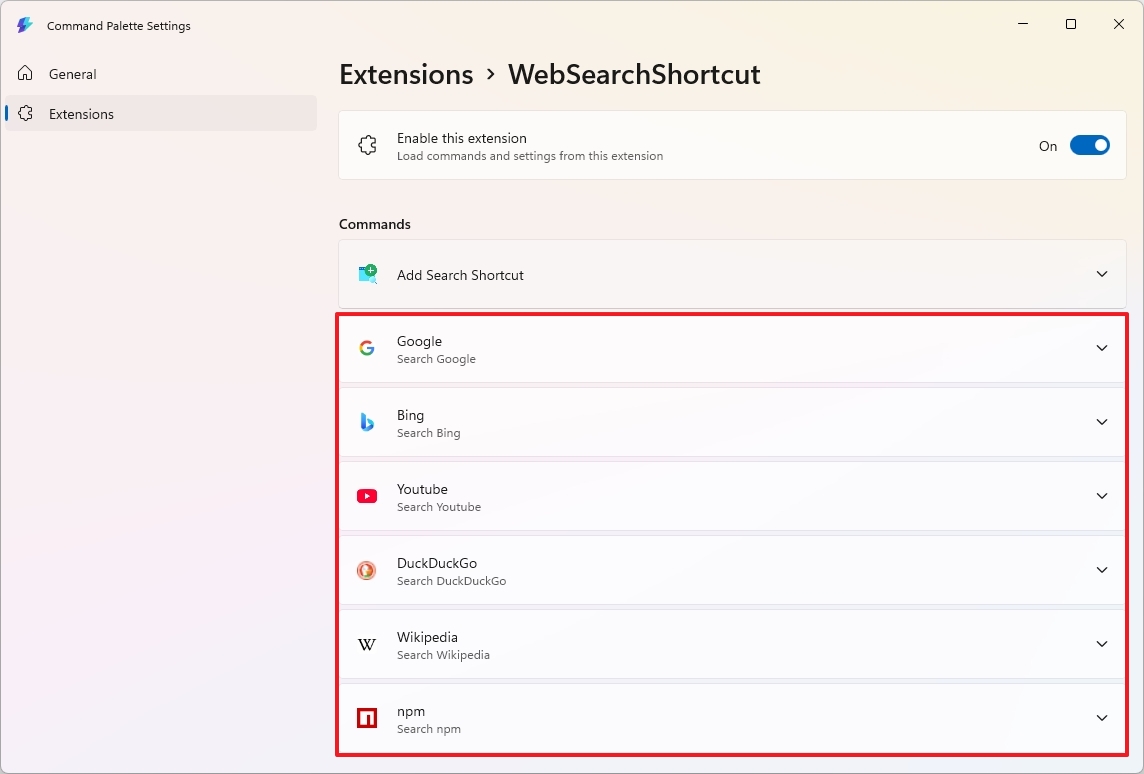
To create a personalized search shortcut, open the Command Palette and type “Add Search Shortcut.” Select the option that appears, fill in the necessary details, and then save your new shortcut.
To use your shortcut, simply type its name into the search bar, then add what you’re looking for. The results will open in your web browser.
You can also check the developers’ page for additional details about this extension.
To discover and add more features to the tool, type “Install Command Palette extensions” and then double-click the option that appears in the search results to begin the installation.
You can usually remove extensions by right-clicking them in the Command Palette and choosing “Uninstall”. Alternatively, some extensions can be uninstalled just like regular apps through the Settings menu: go to Apps, then Installed apps.
Registry browser
For users comfortable with the Windows Registry, the Command Palette in PowerToys offers a powerful feature: full keyboard navigation. This allows you to browse and modify the Registry without using a mouse.
The Registry plugin automatically starts when you type a colon (:). For instance, typing ‘: hkcu’ will search within the HKEY_CURRENT_USER section of the registry.
You can quickly navigate to a specific location by typing either the complete or a portion of its path, for example: “HKEY_Local_Machine\Software\Microsoft”.
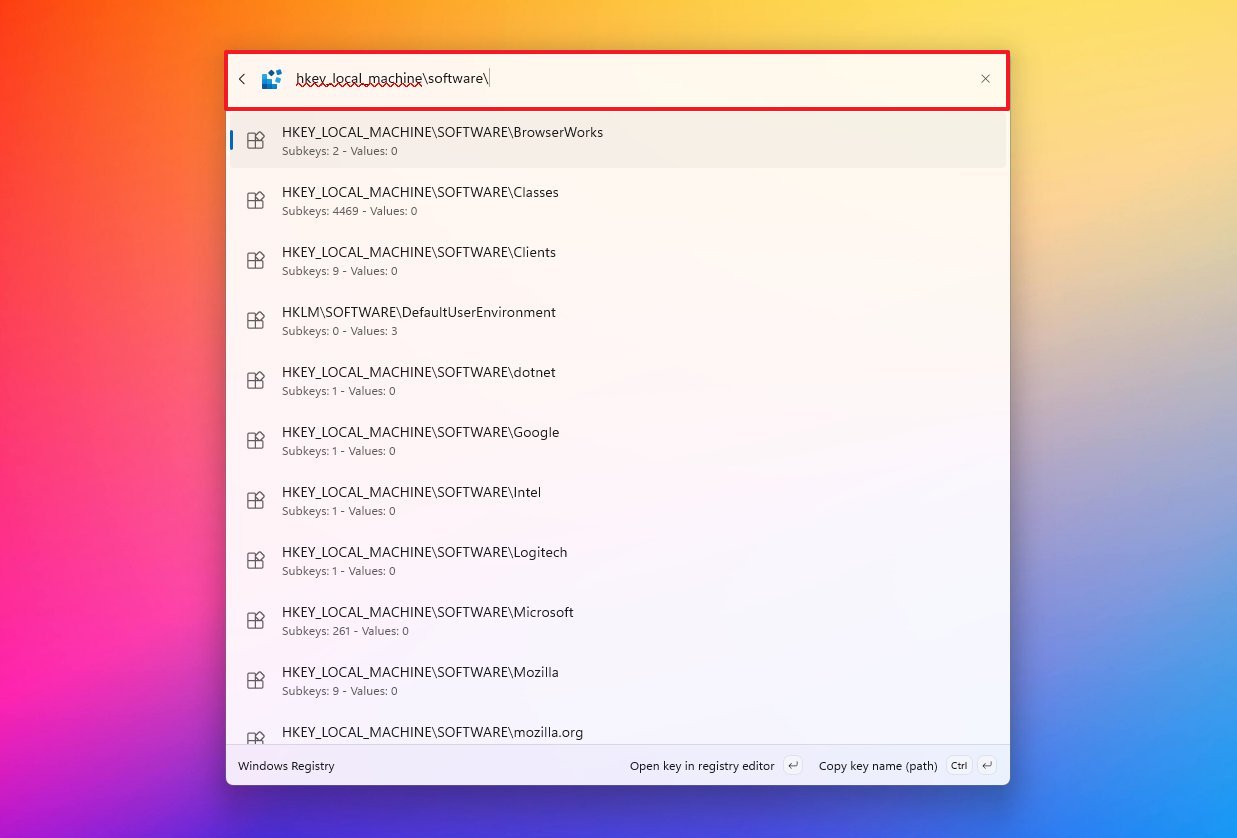
While you’re typing, the tool offers suggestions for specific Registry settings. You can navigate through the Registry tree using the arrow keys, all without needing to open the main editor.
As a total Registry power user, let me tell you – once you’ve found the key you’re looking for, hitting “Enter” is a *huge* time saver. It instantly opens that key and takes you right there, so you don’t have to click around! It’s my favorite little trick.
Why is this helpful? The usual Registry Editor doesn’t let you search for items while you’re typing a path. Normally, you have to either paste the full path or navigate through folders. This tool changes the Registry into a database you can quickly search.
The Command Palette in PowerToys is a great way to quickly open applications and access system settings. While it can also function like Windows Search, you’ll need to configure it slightly to show search results.
Plus, the tool is highly customizable, and you can add even more features with extensions.
This tool is part of the PowerToys suite and functions on both x64 and ARM64 computers. But it’s not your only option – many other programs can be used instead of Windows Search.
FAQs about Command Palette on Windows 11
Here are some frequently asked questions about setting up and using the PowerToys Command Palette in Windows 11.
What is Command Palette on Windows 11?
The PowerToys Command Palette for Windows 11 lets you quickly launch apps, open settings, run commands, and search – all using just your keyboard. It’s a fast and convenient way to do everything from one central location.
Is Command Palette built into Windows 11 by default?
The Command Palette isn’t a standalone app; it’s included with PowerToys. You’ll need to download and install PowerToys first, either from the Microsoft Store or by using the winget command in your terminal.
How is Command Palette different from Windows Search?
For people who prefer using the keyboard, Command Palette is quicker and more reliable than Windows Search. It focuses on listing commands, applications, and actions directly, whereas Windows Search emphasizes finding results from its index and relies more on visual browsing. Plus, Command Palette can work with add-ons and even lets you run system commands.
What keyboard shortcut opens Command Palette?
The Command Palette usually opens with the Windows key, Alt, and Spacebar, but you can customize this keyboard shortcut in the PowerToys settings.
Can Command Palette replace Windows Search entirely?
For advanced computer users, this tool can be a great alternative to Windows Search, particularly when launching apps, accessing settings, or running commands. While it can search your files, you’ll need to specify you want a file search first.
Does Command Palette support extensions?
Absolutely. One of its best qualities is how easily you can expand its functionality. You can turn on pre-installed features or add more directly from the Command Palette, giving you new capabilities.
Can I install apps using Command Palette?
As an analyst, I can confirm that the WinGet extension is a really useful tool. It lets you find and install applications – not just from the Microsoft Store, but also directly from GitHub – all within the Command Palette. It streamlines the process significantly.
Can Command Palette run system commands?
You can easily perform actions like locking, sleeping, restarting, shutting down, or signing out your computer without needing to open the Command Prompt or PowerShell.
Does Command Palette support calculator functions?
Yes. Typing = followed by a math expression instantly turns Command Palette into a calculator.
Can I search Windows settings with Command Palette?
You can quickly find system settings by typing a dollar sign ($) followed by the setting’s name. For example, to find display settings, you would type $ display.
How does web search work in Command Palette?
Typing ?? will initiate a web search and display the results in your usual browser. You can further personalize your searches by creating custom shortcuts with browser extensions.
Can I browse the Windows Registry using Command Palette?
The Registry extension allows you to explore and search the Windows Registry using only your keyboard. You can activate it with the colon (:) key.
More resources

Stay up-to-date with the latest from Windows Central by following us on Google News! You’ll get all our news, insights, and features right in your feed.
Read More
- What Song Is In The New Supergirl Trailer (& What It Means For The DC Movie)
- Gold Rate Forecast
- Eurogamer Gives ARC Raiders 2/5 Over AI Voices, Dropping Metacritic Score from 94 to 84
- Ubisoft’s Best Game From the Last 5 Years Is Surprising
- Steve Rogers’ Return Means the MCU Can Finally Solve Avengers: Endgame’s Last Mystery
- This One Stranger Things Theory Explains a 9-Year-Old Season 1 Mystery, Sets Up the Finale, & is the Key to Future Spinoffs
- 7 Classic TV Shows With Criminally Low Rotten Tomatoes Scores
- Invincible Season 4 Confirms a Major Atom Eve Change From the Comics
- Teresa Giudice’s Real Housewives Season One Salary Revealed
- MOUSE: P.I. For Hire Loops in Caravan Palace for A Catchy New Track Ahead of April 16 Release
2026-01-08 15:44