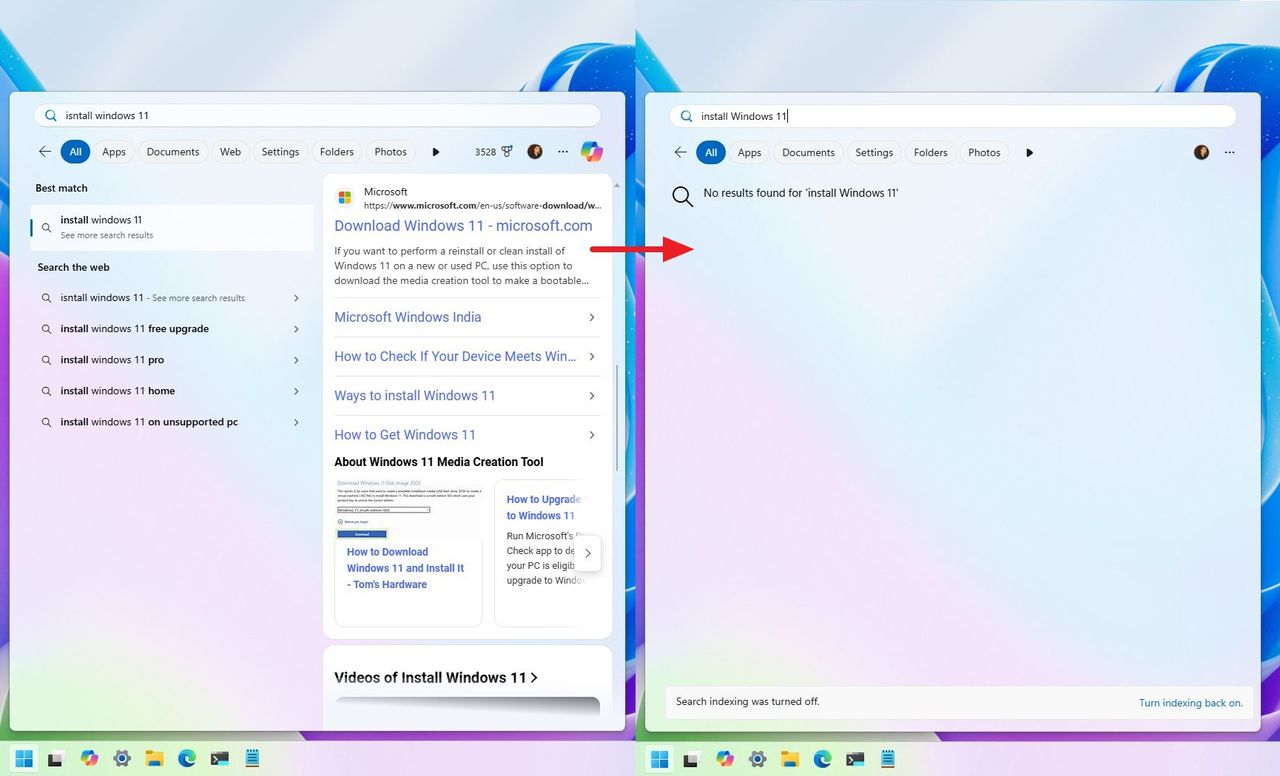
I’m a big fan of keeping things clean and simple, so I was excited to learn how to turn off those web search results that pop up on the Windows 11 search homepage. It’s actually pretty easy to do through the Settings app, and I’m going to walk you through exactly how I did it.
When you search from the Taskbar, you’ve probably noticed that your search results often include websites along with other information.
This feature can be useful, but it’s not for everyone and can occasionally have issues. If you want to disable web results in Windows 11, you’ll need to use Group Policy or the Registry, as there isn’t an option available directly in the Settings app.
This guide explains how to stop Windows Search from showing online results when you search on your computer.
Please be careful! Editing the Windows Registry can be dangerous and could seriously damage your computer if not done properly. It’s a good idea to back up your entire computer before making any changes.
How to turn off search highlights on Windows 11 using Group Policy
To prevent Windows Search from showing web results on Windows 11 Pro, use these steps:
- Open Start.
- Search for Group Policy and click the top result to open the app.
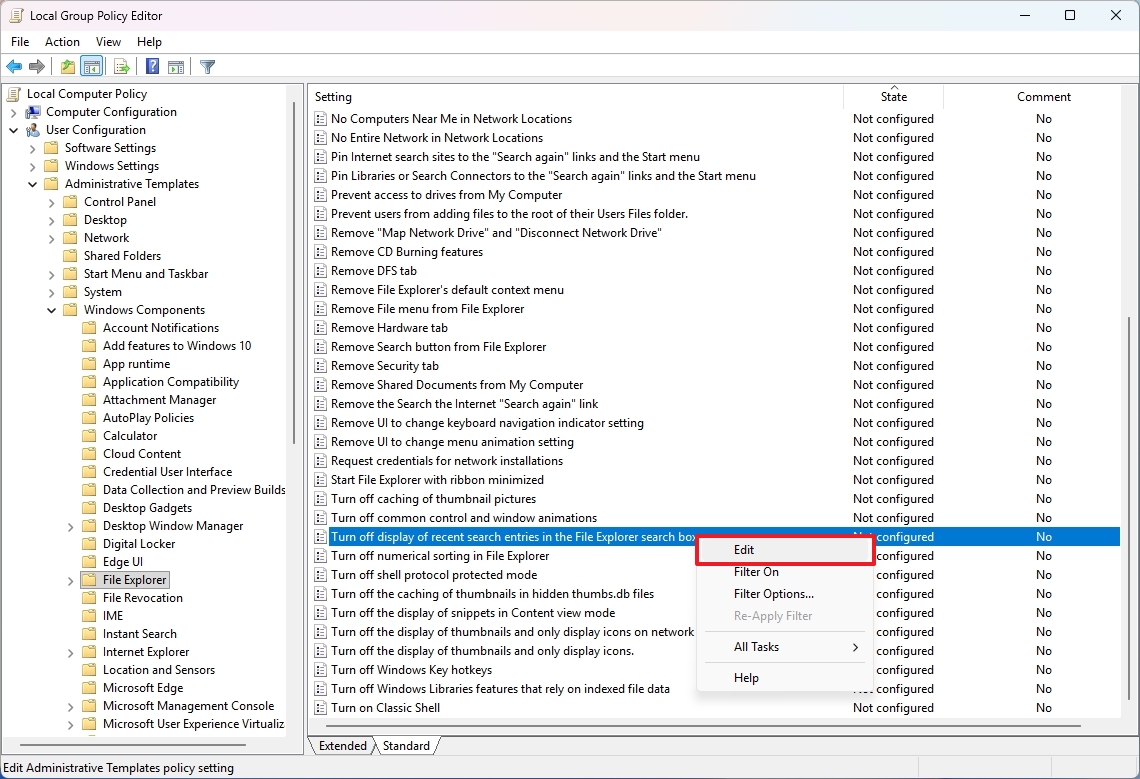
- Open the following location: User Configuration > Administrative Templates > Windows Components > File Explorer
- Right-click the “Turn off display of recent search entries in the File Explorer search box” policy and choose the Edit option.
- Select the Enabled option.
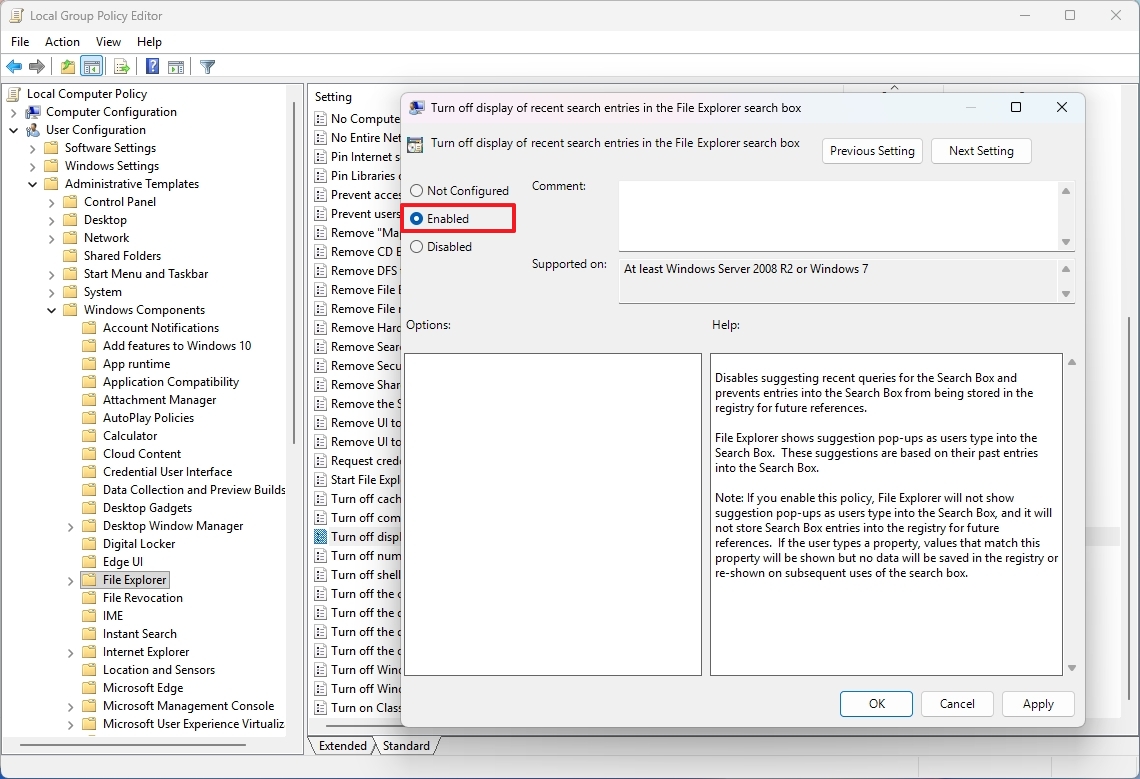
- Click the Apply button.
- Click the OK button.
After finishing these steps, you might need to restart your computer. Once it’s back on, Windows Search won’t include results from the web anymore.
If you decide you want to undo the changes, you can follow the same steps as before, but in step 5, choose the “Not Configured” option.
How to turn off search highlights on Windows 11 using Registry
Here’s how to prevent web results from appearing in Windows Search on Windows 11 Pro and Home:
- Open Start.
- Search for Registry and click the top result to open the app.
- Open the following location: HKEY_CURRENT_USER\SOFTWARE\Policies\Microsoft\Windows
- Right-click the Windows key, select New, and choose the Key option.
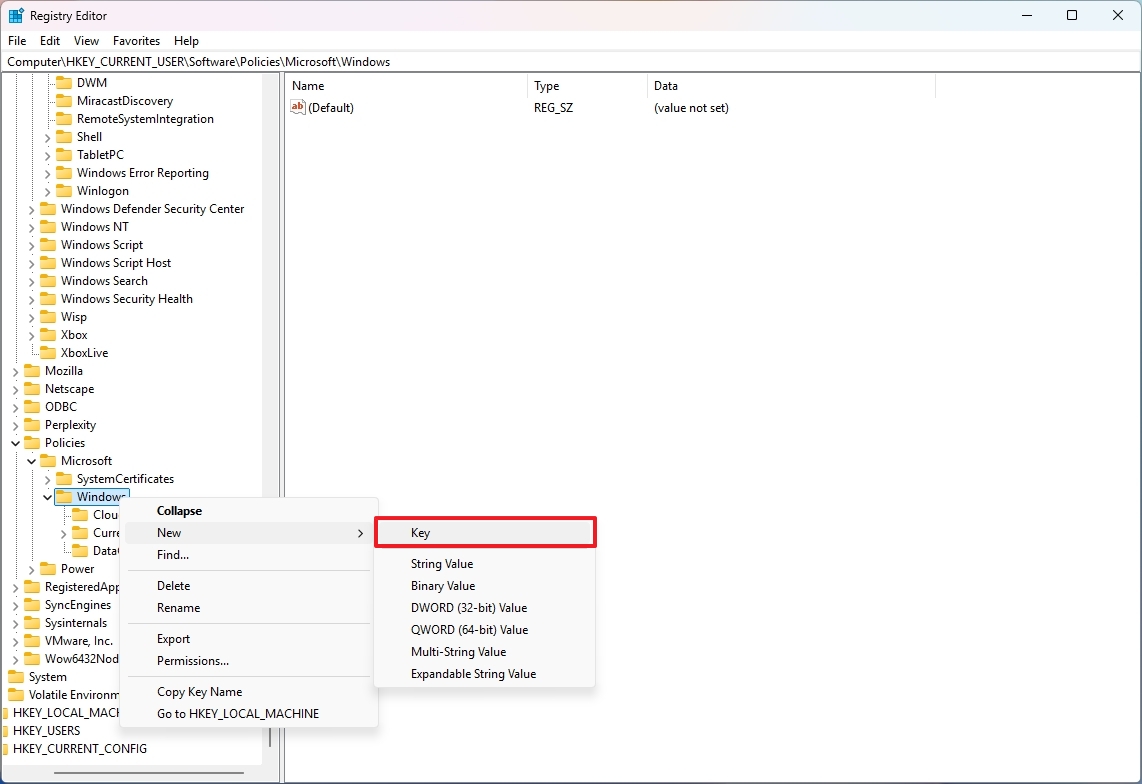
- Confirm the Explorer name for the key and press Enter.
- Right-click the newly created key, select New, and choose the “DWORD (32-bit) Value” option.
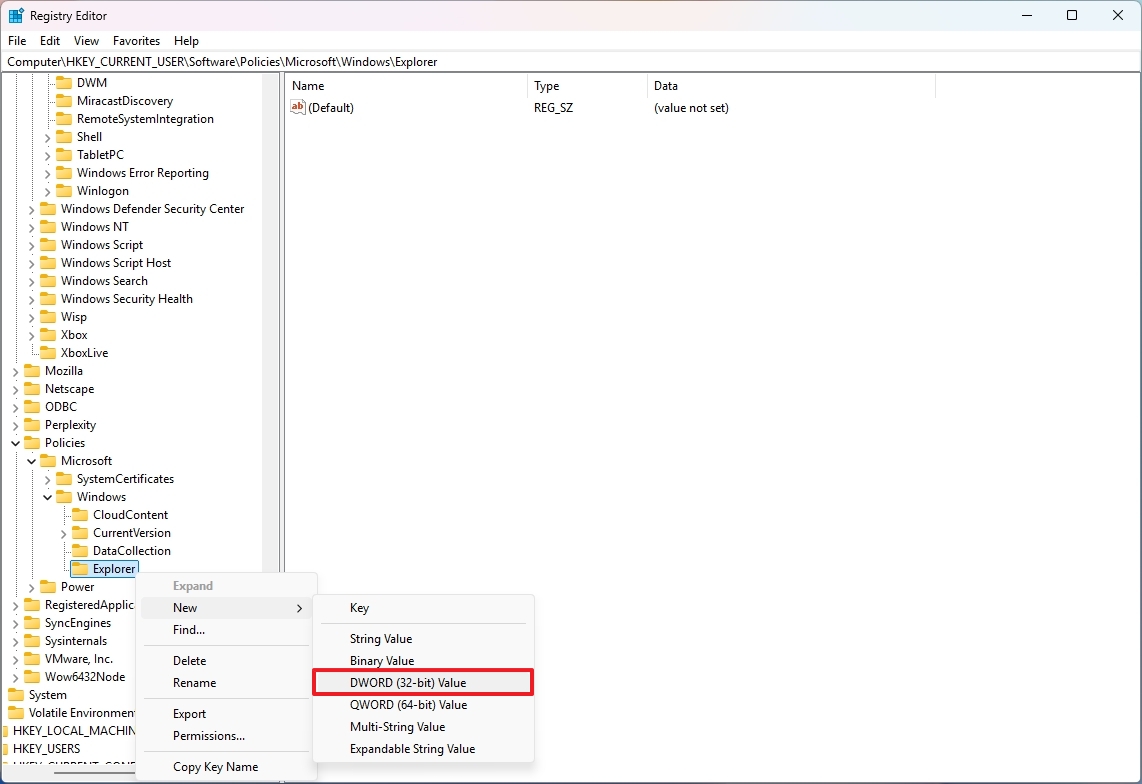
- Name the DWORD DisableSearchBoxSuggestions and press Enter.
- Right-click the newly created key, then choose Modify.
- Change its value from 0 to 1.
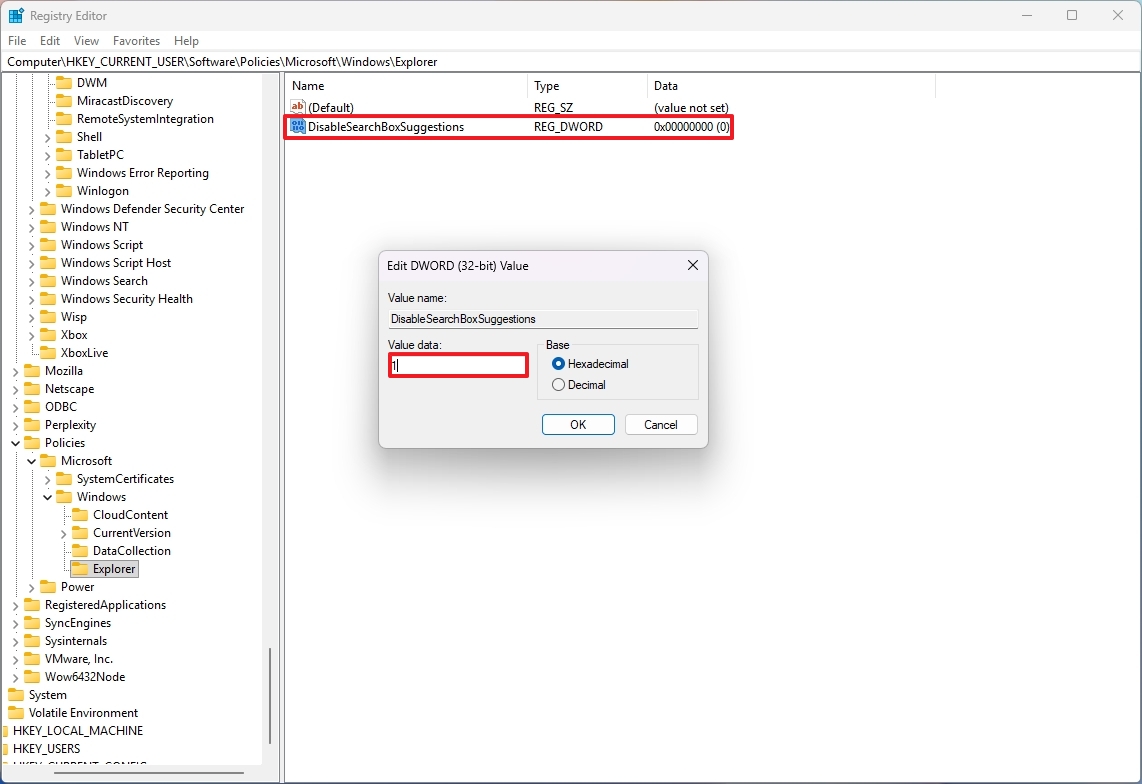
- Click the OK button.
Once you’ve finished the steps, restart your computer. Then, when you search again, you’ll see results related to your system and its files.
If you want to undo these changes, open the Registry and navigate to the following path: HKEY_CURRENT_USER\SOFTWARE\Policies\Microsoft\Windows\Explorer. Then, right-click on the “DisableSearchBoxSuggestions” entry and choose “Delete”.
No matter which setting you pick, this will also disable search highlights – those helpful suggestions you see on the Windows Search homepage.
Because of this setup, the “Show search highlights” setting on the Search page will be disabled and appear grayed out.
FAQs about disabling web search on Windows 11
These are common questions regarding the steps to disable web search results on Windows 11.
What are web search results in Windows Search?
When you type into the search box on your Taskbar, Bing provides helpful suggestions directly in the results. These can be things like current news stories, links to websites, and other information found online.
Can I disable web results from the Settings app?
Okay, so I’ve been digging around in Windows 11, and you know what? There’s no simple on/off switch in the Settings app for this. If you want to change it, you’ll need to get a little more technical. If you’re running the Pro version, you can use Group Policy. But if you have the Home version, or even Pro, honestly, you’ll have to dive into the Registry to make the adjustment. It’s a bit of a pain, but it’s doable!
Does disabling web results also disable search highlights?
If you’ve blocked online suggestions through policy or Registry settings, you’ll also no longer see search highlights on the Windows Search home page.
Why is the “Show search highlights” option grayed out?
If you enable this setting using Group Policy or the Registry, Windows will automatically turn off the related switch in the Settings app to avoid any problems.
Does this change affect local search?
No. Local search for apps, files, settings, and system features continues to work normally.
Will disabling web results improve performance?
This can lessen network traffic and get rid of small delays from checking information online, but it won’t significantly speed up your system.
More resources

Stay up-to-date with the latest from Windows Central by following us on Google News! You’ll get our news, insights, and features right in your feed.
Read More
- Gold Rate Forecast
- Dune 3 Gets the Huge Update Fans Have Been Waiting For
- 22 actors who were almost James Bond – and why they missed out on playing 007
- Hazbin Hotel Secretly Suggests Vox Helped Create One of the Most Infamous Cults in History
- Every Creepy Clown in American Horror Story Ranked
- Jason Statham’s Hit Creature Feature Is Heading to Streaming for Free
- As Dougal and friends turn 60, Radio Times explores the magic behind The Magic Roundabout
- Kingdom Come: Deliverance 2 – Legacy of the Forge DLC Review – Cozy Crafting
- Jack Osbourne Shares Heartbreaking Tribute to Late Dad Ozzy Osbourne
- Everything We Know About Gen V Season 3 (& Why It’ll Be a Very Different Show)
2025-12-02 15:41