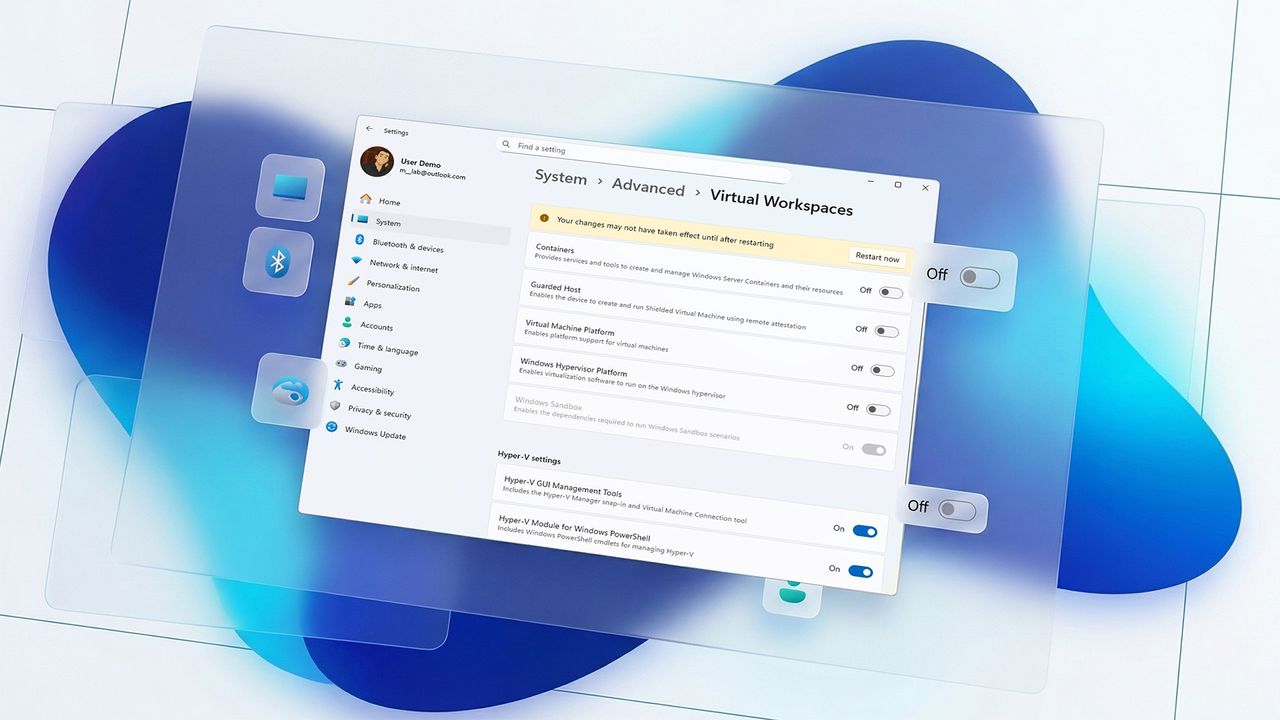
Windows 11 now lets you control most virtualization settings from a central location – the “Virtual Workspaces” page in the Settings app.
Windows 11 is gradually getting older features moved into the modern Settings app. The latest update includes a new “Virtual Workspaces” page, though there’s still more to do to complete the transition.
This new settings page lets you easily turn features like Hyper-V and Windows Sandbox on or off, replacing the older, separate “Windows Features” window.
This guide will show you how to start using Virtual Workspaces on Windows 11.
How to enable virtualization features on Windows 11
To enable virtualization features through Virtual Workspaces, use these steps:
- Open Settings.
- Click on System.
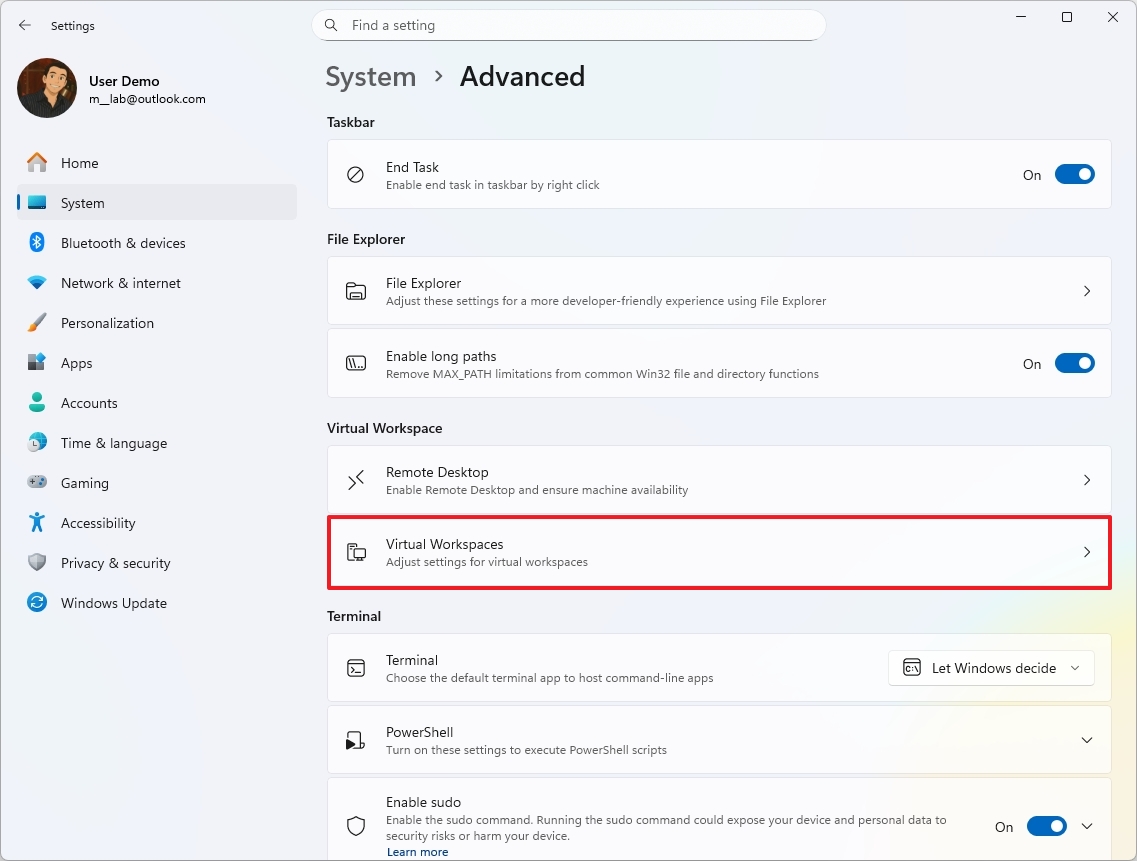
- Click the Advanced page on the right side.
- Click the Virtual Workspaces setting.
- (Option 1) Turn on the virtualization feature, including:
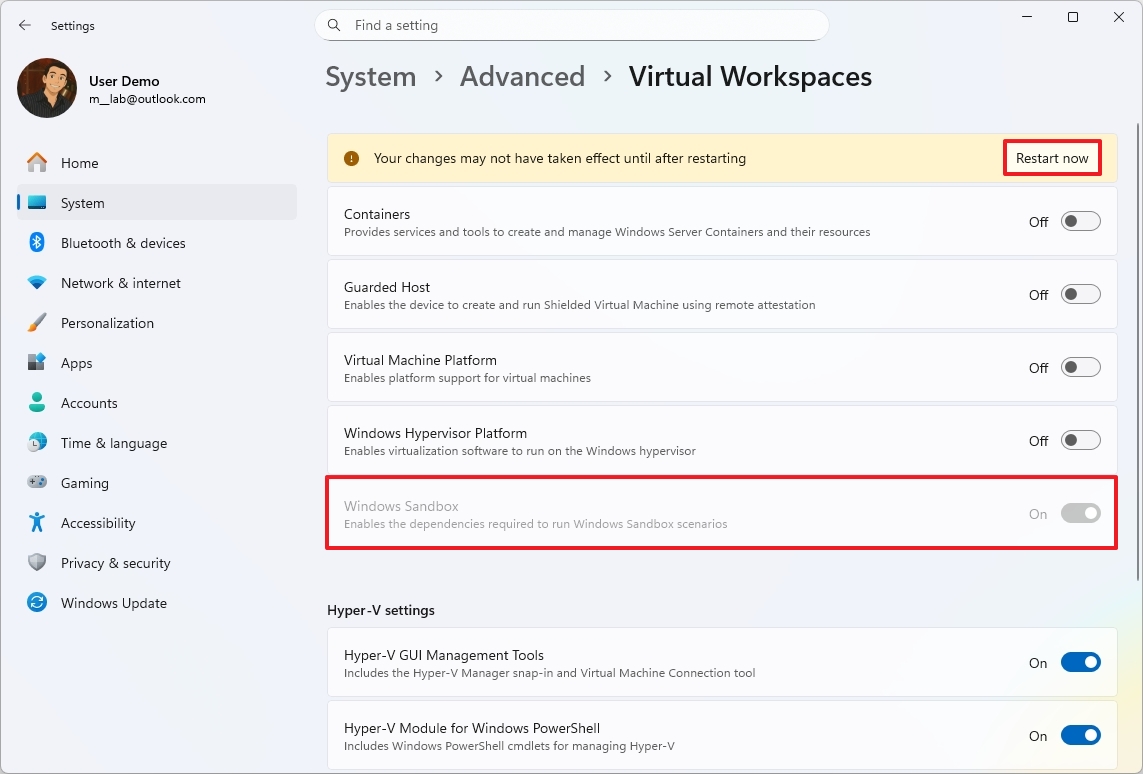
- Containers: Offers services and tools to create and manage Windows Server Containers and their resources.
- Guarded Host: Enables the computer to create and run a “Shielded Virtual Machine” using remote attestation.
- Virtual Machine Platform: Enables platform support for virtual machines
- Windows Hypervisor Platform: Enables virtualization software to run on the Windows hypervisor.
- Windows Sandbox: Enables the dependencies required to run the Sandbox feature.
- (Option 2) Turn on the Hyper-V available features.
- Hyper-V GUI Management Tools: Installs the Hyper-V Manager snap-in and Virtual Machine Connection tool.
- Hyper-V Module for Windows PowerShell: Configures Windows PowerShell cmdlets for managing Hyper-V.
- Hyper-V Hypervisor: Sets up the Hyper-V Hypervisor.
- Hyper-V Services: Installs the services that you can use to create and manage virtual machines and their resources.
- Click the Restart now button.
After you finish the steps, your computer will restart to activate the virtualization feature.
How to disable virtualization features on Windows 11
To disable virtualization features through Virtual Workspaces, use these steps:
- Open Settings.
- Click on System.
- Click the Advanced page on the right side.
- Click the Virtual Workspaces setting.
- Turn off the virtualization feature (if applicable).
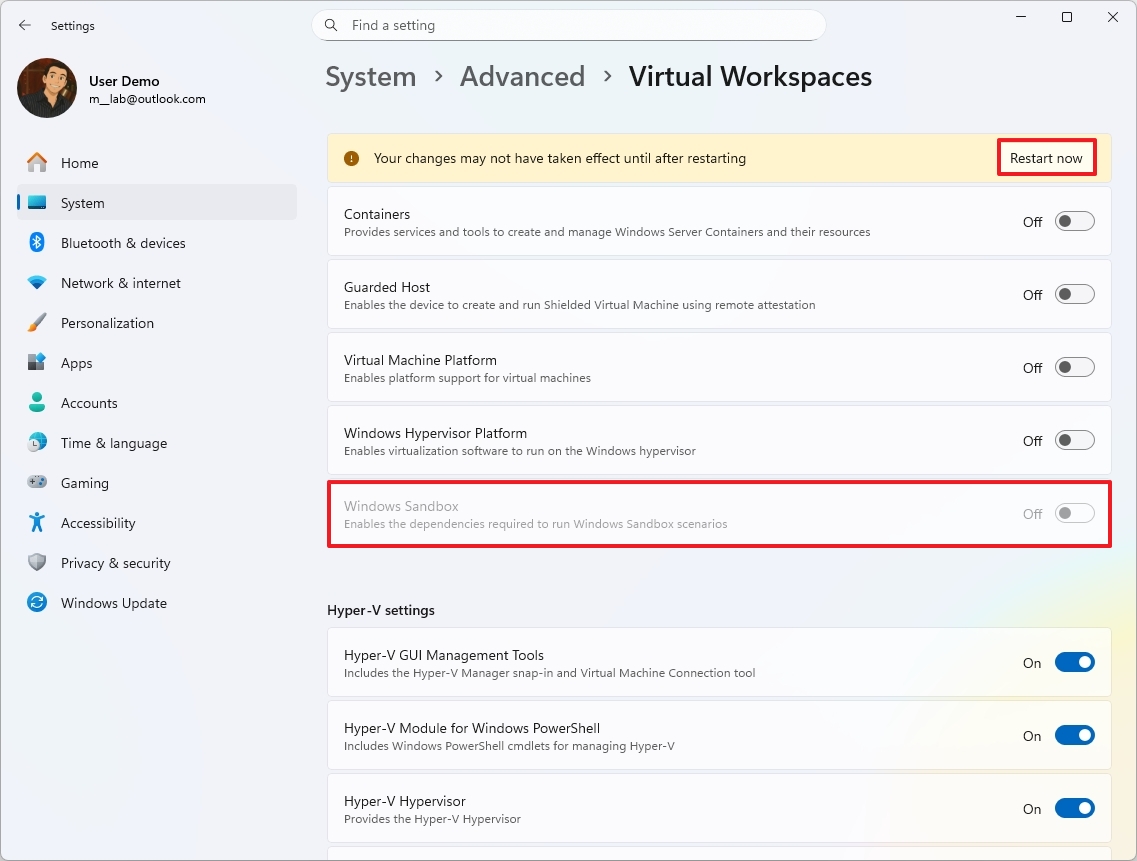
- Click the Restart now button.
After you complete the steps, the device will reboot to apply the changes to turn off the feature.
You can still turn on these and other features using the “Windows Features” section in Settings, or through PowerShell.
FAQs about getting started with Virtual Workspaces
These are common questions regarding Virtual Workspaces settings.
What’s Virtual Workspaces on Windows 11?
The new Virtual Workspaces page in Windows 11 Settings simplifies managing features that let you run virtualized environments. It’s a central place to turn on or off things like Hyper-V, Windows Sandbox, and the Windows Hypervisor Platform, replacing the older, more complicated Windows Features control panel.
Which Windows 11 versions support Virtual Workspaces?
The Virtual Workspaces feature is now available on up-to-date versions of Windows 11, but access might differ based on your Windows edition and how you receive updates. For advanced virtualization capabilities like Hyper-V, you’ll still need Windows 11 Pro, Education, or Enterprise.
What virtualization features can I manage from Virtual Workspaces?
On the Virtual Workspaces page, you can control features like Hyper-V (including its components and tools), Windows Sandbox, the Virtual Machine Platform, Windows Hypervisor Platform, Containers, and Guarded Host.
This eliminates the need to turn these features on or off one by one using the old Windows Features control panel.
Do I need to restart my PC after enabling or disabling features?
That’s right. To ensure the new virtualization settings work properly within Virtual Workspaces, you’ll need to restart your system after making any changes.
Why don’t I see Virtual Workspaces in Settings?
If you don’t see this option, your device might need updating, your version of Windows 11 may not include the necessary features for virtualization, or virtualization could be turned off in your computer’s settings.
More resources
Read More
- What Song Is In The New Supergirl Trailer (& What It Means For The DC Movie)
- Dune 3 Gets the Huge Update Fans Have Been Waiting For
- TV legend Carol Kirkwood reveals the reasons why she decided to retire after 28 years with BBC
- Starfield PS5 Won’t Play Off Physical Disc without a Download
- First Berserker: Khazan Players Are Getting Free Items to Celebrate the Game’s 1 Year Anniversary
- Jaleco Sports: Bases Loaded II announced for PS5, Switch; now available
- Digimon Is Getting a New RPG in 2026 (And You Probably Missed It)
- Kanye West’s Wife Bianca Censori Details New Marriage Milestone
- Designing Magnetism with Molecular Architecture
- Butcher’s Transformation Into A “Ruthless Killer” In The Boys Season 5 Explained By Karl Urban
2025-12-23 15:10