
Notepad on Windows 11 is no longer just a simple text editor. It’s been updated with helpful AI-powered writing tools and basic Markdown support, making it useful for developers, writers, and anyone who types a lot.
Starting with version 11.2510.6.0 for Windows Insider Program users, Notepad now supports tables. This is part of ongoing improvements to Notepad’s Markdown features. It’s not a full spreadsheet program like Excel, but it lets you easily create basic tables to organize information directly within Notepad.
This guide will walk you through how to create and use tables in the updated Notepad app for Windows 11.
This feature is currently being tested with users in the Windows Insider Program’s Dev and Canary channels. Microsoft is expected to release it to the general public soon.
How to use tables in Notepad
Notepad’s newest update lets you easily create tables using either the menu options or by typing specific code. You can also edit tables you’ve already made with the built-in tools.
Create a table in Notepad
To create tables in the latest update of Notepad, use these steps:
- Open Notepad.
- Click the Table option from the toolbar.
- (Option 1) Select the number of columns and rows using the mouse to create a table.
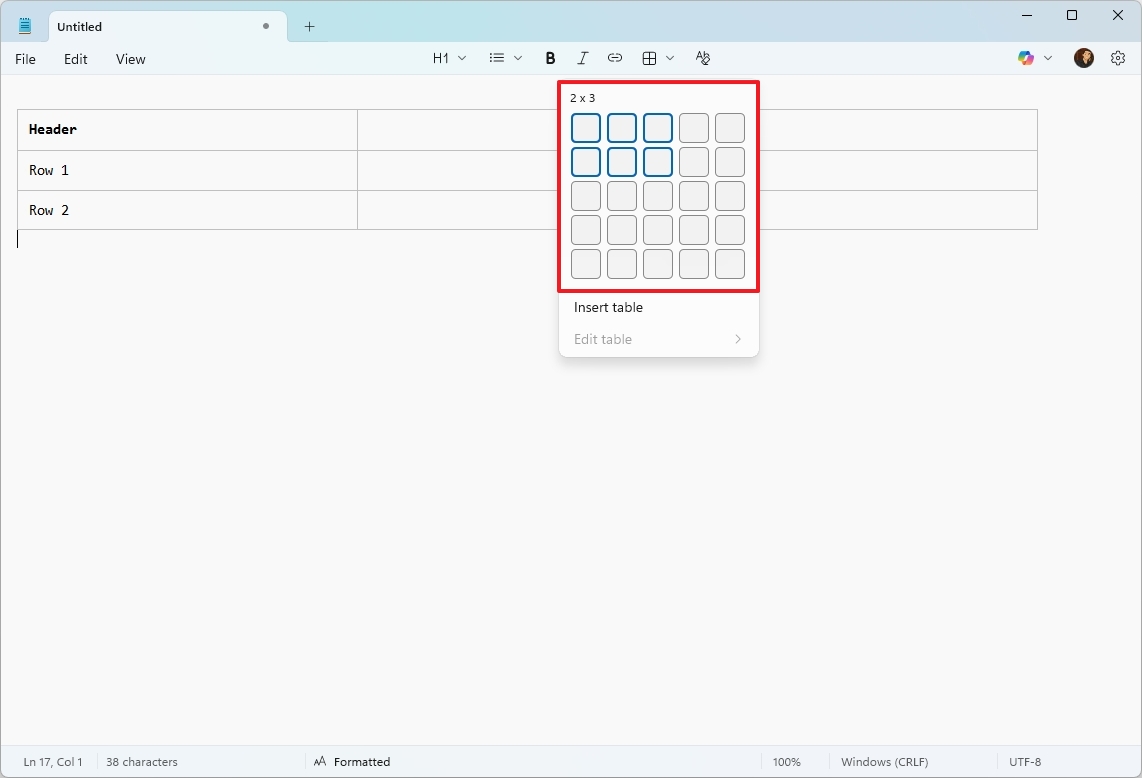
- (Option 2) Click on Insert table.
- Confirm the number of columns and rows to create a table.
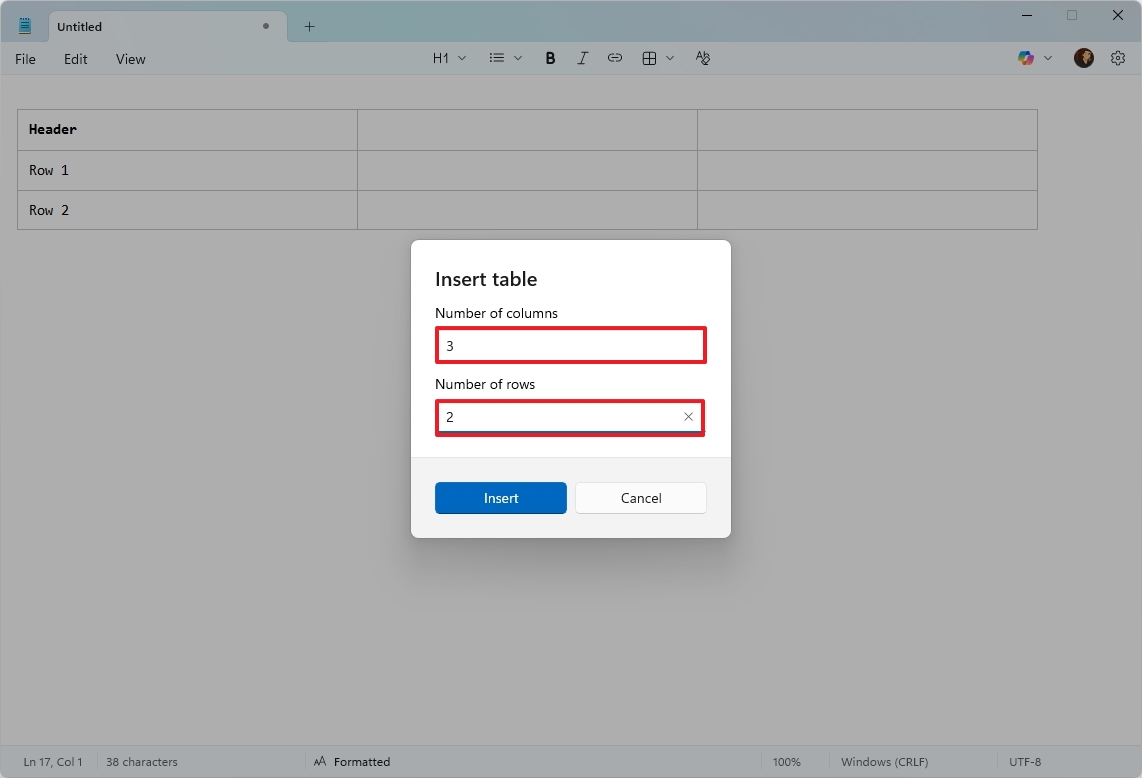
- Click the Insert button.
Once you complete the steps, the table will appear in the Notepad canvas.
Create a table with Markdown syntax
You can create tables using Markdown by changing your view to ‘Markdown Syntax’. Keep in mind that this simplified version of Markdown has fewer features than the full version.
|Header 1||||-|-|-||Row 1||||Row 1|||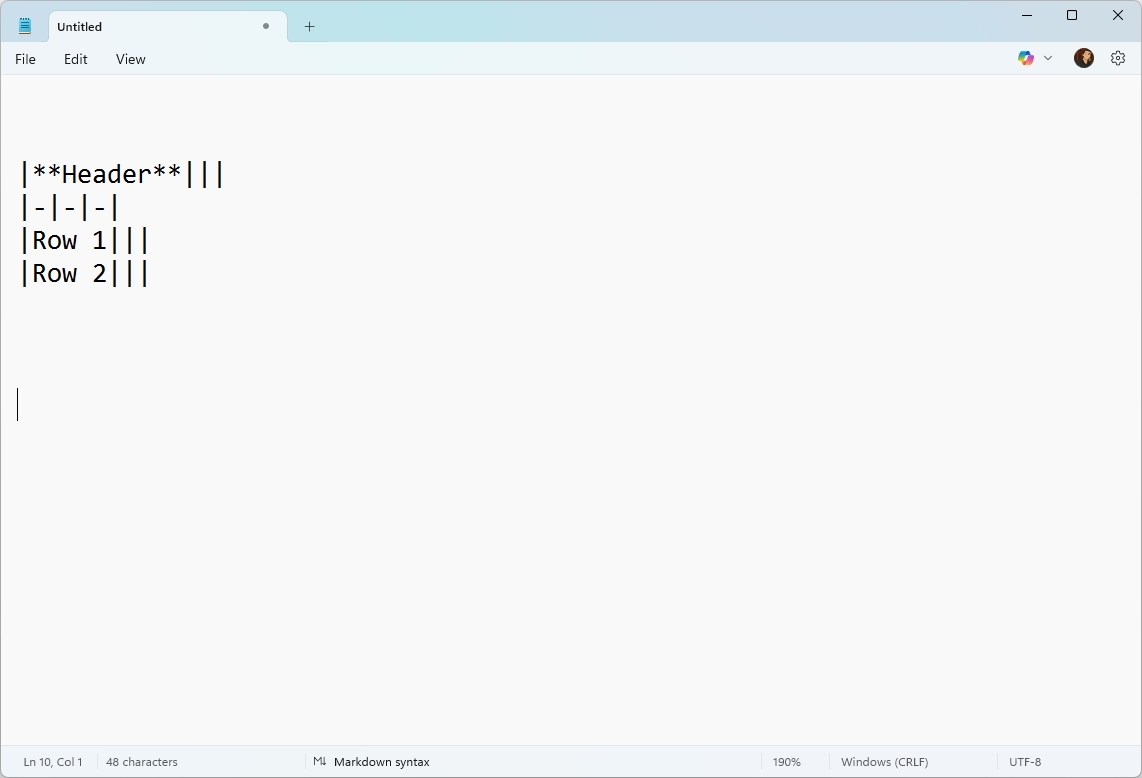
This code will create a table with three columns and three rows.
Edit a table in Notepad
To edit a table in Notepad, use these steps:
- Open Notepad.
- Click on the table you want to modify.
- Click the Table option from the toolbar.
- Select the Edit table menu and choose options, including Insert, Select, Delete, and “Fit columns to window view.”
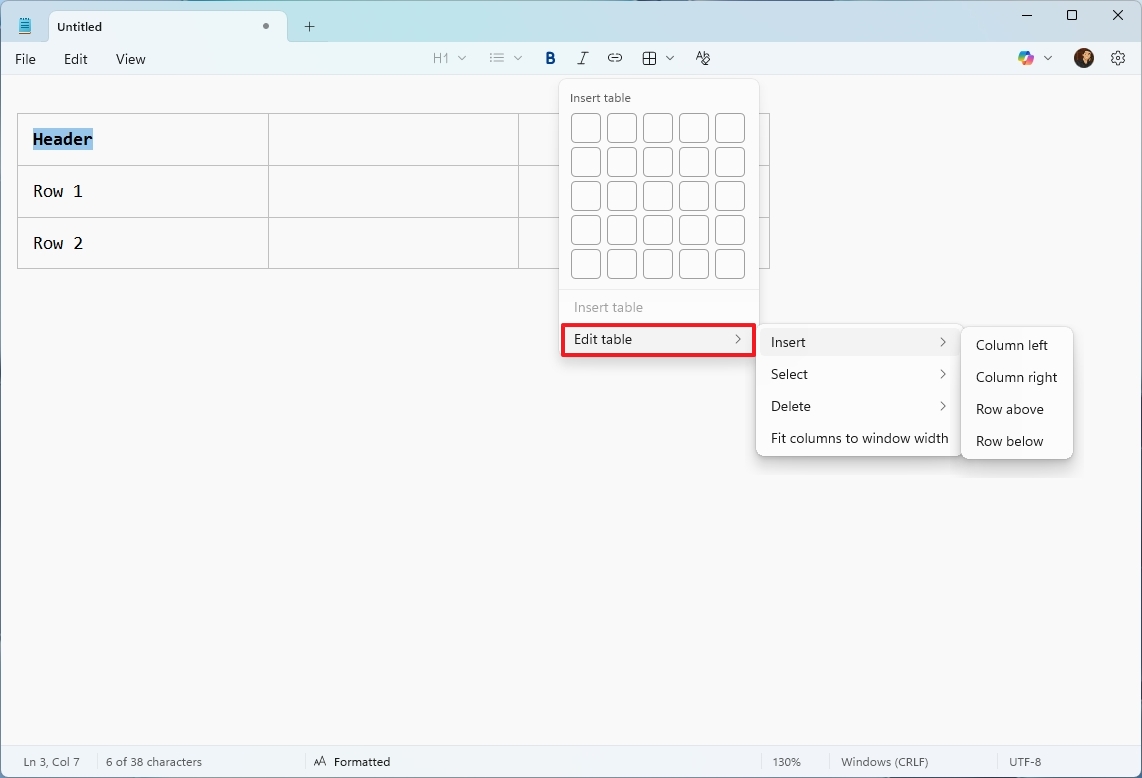
The options are straightforward. Use “Insert” to add new columns or rows. “Select” allows you to highlight different parts of the table, and “Delete” lets you remove sections or the whole table.
The “Fit columns to window view” allows you to do just that, but the view won’t be saved.
Are you thinking about creating tables in Notepad? And what do you think of the recent Notepad updates? Share your thoughts in the comments below!
FAQs about table support in Notepad
These are common questions about the table support for Notepad.
Can I create tables in Notepad without using Markdown syntax?
The new Notepad app now has a Table feature, allowing you to easily add tables without needing to type any special code. You can simply select how many rows and columns you want directly in the app.
Which Notepad version adds table support?
The table feature is now available in Notepad for those enrolled in the Windows Insider Program, starting with version 11.2510.6.0. It will be released to the general public in a future update.
Is Notepad becoming a spreadsheet app like Excel?
The table feature is designed for simple organization, like creating a grid similar to those in Word documents. It’s not intended for doing calculations, using formulas, or applying complex formatting.
How do I switch to Markdown syntax in Notepad?
To switch to Markdown mode, go to the View menu, then Markdown, and choose “Syntax”. This lets you create tables using Markdown code directly, rather than using the editor’s visual tools.
Can I use full Markdown table features?
Notepad offers limited Markdown support, letting you create simple tables, but it doesn’t handle more complex table features.
How do I add more rows or columns to an existing table?
To add rows or columns to the table, first click inside it. Then, go to the “Table” menu and select “Edit table.” Finally, use the “Insert” options to make your changes.
Can I delete a table or specific cells?
Under “Edit table,” the “Delete” menu lets you remove selected rows, columns, or the entire table.
More resources

Stay up-to-date with the latest news, insights, and features from Windows Central by following us on Google News!
Read More
- Gold Rate Forecast
- Arknights: Endfield – Everything You Need to Know Before You Jump In
- 10 Best Buffy the Vampire Slayer Characters Ranked
- Every Creepy Clown in American Horror Story Ranked
- Best X-Men Movies (September 2025)
- Chill with You: Lo-Fi Story launches November 17
- Hazbin Hotel Secretly Suggests Vox Helped Create One of the Most Infamous Cults in History
- 22 actors who were almost James Bond – and why they missed out on playing 007
- Spider-Man: Brand New Day’s Trailer Release Date Officially Confirmed & The MCU’s Strategy Is Perfect
- As Dougal and friends turn 60, Radio Times explores the magic behind The Magic Roundabout
2025-12-07 17:12