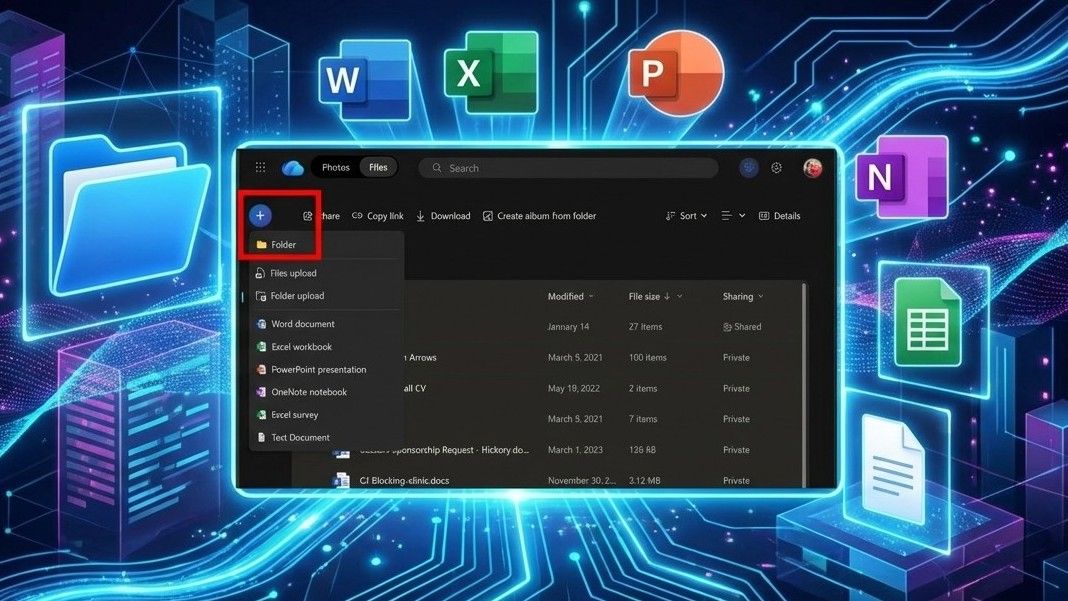
OneDrive doesn’t have a built-in way to officially transfer ownership of files and folders. Methods that work in SharePoint – like granting full access to another user and then removing your own – won’t work in OneDrive.
While OneDrive doesn’t have a direct way to transfer ownership, you can still do it with a workaround, though it has some restrictions.
If you organize files into a folder and share that folder with someone, they can use OneDrive’s ‘Copy to’ feature to move those files to a different location.
Okay, so I’ve been trying to use OneDrive to move a ton of files, and honestly, it’s kind of clunky. It’s slow, and it’s really frustrating because it can’t handle anything over 100GB at a time. Plus, if you have more than 30,000 files you want to move, you’re out of luck – it just doesn’t support that. It’s definitely not the smoothest experience!
Most importantly, keep in mind that these steps won’t move your file-sharing preferences. Instead, they create a copy of your files.
I moved over 80GB of photos and videos of my daughter to her OneDrive account. To keep access, she then shared the folder with me – I manage her OneDrive since she’s only three months old.
How to transfer ownership of OneDrive files or folders
To transfer the ownership of OneDrive files or folders, use these steps:
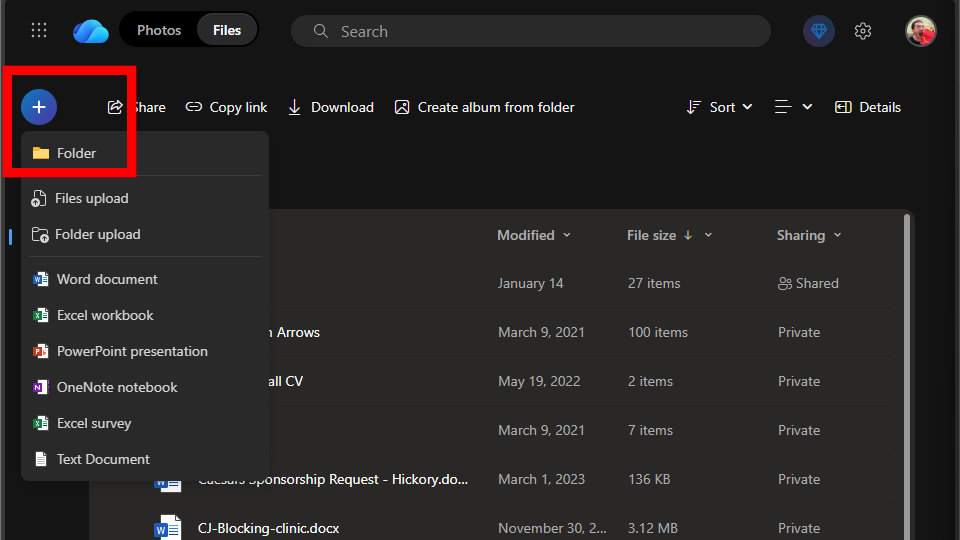
- Using the account that currently hosts the files you’d like to transfer, create a parent folder (a new folder that you can place the files in).
- Place the files you would like to share into that parent folder using the Move to feature or by dragging and dropping the content.
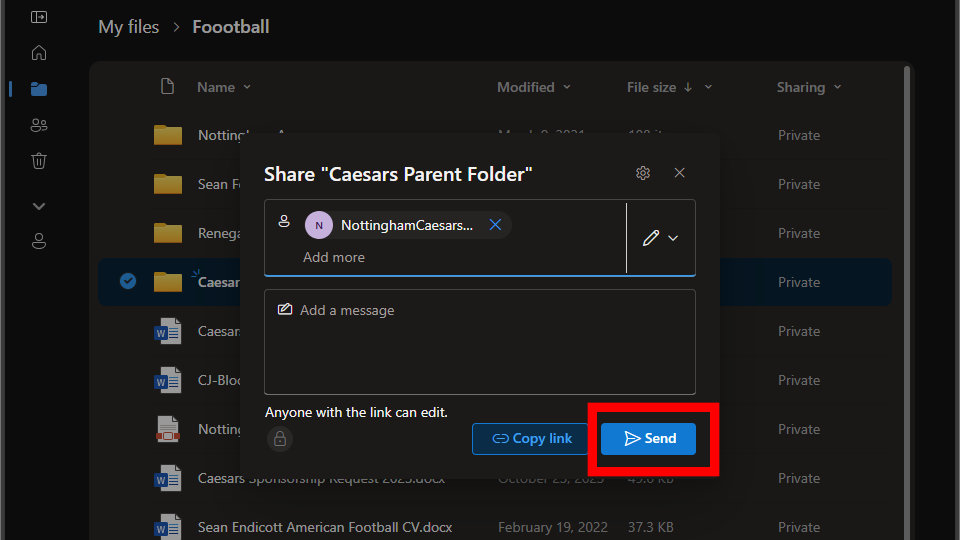
- Share the parent folder with the person you want to receive those files.
- Using the account you want to receive the files, open the parent folder that was just shared.
- Within that parent folder, select the folder that includes the files you’d like to transfer.
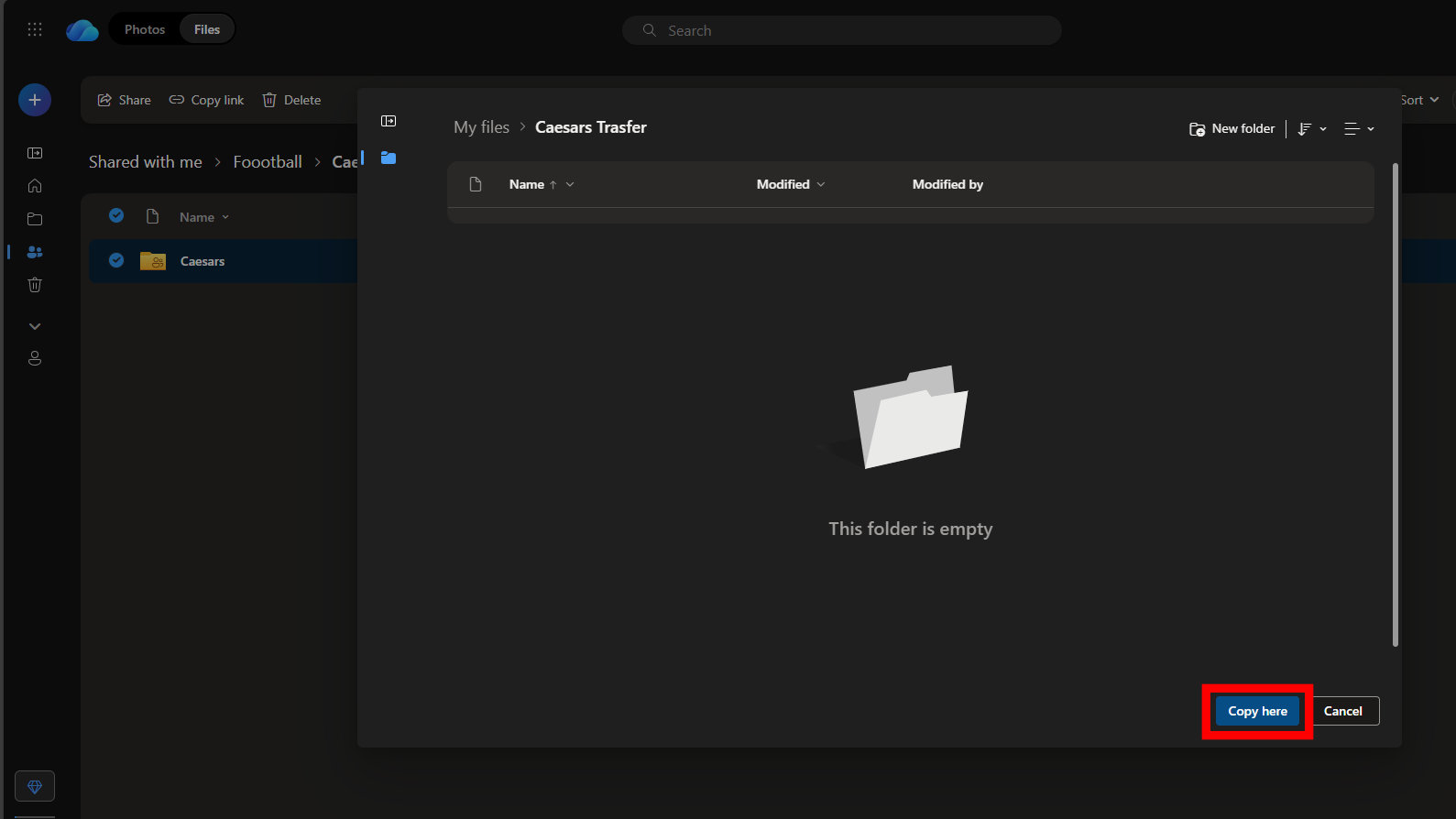
- Use the … menu to select Copy to.
- Select the location you’d like to have the copied files be located.
- Select Move here.
FAQs about transferring OneDrive file and folder ownership
Can I transfer the ownership of OneDrive folders or files?
OneDrive doesn’t allow you to directly transfer ownership of folders or files. But you can share a folder with someone else and then use the ‘Copy to’ feature to effectively move the files to them.
If I use the “Copy to” workaround, will the original files be deleted?
No, the ‘Copy to’ function actually makes a new copy of your files. If you want to save space, you can delete the original files from OneDrive yourself.
Will my shared links and “Version History” stay active after moving files?
That won’t work as expected. You’re actually making a brand new copy of your files in a different place. Any existing share links will break, and the file or folder will start a new version history.
Can I use the “Copy to” workaround to move files from a Personal account to a Work account?
The easiest way to transfer files between your personal OneDrive and your work OneDrive is to simply drag and drop them using File Explorer, or another similar manual method. The usual ‘Copy to’ option might not work when switching between different types of OneDrive accounts. This is because OneDrive’s website typically can’t recognize both your personal and work accounts simultaneously, making the process a bit trickier.
Does sharing a folder make someone else the owner?
Simply sharing a folder lets someone view its contents, but it doesn’t give them control or ownership of those files.
How do I save files from an employee who is leaving the company?
When an employee leaves, saving their files needs a special process and help from a Microsoft 365 administrator. You can use the SharePoint Admin Center to give an administrator access to those files.
More resources
Read More
- What Song Is In The New Supergirl Trailer (& What It Means For The DC Movie)
- Highly Anticipated Strategy RPG Finally Sets Release Date (And It’s Soon)
- Dune 3 Gets the Huge Update Fans Have Been Waiting For
- Why is Tech Jacket gender-swapped in Invincible season 4 and who voices her?
- TV legend Carol Kirkwood reveals the reasons why she decided to retire after 28 years with BBC
- MOUSE: P.I. For Hire Loops in Caravan Palace for A Catchy New Track Ahead of April 16 Release
- Eurogamer Gives ARC Raiders 2/5 Over AI Voices, Dropping Metacritic Score from 94 to 84
- Way of the Hunter 2 adds PS5, Xbox Series versions
- Gold Rate Forecast
- After 13 Years, Someone Earned One of the Hardest Achievement Trophies in Gaming
2025-12-23 15:40