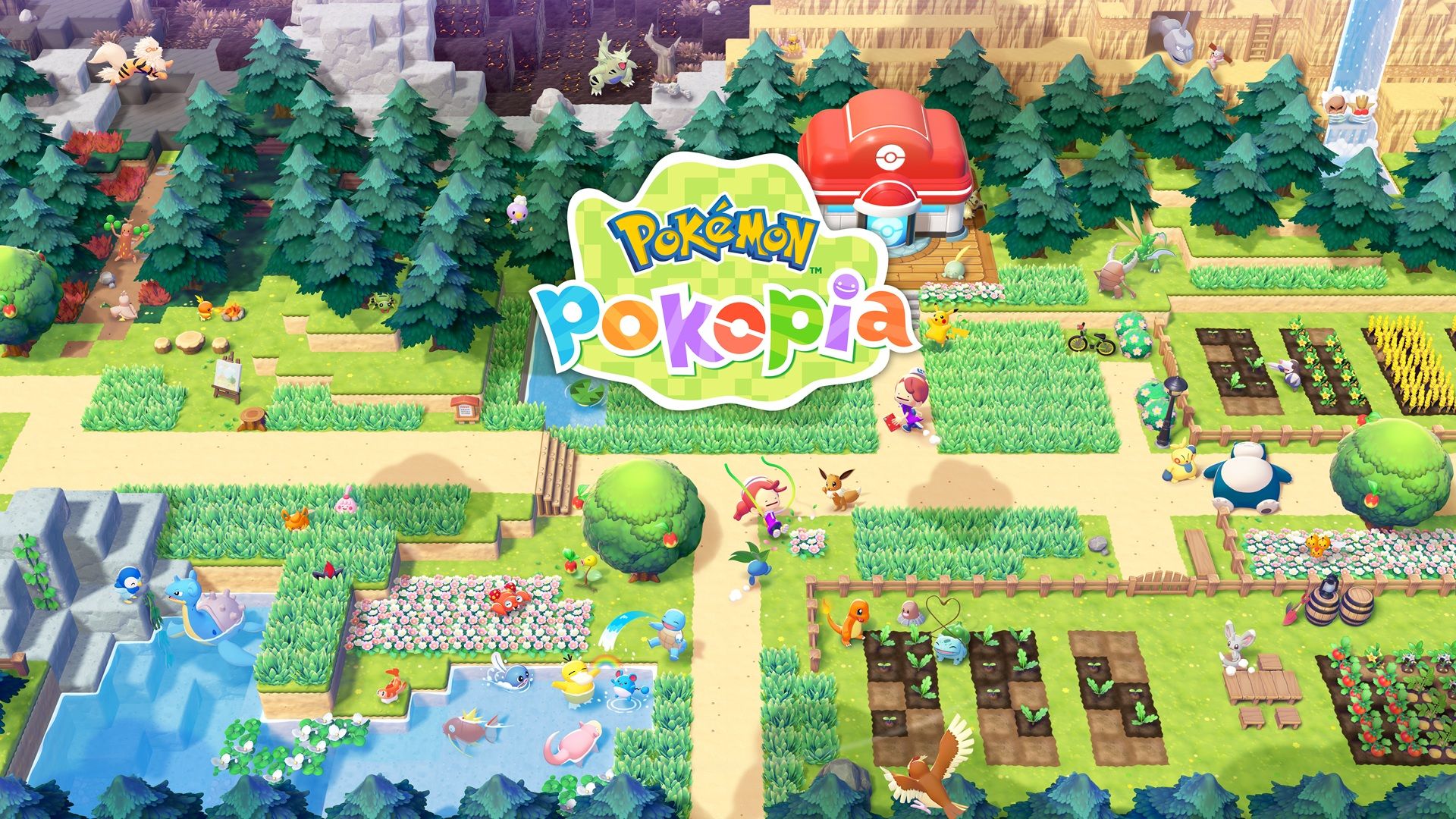
Since Pokemon Pokopia is a Switch 2 exclusive and quite expensive, many players want to share it with friends and family, even those who still use the original Switch. Luckily, the game supports a feature called GameShare, which allows this, though it takes a bit of setup and has some restrictions.
This guide provides everything you need to set up GameShare for Pokemon Pokopia on both the original Switch and the newer Switch model.
How To Unlock Palette Town And GameShare For Pokemon Pokopia
GameShare isn’t available right away in Pokemon Pokopia – you’ll need to play for a while to unlock it. First, you have to reach Environment Level 2. Then, to get out of Withered Wasteland, head west – you can either break through with Rock Smash or climb over the hills. Once you’re clear of the Wasteland, turn left and look for a long bridge. You’ll need to build a small bridge to cross a narrow gap and reach it.
After crossing over, you’ll receive a warning suggesting you learn more before entering the town. Choose to ignore it and continue on to Palette Town.
The Link Play feature on the Pokemon Center PC works a bit differently than normal. When you choose ‘Invite Others to Visit’, you can use GameShare, alongside the standard options for connecting online or locally.
How To GameShare Pokemon Pokopia On Switch 1 & Switch 2
To start, choose GameShare on your console. Then, on the other console, select GameShare from the Home screen and choose ‘Join GameShare’ to find available local games. This process doesn’t require an internet connection.
After connecting, the user on the main computer needs to click ‘Start’ to begin the session.
To use Online GameShare, you’ll need GameChat, a feature only available for Switch 2 owners. Also, everyone playing together must be friends with the person hosting the game.
Pokemon Pokopia GameShare Limitations
Guests won’t be able to customize their Ditto characters, and they also won’t have access to the story mode.
Players can only explore Palette Town, which functions as a free-play area without a main storyline. When playing with GameShare, the person hosting the game is also restricted to this town.
Okay, so when I let friends play on my account with GameShare, they can only do what I can do in the game. This guide helps unlock GameShare early, which is awesome, but honestly, it’s way better if I’ve gotten further in the story first. That way, my friends have more abilities and stuff to actually use. Also, everyone has their own separate inventory space, so they can collect their own gear – it’s not shared!
The person hosting the game needs to stay connected, because if they end the session, everyone else will be disconnected. When the session ends, all items from other players’ inventories will be sent to the Lost & Found at the Pokémon Center. No one – not the host or the guests – can access the Lost & Found, and no one can play minigames with Pokémon during the session.
All in all, GameShare for Pokemon Pokopia is essentially only a little better than a spectator mode.
That is everything there is to know about unlocking GameShare functionality for Pokemon Pokopia.
Read More
- Gold Rate Forecast
- Hideo Kojima Says He Was Never Told About The Matrix Creators Wanting Him to Make a Game
- Eurogamer Gives ARC Raiders 2/5 Over AI Voices, Dropping Metacritic Score from 94 to 84
- One of Hulu’s Best New Shows Lands on Disney+ Ahead of Season 2
- Dune 3 Gets the Huge Update Fans Have Been Waiting For
- Guardians of the Globe Members We Want to See in Invincible Season 4
- Kelly Osbourne Slams “Disgusting” Comments on Her Appearance
- What Song Is In The New Supergirl Trailer (& What It Means For The DC Movie)
- ’90s Cartoon Reboot & TMNT Connection!
- The 10 Best Fantasy Movies Of the 2020s (So Far)
2026-03-12 15:42