
If you just got a Steam Deck, congratulations and welcome to the Steam Deck family!
If you’re new to the Steam Deck, there are a few quick things to do before you start playing. Because it’s not the most powerful handheld, you’ll get the best gaming experience by adjusting both the graphics settings within your games and the system settings themselves.
Here are the things you should do first after getting your Steam Deck.
1. Fully update your Steam Deck
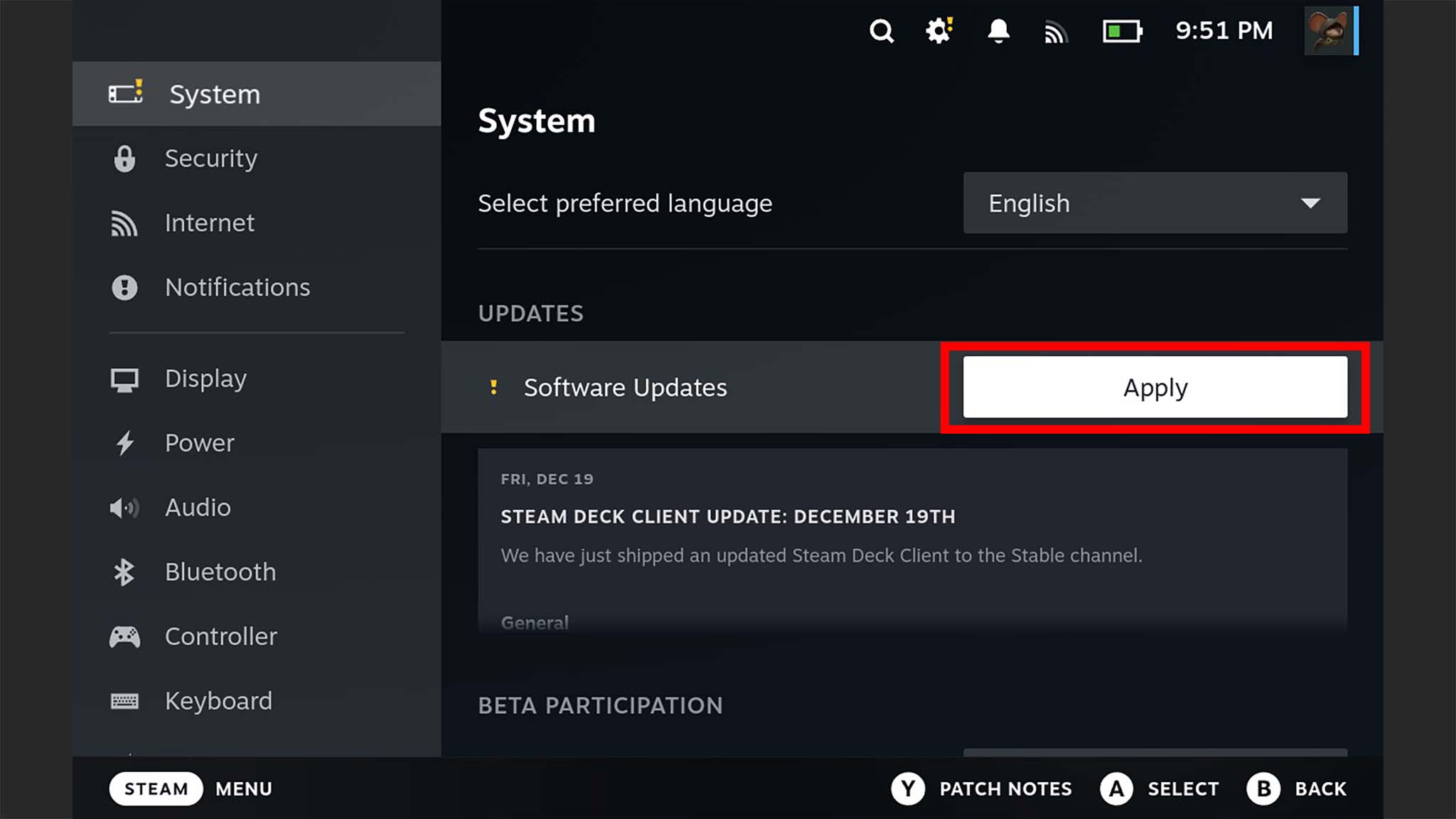
As a tech enthusiast, I’ve learned that keeping your Steam Deck’s software current is key to getting the most out of it. So, the very first thing I always do with a new Deck – or after a period of not using it – is manually check for and install any available updates. It really makes a difference in performance, and here’s how you can do it.
- Press the Steam button.
- Select System.
- Where it says “Software Updates,” either tap Apply or Check for Updates.
- Finally, if there are updates, select Restart.
Once your Steam Deck finishes restarting, it will be fully updated. You’re now one step closer to enjoying your new handheld device!
2. Install Decky Loader to access Epic Games, Ubisoft Connect, and other gaming services
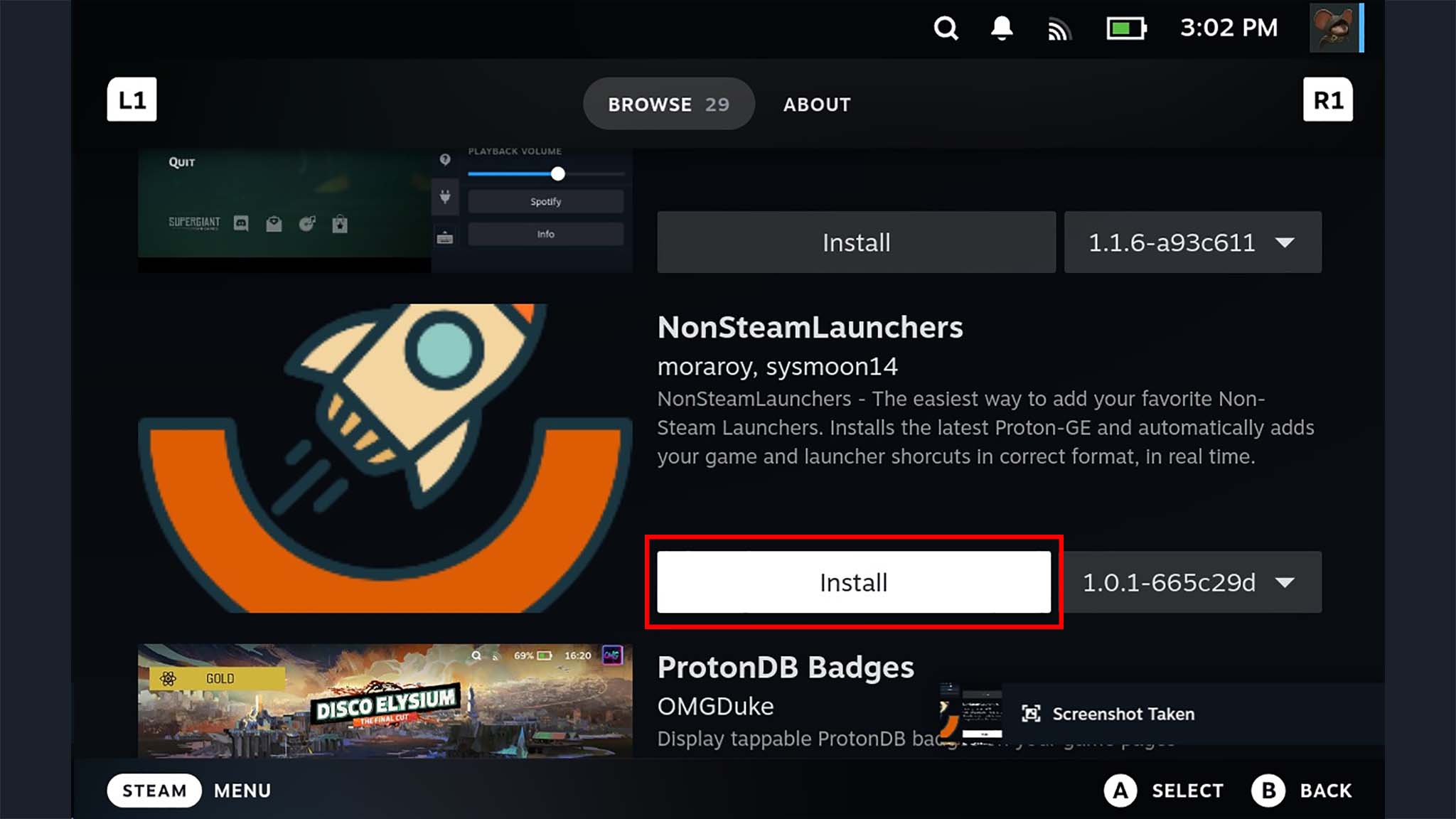
I’ve been playing around with the Steam Deck, and while its Gaming Mode initially focuses on your Steam games, I discovered this awesome little plugin called Decky Loader. It basically opens up the Deck to other game launchers like Epic Games Store and Ubisoft Connect, making it way more versatile. It’s super easy to set up, and I can access all my games in one place now!
If you’d like help installing Deck Loader on your Steam Deck, I have a detailed guide with pictures and easy-to-follow steps.
3. Increase Steam Deck VRAM when playing graphically intensive games
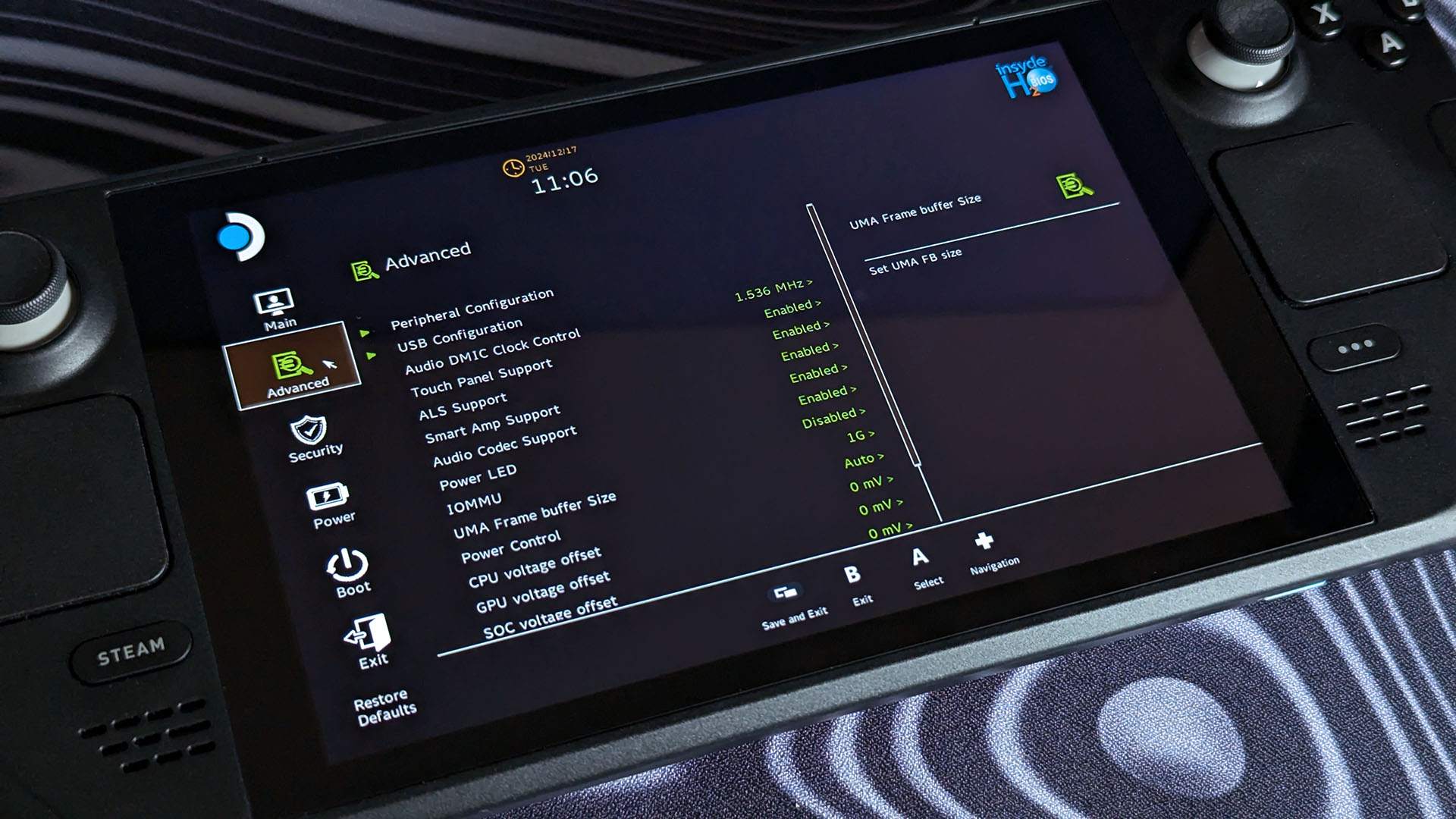
To get the most out of demanding games on your Steam Deck, you can manually adjust the VRAM. VRAM is the dedicated, high-speed memory used by your graphics card.
My coworker created a guide explaining how to adjust the VRAM on your Steam Deck. You can find detailed, step-by-step instructions there. Keep in mind that this process involves accessing the BIOS.
4. Launch games into Proton Experimental Mode for better performance
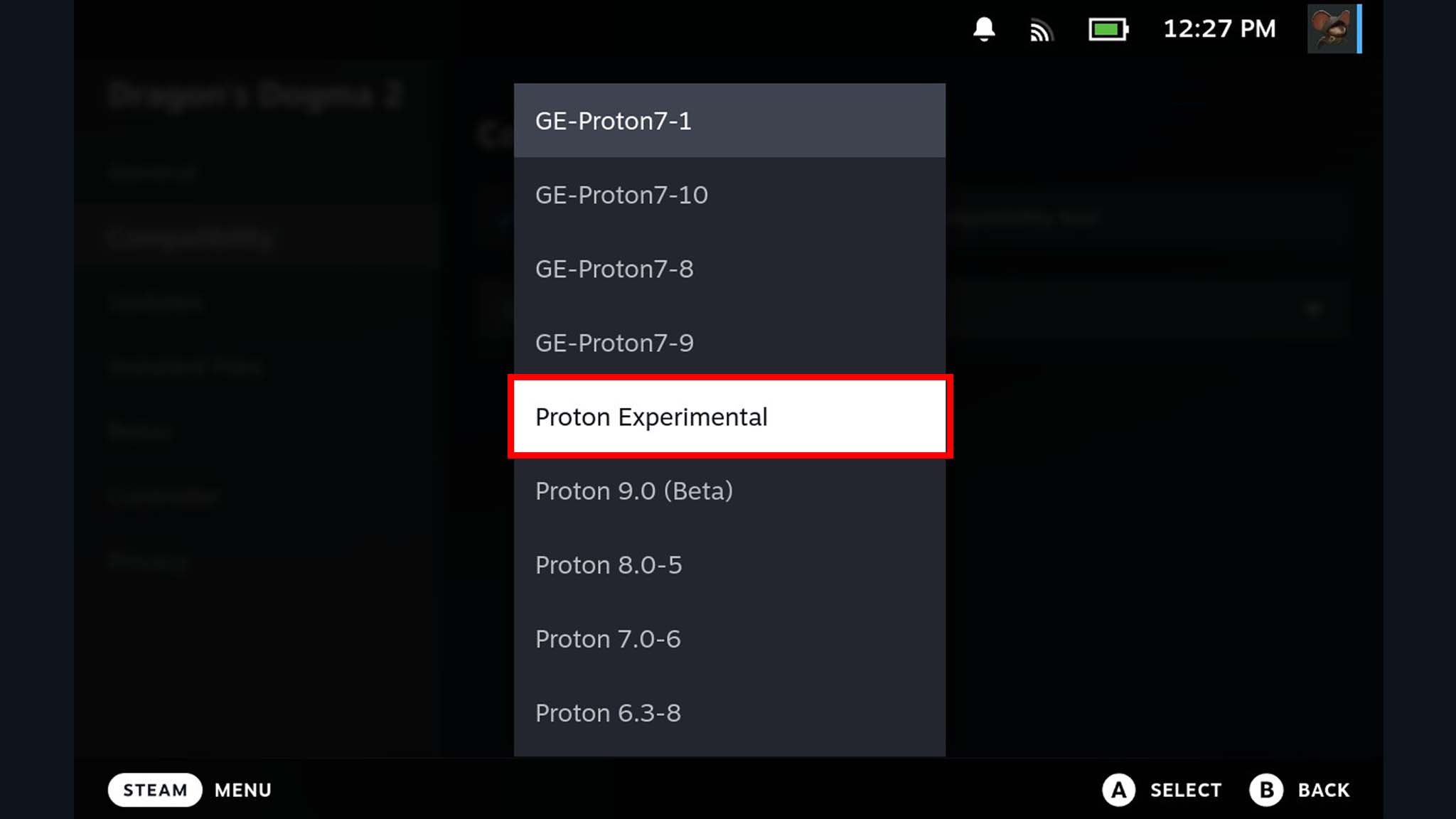
If a game has trouble running on Steam Deck using the default settings, trying Proton Experimental might fix the problem.
Proton lets you play Windows games on the Steam Deck, which uses a Linux operating system. Proton Experimental is a testing version with new features and fixes, and it can sometimes help games run that otherwise wouldn’t.
How to turn on Proton Experimental Mode:
- Press the Steam Button and navigate to your Library.
- Select the game you want to play (Download it if it isn’t already).
- Instead of pressing Play, tap the ⚙️ Settings icon on the right side of the screen.
- Select Properties.
- Tick the box next to where it says, “Force the use of a specific Steam Play compatibility tool.”
- Tap the dropdown below and put it on Proton Experimental.
- Press B a few times to back out to your game.
- Press Play and the game should run in Proton Experimental Mode.
5. Enable FSR (when possible) and adjust game settings
The Steam Deck can easily handle most pixel art games. However, you might need to tweak some settings to get more demanding games running smoothly on the handheld.
To get the best performance, it’s usually best to start with the lowest graphics settings or a preset designed for the Steam Deck, if the game has one. This will help the game run more smoothly and can fix any lag or stuttering you might experience.
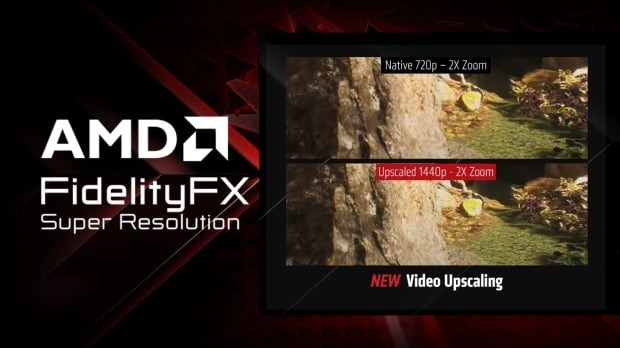
If a game offers it, enable AMD FidelityFX Super Resolution, or FSR. This feature boosts performance by running the game at a lower resolution and then intelligently scaling it up to look sharp and clear on your screen.
Here’s how to turn on FSR on Steam Deck:
- Within the game’s graphics settings, reduce resolution to 1280×720 and make it Windowed rather than Full Screen.
- Now, find the upscaling option and make sure to enable FSR.
- You can verify that FSR is on by pressing the QAM button (…) to bring up the side menu.
- Then go to the Performance tab and put the slider to 4 on the Performance Overlay Level.
Now that everything is set up, your games should run with improved performance thanks to FSR, and the overlay will let you easily check if it’s working correctly.
To hide the Performance Overlay, just reopen the side menu and turn the Performance Overlay Level setting to Off.
6. Adjust Steam Deck TDP and Frame Limit based on the games you’re playing

Your Steam Deck lets you adjust its TDP, which controls how much power the processor and graphics card use. Lowering the TDP extends battery life, but demanding games need more power to run well. Finding the right balance between performance and battery life is key.
Frames per second (FPS) measures how quickly images are shown on your screen. Less demanding games don’t require a high FPS, but fast-paced, competitive games – like first-person shooters – benefit from higher frame rates, which reduce delays and make movement look smoother.
For example, a simple pixel art game like Stardew Valley can run efficiently at 30FPS with a low power usage (3-6 watts) to save battery life. However, demanding games like Cyberpunk 2077 usually need a higher power setting (up to 15 watts) and a frame rate of 40-60FPS, depending on your graphical settings.
Here’s how to adjust frame rate and TDP on Steam Deck:
- Press the Quick Access Menu (QAM) button (…) on the right side of the Steam Deck.
- Select the ⚡Performance tab.
- Use the Frame Limit slider to change between 10FPS and 60FPS.
- Use the TDP Limit slider to change between 3W and 15W.
7. Consider upgrading the SSD instead of using a microSD card
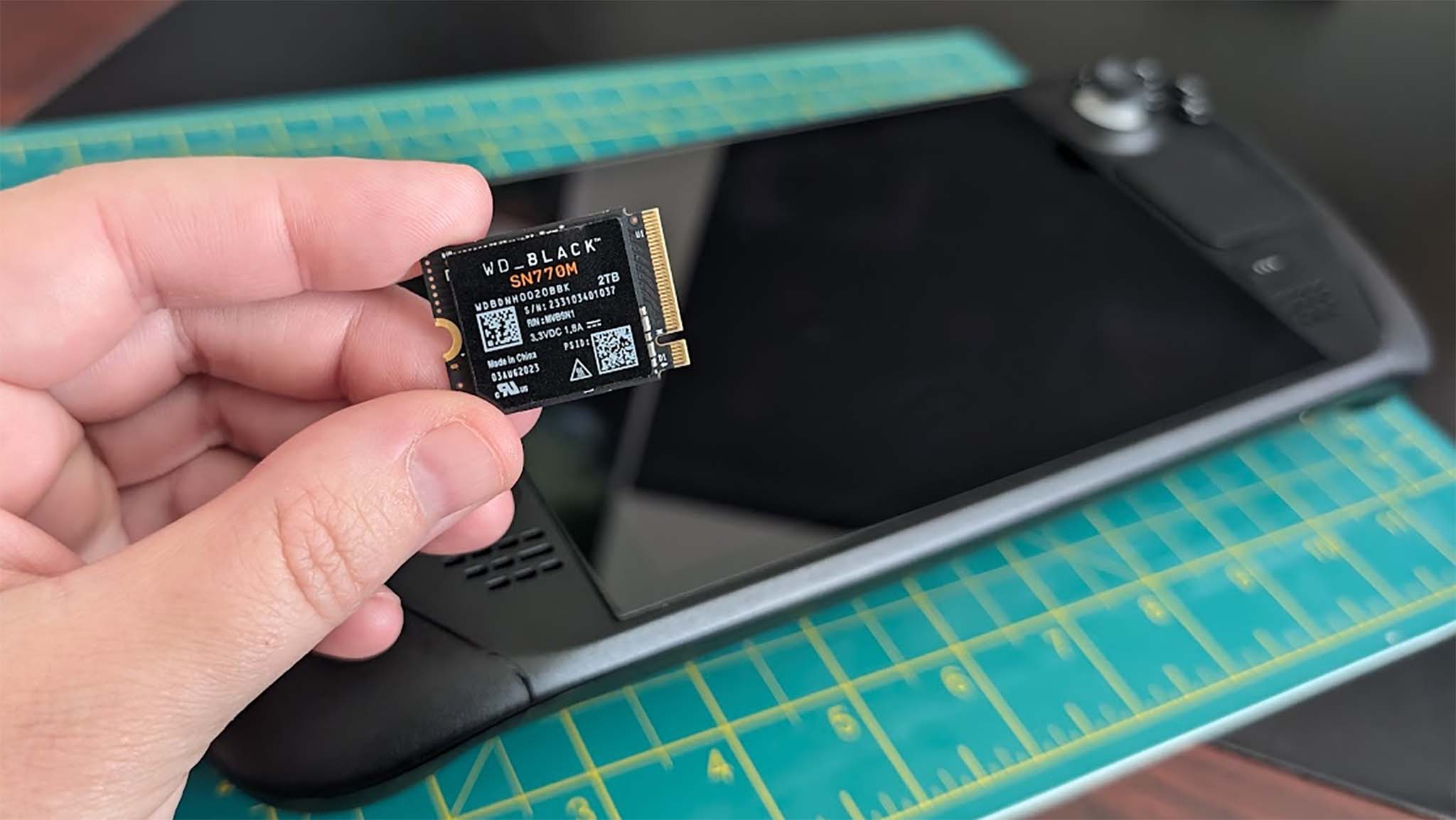
Your Steam Deck probably has 256GB, 512GB, or 1TB of storage for your games. If you need more space, you can either use a microSD card or upgrade the internal SSD. A microSD card is simpler to install, but upgrading the SSD will give you faster performance.
If you’re a serious gamer, upgrading to a 1TB or larger storage drive is a great idea. Plus, a faster SSD will make your Steam Deck load games and save progress much quicker.
The Steam Deck comes with a solid-state drive (SSD) that usually reaches speeds of around 2,000MB/s. However, faster SSDs are available, like the Crucial P310 1TB, which can significantly improve performance with read speeds up to 7,100MB/s.
If you’re thinking about adding more storage to your Steam Deck, I’ve written a guide on how to upgrade its SSD.
BONUS: Use Desktop mode to surf the web and much more

The Steam Deck is more than just a handheld game console – think of it as a portable gaming laptop running Linux, but with controllers instead of a keyboard and mouse. It even has a desktop mode, letting you browse the internet, manage software, and access files just like a regular computer.
Here’s how to get to the Steam Deck desktop:
Steam button > Power > Switch to Desktop
To switch back to playing games using the handheld mode, tap the white and blue icon on your desktop labeled “Return to Gaming Mode.”
Our favorite Steam Deck accessories
Adding a few accessories can really enhance your Steam Deck. Here are some of my top picks, covering things like extra storage, protective cases, TV docks, and other helpful gadgets.
Get your Steam Deck ready for play
So, here are seven things to take care of before you start playing on your new Steam Deck. Spending a little time adjusting settings – both for the system and each game – will help you get the best possible experience.
Getting to know the Quick Access Menu (QAM) and Desktop mode is helpful, as it shows you everything the Steam Deck is capable of.
As an analyst, I definitely suggest considering some accessories to get the most out of your gaming experience. Personally, I often use my Steam Deck as a portable device, but when I want to play on a bigger screen, a docking station is a must-have. I also highly recommend investing in a screen protector and a case – they’re crucial for keeping your device safe.

We’re curious: what made you decide to get a Steam Deck? Do you use it as your primary gaming machine, or for specific games or purposes? Share your thoughts in the comments below!
Read More
- What Song Is In The New Supergirl Trailer (& What It Means For The DC Movie)
- TV legend Carol Kirkwood reveals the reasons why she decided to retire after 28 years with BBC
- Highly Anticipated Strategy RPG Finally Sets Release Date (And It’s Soon)
- Why is Tech Jacket gender-swapped in Invincible season 4 and who voices her?
- MOUSE: P.I. For Hire Loops in Caravan Palace for A Catchy New Track Ahead of April 16 Release
- Alan Ritchson’s Reacher Future Looks Hopeful Thanks To Amazon’s 10/10 Action Thriller Series
- How Blake Lively & Ryan Reynolds’ Kids Pranked Her on April Fool’s Day
- The OG Resident Evil 1, 2 and 3 Are Now Available on Steam With a Heavy Discount (and DRM)
- The Monsterverse’s Shocking New Time Travel Story – Monarch: Legacy Of Monsters Season 2, Episode 6 Explained
- Tainted Grail: The Fall of Avalon – Merlin’s Tomb DLC Adds a New End-Game Dungeon for Free
2025-12-25 17:11