With the year winding down, Microsoft is easing up on new Windows 11 features, but they still delivered several preview versions with enhancements earlier in December through the Windows Insider Program.
Over the past two weeks, along with updates released in late November, the company has provided early access to preview versions of its software, specifically 25H2 and 26H1.
Devices in the Canary Channel received two preview builds – 28000.1340 and 28020.1362 – which included many updates designed to make the upcoming 26H1 version similar in features to the 25H2 version currently available in the Dev and Beta Channels.
Throughout the first half of December, the Dev and Beta Channels saw limited updates. However, the team did release build 26220.7344, which included some notable enhancements, and build 26220.7523, which added more features powered by AI.
In this recap, I’ll highlight the biggest changes available through the Windows Insider Program.
Biggest improvements from the Windows Insider Program in December 2025
These are the improvements Microsoft has rolled out since my last roundup of changes.
Model Context Protocol (MCP)
To further integrate AI into Windows 11, Microsoft is introducing support for the Model Context Protocol, starting with build 26220.7344 for those in the Dev and Beta Channels. This new open standard allows different AI tools, apps, and services to communicate with each other more easily.
As a tech enthusiast, I’m really excited about this – apparently, these AI agents can actually find and work with other apps and AI on your device, all through a secure and organized system built right into your phone or computer. It’s like they’re building their own little network!
As part of my research, I’ve been following Microsoft’s AI developments, and they’ve recently introduced AI integration within File Explorer and Windows Settings – essentially, new ways for AI to connect with and enhance those familiar tools.
The File Explorer Connector lets agents access and work with files on a user’s computer, but only with the user’s permission. This allows them to manage local files.
Copilot+ PCs let you search for files using everyday language. You can describe what you’re looking for, and it will find the right file based on its description, details, and what’s inside. It can even find pictures by recognizing what’s *in* the images.
On Copilot+ PCs, the Windows Settings Connector helps you easily find, change, and go directly to any setting.
Update Orchestration Platform (UOP)
The latest preview build, 26220.7344, includes a new system called Unified Update Orchestration Platform. This tool helps developers create smoother and more reliable updates that users will experience through the Settings app.
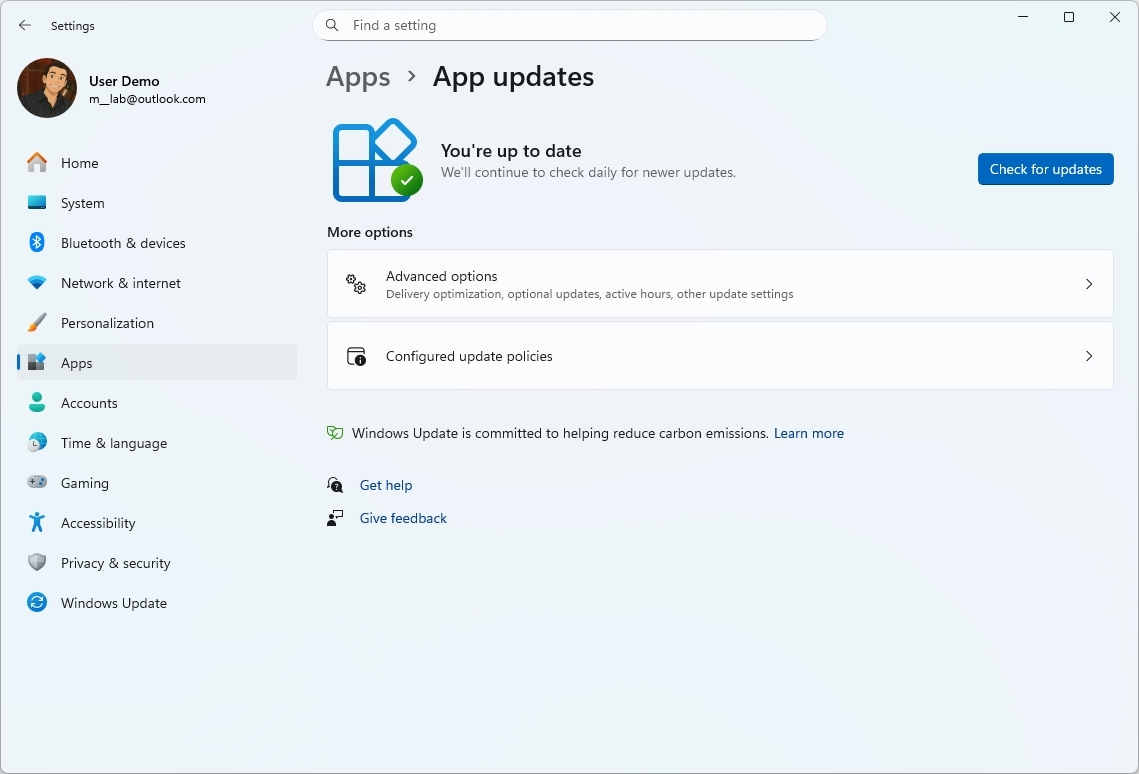
If the developer adds this new feature, you’ll find an “App Updates” section within the Apps settings where you can check for and download updates. The app will still get updates directly from the developer’s server, not through Windows Update, but it will check for those updates automatically as you use it.
Windows MIDI Services
Throughout December, users in the Beta and Dev Channels also got the new Windows MIDI Services, which includes a new API, service, and software development kit for creating music experiences on Windows.
Windows 11 now fully supports both WinMM MIDI 1.0 and WinRT MIDI 1.0. This includes a translation feature that lets any application work with any MIDI 1.0 or MIDI 2.0 device.
Plus, it now supports loopback and MIDI communication between apps, and Microsoft is continuing to refine the software with improvements and bug fixes.
The company also notes that the App SDK and Tools are separate downloads.
Xbox Full Screen Experience for PCs
I’m really excited to see Microsoft expanding the Xbox Full Screen Experience to even more handheld gaming devices! They just released a new build – 28020.1362 – in the Canary Channel that does exactly that. As someone who loves gaming on the go, this is a huge win for a more immersive experience.
The feature has been designed to make the gaming experience more like a console experience.
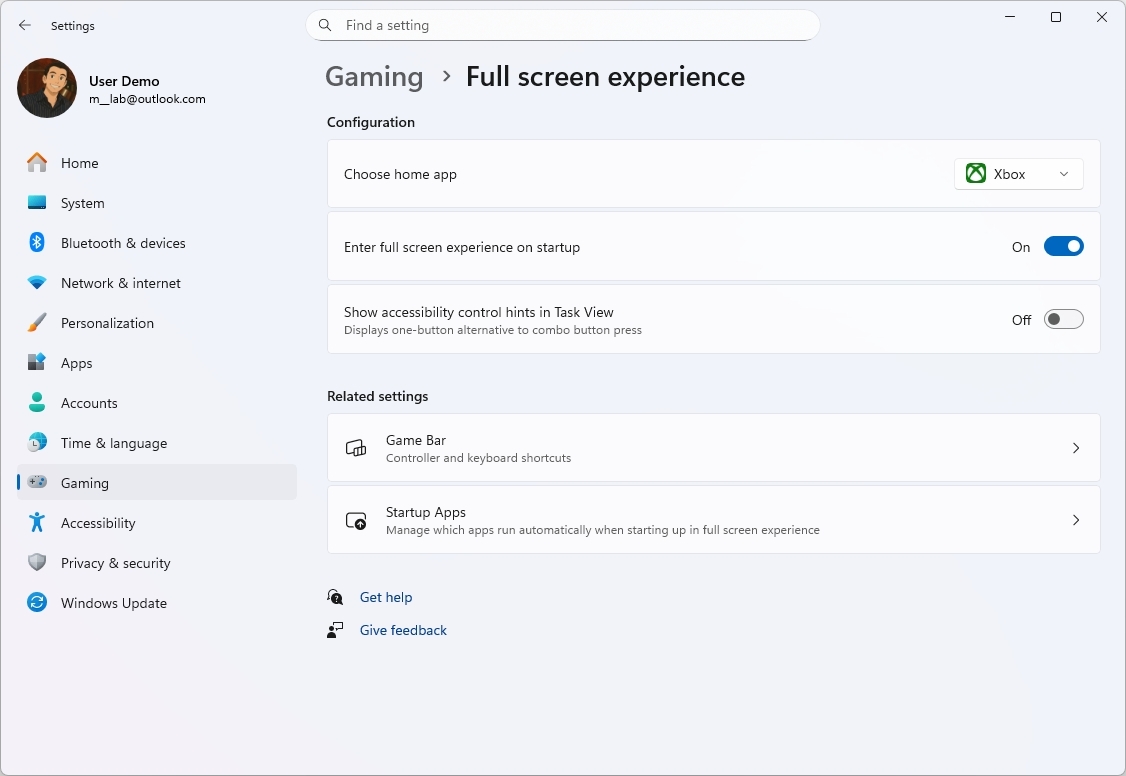
You can turn on full screen mode for gaming on your device by going to Settings, then Gaming, then Full screen experience. From there, simply toggle on the “Enable full screen experience on startup” option.
Settings app with AI agent
The newest preview version of Windows includes an AI helper within the Settings app, similar to the one found on Copilot+ PCs. This AI can assist users in locating and modifying settings.
The Home page’s “Recommended settings” section now displays quick actions for settings you’ve recently changed, making it easier to manage them.

The newest version of Windows 11 doesn’t add any new capabilities to its AI assistant, but Microsoft is making it available in more languages. These include German, Portuguese, Spanish, Korean, Japanese, Hindi, Italian, and Simplified Chinese.
File Explorer new dark mode improvements
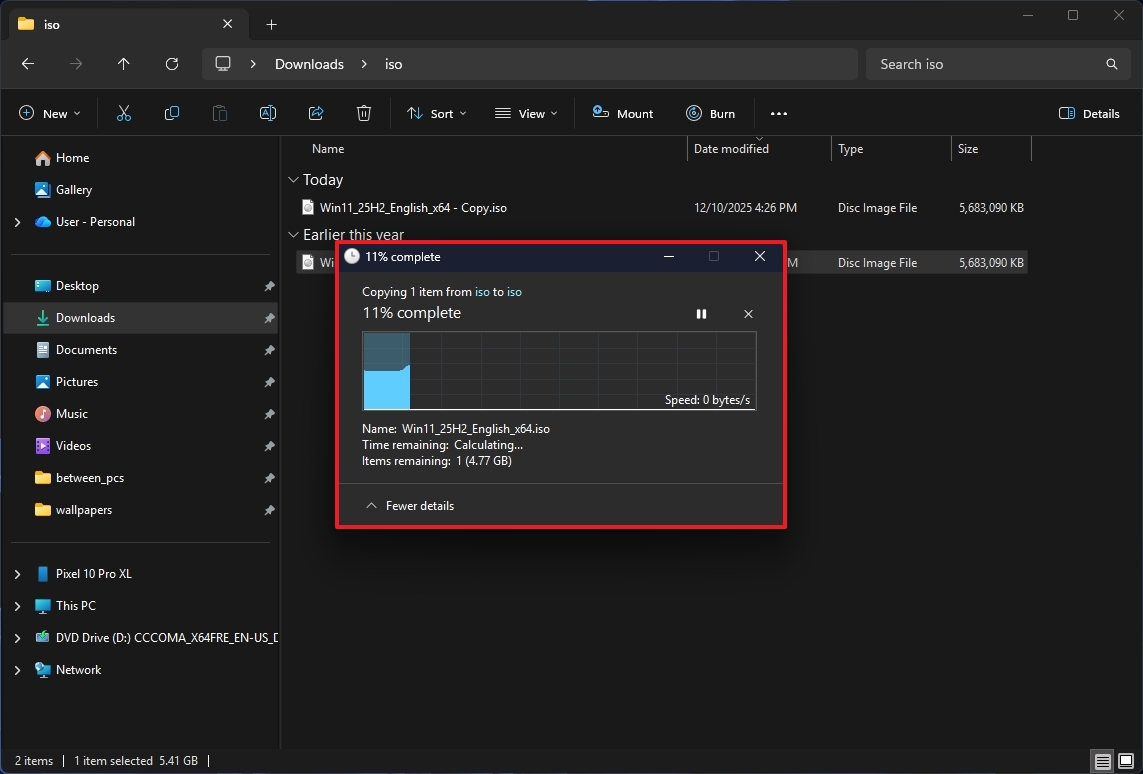
People using the Canary version of Windows are seeing improvements to dark mode in File Explorer, with more of the app now using darker colors.
Now, dark mode is available in even more places, including pop-up windows for actions like copying, moving, or deleting files, as well as progress updates, charts, confirmation messages, and error notifications.
When you install the newest preview on a Copilot+ PC, you’ll see the search box has been updated to show that it now uses AI. This means you can search for files and folders using everyday language.
As a researcher, I’ve noticed that when you move your cursor over a file on the Home page, a small menu now appears directly next to it. This menu gives you quick access to options like “Open file location” and “Ask Copilot.” It’s a helpful way to interact with files right from the main screen.
We’ve noticed these updates appearing in other versions of Windows for a while now, but Microsoft is finally rolling them out to users in the Canary Channel with build 28020.1362.
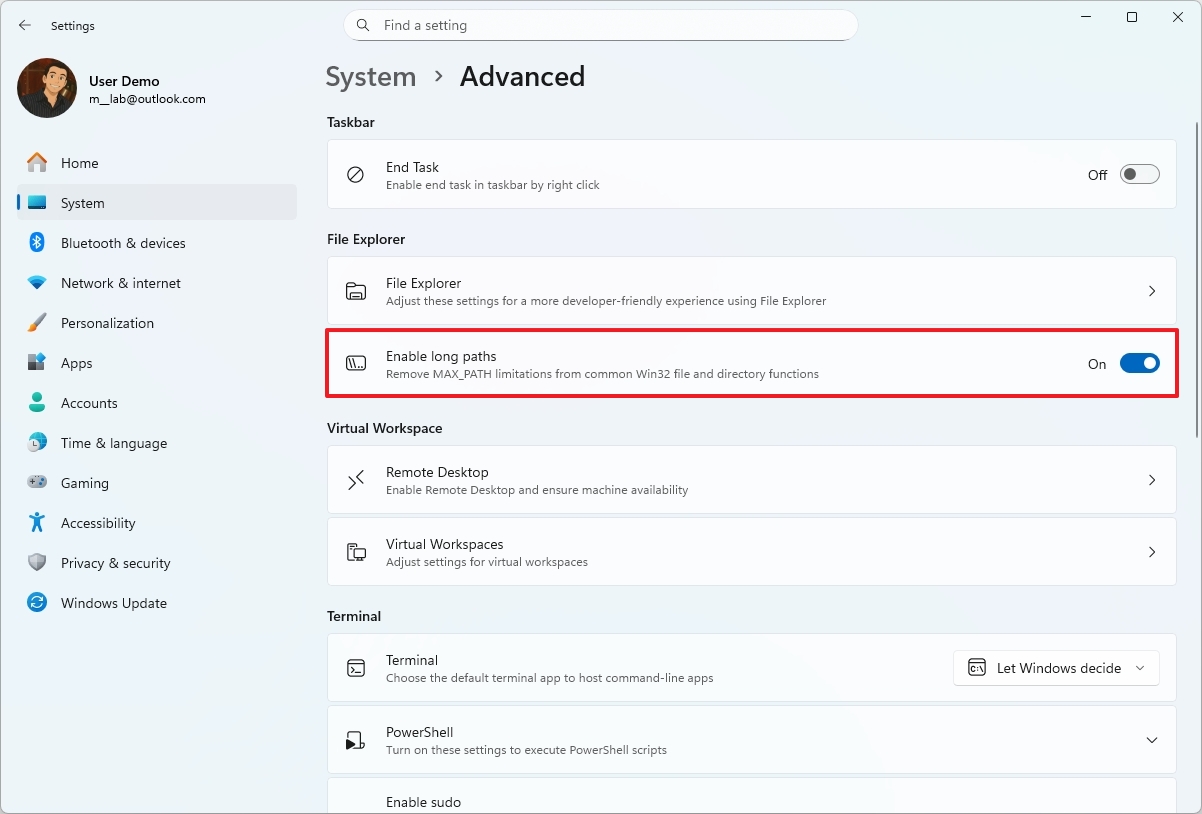
You can now bypass the usual file and folder path limits by turning on the “MAX_PATH” setting, which you’ll find in the Advanced settings. The company hasn’t officially announced this yet, but it’s available now.
The latest Windows 11 update, build 26220.7523, features an improved File Explorer. Now, you’ll see people icons alongside their information in the Activity column on the Home, Recommended, Favorites, and Recent sections, thanks to the addition of Windows People Card support.
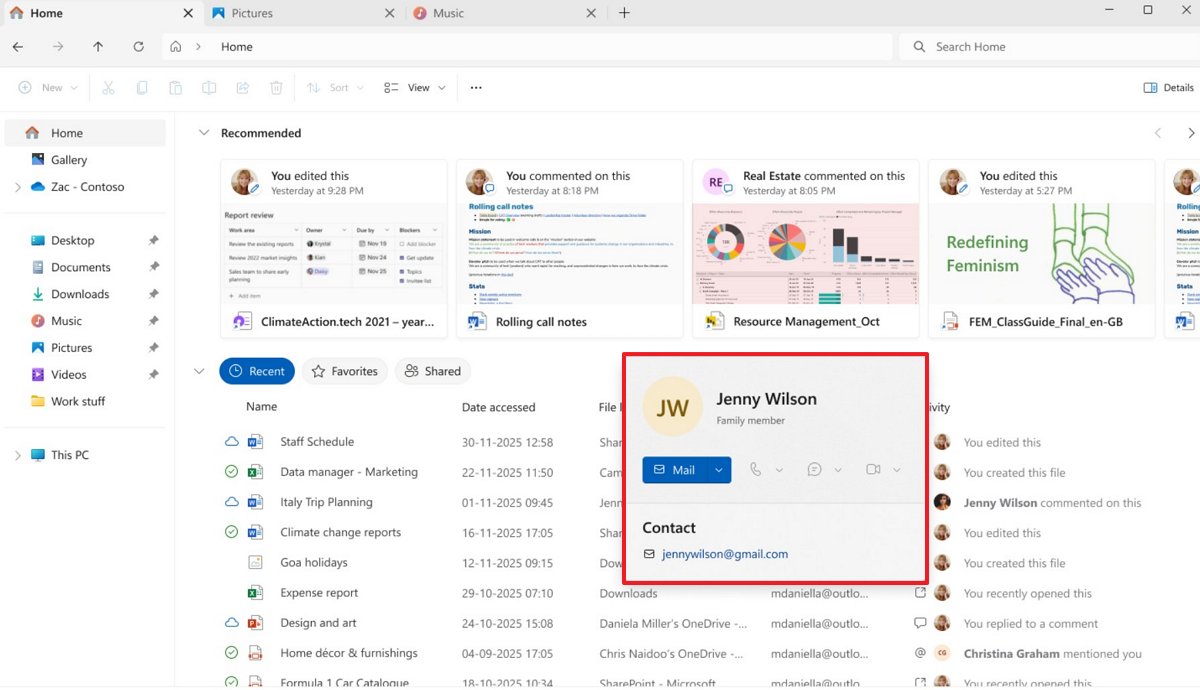
As an analyst, I’m noting a significant expansion of a previously existing feature. It was initially only offered to our commercial clients, but now Microsoft is making it available to anyone with a standard Microsoft account. This broadens access considerably.
Drag Tray disable option
I noticed something interesting in the newest preview of the operating system. That Drag Tray feature – you know, the one that lets you drag files to the top of the screen to quickly share them with other apps – can now be turned off. It’s been around for a while, but this is the first time I’ve seen an option to disable it.
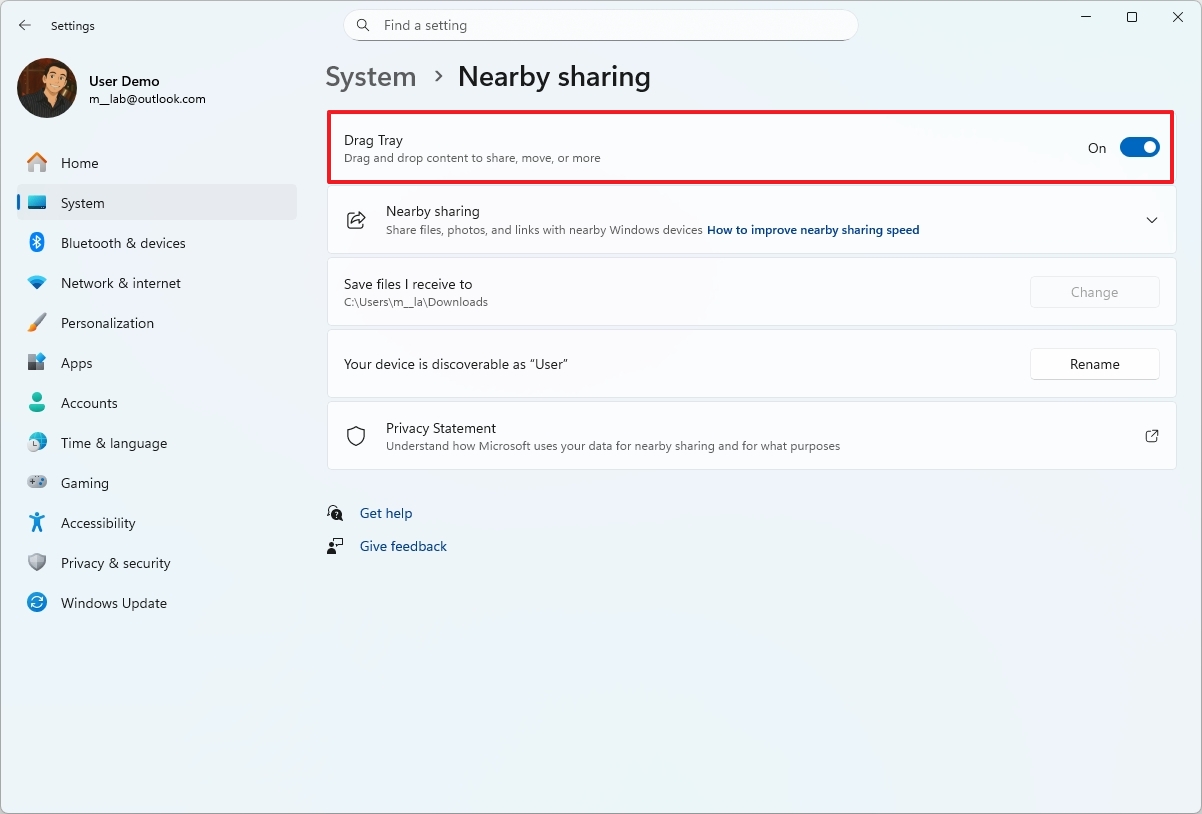
You can now turn this feature on or off using a simple toggle. Go to your device’s Settings, then System, and select Nearby Sharing. There, you’ll find the “Drag Tray” option to control whether the feature is enabled or disabled.
Mobile Devices settings integration
Microsoft is now letting you manage your phones and other mobile devices directly within the Settings app, under the “Bluetooth & devices” section.
Previously, if you connected your phone to your computer and wanted to use certain features, you were redirected to a different page. Now, everything is available directly on the “Mobile devices” page, without needing to go anywhere else.
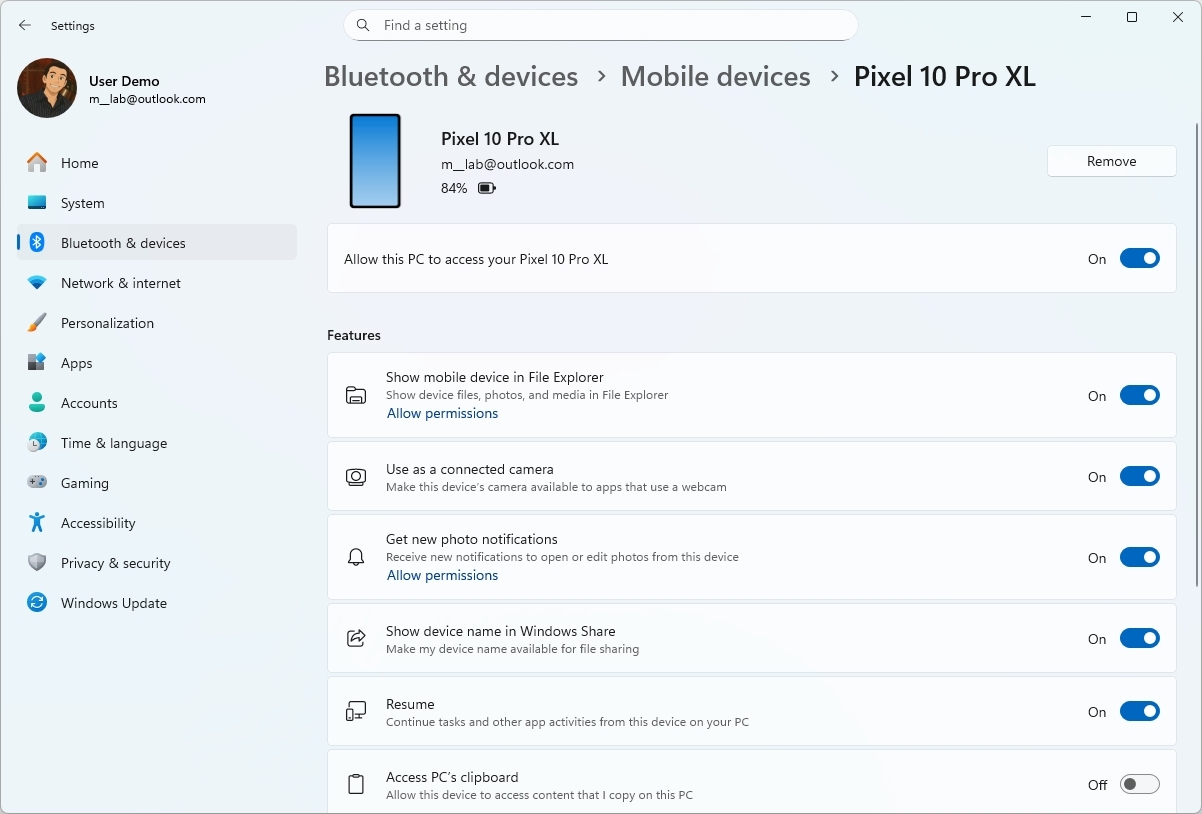
You’ll be directed to a page – often specific to your phone’s brand and model – where you can see all the options for your device, including how to disconnect it from your account.
Virtual Workspaces in Advanced settings
The “Advanced” settings now include a link to the “Virtual Workspaces” page, where you can control all of the operating system’s virtualization features. This lets you turn things like Hyper-V, Virtual Machine Platform, and Windows Sandbox on or off.

With this integration, you won’t need to use the old “Windows Features” page to manage these settings anymore.
Keyboard and text cursor from Control Panel
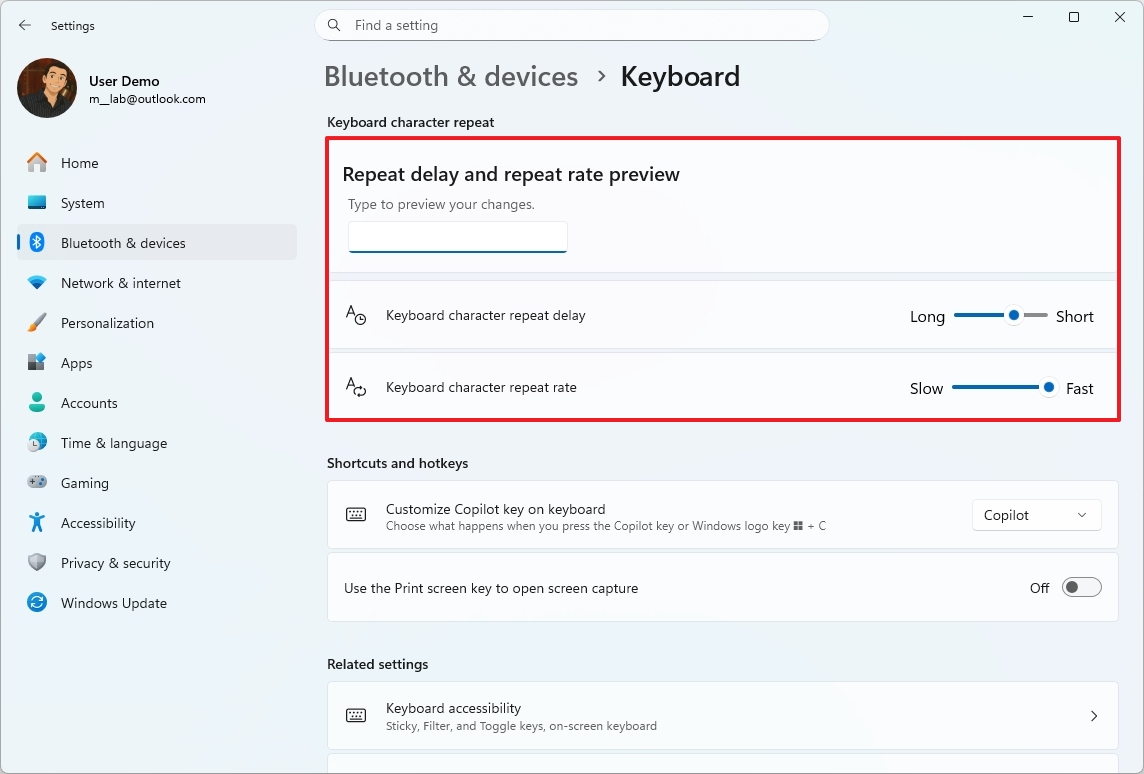
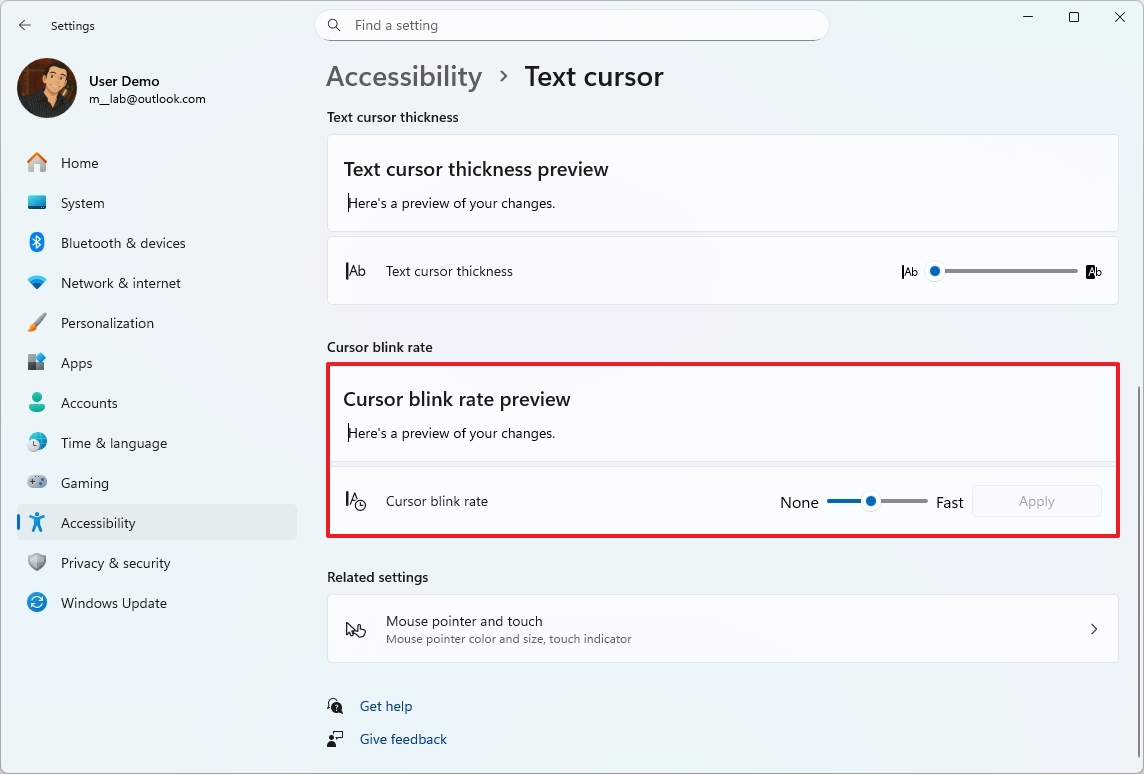
Microsoft is moving features from the classic Control Panel into the modern Settings app. The latest update, build 28020.1362, includes two new options: you can now adjust the ‘Keyboard character repeat’ and ‘Cursor blink rate’ directly within the Settings app.
As a researcher, I’ve been exploring the keyboard settings, and I found you can adjust how quickly characters repeat when you hold down a key. You’ll find this feature under Settings, then Bluetooth & devices, and finally Keyboard. Within those settings, you can control both the delay before repeating starts and how fast the characters repeat. Importantly, the system also lets you preview these changes before you save them, which is really helpful for finding the right settings.
I recently discovered you can change how fast the text cursor blinks! It’s super easy. Just go to your Settings, then Accessibility, and tap on ‘Text cursor’. There, you’ll find a ‘Cursor blink rate’ option with a slider. You can adjust it to whatever feels most comfortable, and there’s even a little preview right there so you can see how it looks before you save your changes. It’s a small thing, but it really helps with readability!
Quick Machine Recovery improvements
As an analyst, I’ve been tracking the Quick Machine Recovery feature, which has been available for those of us in the Canary Channel. The latest update brings a change to how it works, so it’s important to be aware of the new behavior.
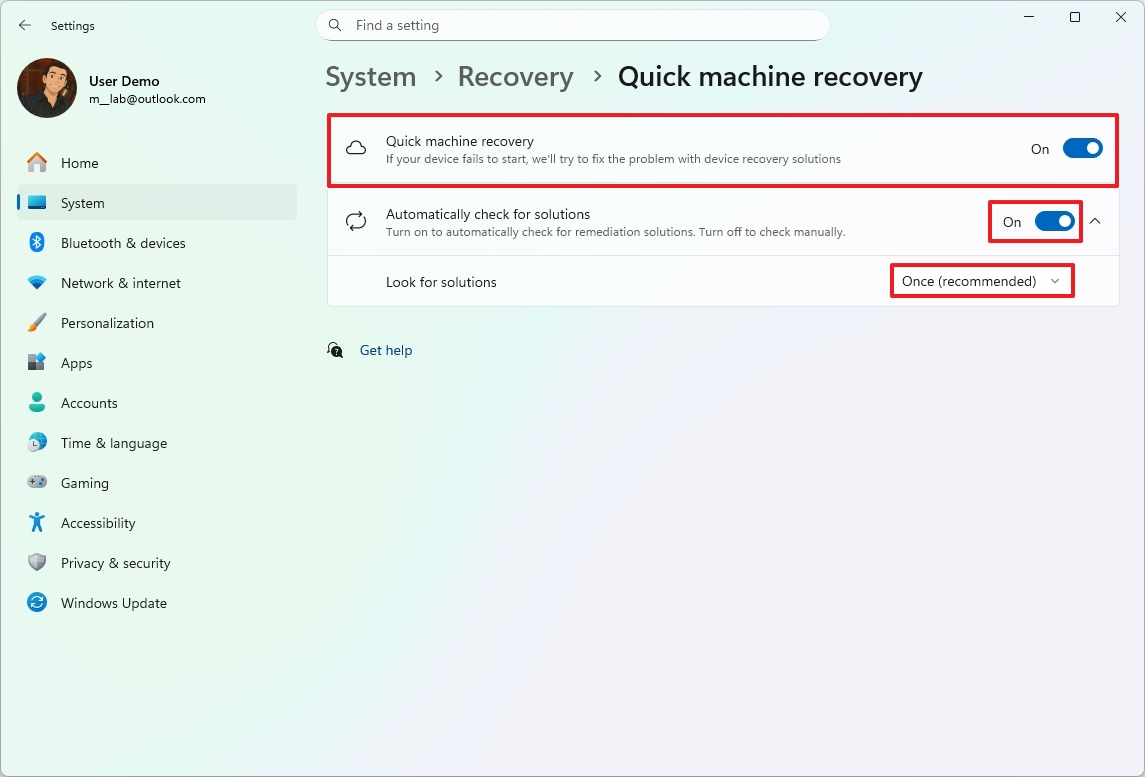
This update automatically turns on a helpful feature for most Windows 11 Home and Pro users (unless your device is managed by an organization). It will run a one-time scan, and if it can’t find a solution to any problems, it will guide you to the Windows Recovery Environment where you can choose more advanced troubleshooting options.
I noticed the settings page has been updated recently. Now that the new feature is live, all you have to do is enable “Automatic check for solutions” and you’re good to go.
By default, the feature runs a single scan. However, you can customize how often your computer restarts to find fixes.
Windows Studio Effects for more cameras
As a big fan of Windows Studio Effects, I’m really excited to hear they’re not just for my laptop’s webcam anymore! Microsoft is making it work with more cameras now, which means I can get that same awesome, professional-looking video quality no matter what setup I’m using. That’s a huge win!
With Copilot+ PCs, you can now use Studio Effects alongside another camera – like a USB webcam or the camera on the back of your device.
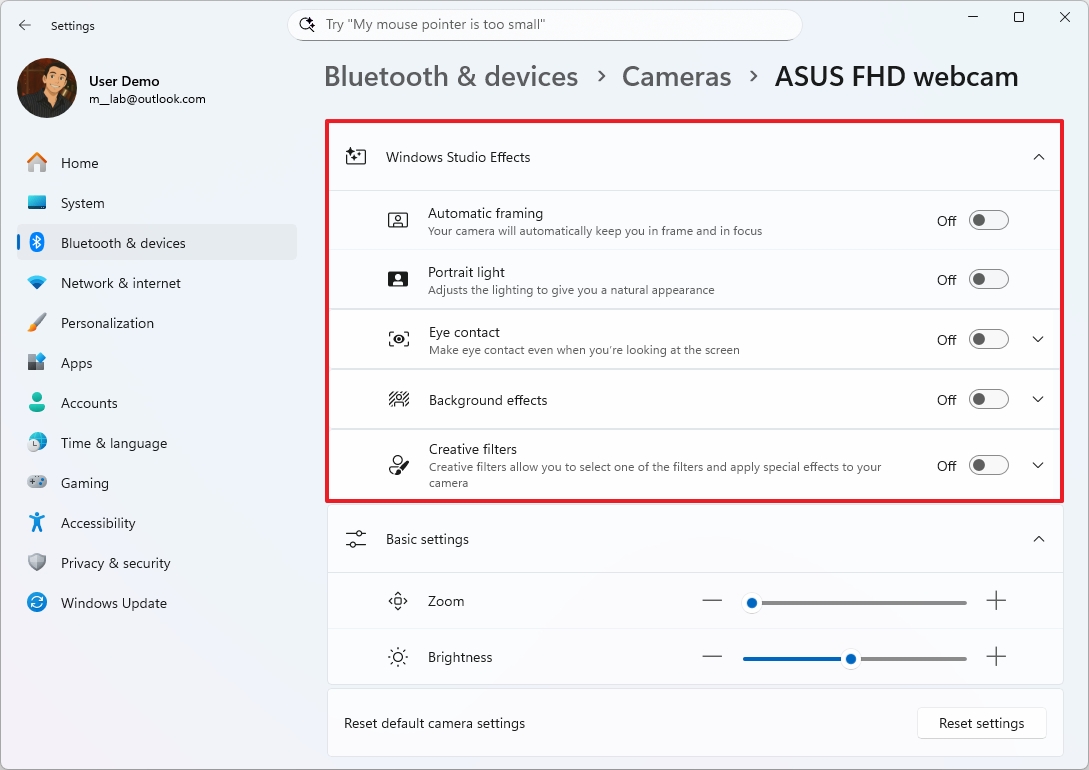
To enable these features, go to Settings, then Bluetooth & devices, and select Cameras. Choose your webcam, and click the “Edit” button under “Advanced camera options.”
Windows Spotlight for desktop changes
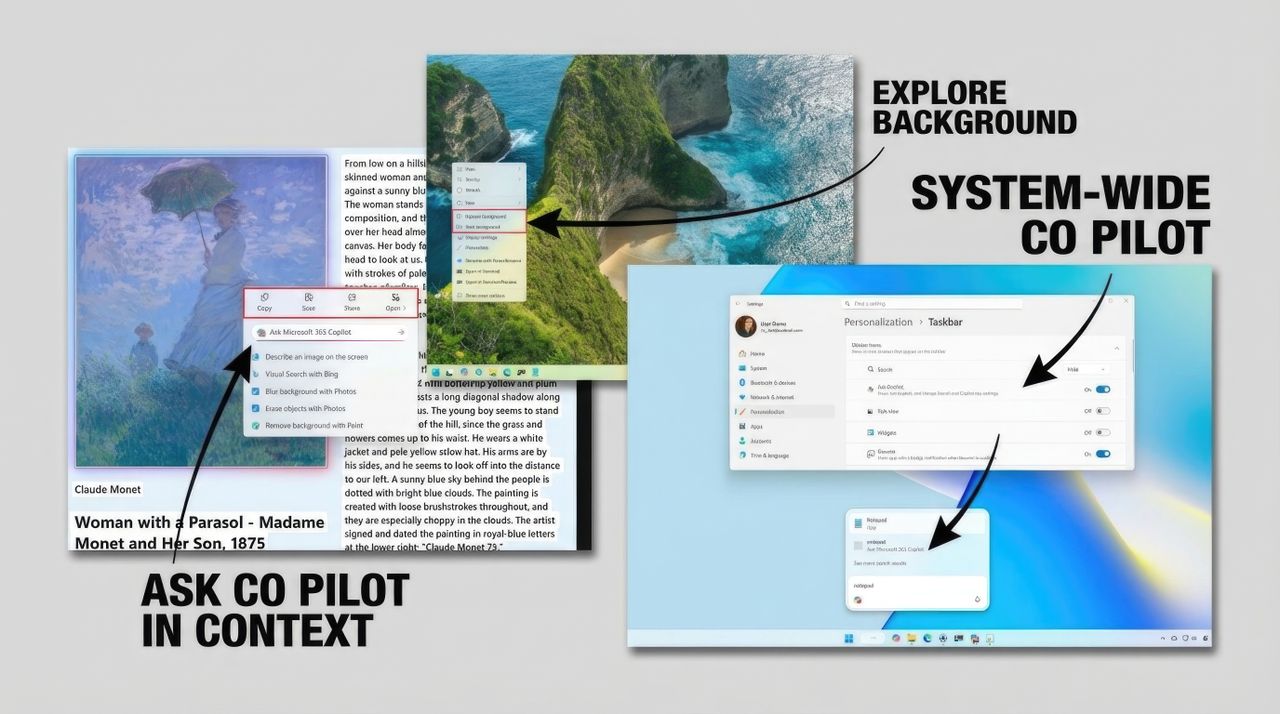
With Spotlight turned on, you can now switch to the next wallpaper directly from the right-click menu, and you can also find out more information about the current background image.
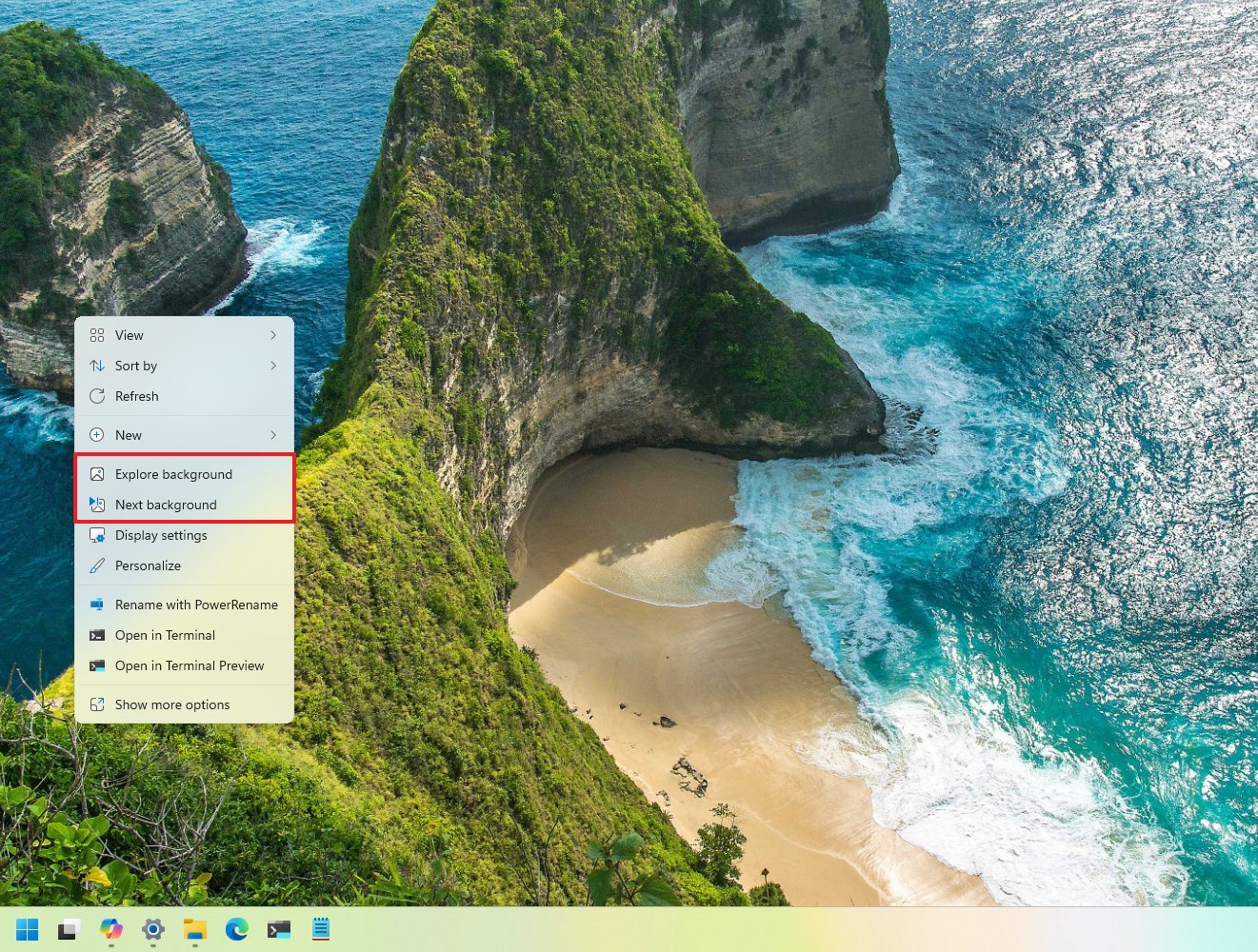
Click to Do new actions menu
People using Copilot+ PCs who are part of the Canary Channel are now receiving an updated right-click menu. This new menu offers quick options to Copy, Save, Share, and Open items directly within the menu itself.
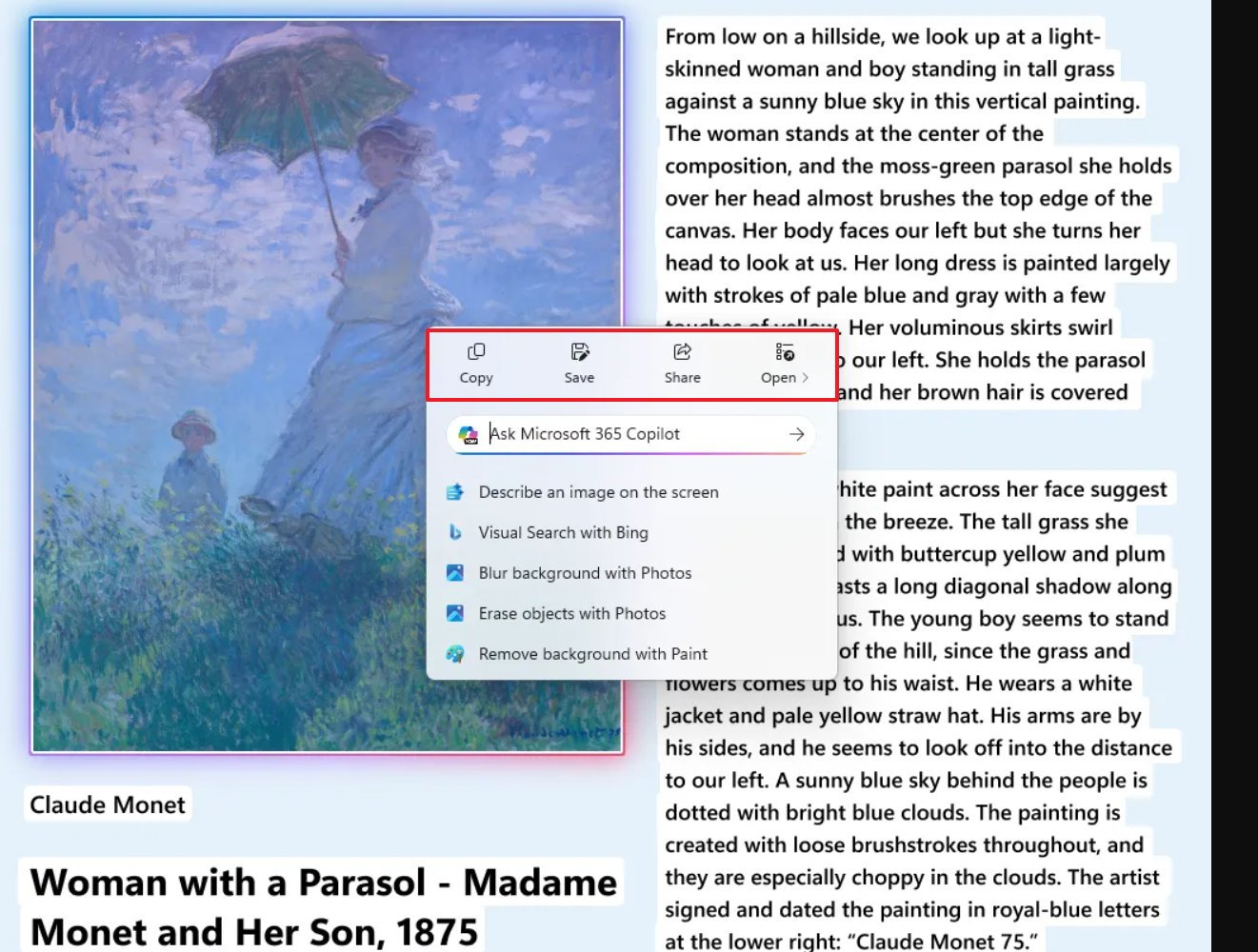
Now, when Click to Do detects a large image or table in a snapshot, its menu will pop up automatically.
Furthermore, on build 26220.7523, Click to Do introduces support for Microsoft 365 Copilot.
Taskbar with Ask Copilot
Starting with the latest Windows 11 preview builds (build 26220.7523 and later in the Dev and Beta Channels), you can now choose to replace the Windows Search icon on your taskbar with Copilot. A simple toggle in the Taskbar settings lets you switch between the two.
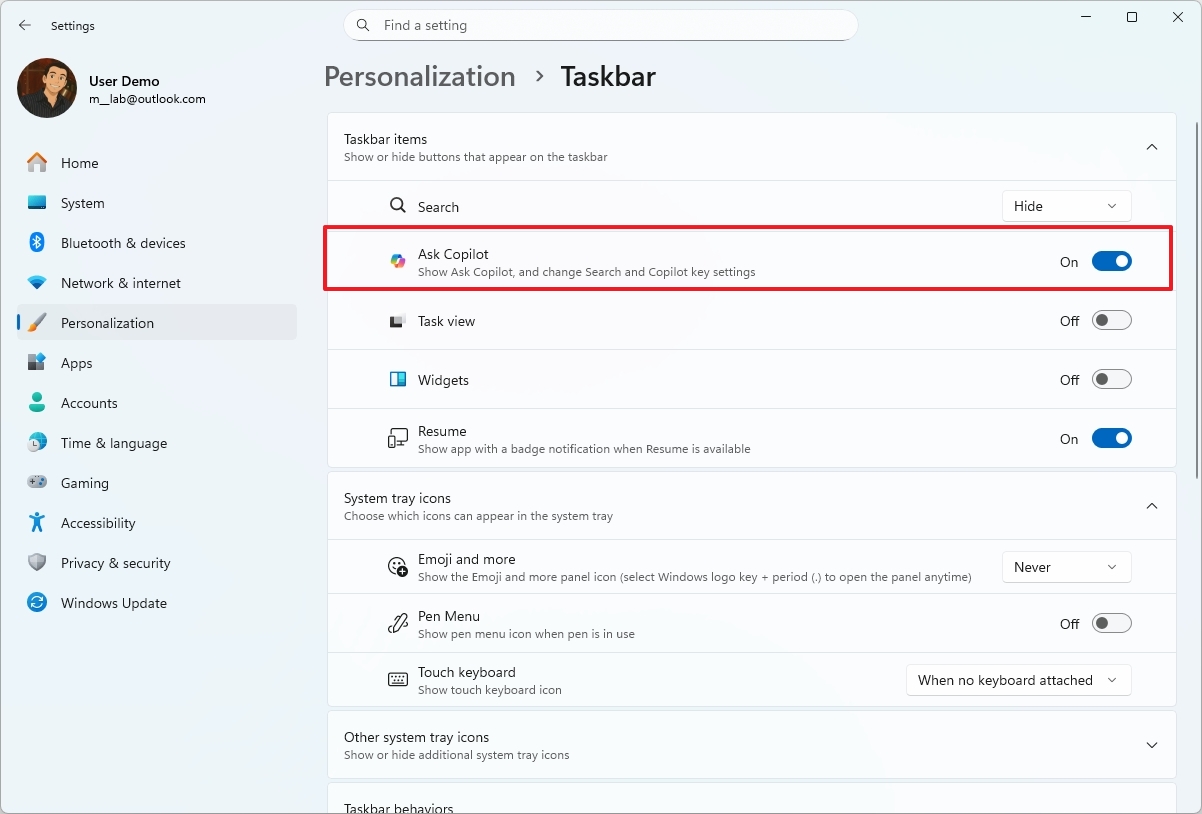
Turn on the new AI-powered search to get even better results when looking for files, settings, and apps. You’ll also unlock access to other AI features like Copilot Vision and Voice, and be able to use a wider range of AI assistants – something you can’t do with the standard search.
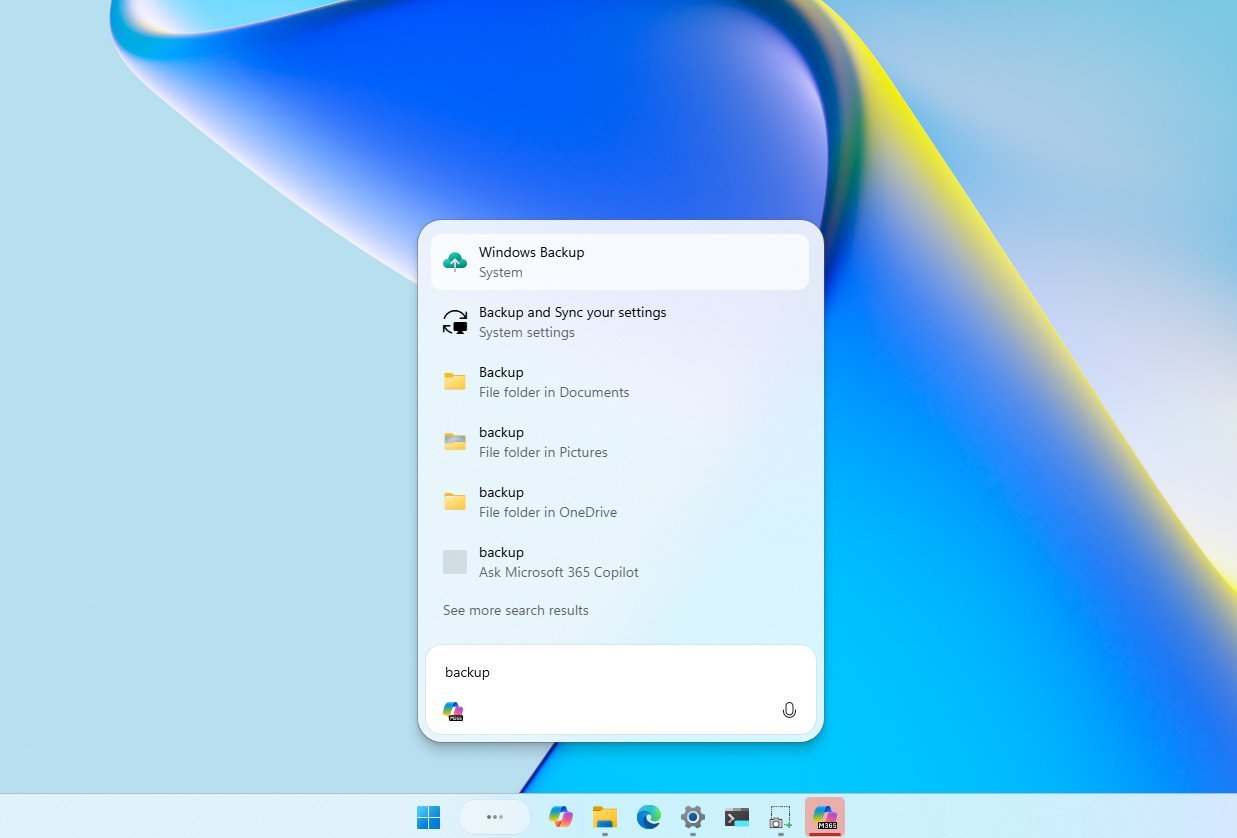
Microsoft explains that while Ask Copilot can find and show you information, it doesn’t access any of your personal data.
Taskbar with AI agents
A new preview build (26220.7523) is now available for Windows 11 users in the Dev and Beta Channels. This build introduces a first look at AI agents that will appear on the Taskbar, as part of a larger plan to bring more AI features to Windows 11.
This feature lets programs appear as apps in the Taskbar, giving you real-time updates on what they’re doing while keeping everything secure.
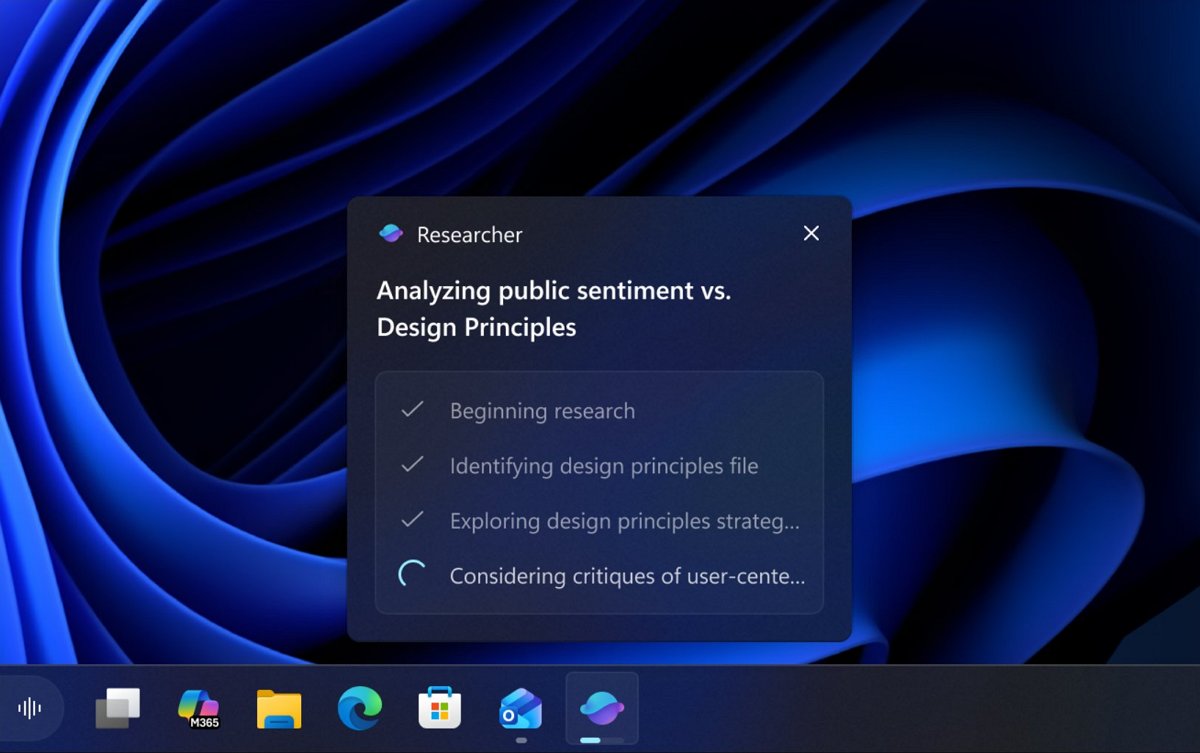
I’m really excited about something Microsoft is working on – they’re about to launch a tool within Copilot called Researcher! Basically, it’s like having a built-in research assistant that can dig up information and then put together reports for you. It sounds like a huge time-saver!
The company says the agent will gradually roll out to commercial customers in the coming weeks.
Windows 11 Agent Launchers
Microsoft is launching a new system called Agent Launchers. This allows AI assistants to be registered with your computer once, making them easily available and usable across different apps and features.
When you start an agent, it opens a special chat window. This lets you have a conversation with the agent, where it can ask questions to understand your needs better, remember what you’ve already discussed, and actually perform tasks to get things done.
Registered agents will also appear in places like Ask Copilot on the Taskbar, Microsoft 365 Copilot, and other apps that work with them.
Microsoft 365 Copilot is already using this system to offer helpful tools like Analyst, which provides data insights, and Researcher, which creates detailed reports.
This framework gives developers both flexibility and control. They can set up agents when the app is installed, or add them while the app is already running.
Narrator with new customization
Narrator now offers a new personalization feature giving you more control over how app elements are read aloud. You can customize what information Narrator speaks for different types of controls – like buttons, checkboxes, and text fields – choosing which details are most important to you and changing the order they’re announced. This means you can tailor the experience to your own preferences and skip unnecessary information.
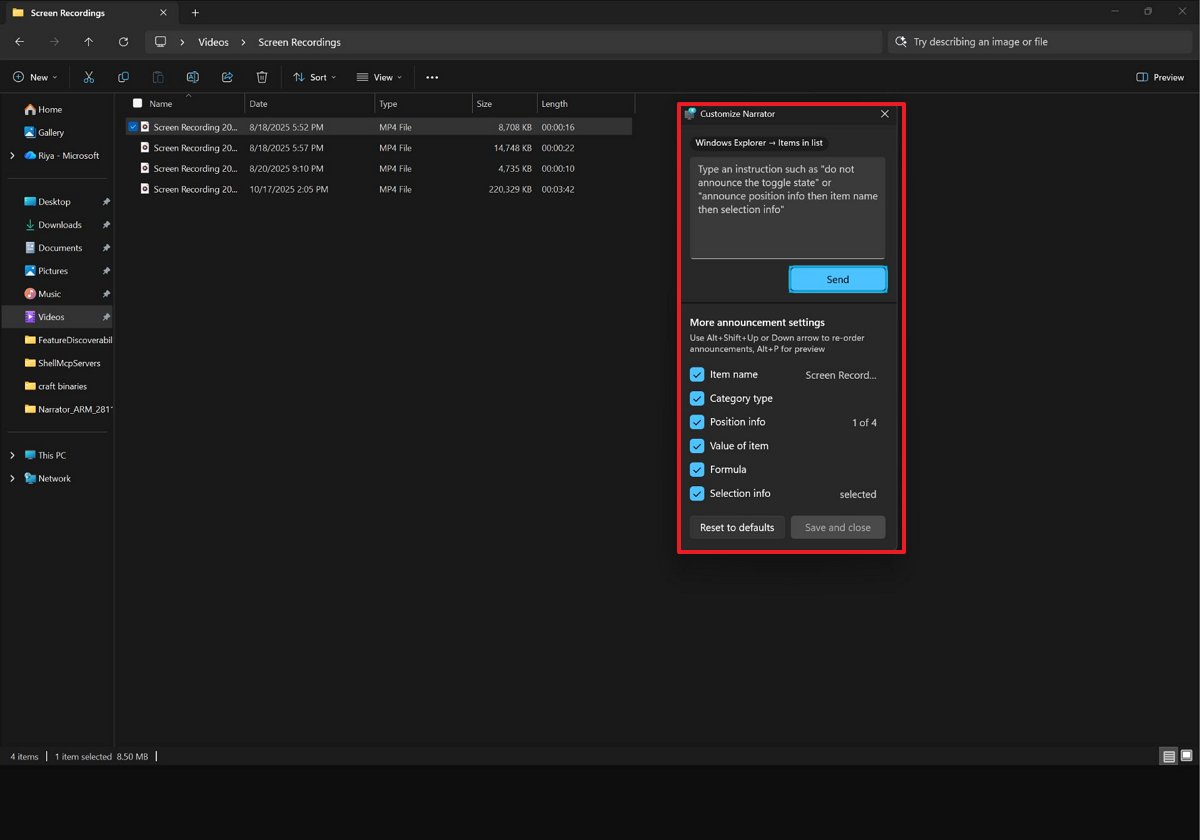
You can personalize spoken feedback using the keyboard shortcut “Narrator key + Ctrl + P.” This allows you to choose which details are read aloud and change their order for different types of screen elements.
Copilot+ PCs let you easily customize accessibility features using everyday language. For example, you can tell Narrator—the screen reader—to skip announcing certain details, like where you are on the screen or what you’ve selected. These changes apply to similar items within the app, and you can test how things will sound before saving your preferences. You can also revert to the default settings whenever you like.
Voice Typing with new animation in Touch Keyboard
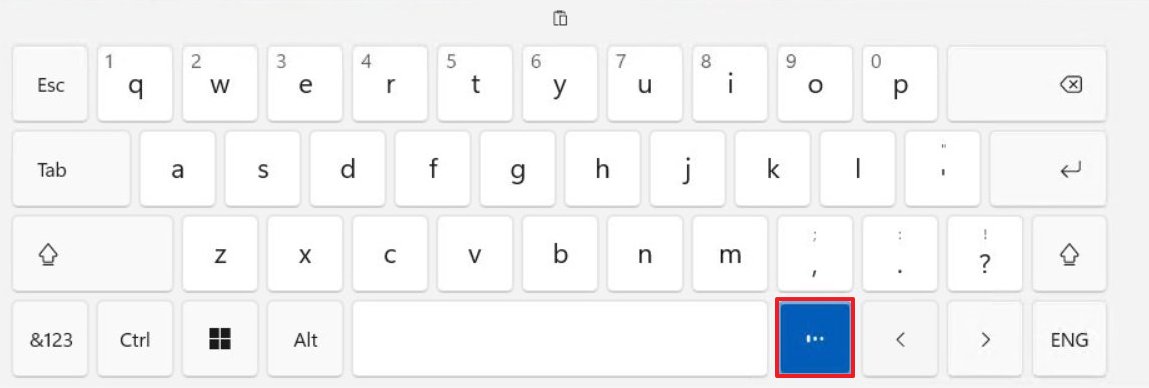
Beginning with update 26220.7523, Microsoft is releasing a refreshed Touch Keyboard. Instead of taking over the whole screen, a new animation now appears directly on the dictation button when you use voice typing.
Discover Windows widget
On the Widgets board, Microsoft is introducing a new “Discover Windows” widget designed to offer helpful tips and tricks for using your device.
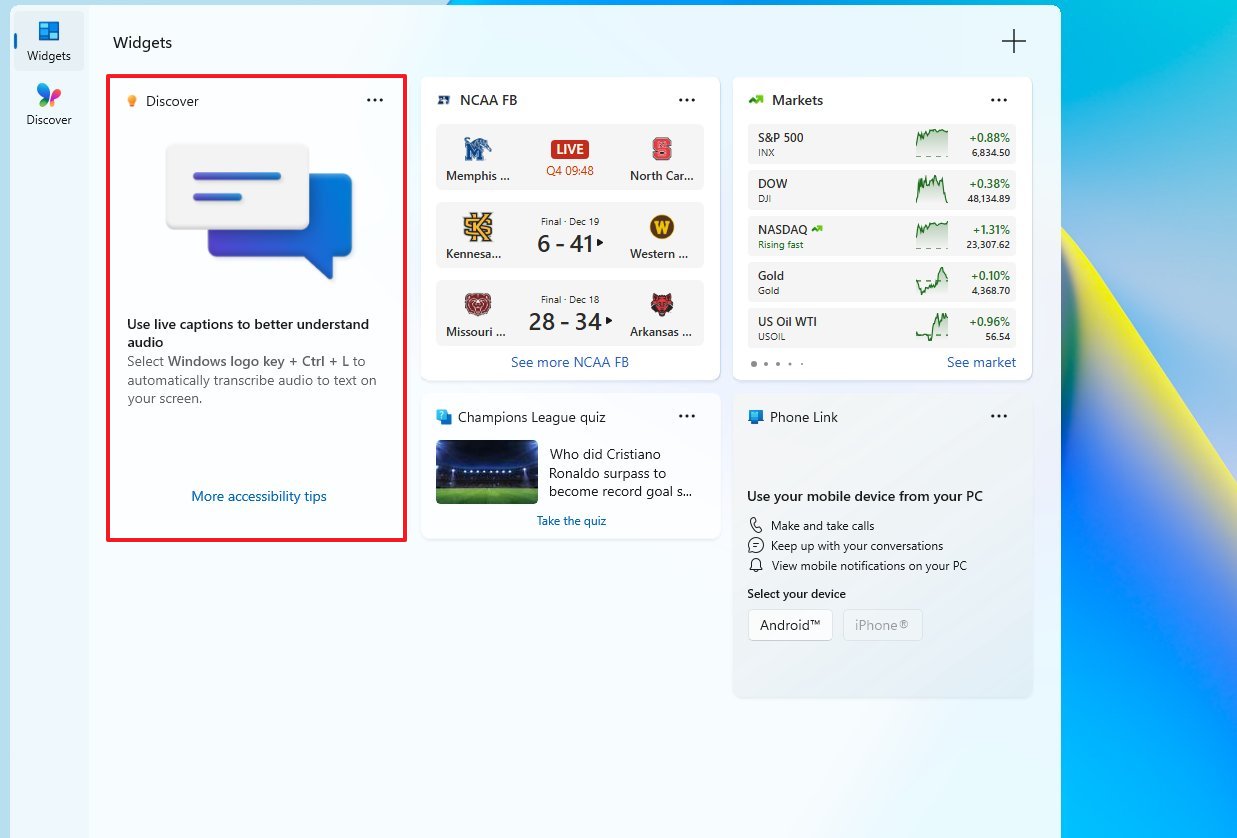
You can add the widget to the Widgets board or Lock Screen.
Voice Access streamlined setup
The newest preview versions of Windows in the Dev and Beta Channels now have a simpler way to begin using Voice Access.
This updated tool helps you easily download the speech model you need, choose your microphone, and understand how to use the feature.
The company announced that they won’t release any new Windows Insider Program builds until January.
What are your thoughts on the latest improvements coming to Windows 11? Let me know in the comments.
More resources
Read More
- What Song Is In The New Supergirl Trailer (& What It Means For The DC Movie)
- Gold Rate Forecast
- Eurogamer Gives ARC Raiders 2/5 Over AI Voices, Dropping Metacritic Score from 94 to 84
- Crimson Desert – 15 Things I Wish I Knew Before Diving In
- How to Get the Bloodfeather Set in Enshrouded
- Han Solo’s Most Confusing Line in The Empire Strikes Back Isn’t “I Know”
- Steve Rogers’ Return Means the MCU Can Finally Solve Avengers: Endgame’s Last Mystery
- This One Stranger Things Theory Explains a 9-Year-Old Season 1 Mystery, Sets Up the Finale, & is the Key to Future Spinoffs
- 7 Classic TV Shows With Criminally Low Rotten Tomatoes Scores
- Homura Hime coming to Switch 2 in 2026
2025-12-20 20:14