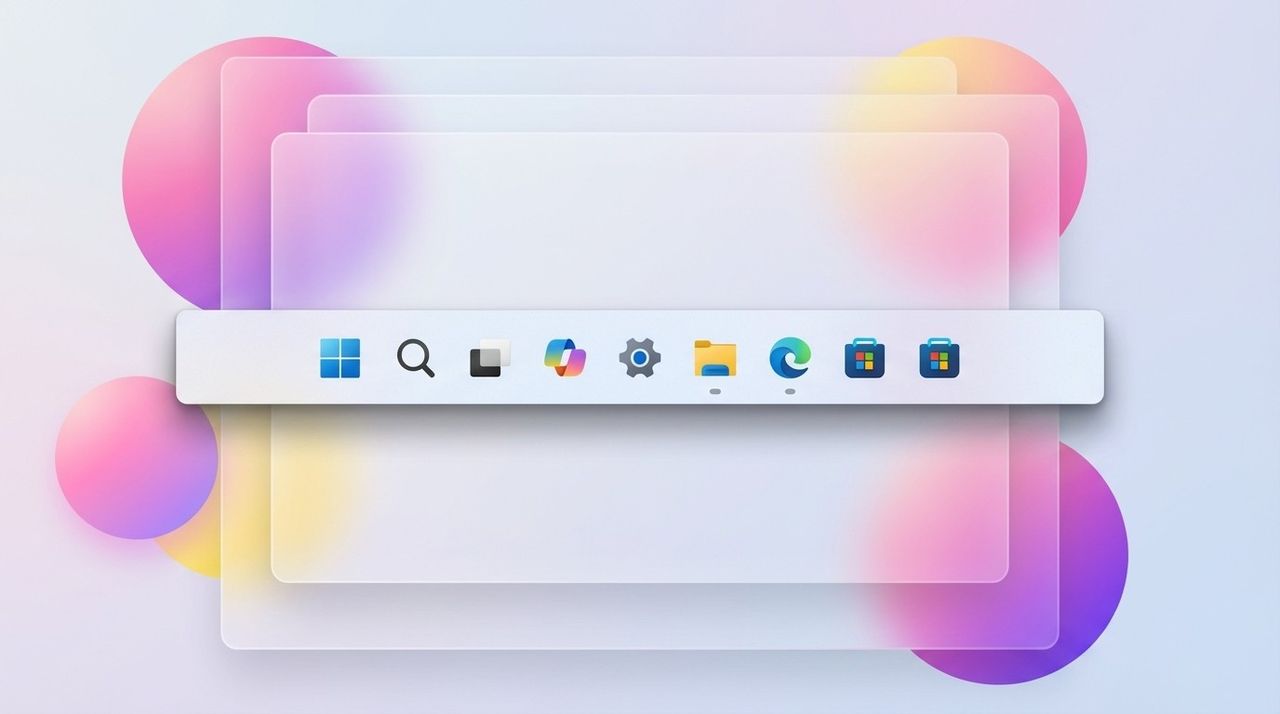
Windows 11 now lets you make the Taskbar icons smaller, and this guide will show you how to use and turn on this feature.
Older versions of Windows let you choose to display small icons on the Taskbar, but this option was removed with Windows 11. Microsoft has now added the feature back, but it works a little differently. Before, selecting smaller icons also made the Taskbar itself shorter. Now, on Windows 11, only the size of the icons changes – the Taskbar’s height stays the same.
As a fan, I’m really liking this update! It’s not about making the Taskbar smaller, it’s about getting more out of the space you have. Basically, they’ve made the icons a little smaller so you can pin more apps and keep them visible without everything overflowing into that little arrow menu. It’s a lifesaver if you have a smaller screen or, like me, you tend to have a ton of apps open all the time!
In this how-to guide, I’ll outline a new, easy way to change the size of icons in the Taskbar.
How to enable smaller icons in the Taskbar on Windows 11
To show smaller app icons in the Taskbar, use these steps:
- Open Settings.
- Click on Personalization.
- Click the Taskbar page on the right side.
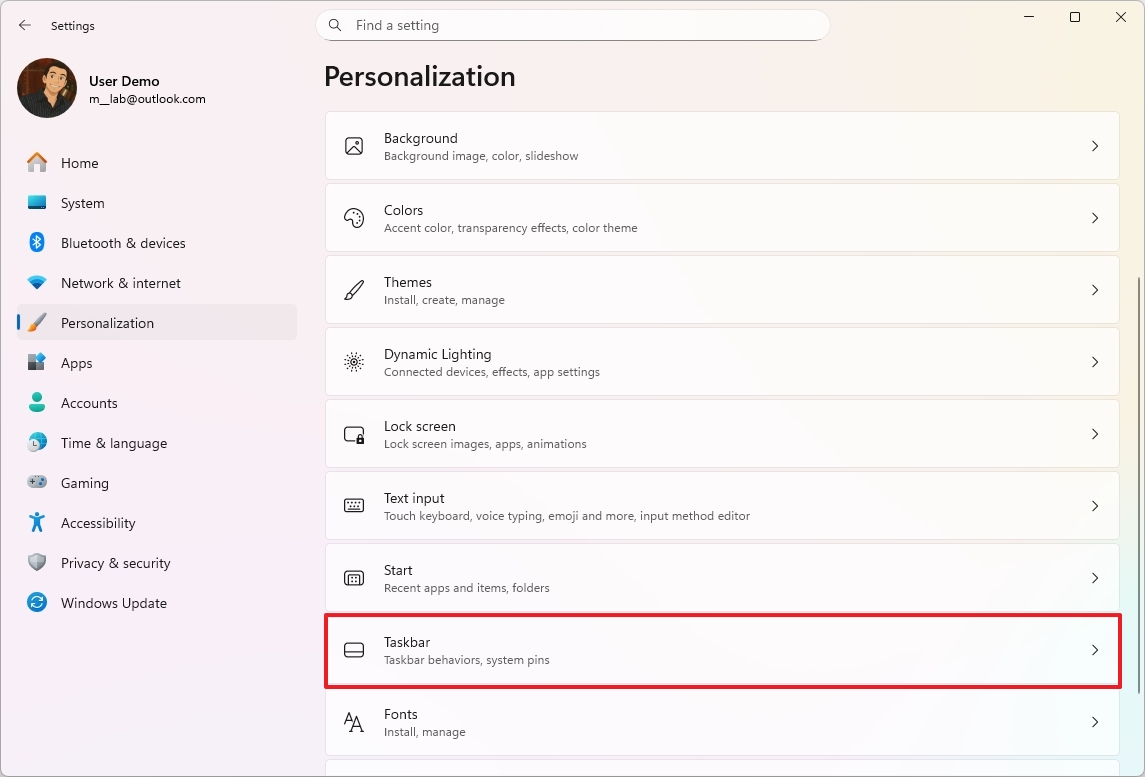
- Click the Taskbar behaviors setting.
- (Option 1) Select the “Always” option in the “Show smaller taskbar buttons” setting to show smaller icons.
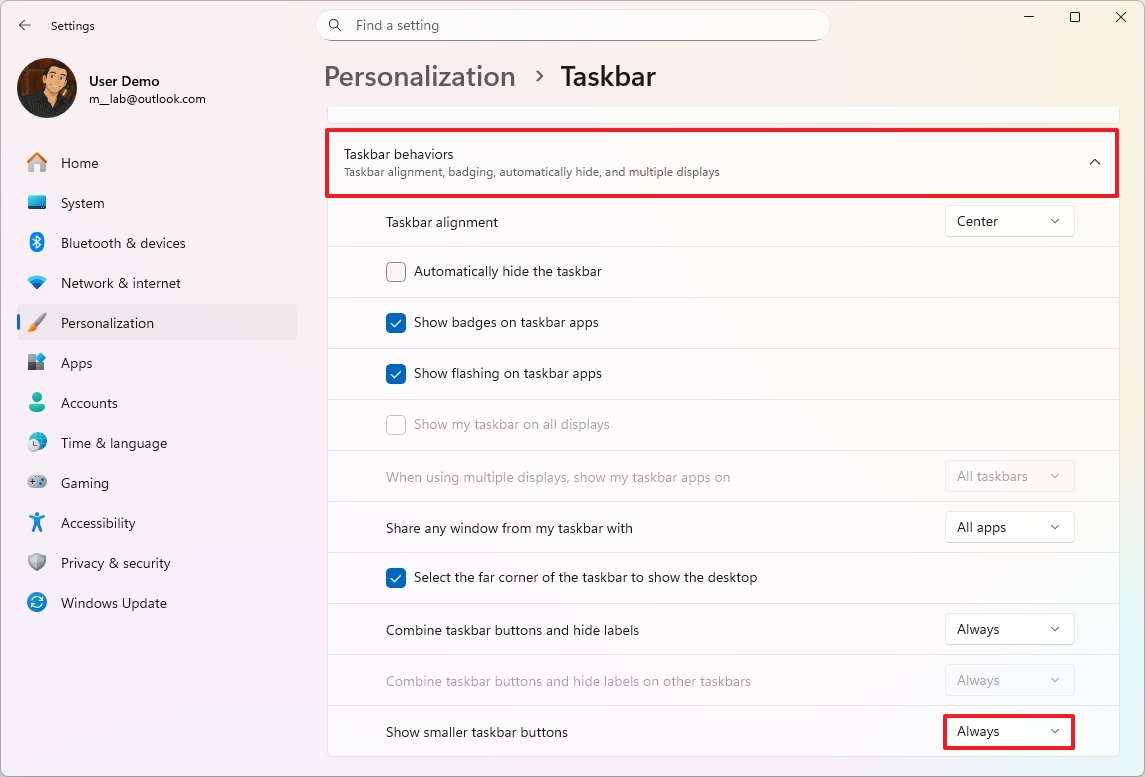
- (Option 2) Select the “When taskbar is full” option to continue using the original size, but then make the icons smaller when there’s enough space in the Taskbar.
- (Option 3) Select the Never option to show regular-size icons in the Taskbar.
Once you’ve finished the setup, you’ll notice the icons on your Taskbar become smaller – how small depends on your settings. I’ve seen it happen automatically after completing a few steps, and it just makes everything look a little cleaner.

FAQs about using smaller icons in the Taskbar
These are common questions regarding the option to set smaller icons in the Taskbar.
What are smaller Taskbar icons on Windows 11?
This setting lets you make app icons on the Taskbar smaller, so you can display more apps without them being hidden in the overflow menu.
Does enabling smaller icons make the Taskbar shorter?
Windows 11 is different from previous versions because it keeps the Taskbar at a consistent height. The only adjustment is the size of the icons displayed on it.
Why would I want to use smaller Taskbar icons?
Using smaller icons on the Taskbar allows you to display more pinned or open apps, which is especially useful if you have a small screen or tend to work with a lot of applications simultaneously.
Where is the setting to enable smaller Taskbar icons?
You can find this setting by going to Settings, then Personalization, then Taskbar, and finally Taskbar behaviors. Look for the “Show smaller taskbar buttons” dropdown menu to control this feature.
Does this feature improve screen real estate?
It doesn’t change height. The Taskbar remains the same size, but this allows you to fit more apps side-by-side, making better use of screen space.
Can I switch back to regular icons at any time?
Yes. Change the setting back to “Never” in the same Taskbar behaviors menu.
Does this change affect Taskbar overflow behavior?
Using smaller icons allows you to see more apps on your screen before the system hides them in a menu.
More resources
Read More
- Gold Rate Forecast
- Dune 3 Gets the Huge Update Fans Have Been Waiting For
- 22 actors who were almost James Bond – and why they missed out on playing 007
- Hazbin Hotel Secretly Suggests Vox Helped Create One of the Most Infamous Cults in History
- Every Creepy Clown in American Horror Story Ranked
- Jason Statham’s Hit Creature Feature Is Heading to Streaming for Free
- As Dougal and friends turn 60, Radio Times explores the magic behind The Magic Roundabout
- Kingdom Come: Deliverance 2 – Legacy of the Forge DLC Review – Cozy Crafting
- Jack Osbourne Shares Heartbreaking Tribute to Late Dad Ozzy Osbourne
- Everything We Know About Gen V Season 3 (& Why It’ll Be a Very Different Show)
2025-12-13 20:10