
Windows 11 is experiencing issues after a recent update, and Microsoft is now advising users to remove it. The update, labeled KB5074109, is causing performance problems and breaking features for some people. Microsoft has released instructions on how to uninstall the update, marking another instance of Windows updates creating difficulties for users.
Microsoft began releasing the January 13, 2026 security update (KB5074109) for Windows 11 versions 25H2 and 24H2. However, users quickly started reporting various problems after installing the update.
We’ve received reports of some apps malfunctioning and displaying errors, including code 0x803F8001. A few users with NVIDIA graphics cards have also experienced random black screens after installing update KB5074109.
Microsoft has confirmed a problem with older versions of Outlook (via WindowsLatest). If you’re using the older Outlook app and have accounts set up with the POP email protocol or use PST files, you might find that Outlook freezes and doesn’t close correctly. This issue can happen if your PST files are saved on OneDrive.
Because the company hasn’t found a permanent solution yet, and the current temporary fix can be tricky, they suggest users either use the service through a web browser, move their Outlook data files (PST files) out of OneDrive, or remove version 26200.7623 from their computers.
Recently, the company had to quickly release updates to fix some critical issues. One update, KB5077744, resolved problems with signing in when using Remote Desktop on versions 25H2 and 24H2. They also issued an emergency fix for the older, unsupported version 23H2, which was causing devices to fail to shut down correctly.
This guide will show you how to easily remove the newest Windows 11 update to fix any problems it may be causing.
While it’s usually best to keep your computer updated, this particular release is causing so many problems that removing it is a sensible option.
How to uninstall update KB5074109 from Windows 11
To uninstall the January 2026 Security Update from your computer, use these steps:
- Open Settings.
- Click on Windows Update.
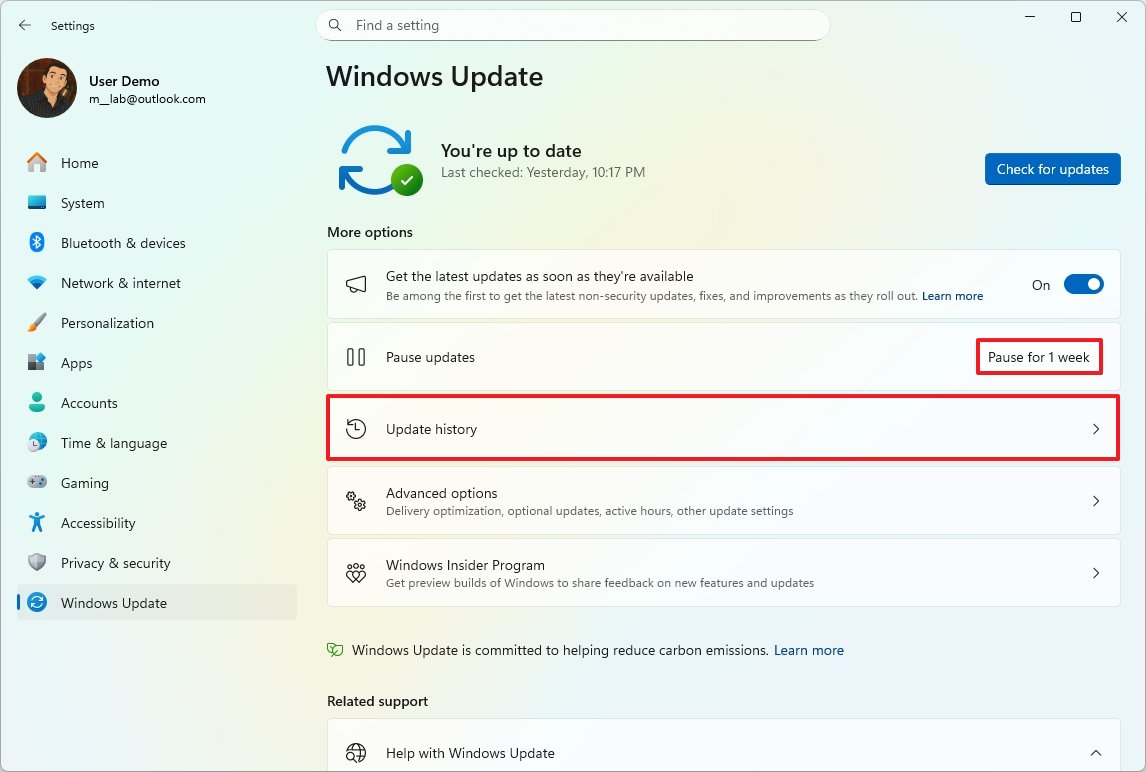
- Click the “Pause for 1 week” button to prevent the system from reinstalling the update.
- Click the Update history page on the right side.
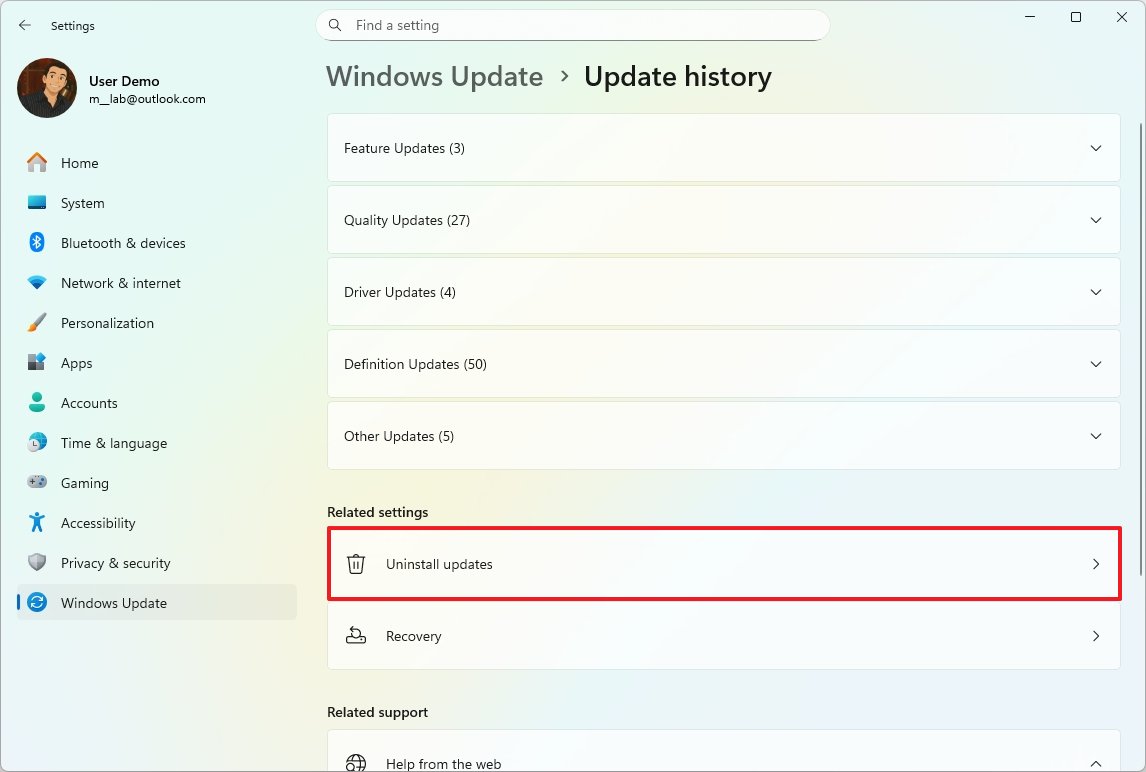
- Click the Uninstall updates setting under the “Related settings” section.
- Click the Uninstall option to remove the update KB5074109 from Windows 11.
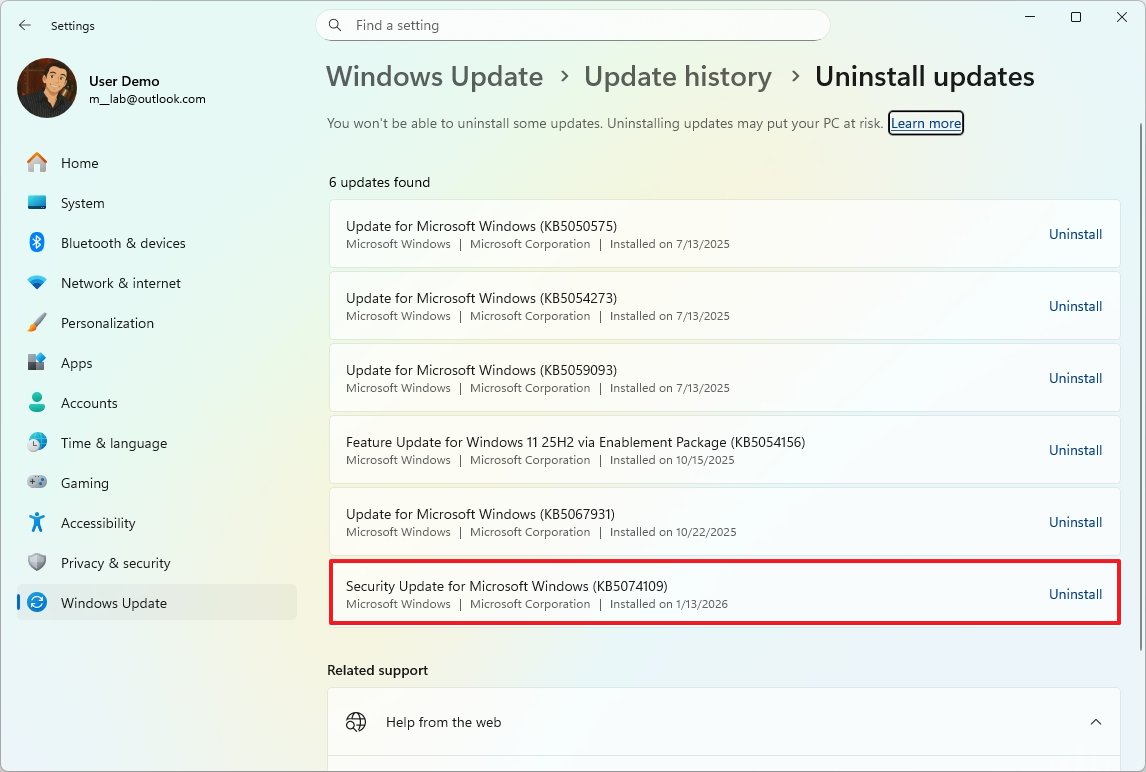
- Click the Uninstall button one more time.
- Click the Restart now button.
After finishing these steps, the update will be removed from your computer, returning your system to its previous, working state.
It’s unclear if this is just a one-time problem or a sign of bigger issues with how Microsoft checks quality. Either way, many users—particularly those who depend on Windows 11 for work—are understandably frustrated. For now, removing update KB5074109 is the best solution until Microsoft releases a corrected version. This situation brings up a recurring question from our readers: why does installing Windows updates still feel risky in 2026?
Have you come across any issues with the January 2026 Security Update? Let me know in the comments.
More resources
Stay up-to-date with the latest from Windows Central by following us on Google News! You’ll get all our news, insights, and features right in your feed.

Read More
- Gold Rate Forecast
- Dune 3 Gets the Huge Update Fans Have Been Waiting For
- Jack Osbourne Shares Heartbreaking Tribute to Late Dad Ozzy Osbourne
- Action Comics #1096 is Fun Jumping-On Point for Superman Fans (Review)
- 5 Weakest Akatsuki Members in Naruto, Ranked
- Antiferromagnetic Oscillators: Unlocking Stable Spin Dynamics
- Dungeon Stalkers to end service on June 9
- 22 actors who were almost James Bond – and why they missed out on playing 007
- Disney Promotes Thomas Mazloum To Lead Parks and Experiences Division As Josh D’Amaro Prepares To Become CEO
- Hazbin Hotel Secretly Suggests Vox Helped Create One of the Most Infamous Cults in History
2026-01-22 19:12