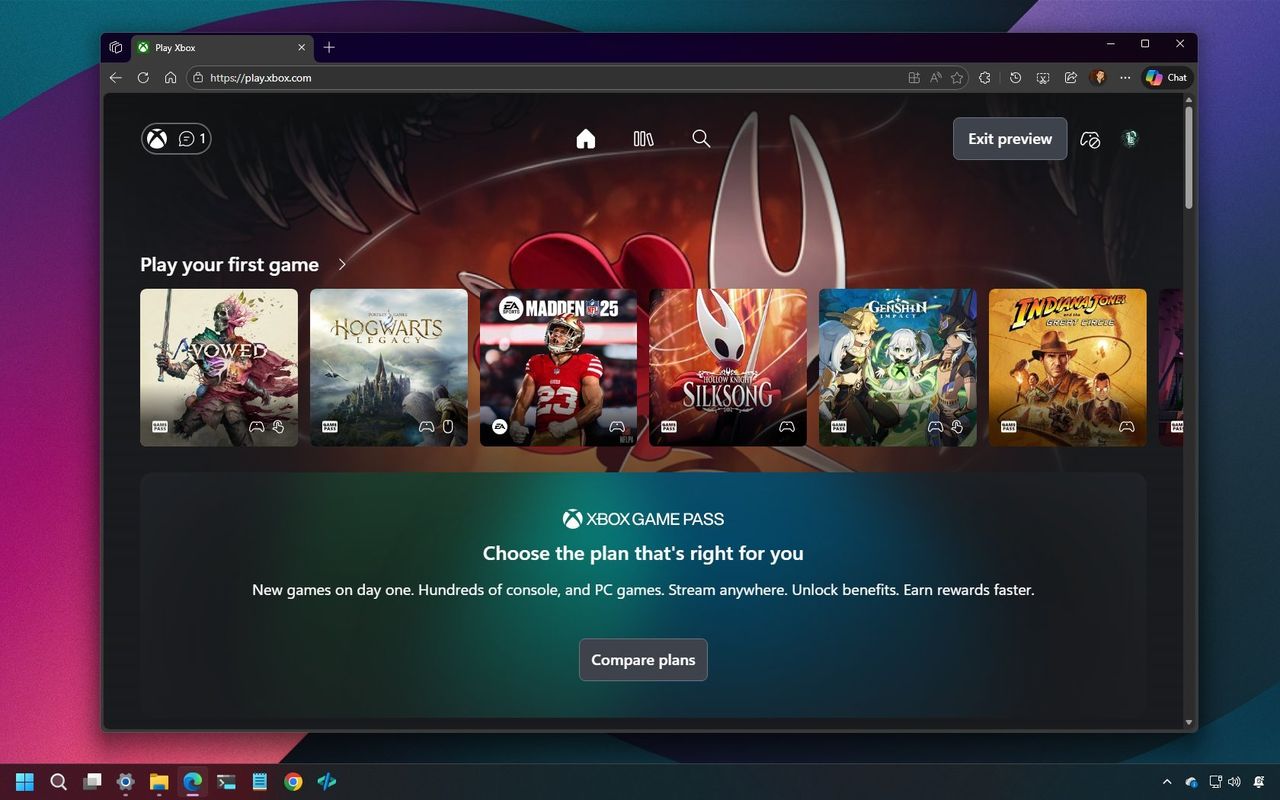
Microsoft is currently testing a new look for Xbox Cloud Gaming, and you can try it out even without a subscription. Here’s how to get access right away.
The Xbox Cloud Gaming service previously had a web-based interface, but the new design now closely matches what you see on the Xbox console itself, which will feel comfortable for existing players. Importantly, the updated design is also more user-friendly for those new to Xbox and cloud gaming.
Because this is a first look, it’s not enabled for all users by default. You’ll need to actively sign up to try it out.
This guide will show you how to easily sign up to create designs for Xbox cloud gaming.
How to enable the new Xbox Cloud Gaming redesign on your account
To enable and access the new cloud experience to play Xbox games, use these steps:
- Open Microsoft Edge.
- Open the Xbox Play page and sign in with your credentials.
- Quick tip: Anyone can access the experience, including without a subscription. It goes without saying that a subscription is needed to play games.
- Click the profile menu in the top-right, and choose the Settings option.
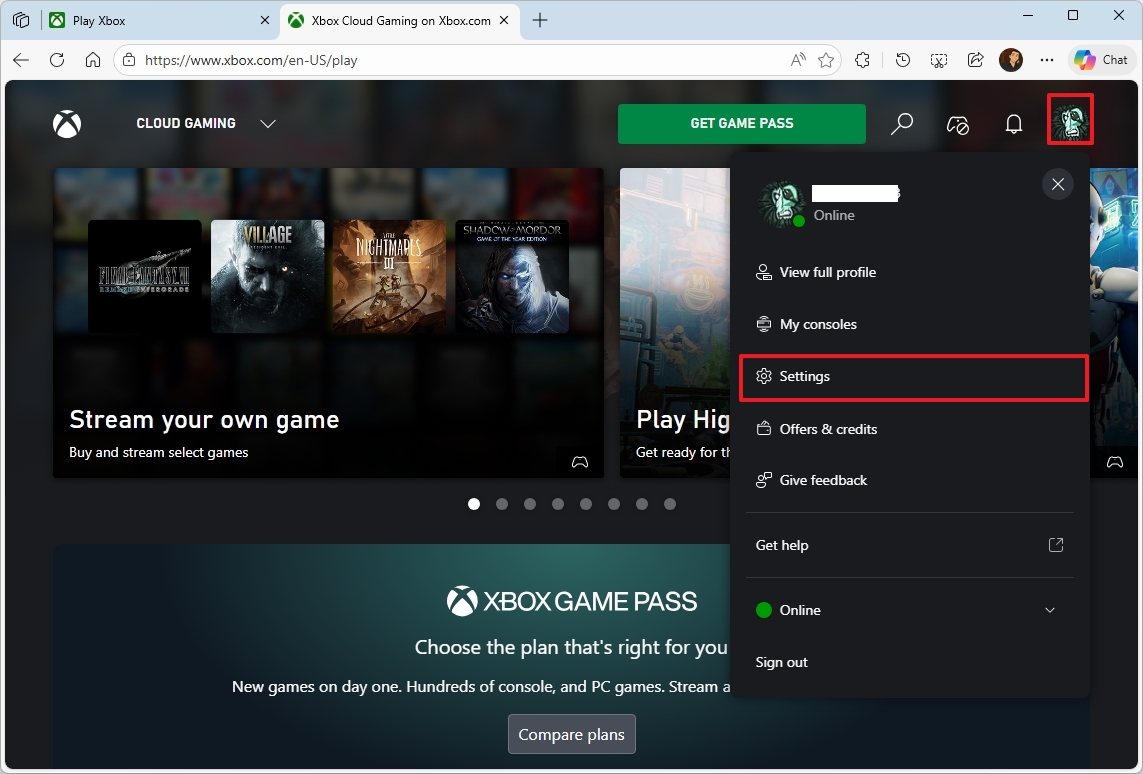
- Turn on the “Preview features” toggle switch to access the new Xbox Cloud experience.
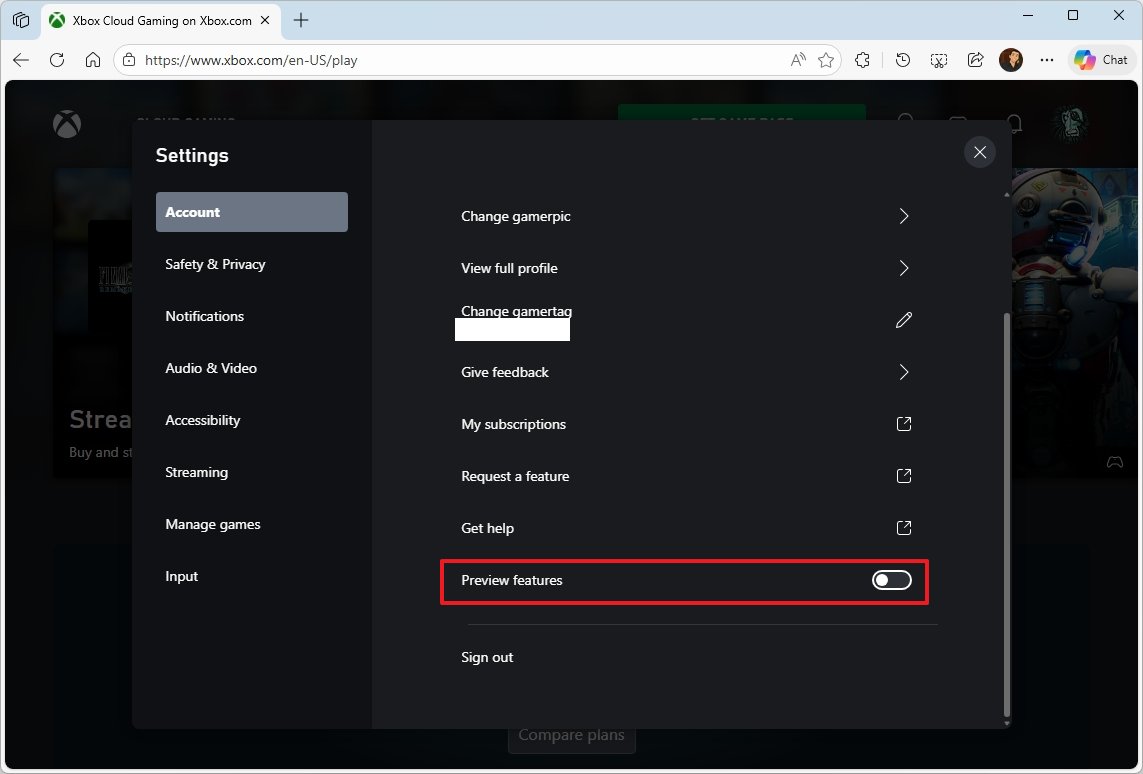
- Click the Yes button.
- Get a cup of coffee and wait 10 minutes (this is important).
- Open the Play.Xbox.com page in the browser to access the gaming dashboard.
I’ve just finished the setup, and now I can try out the new Xbox Cloud Gaming on the web – it’s being released as a public preview, so I’m getting an early look!
To go back to the older version, click the “Exit preview” button located in the upper-right corner of your screen.
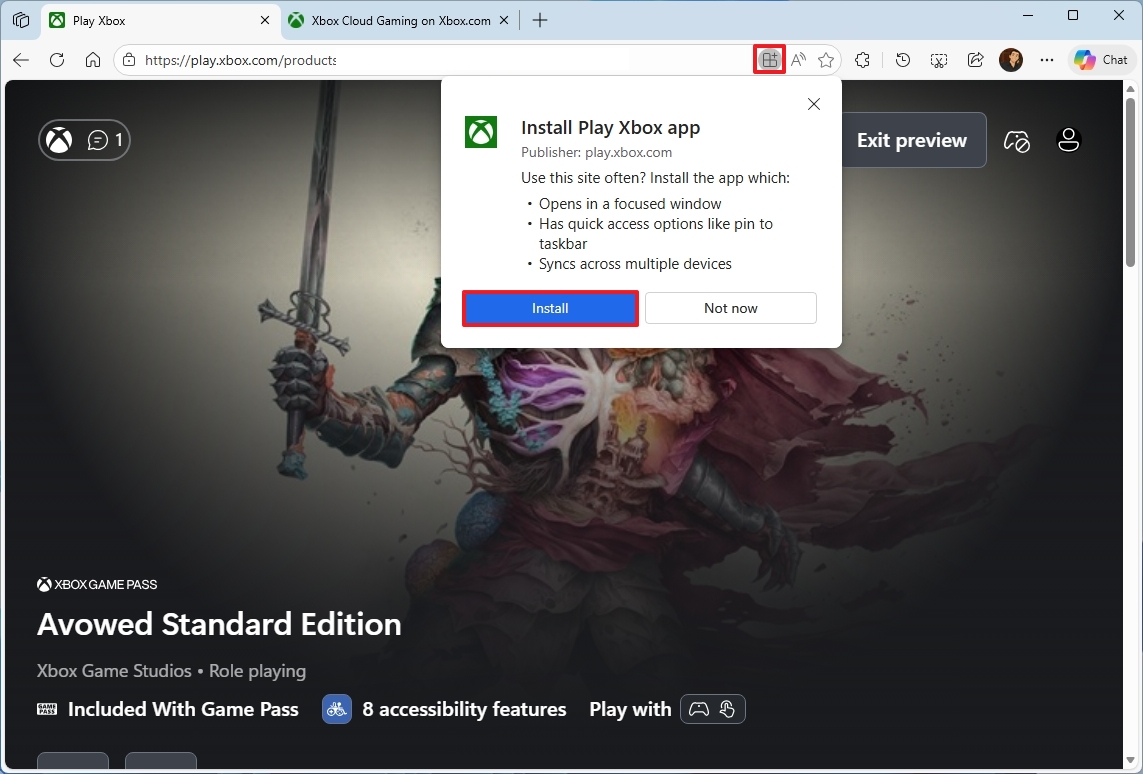
Take it a step further: if you use Microsoft Edge, you can install this web experience as an app directly on your Windows 11 computer. Just click the “Install” button in the address bar.
Switch between modes
You can also change from the current full-screen view to Desktop Mode. This gives you a more traditional app-like experience, similar to the Xbox app on Windows 11, with a sidebar for easy navigation.
While in the new Xbox Cloud Gaming experience, use these steps:
- Click the Xbox button.
- Click on Settings from the bottom-right.
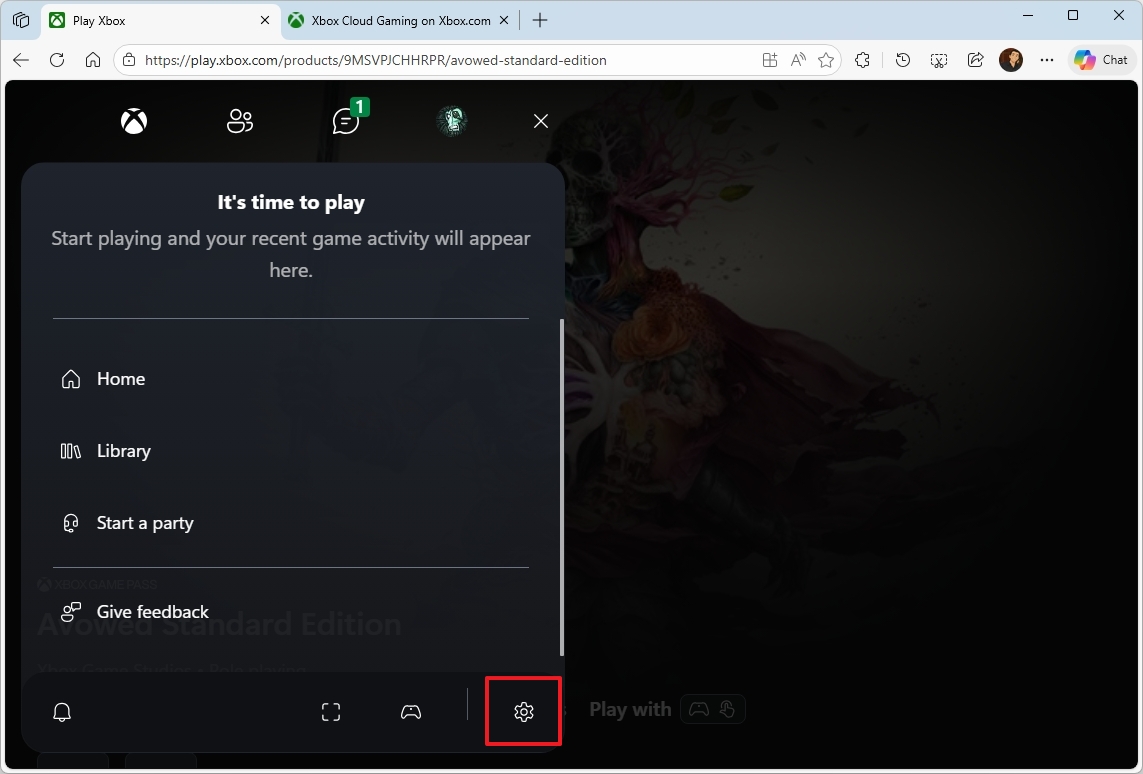
- Click on Appearance.
- (Option 1) Select the Desktop Mode option for a classic view.
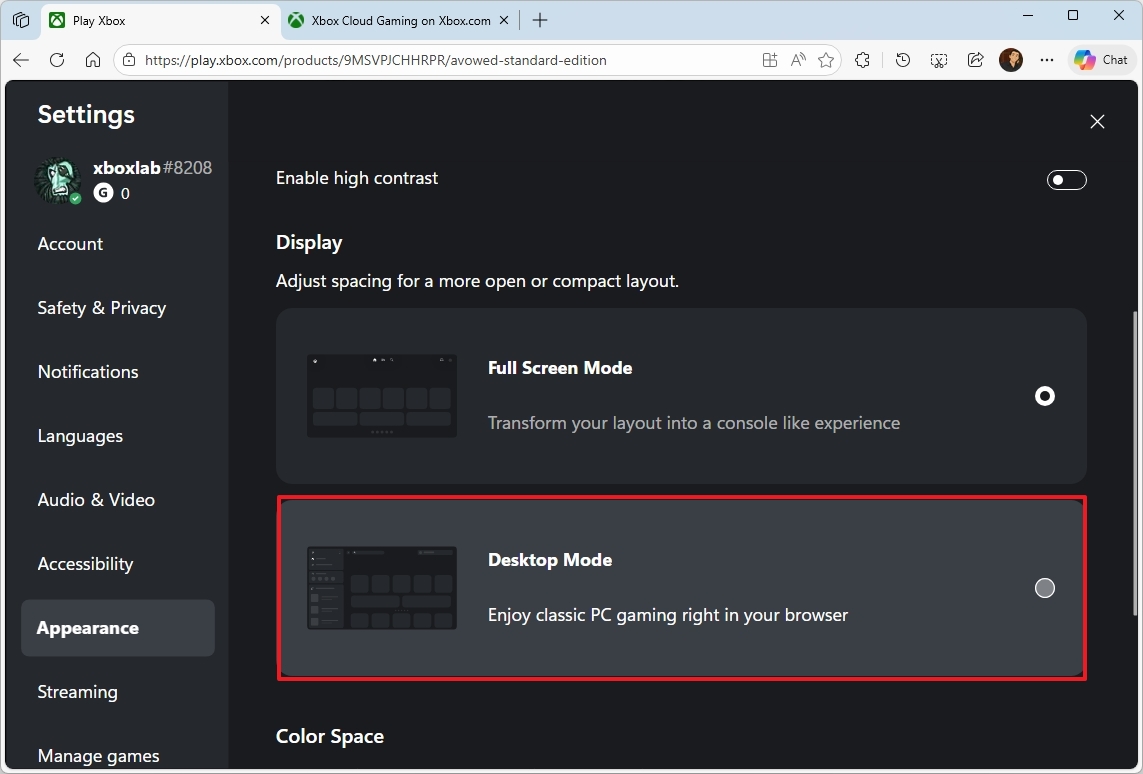
- (Option 2) Select the Full Screen Mode option to use the modern view.
After you complete the steps, you will have access to a more Xbox app-like experience.
Xbox is constantly improving its cloud gaming services, and this new web experience feels like a move towards a unified platform – one that works seamlessly whether you’re playing on a console, PC, or through the web. While still in development, this preview suggests Microsoft is making cloud gaming a core part of the Xbox experience, rather than just an extra feature.
What are your thoughts on the new UI? Let me know in the comments.
FAQs about accessing the new Xbox Cloud Gaming UI
These are common questions regarding the access to the new Xbox Cloud Gaming experience.
What is the new Xbox Cloud Gaming interface?
The updated Xbox Cloud Gaming website now looks and feels a lot like the dashboard on your Xbox console, making it easier to find and play games. It features a simpler design, helps you discover new titles, and lets you choose between Desktop and Full Screen modes to customize your gaming experience.
Is the new Xbox Cloud Gaming experience available to everyone?
Absolutely! You can view a preview of the game by simply signing in with a Microsoft account. But to actually play the game in the cloud, you’ll need an Xbox Game Pass Ultimate subscription.
Do I need an Xbox console to use the new Xbox Cloud Gaming interface?
That’s right! Everything happens right in your web browser. You don’t need an Xbox console or even to connect a controller to use the cloud gaming platform.
Why don’t I see the new interface right away?
This new design is being tested with a small group of players. To try it out, you need to turn on the “Preview features” setting in Xbox Cloud Gaming. Once you do, it may take up to 10 minutes for the updated look to appear.
Can I switch back to the old Xbox Cloud Gaming interface?
That’s right. The preview feature is optional. You can always switch back to the older version by clicking the “Exit preview” button in the upper-right corner of the screen.
More resources

Stay up-to-date with the latest from Windows Central by following us on Google News! You’ll get all our news, helpful insights, and great features right in your feed.
Read More
- Looks Like SEGA Is Reheating PS5, PS4 Fan Favourite Sonic Frontiers in Definitive Edition
- Pluribus Star Rhea Seehorn Weighs In On That First Kiss
- Dune 3 Gets the Huge Update Fans Have Been Waiting For
- Kelly Osbourne Slams “Disgusting” Comments on Her Appearance
- Gold Rate Forecast
- Tomodachi Life: Living the Dream ‘Welcome Version’ demo now available
- Arknights: Endfield – Everything You Need to Know Before You Jump In
- ‘If You Found It Boring, This Won’t Change That’: Starfield’s PS5 Port to Be Revealed Soon, But Don’t Expect Major Reinvention
- Korean fantasy action adventure game Woochi the Wayfarer announced for PS5, Xbox Series, and PC
- Disney Promotes Thomas Mazloum To Lead Parks and Experiences Division As Josh D’Amaro Prepares To Become CEO
2026-01-27 22:10