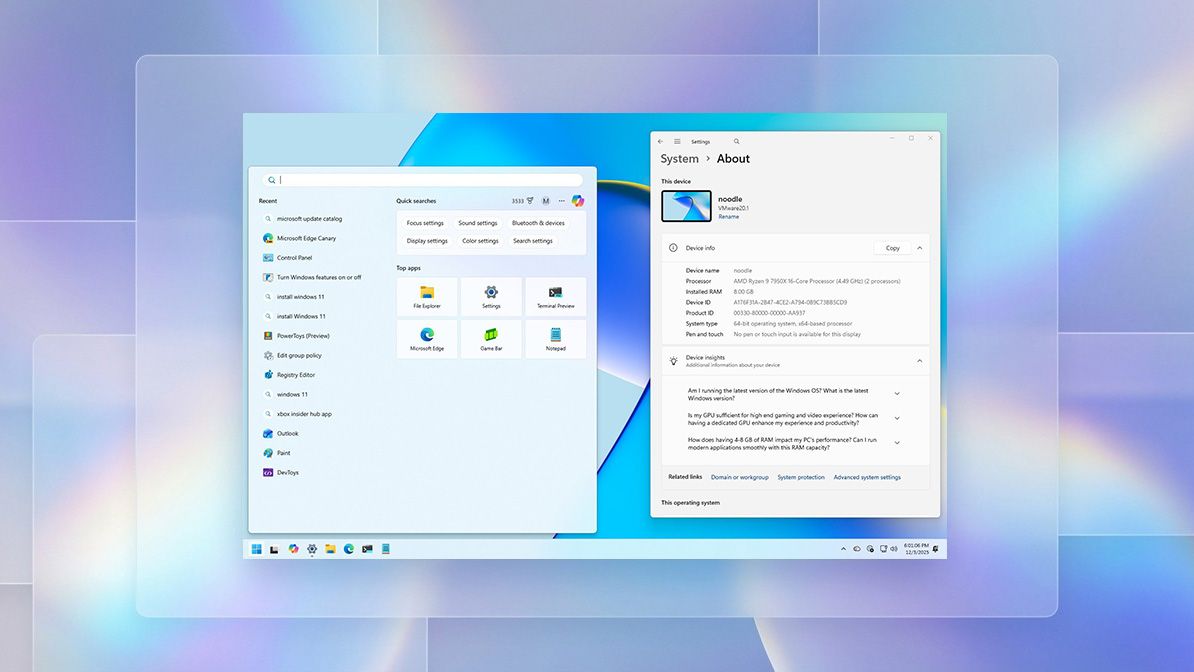
Microsoft plans to release the last major Windows 11 update of 2025 on December 9, 2025. This ‘Patch Tuesday’ update will include several new features, performance enhancements, and solutions to known problems.
This update fixes design issues between the Start menu and Windows Search, and also improves dark mode in File Explorer.
Windows 11’s Settings app is getting several updates. The Home page now includes a “Device info” card, and the “About” page has been redesigned. Options for managing mobile devices are now directly within the Settings app. A new feature called Virtual Workspaces simplifies managing virtual machines. Plus, more keyboard and mouse settings are moving from the Control Panel into the Settings app, offering a more centralized experience.
We’ve updated the Widgets dashboard with a fresh new look and simplified settings. Plus, the Xbox Full Screen Experience is now available on even more handheld devices.
The newest updates, included in the latest release for Windows versions 24H2 and 25H2, are subject to change – Microsoft may remove or postpone features at any time. Features like Windows Recall and Click to Do, along with other AI capabilities, are only available on Copilot+ PCs. These PCs need a powerful NPU (Neural Processing Unit) with a performance of 40+ TOPS – you’ll find this in Qualcomm Snapdragon X Plus and X Elite processors, as well as certain Intel and AMD processors. To use these AI features, you’ll also need to have BitLocker (or Device Encryption) and Windows Hello turned on.
Windows 11 new features coming in December 2025
Microsoft slowly releases new features and updates, a process called Controlled Feature Rollout. This means it might take a little while for all the latest changes to appear on your device.
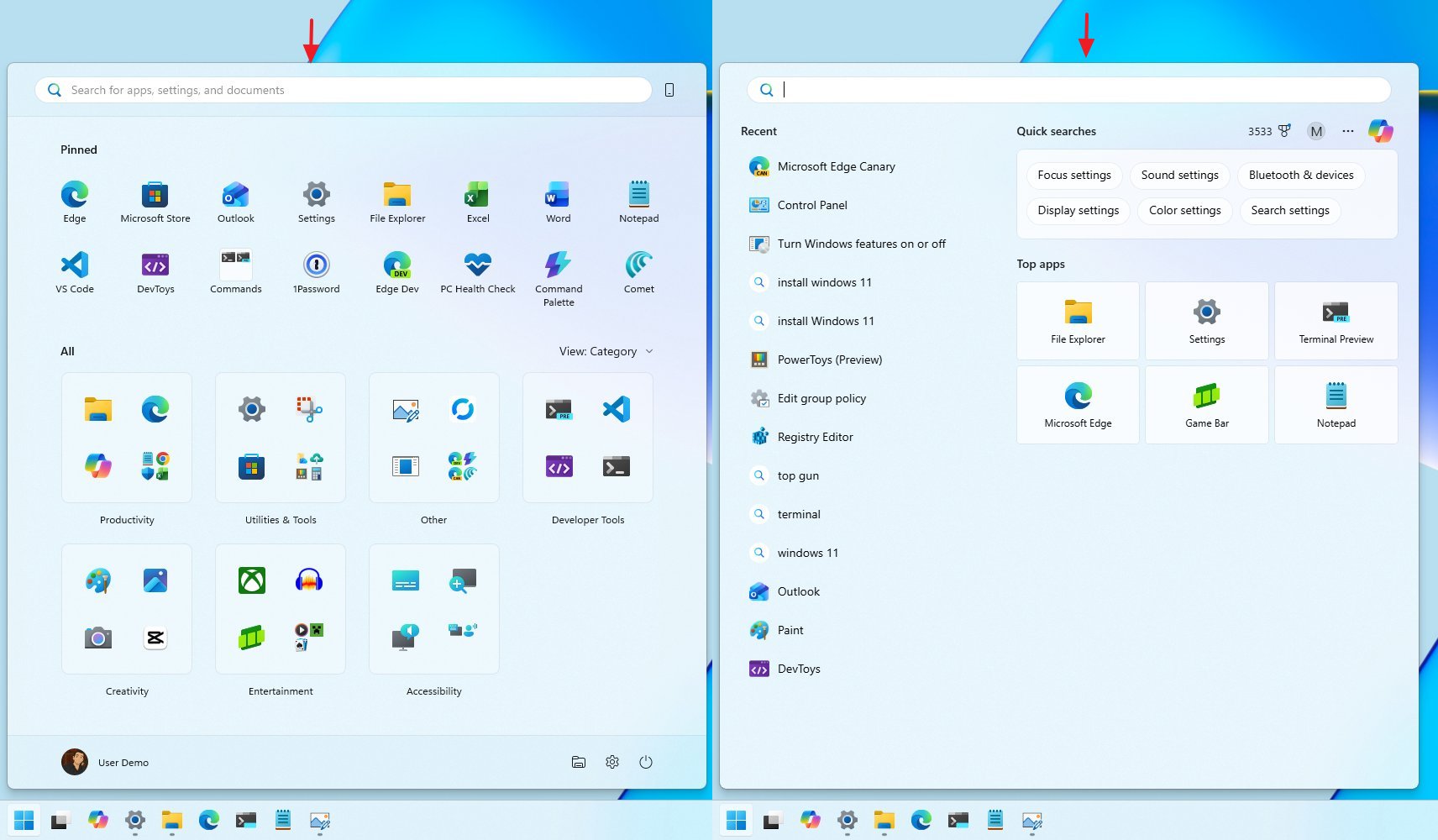
1. Windows Search visual improvements
A recent update to the 2025 version of Windows improves the look of the Search panel. It now aligns in height with the redesigned Start menu, creating a more consistent visual experience throughout the operating system.
2. Taskbar’s new Share with Copilot feature
Microsoft’s latest update includes a new feature—called “Share with Copilot”—that lets you quickly start a conversation with Copilot using its vision capabilities. You’ll find it as an option when you hover over app thumbnails on your Taskbar. While some users didn’t request this addition, it’s now available.
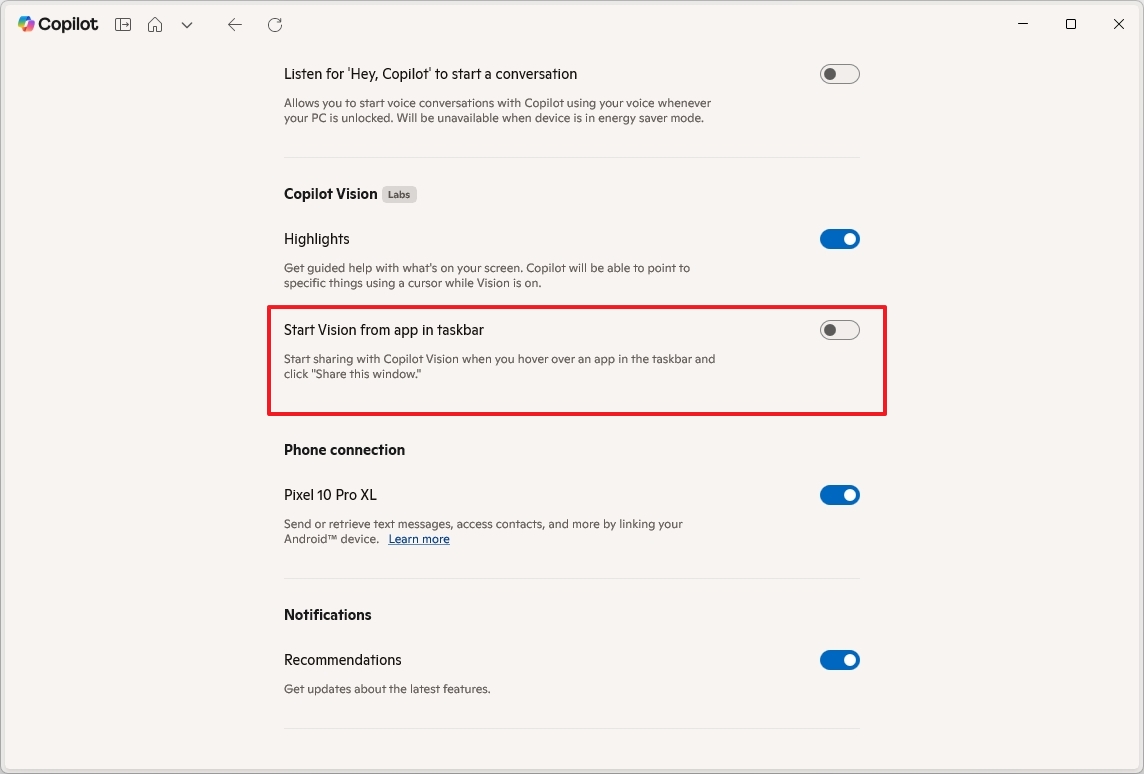
You can control this feature within the Copilot app’s settings. Look for the “Start Vision from app in taskbar” option under the “Copilot Vision” settings.
This update also includes a new animation to make switching between apps in the Taskbar feel more fluid and natural when you hover over them or slide between them.
3. Windows Spotlight for desktop changes
Now, if you’re using dynamic wallpapers with Spotlight, you can quickly change your desktop background by right-clicking anywhere on the desktop and selecting “Next background”. This feature is new in this release.
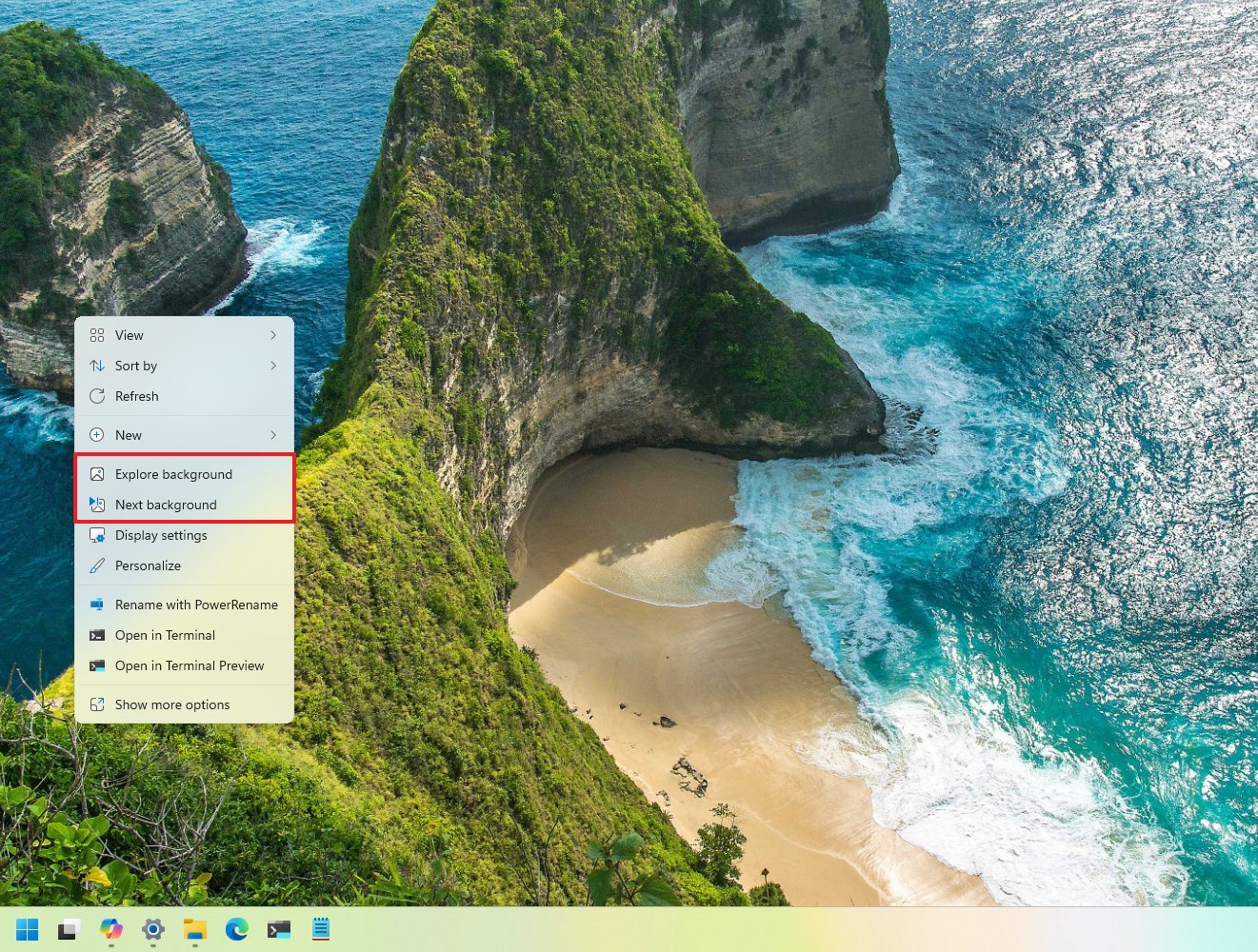
There’s also a new “Explore background” feature that will take you to a Bing page with details about the image.
4. Drag Tray disable option
Windows has a feature called Drag Tray that pops up when you drag a file to the top of your screen. If you don’t find it useful, Microsoft now lets you turn it off easily through the Settings app.
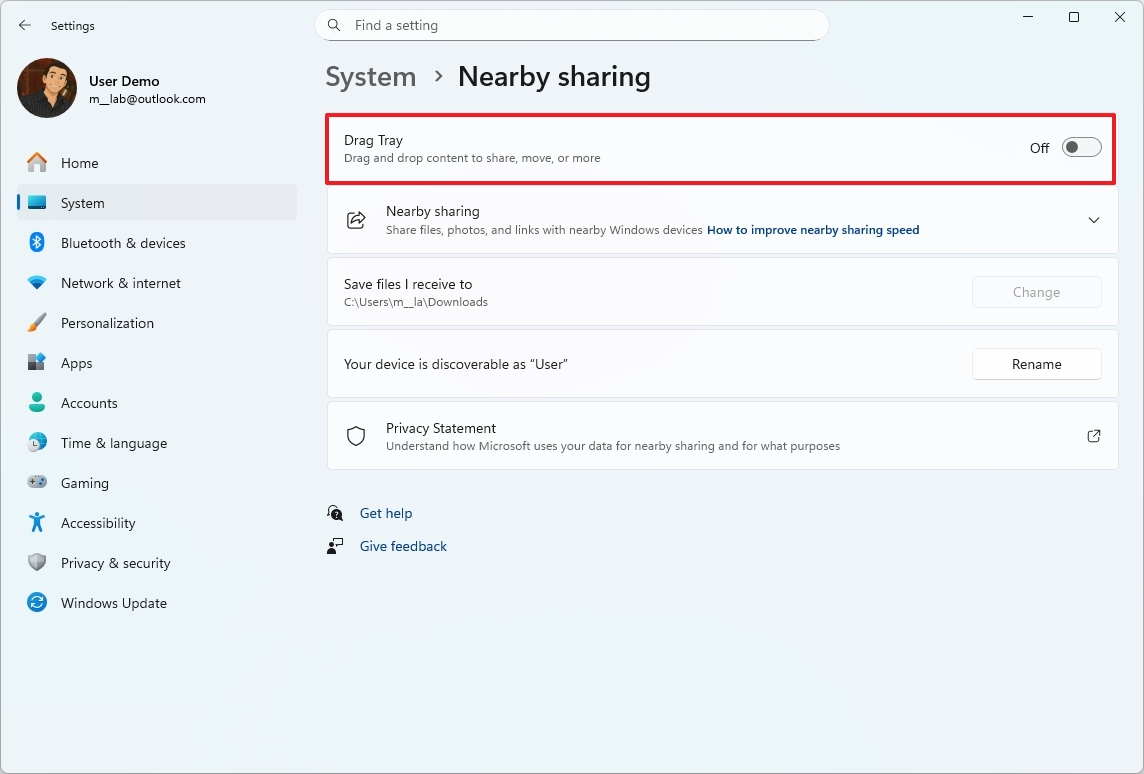
You can turn Drag Tray off on Settings > System > Nearby Sharing.
5. File Explorer dark mode improvements
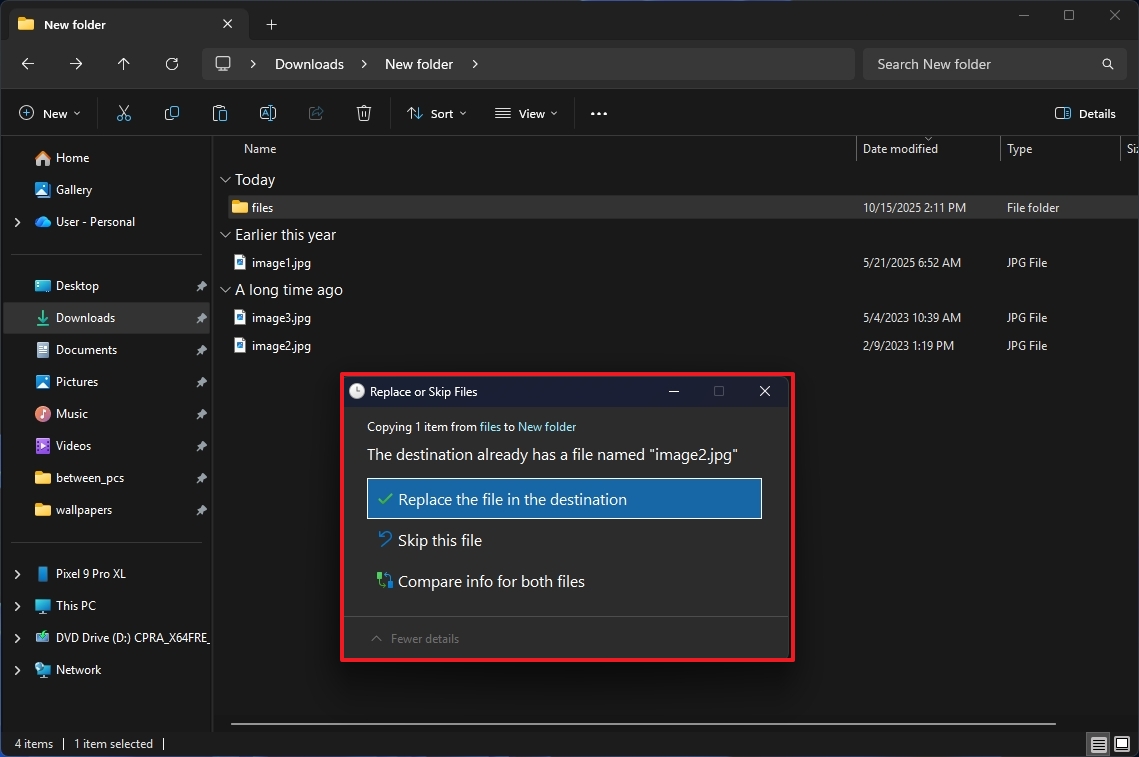
Microsoft is improving dark mode in File Explorer. The December 2025 security update will bring a more consistent dark theme to things like the copy, move, and delete windows.
The updates also extend to elements like progress bars, charts, and pop-up confirmations for actions like skipping steps, handling errors, overriding settings, and choosing files.
The company is simplifying its context menu – the menu you get when you right-click – by combining frequently used options like share, copy, and move into one easy-to-navigate menu. This update is being released slowly, as the company is still testing the best way to implement it for all users.
The new dark mode is a great step forward, but it’s still being refined. Users have reported a bright white flash when opening File Explorer and loading files, which the company is aware of and working to fix.
Microsoft acknowledges the issue and is working on a solution, but it’s unclear why they released this potentially flawed version, even as a preview for regular users. It raises questions about their quality testing process, and I’m simply curious about their approach.
6. Device info card in Home Settings
After updating, you’ll see a new section on the Settings Home page called Device info. This section shows important details about your computer’s hardware, like the processor, how much storage and memory you have, and your graphics card.
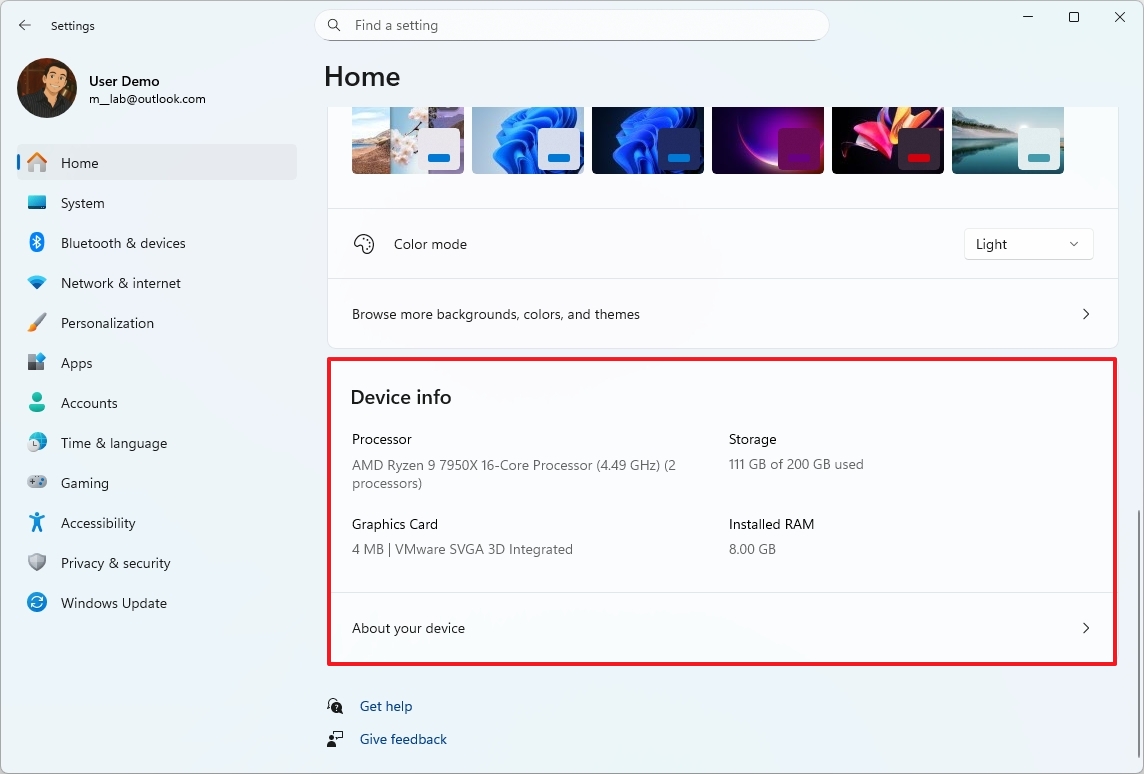
If you click the “About your device” button, you’ll be directed to the “About” page.
This card may appear only to users in the United States who are signed in with a Microsoft account.
7. Mobile Devices settings in Settings
This update also combines the settings for mobile devices directly into the main Settings app, making everything easier to find and manage.
You’ve always been able to adjust your phone’s features using the Settings app, but making changes requires switching between different screens.
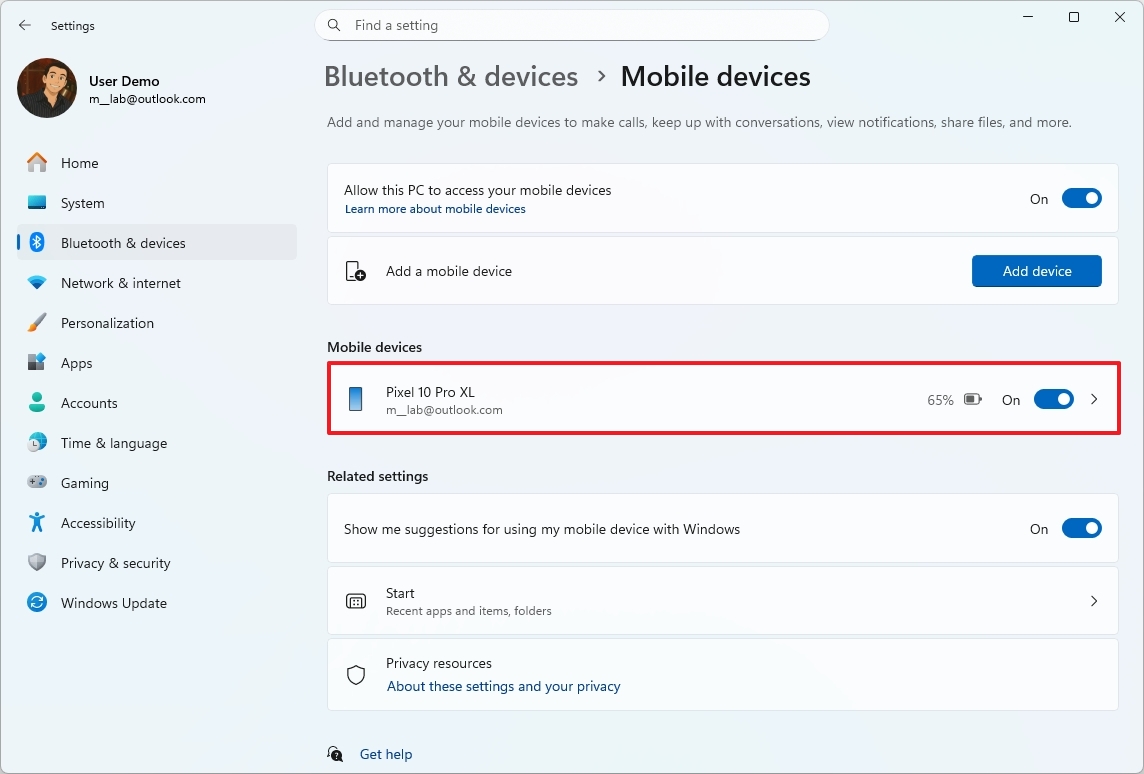
With this update, you can now add new devices by going to Settings > Bluetooth & devices > Mobile devices. You’ll also find your device’s settings within the Mobile devices section.
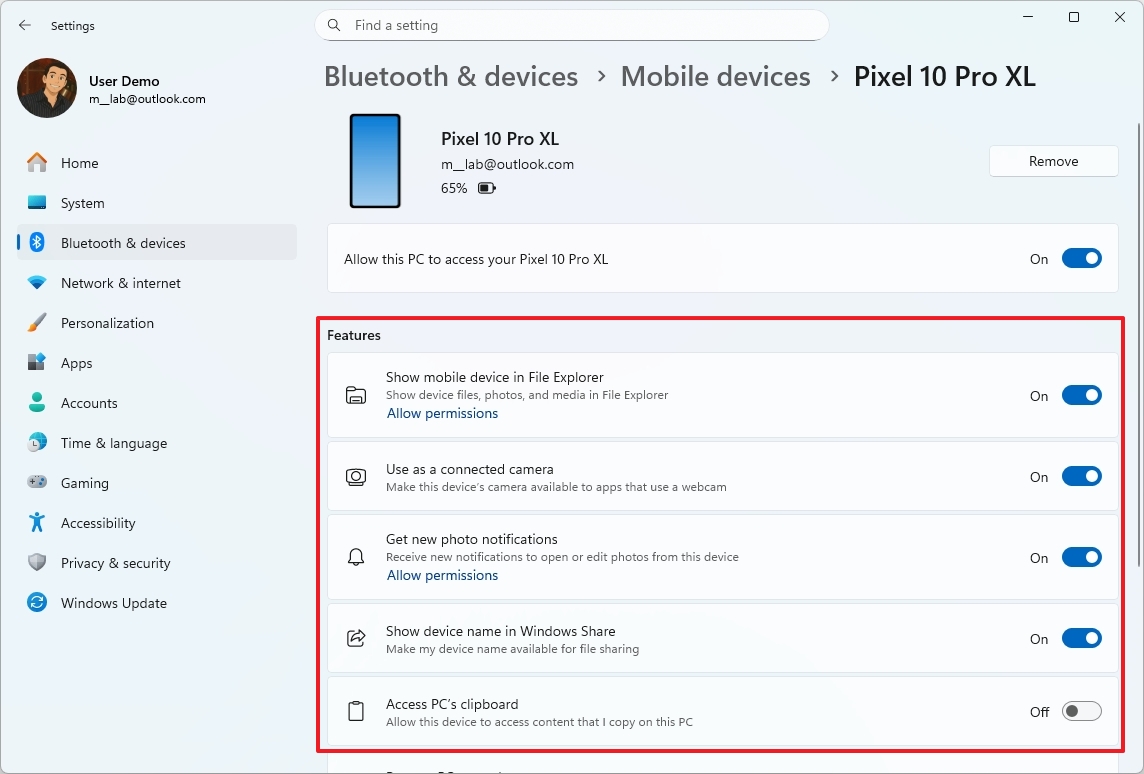
The page even includes an option to remove the mobile device from your account.
8. About page redesign
As an analyst, I’ve been tracking a redesign of Microsoft’s “About” page. It looks like they’re moving away from displaying those prominent technical spec cards at the top. Instead, the new design features a preview of your current desktop background, and, interestingly, an option right there to rename your PC. It’s a pretty significant shift in what information is immediately visible to users.
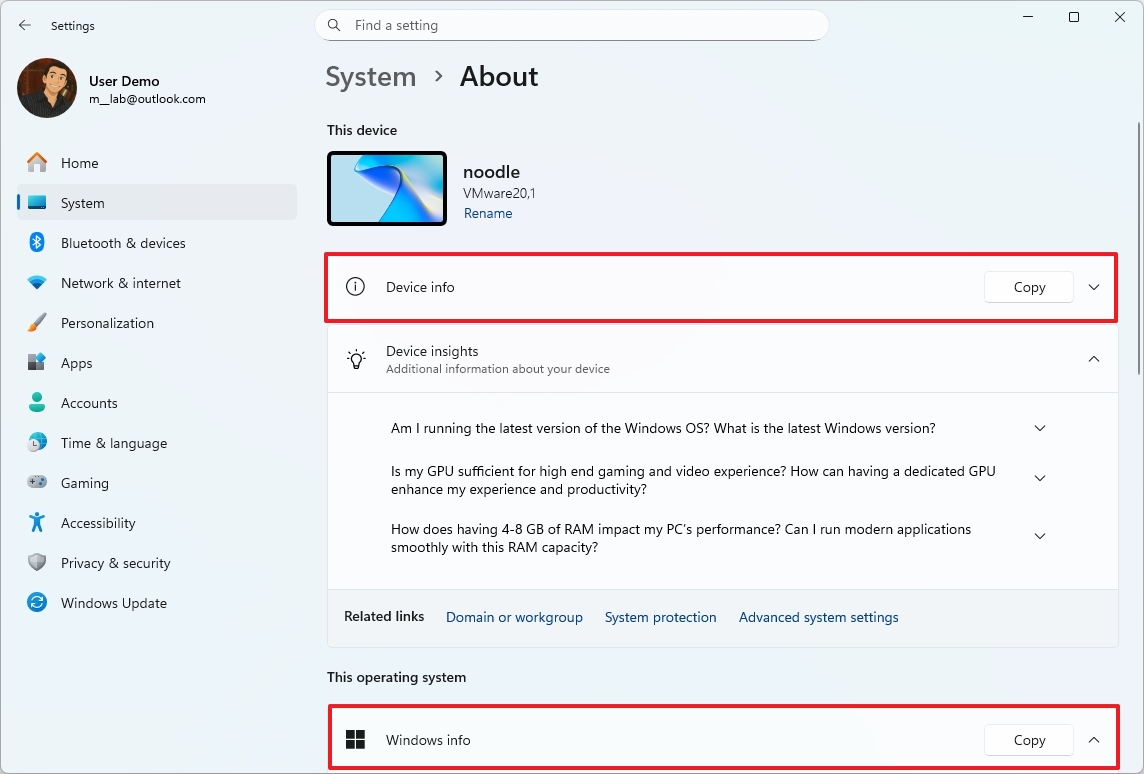
We’ve updated some section names! “Device Specifications” is now called “Device info,” and our “Frequently Asked Questions” section is now “Device insights.”
The “Windows Specifications” section is now called “Windows info,” and you can now find a link to “Storage” settings in the “Related” options.
9. Advanced settings with Virtual Workspaces
Our team is improving the Advanced settings area by adding a new “Virtual Workspaces” page. This page will allow you to control and manage your virtualization features, such as:
- Containers.
- Guarded Host.
- Virtual Machine Platform.
- Windows Hypervisor Platform.
- Windows Sandbox.
- Hyper-V GUI Management Tools.
- Hyper-V Module for Windows PowerShell.
- Hyper-V Hypervisor.
- Hyper-V Services.
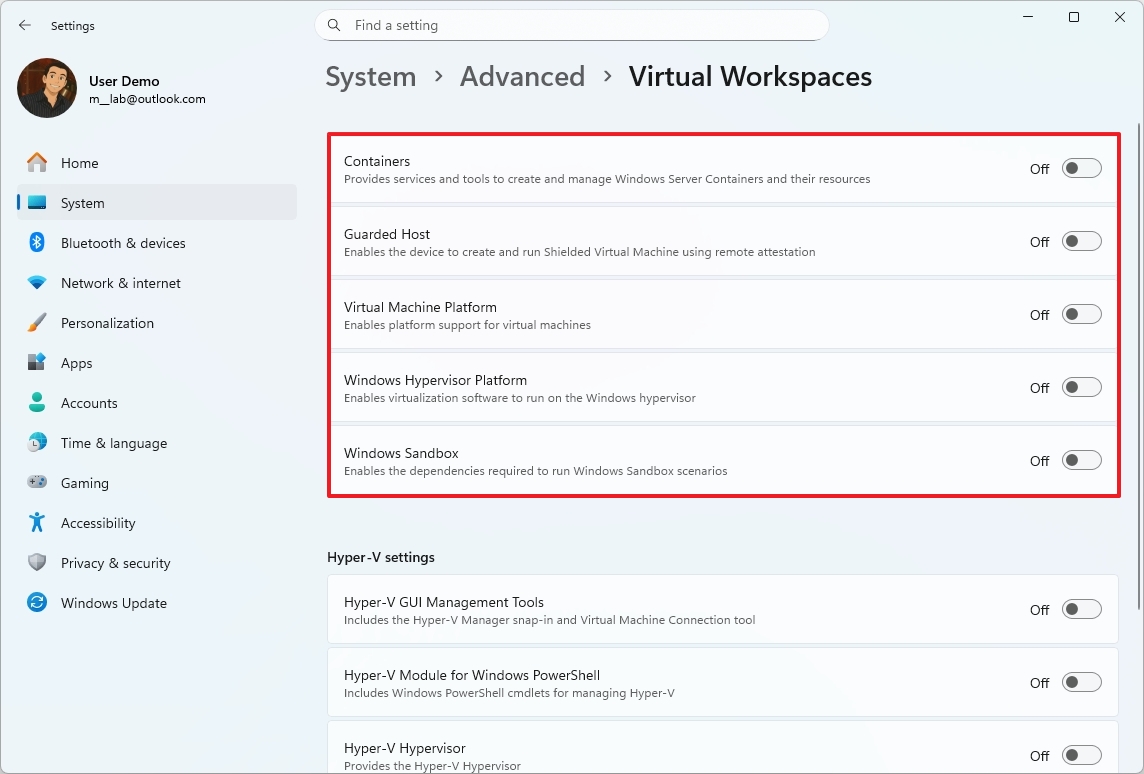
In the past, you had to enable these features on the legacy “Windows Features” page.
10. Keyboard and text cursor settings
The December 2025 Patch Tuesday update now includes keyboard and text cursor settings in the Settings app.
You can adjust how quickly keys repeat when you hold them down by going to Settings > Bluetooth & devices > Keyboard. This menu lets you control both the delay before repeating and how fast the characters repeat.
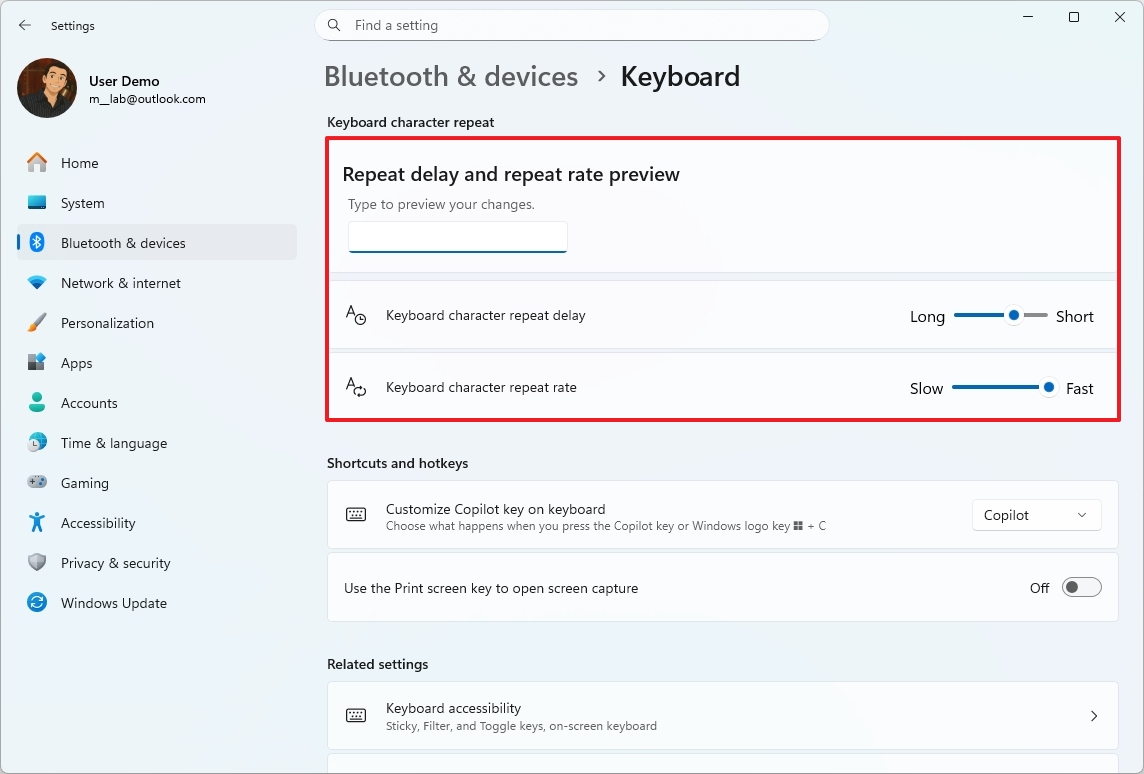
Here, you can also customize the Copilot key on your keyboard. Plus, you can choose to use the Print Screen key to open the Snipping Tool, making it easier to capture screenshots.
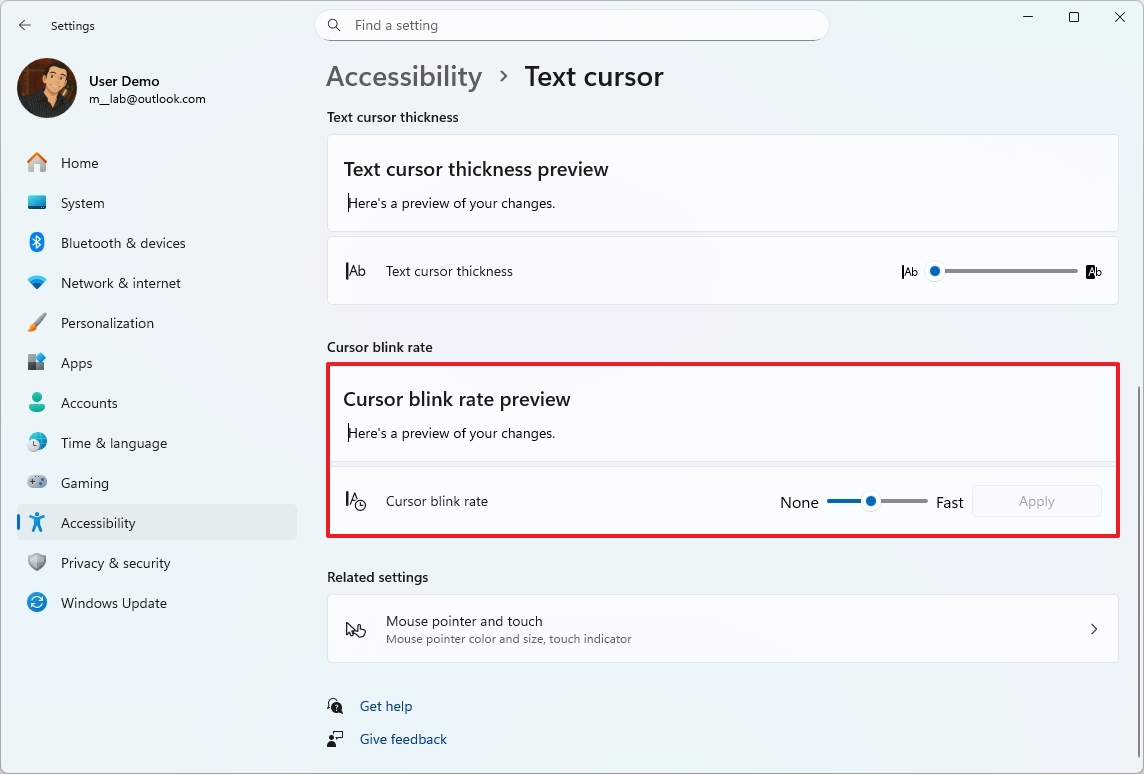
You can also change how quickly the text cursor blinks by going to Settings, then Accessibility, and finally Text cursor.
11. Quick Machine Recovery new default configuration
The Quick Machine Recovery feature has been around for a while, but it’s getting an update. The option that used to say “Continue searching if a solution isn’t found” is now called “Automatically check for solutions.”
We’ve simplified the way the system handles finding and applying fixes. Instead of separate settings for looking for solutions every time and restarting, there’s now a single “Look for solutions” setting, and it’s automatically set to check only once.
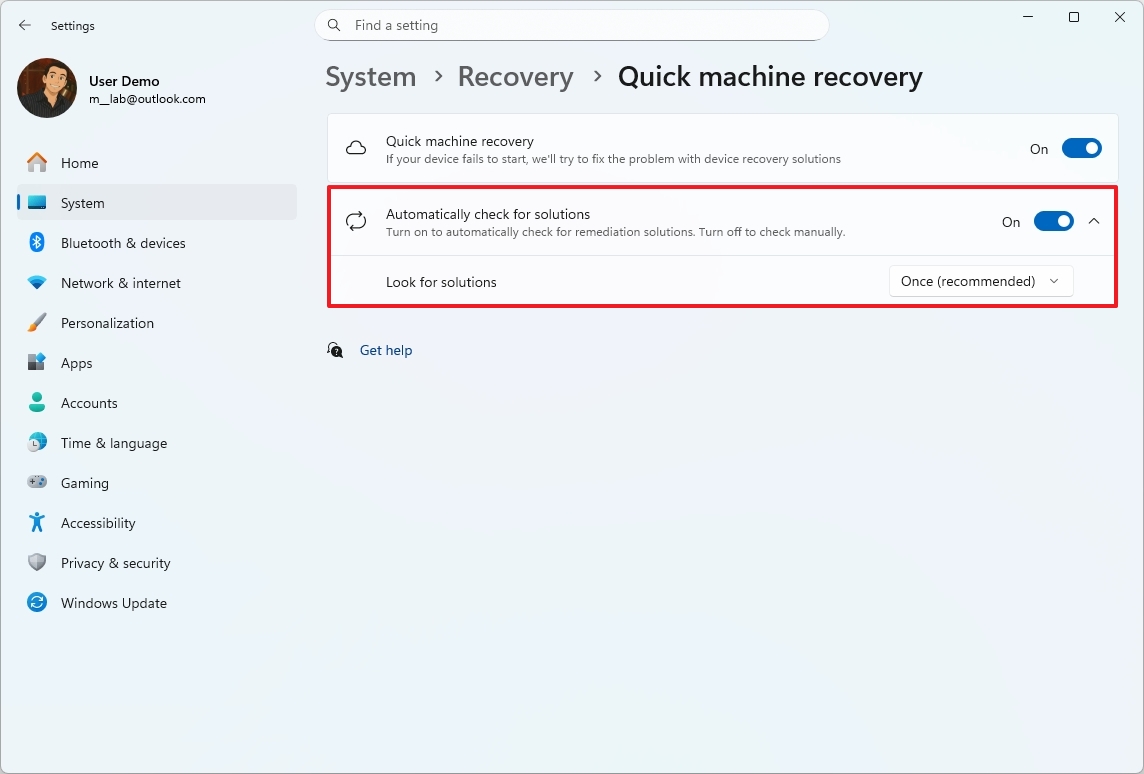
The updated settings will try to fix a problem only once, and then block other attempts to resolve it. This change is designed to stop the computer from endlessly searching for solutions, which could be frustrating for users.
12. Widgets board redesign
Windows 11 has a redesigned Widgets board that neatly separates your personalized widgets from a discovery feed, making it easier to navigate. Plus, settings for Widgets are now directly built into the feature instead of appearing as a separate window, creating a smoother and more unified experience.
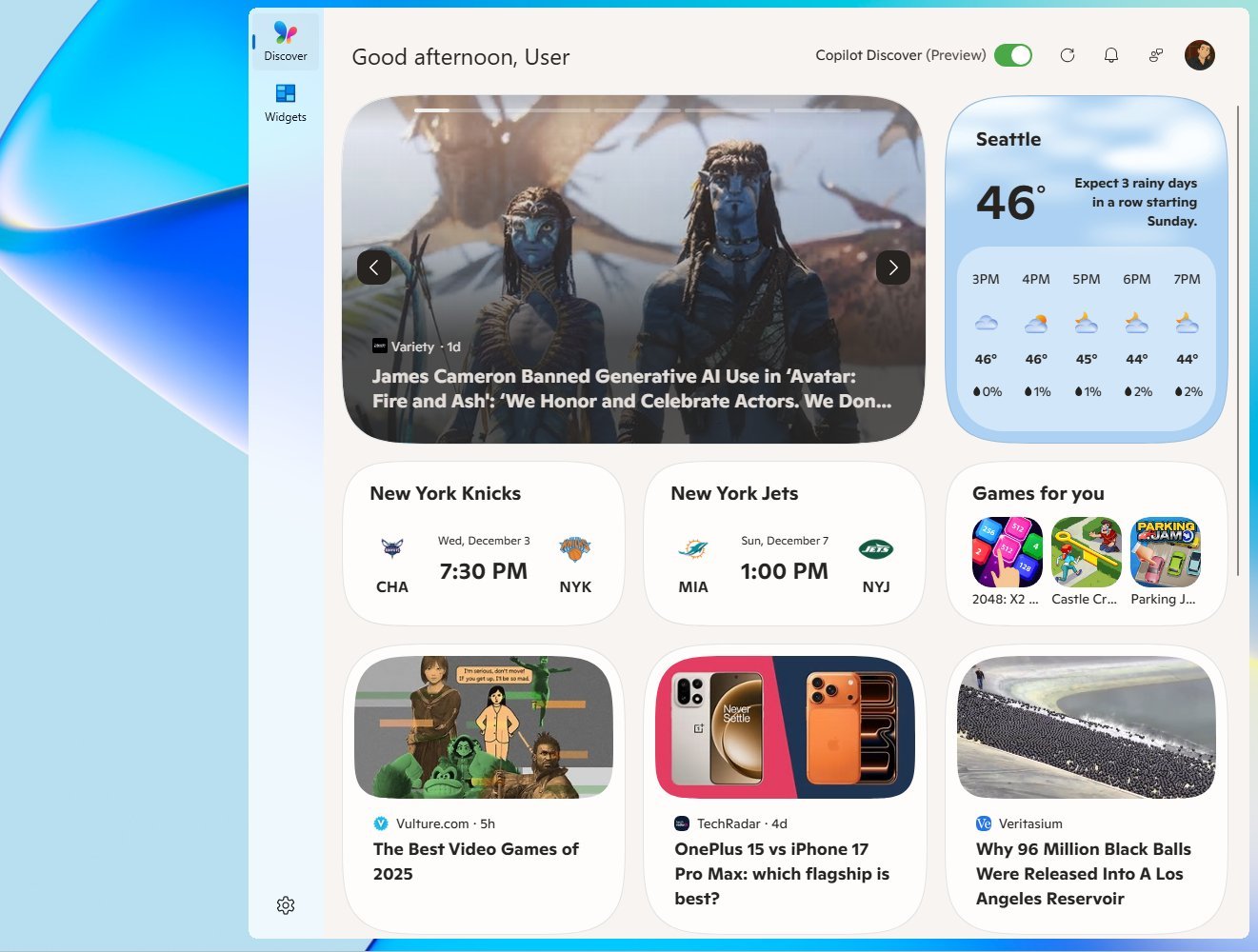
You’ll see a number on the dashboard icon if there are new alerts. This badge tells you how many new alerts there are.
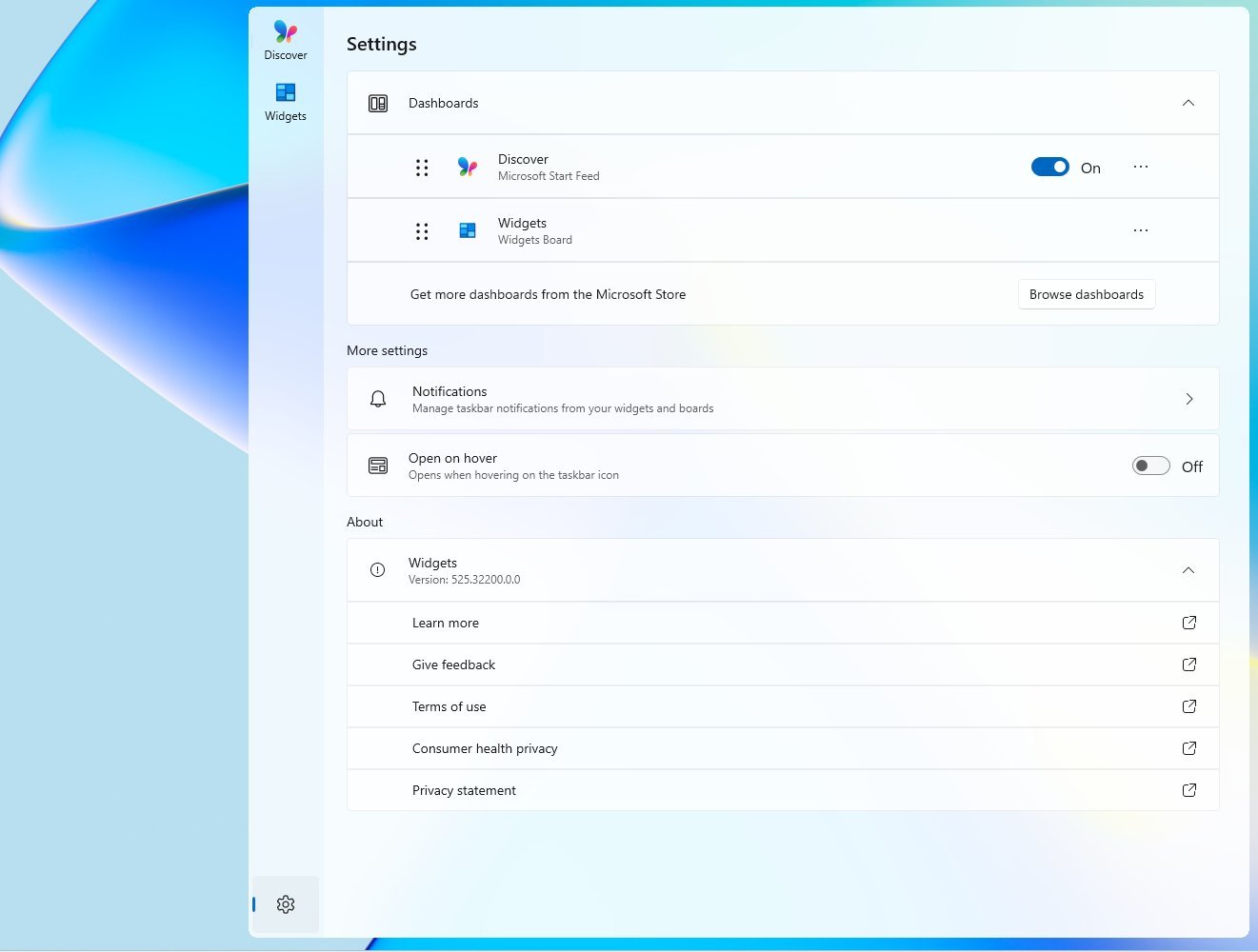
The settings page now lets you select your preferred default board. Plus, when you click the Widgets icon on the taskbar to see the weather, it will open your main dashboard instead of the one you used most recently.
13. Haptic feedback for digital pens
This update introduces subtle vibrations when using a pen on touchscreens. You’ll feel these vibrations when you interact with things like close buttons, or when snapping and resizing windows, making the experience more tactile.
14. Click to Do new actions menu
With this month’s security update, Microsoft is adding a redesigned context menu for the Click to Do feature on Copilot+ PCs, making it easier to use.
The updated design groups common actions – Copy, Save, Share, and Open – into a single row at the top, making them easier to find, much like the menu you see in File Explorer.
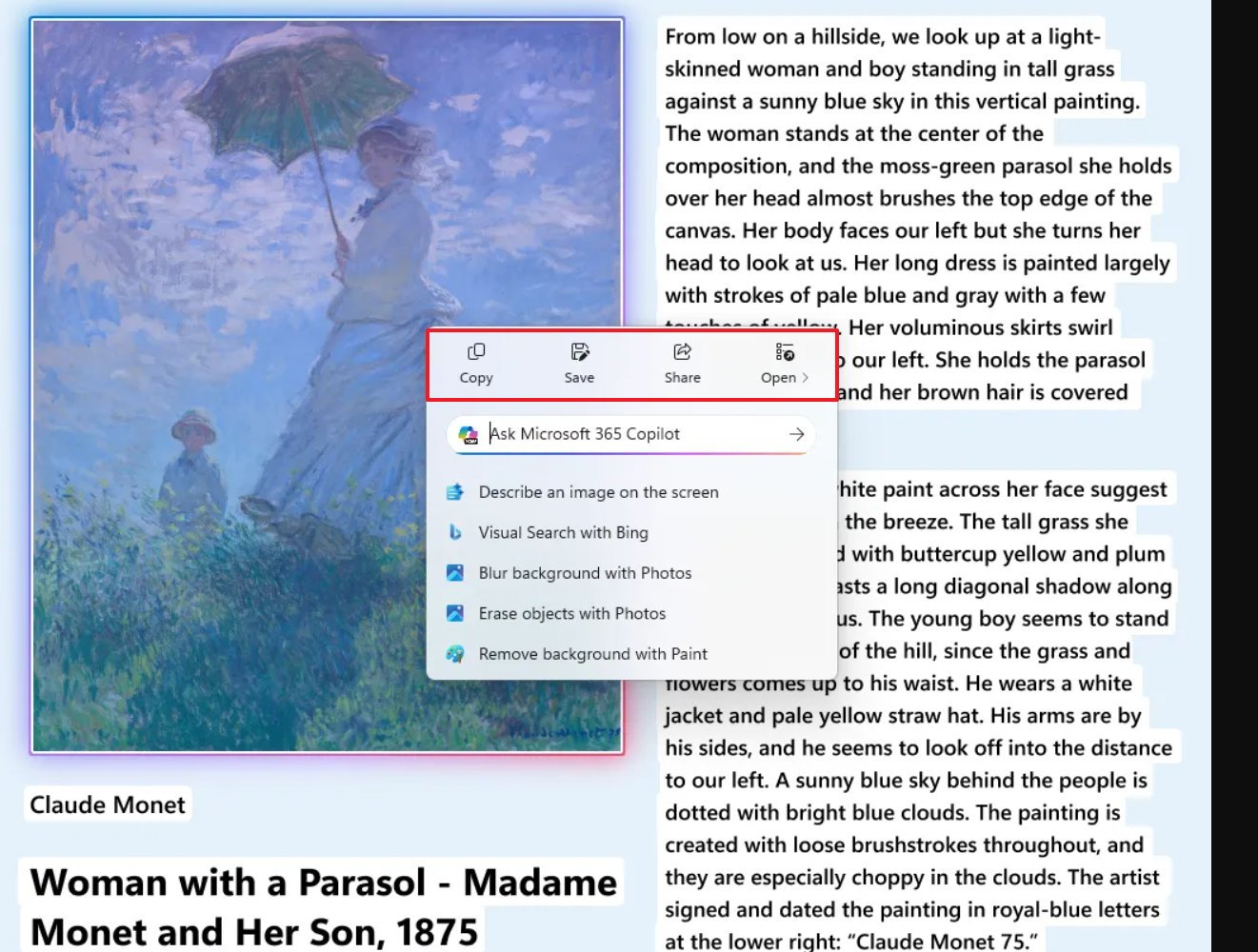
The updated menu now includes a quick-access box for Copilot, and it still offers all the tools you need for working with content.
If you’re viewing a large image or table on the screen, the menu of options will pop up automatically to help you quickly do what you need.
15. Xbox Full Screen Experience for more handheld devices
The December update also brings the Xbox Full Screen Experience to even more phones and tablets.
This gaming feature was originally limited to the ASUS ROG Ally and Ally X, but now it’s becoming available on a wider range of handheld gaming devices. While it will eventually come to standard computers, this current update focuses on expanding support to more handhelds.
The Full Screen Experience transforms your Windows 11 desktop into a simpler, console-style interface, making it easier to use with a controller when playing games through the Xbox app.
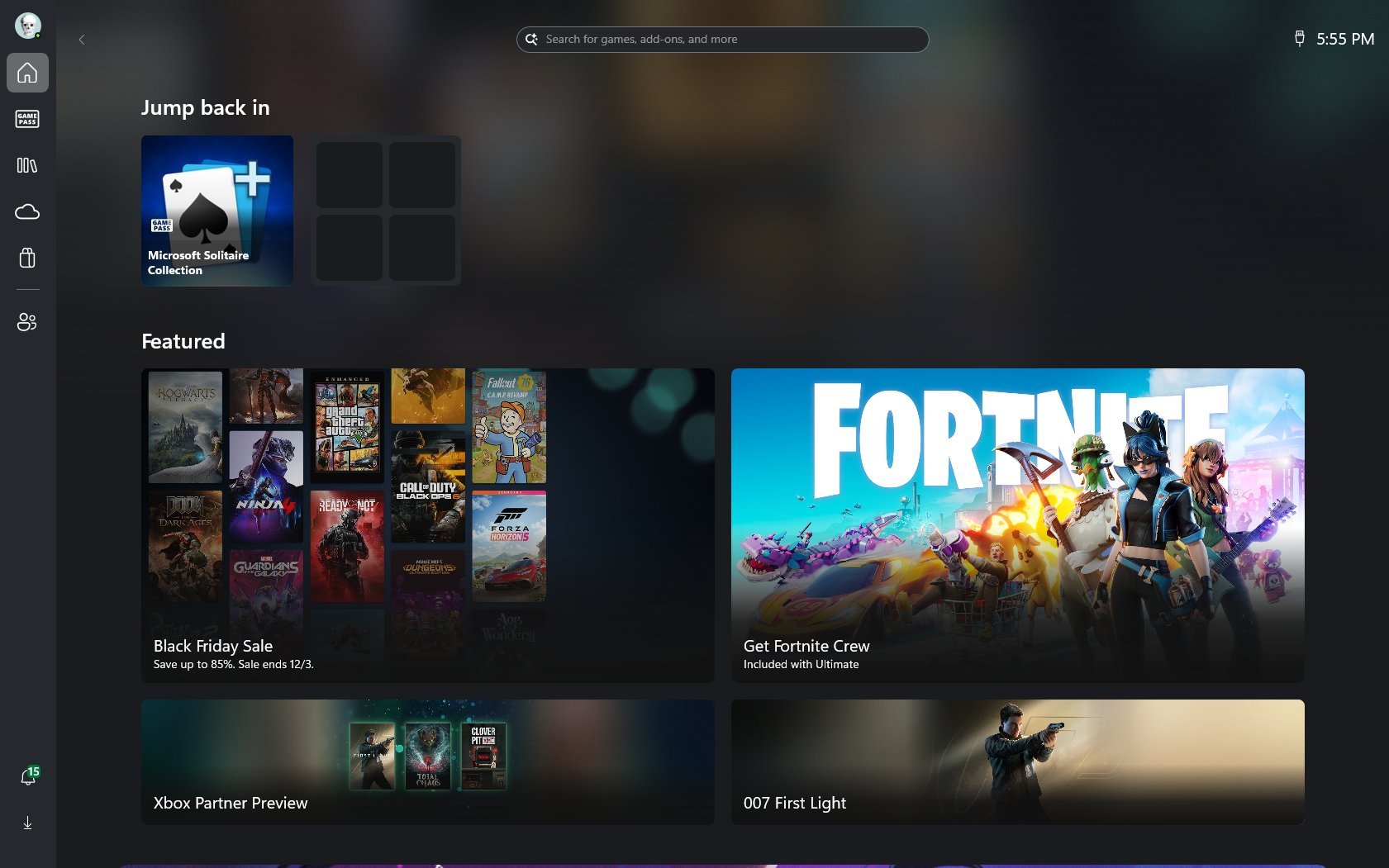
The company says loading this version is simpler and uses fewer resources than the regular desktop version, saving about 2GB of memory.
Okay, so I just found out how to turn on the new full-screen experience after installing the December 2025 security update on my handheld! You just go to your Settings, then Gaming, and finally, Full screen experience. It’s super easy to find!
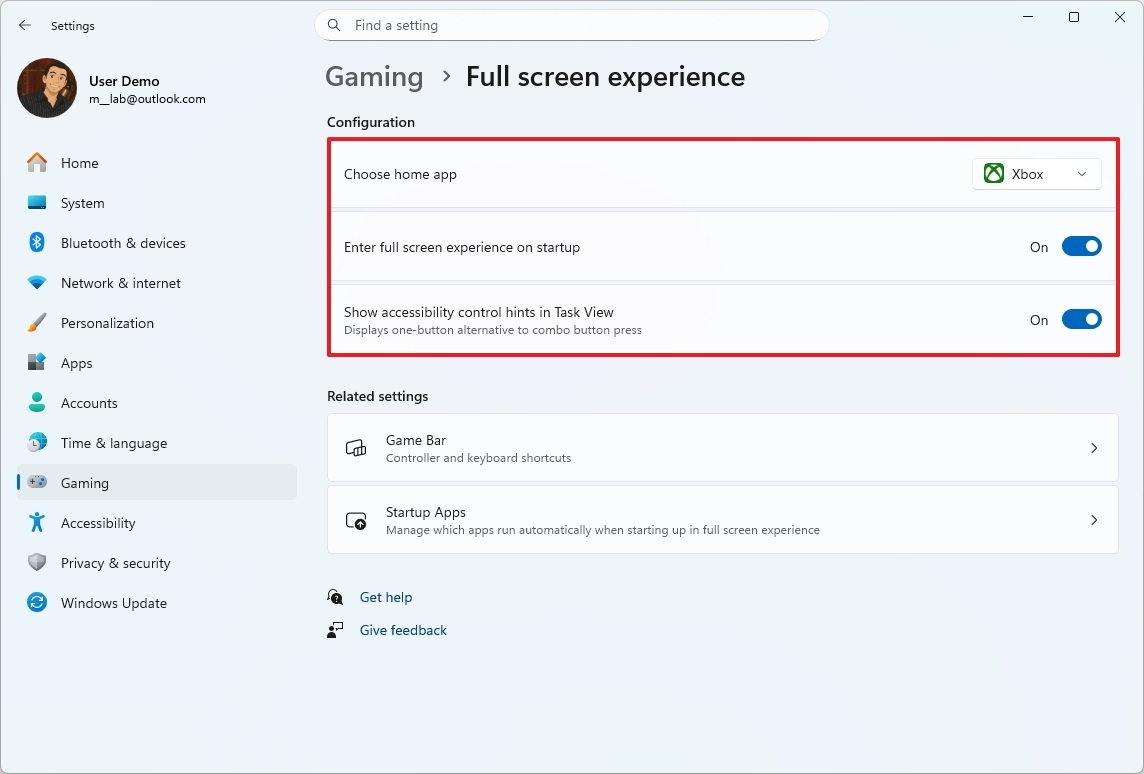
Once you’ve finished these steps, you’ll need to restart your computer for the changes to take effect and start using the new features.
As a researcher, I’ve found that switching back to the standard desktop view is pretty straightforward. You can use the “Windows key + Tab” shortcut, click the “Windows Desktop” button that appears, and then head into the Settings app to disable the Xbox Full Screen Experience. A quick reboot after that usually does the trick.
16. Windows Studio Effects for external cameras
With this update, if you have a Copilot+ PC, Windows Studio Effects’ AI features will now work with more than just your main camera – they’ll also improve video quality from webcams and the rear camera on your device.
To activate these features, go to your device’s Settings, then select Bluetooth & devices, and then Cameras. From there, open the camera’s properties and toggle on both “Advanced camera options” and “Use Windows Studio Effects”.
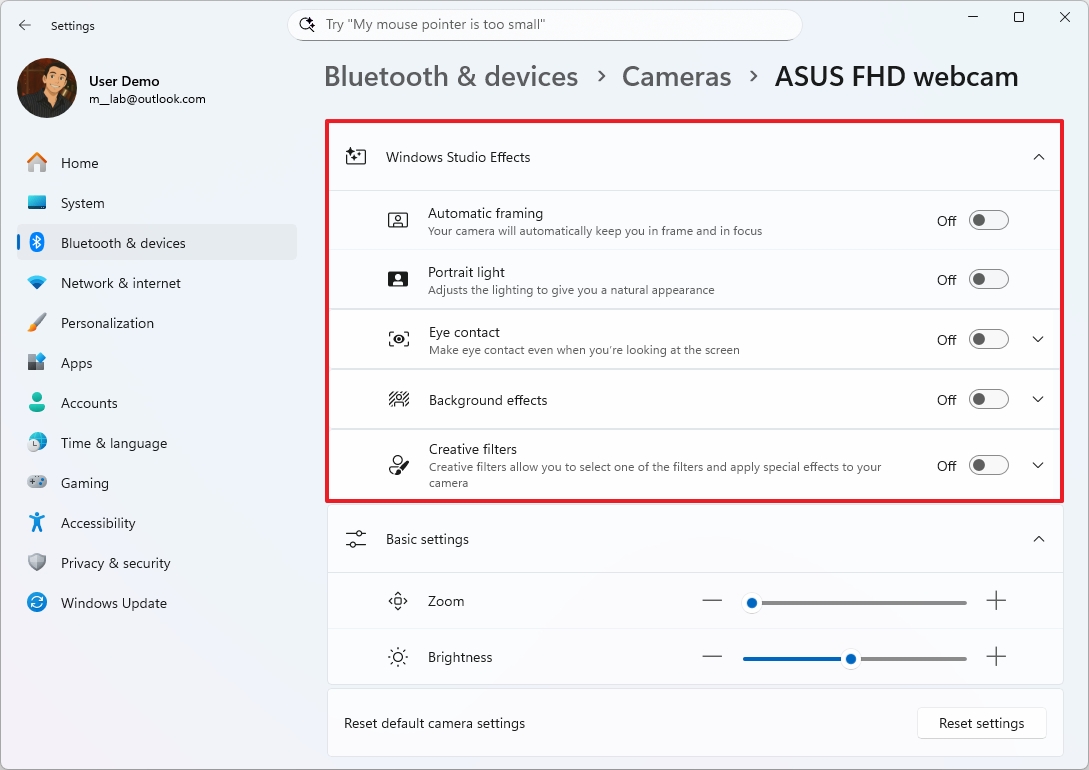
Just to reiterate, this guide highlights the most exciting new features and changes coming in the December 2025 Security Update, though that update includes many other enhancements as well. Specifically, Microsoft is making the AI assistant in the Settings app even better, and improving search within File Explorer and Windows Search for computers with Copilot+.
In addition, you’ll find other small improvements, bug fixes, and security patches.
More resources

Stay up-to-date with the latest from Windows Central by following us on Google News! You’ll get all our news, insights, and features right in your feed.
Read More
- Surprise Isekai Anime Confirms Season 2 With New Crunchyroll Streaming Release
- The Super Mario Galaxy Movie: 50 Easter Eggs, References & Major Cameos Explained
- Starfield (PS5) Review – A Successful Cross-Console Voyage
- Preview: Sword Art Online Returns to PS5 as a Darker Open World Action RPG This Summer
- ‘Project Hail Mary’: The Biggest Differences From the Book, Explained
- 10 Best Free Games on Steam in 2026, Ranked
- All 7 New Supes In The Boys Season 5 & Their Powers Explained
- Sydney Sweeney’s The Housemaid 2 Sets Streaming Release Date
- Skate 4 – Manny Go Round Goals Guide | All of the Above Sequence
- Silver Rate Forecast
2025-12-07 00:13