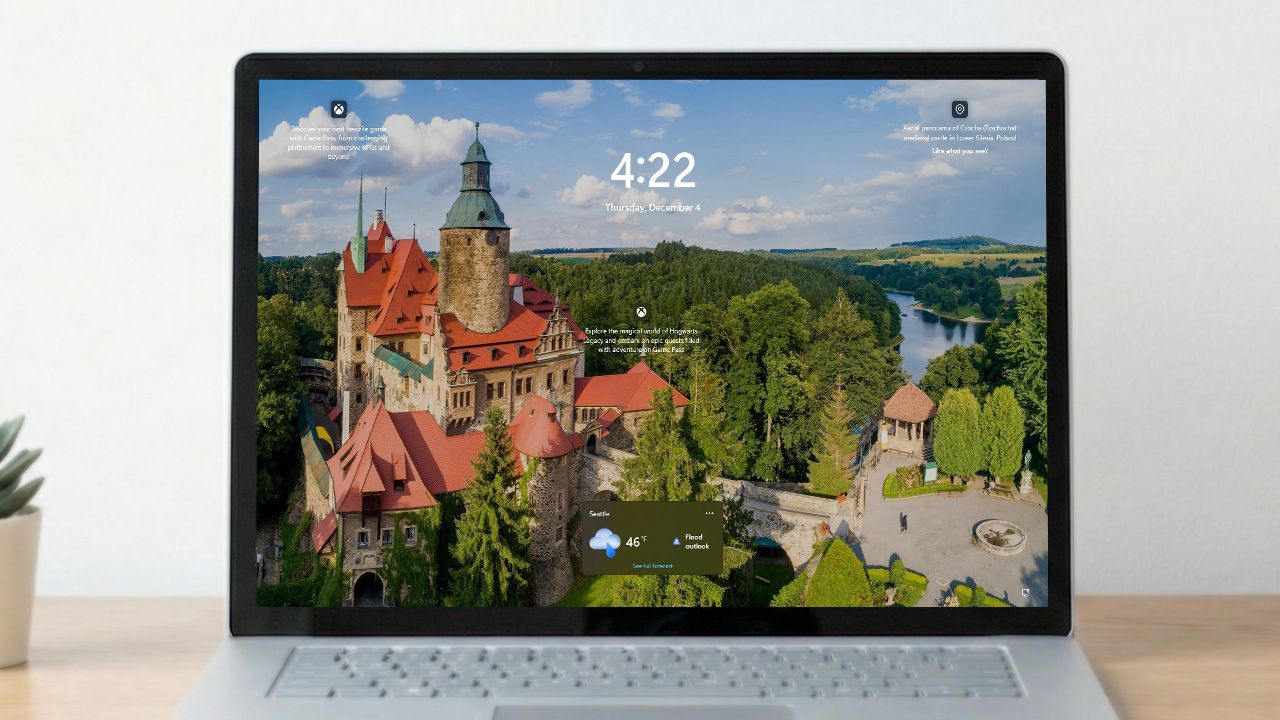
As a researcher, I’ve been exploring the customization options in Windows 11. I’ve found that you can easily control which widgets show up on your Lock Screen. Here’s how I’ve learned to configure those settings.
When you turn on your computer, you’ll likely see a few helpful widgets on the lock screen – that’s the screen you see before logging in. These usually show things like the weather, sports scores, traffic updates, and financial news.
While this information might be useful to certain people, it could be distracting for others, particularly those who rely on their computers for work or staying focused.
If you don’t like the widgets on your Lock Screen, Windows 11 allows you to change how they look or turn them off completely through the Settings app.
In this how-to guide, I’ll outline the steps to manage the widget settings in the Lock Screen.
How to manage Lock Screen widgets on Windows 11
On Windows 11, you can show or hide widgets and manage the ones that appear on the Lock Screen.
Enable Lock Screen widgets
To enable widgets in the Lock Screen, use these steps:
- Open Settings.
- Click on Personalization.
- Click the Lock Screen page from the right side.
- Turn on the Widgets toggle switch.
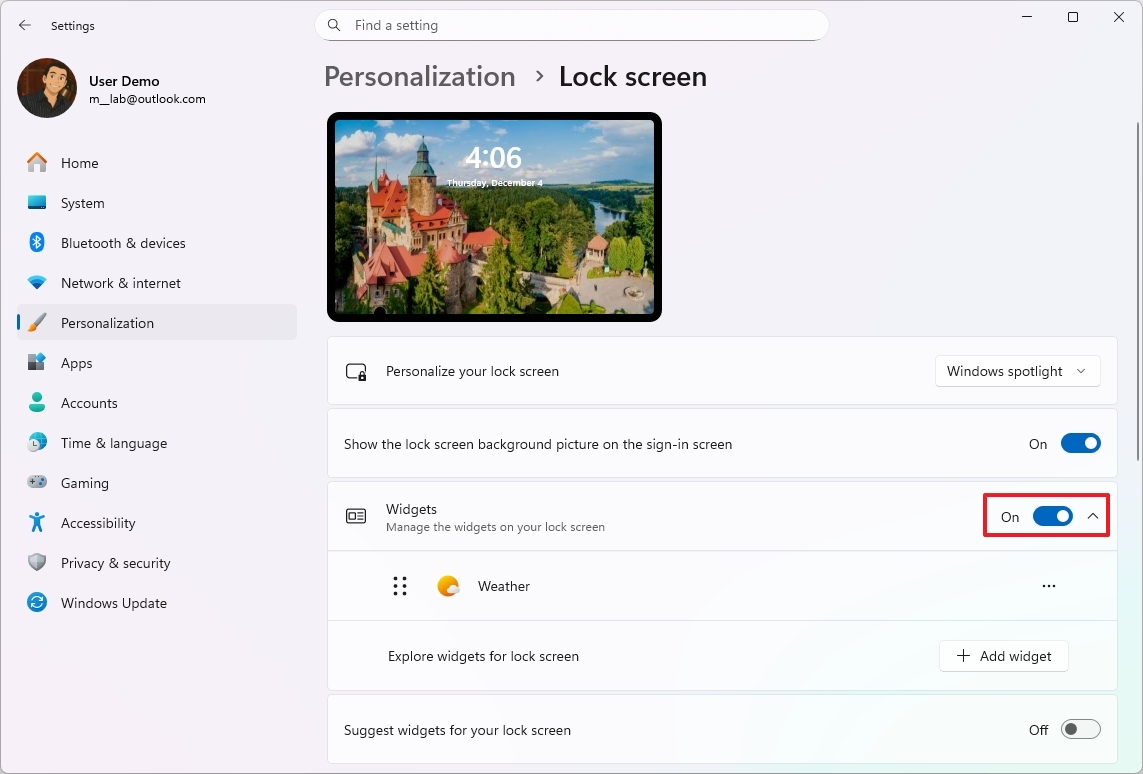
Once you complete the steps, up to four widgets will appear in the Lock Screen.
The system automatically sets up widgets on the Lock Screen when you first install it. If they don’t appear automatically, you can follow the instructions above to get them working.
Configure Lock Screen widgets
To add, customize, and remove widgets from the Lock Screen, use these steps:
- Open Settings.
- Click on Personalization.
- Click the Lock Screen page from the right side.
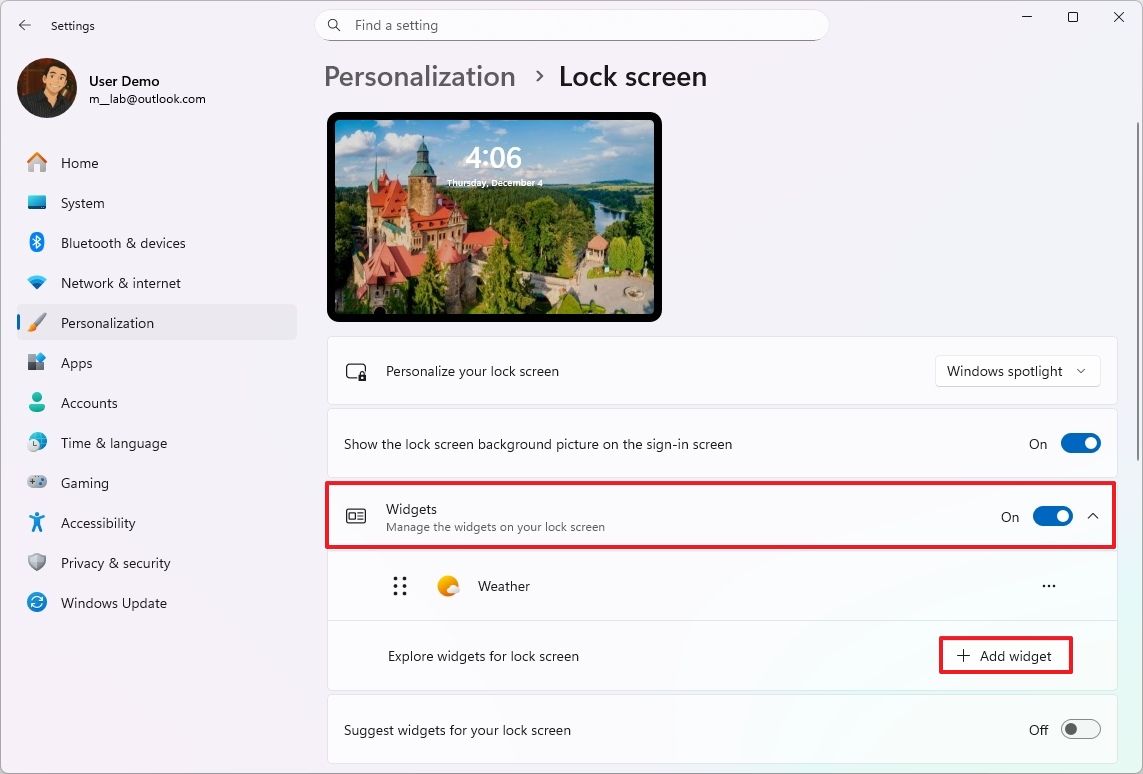
- Click the Widgets setting.
- Click the Add widget button to add more widgets.
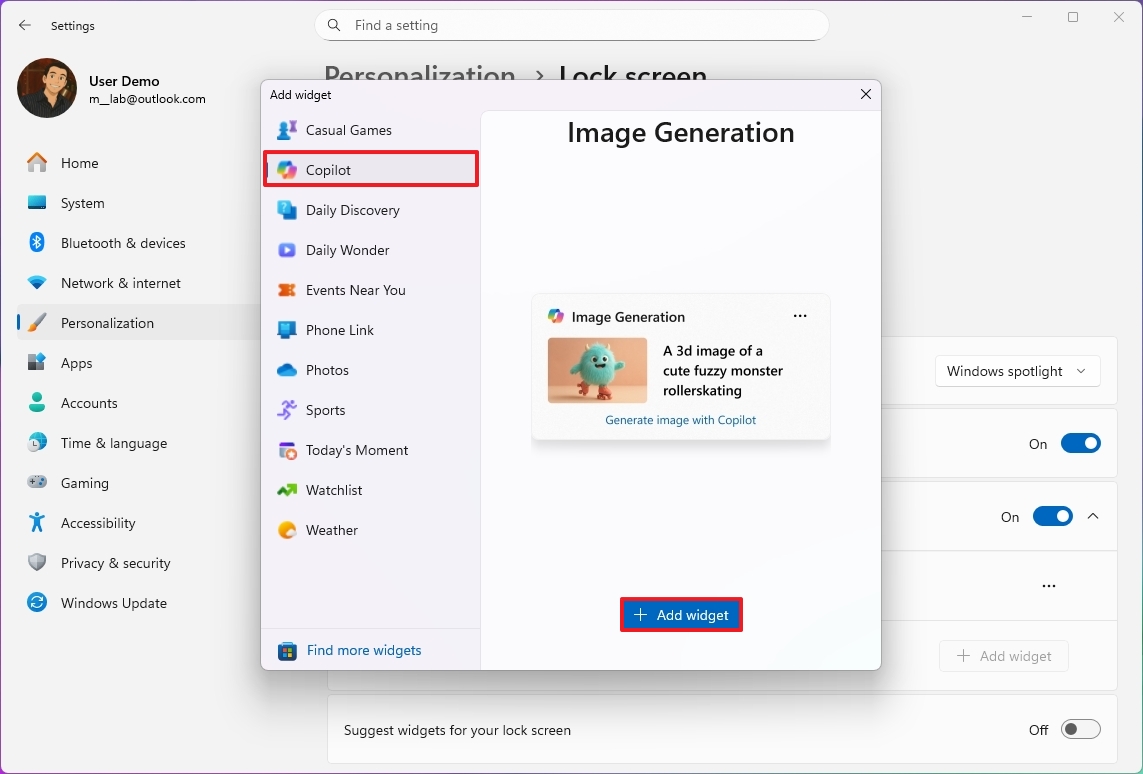
- Select one of the available widgets.
- Quick note: You can always use the “Find more widgets” option to download even more widgets from the Microsoft Store.
- Click the Add widget button.
- Click the menu (three dots) button and choose the Customize widget option (if applicable).
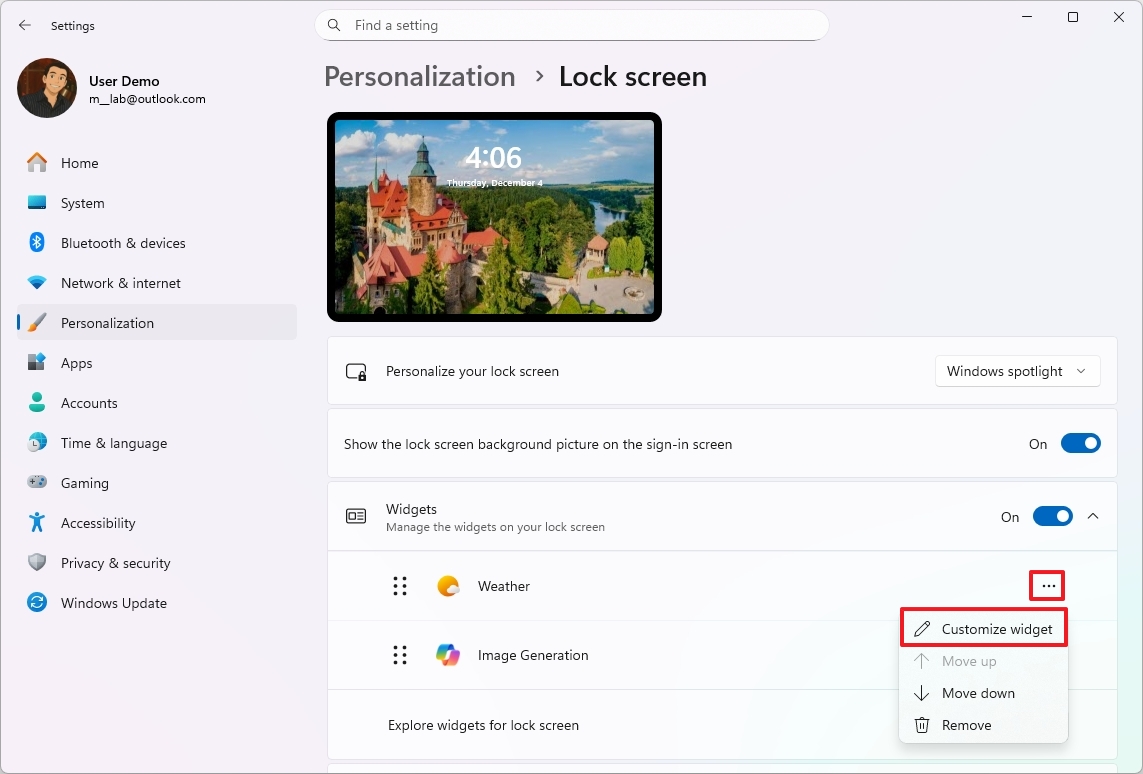
- Change the available settings to customize the widget.
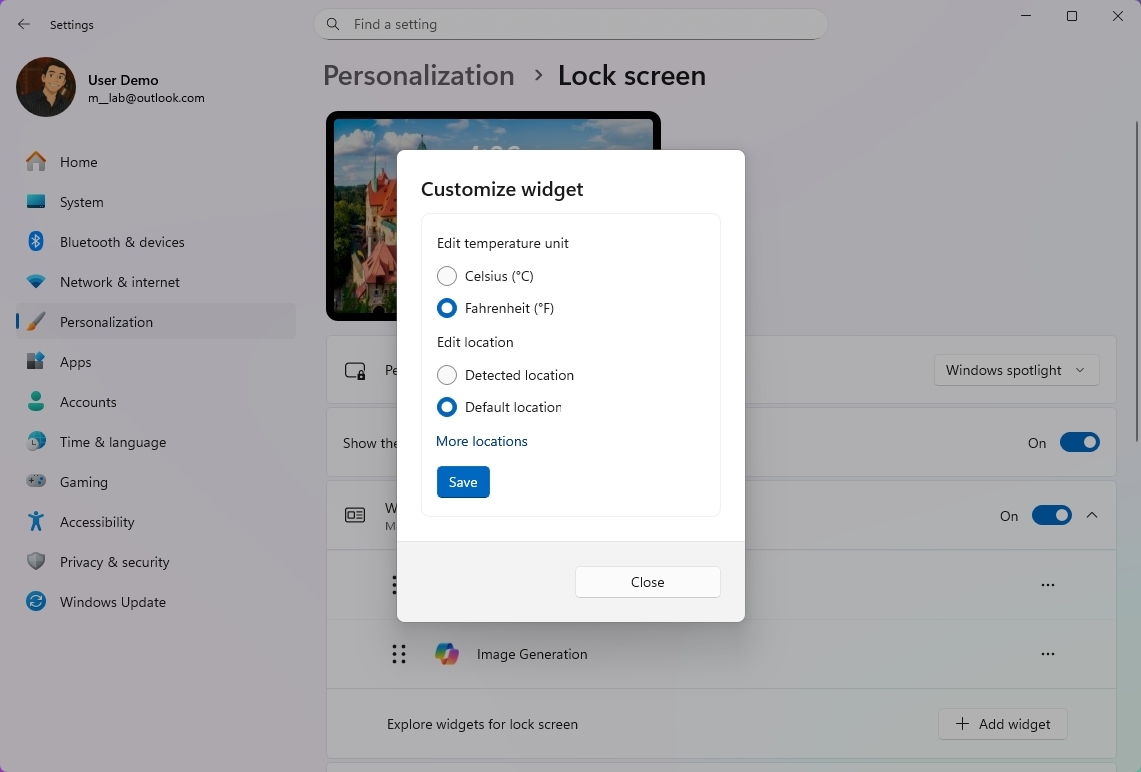
- Quick note: Customization options vary per widget.
- Click the Save button.
- Click the menu (three dots) button, then choose Remove to hide the widget from the Lock Screen.
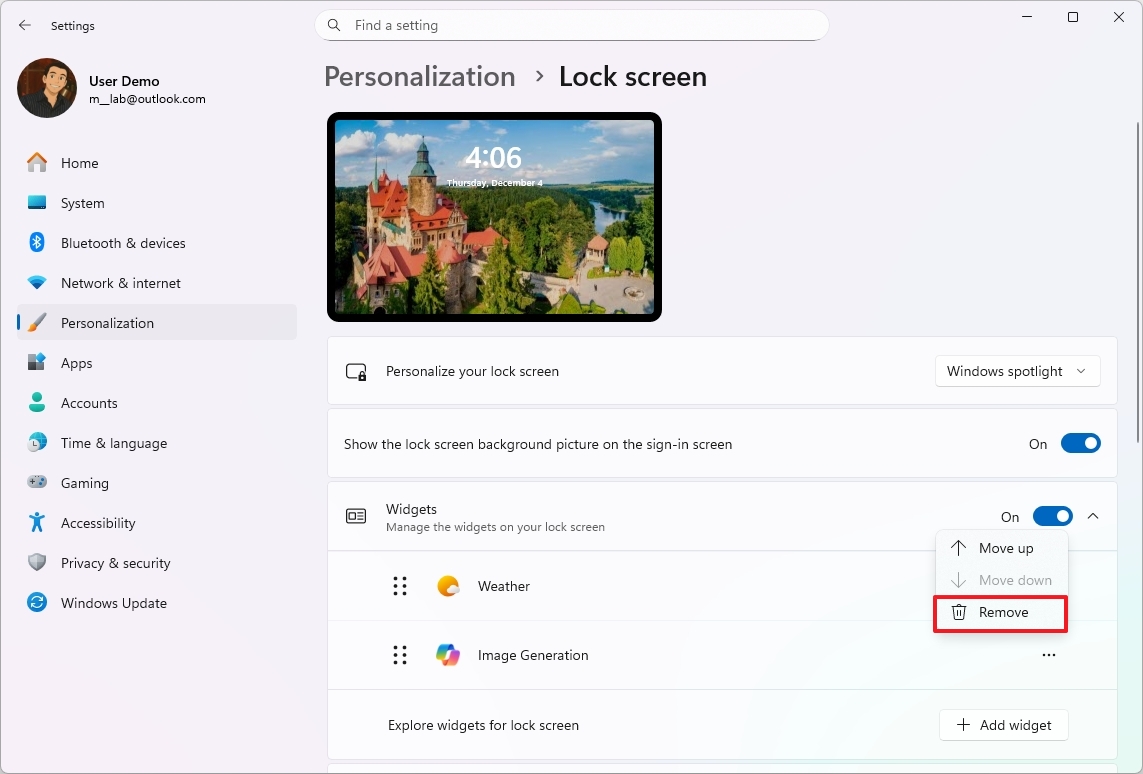
- (Optional) Click and drag each widget to change its order.
After you complete the steps, only the configured widgets will appear in the Lock Screen.
As a researcher, I’ve found that enabling the “Suggest widgets for your lock screen” option lets the system automatically add helpful widgets to any empty spaces on your Lock Screen. It’s a simple way to get more information at a glance.
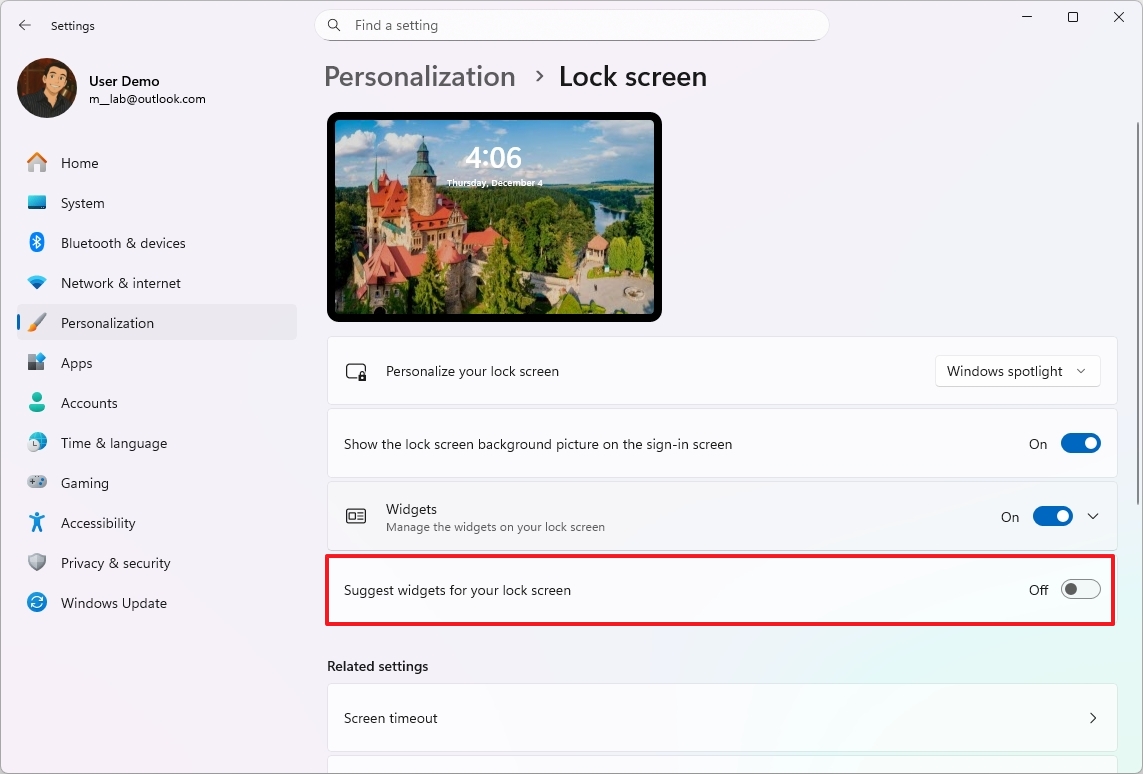
If you want to see only the weather information and hide other widgets, remove all widgets except the weather one. Also, disable the “Suggest widgets for your lock screen” setting.
Disable Lock Screen widgets
To completely hide the widgets from the Lock Screen, use these steps:
- Open Settings.
- Click on Personalization.
- Click the Lock Screen page from the right side.
- Turn off the Widgets toggle switch.

Once you complete the steps, the Lock Screen will no longer show widgets.
FAQs about managing Lock Screen widgets on Windows 11
These are common questions regarding resetting Windows 10 to its default settings.
Can I completely turn off widgets on the Lock Screen?
To remove widgets from your lock screen, open the Settings app, then navigate to Personalization and select Lock screen. Finally, toggle the Widgets switch to the off position.
Why am I seeing widgets on the Lock Screen even if I didn’t enable them?
When you first set up Windows 11, widgets appear on the Lock Screen automatically. If you don’t want to use these, you can easily turn them off in the Settings menu.
How many widgets can appear on the Lock Screen?
You can have up to four widgets displayed at once. If you turn on “Suggest widgets for your lock screen,” your device will automatically add widgets to any available space.
Where can I find more widgets to add to the Lock Screen?
To add more widgets, select the “Find more widgets” option. This will take you to the Microsoft Store, where you can download and install additional widgets that are compatible with your system.
Can I customize the information shown inside each widget?
Absolutely! To change how a Lock Screen widget looks, tap the three-dots menu on the widget itself, then select “Customize Widget.” What you can change will depend on the specific widget.
Why don’t I see the Customize widget option?
Some widgets can’t be changed. If you don’t see options to customize it, the way the widget looks or gets its information is set and can’t be altered.
How do I change the order of widgets on the Lock Screen?
On the widget management page, you can easily change the order of widgets by clicking and dragging them. The changes will be saved automatically and reflected right away.
Can I show only the weather widget and nothing else?
Okay, please only display the weather widget and remove everything else. Also, disable the option to suggest lock screen widgets so no new ones are added automatically.
Why are new widgets appearing even after I configured my layout?
If the “Suggest widgets for your lock screen” setting is turned on, Windows will automatically add widgets to empty spaces. Turning it off will ensure your preferred lock screen layout stays as you’ve designed it.
More resources

Stay up-to-date with the latest from Windows Central by following us on Google News! You’ll get our news, insights, and features right in your feed.
Read More
- Surprise Isekai Anime Confirms Season 2 With New Crunchyroll Streaming Release
- Frieren: Beyond Journey’s End Gets a New Release After Season 2 Finale
- PRAGMATA ‘Eight’ trailer
- Solo Leveling’s New Character Gets a New Story Amid Season 3 Delay
- Pragmata Shows Off Even More Gorgeous RTX Path Tracing Ahead of Launch
- All 7 New Supes In The Boys Season 5 & Their Powers Explained
- HBO Max Just Added the Final Episodes of a Modern Adult Swim Classic
- Crimson Desert’s Momentum Continues With 10 Incredible New Changes
- Preview: Sword Art Online Returns to PS5 as a Darker Open World Action RPG This Summer
- Cameron Diaz and Benji Madden Are So in Sync During Rare Public Outing
2025-12-08 18:41