This article first appeared on Game Empress. For more gaming news, visit gameempress.com.
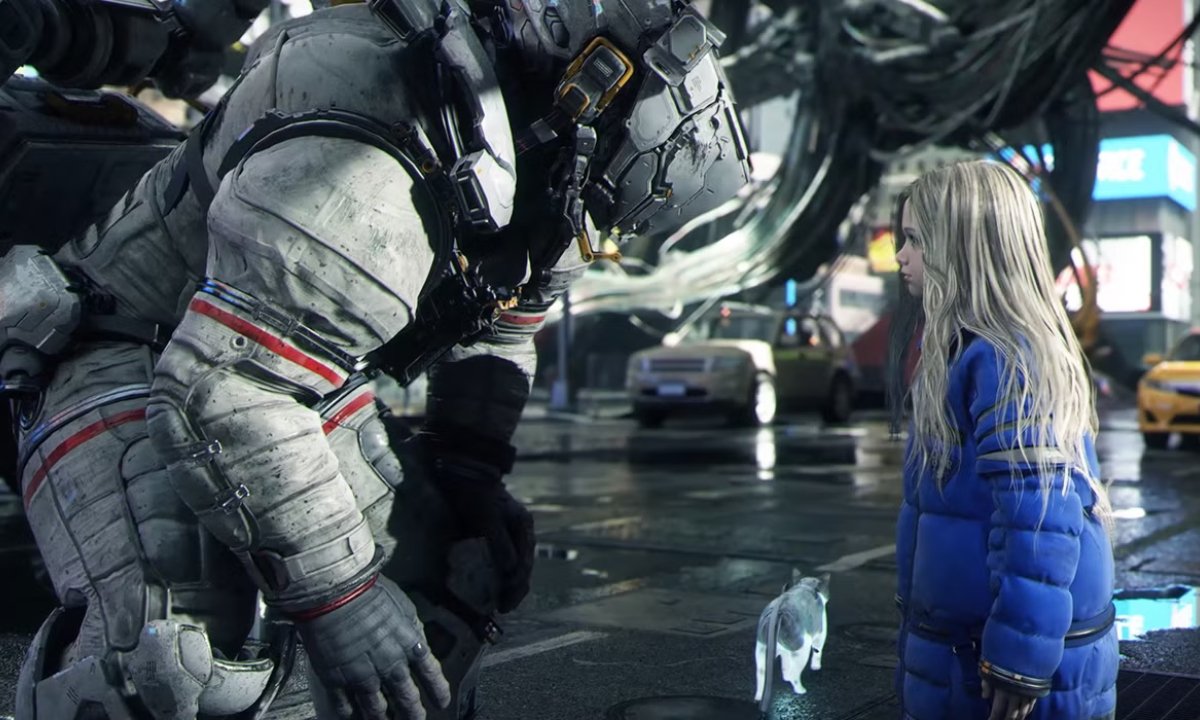
Pragmata is riddled with performance issues. The game freezes, the picture stutters, and the frame rate unexpectedly plummets, often leading to crashes and unfamiliar error messages. Does this sound like your experience?
Many PC players are experiencing similar issues, but there’s hope! This guide provides solutions you can try immediately. It begins with Capcom’s official recommendations, and then covers fixes discovered by the player community.
Let’s be clear: Capcom hasn’t released a complete fix for the stuttering and freezing issues some PC players are experiencing. Therefore, nothing in this guide is a guaranteed solution. While the official troubleshooting steps are generally safe, more complex fixes – like editing the registry or game configuration files – should be approached with caution. We’ll clearly identify those advanced steps so you know what you’re getting into.
Why Is Pragmata Stuttering and Freezing on PC?
It’s best to understand the problem before trying to fix it. You don’t need to be tech-savvy – here’s a simple explanation.
Pragmata is built using Capcom’s RE Engine, which also powers games like Monster Hunter Wilds and the Resident Evil 4 Remake. Because the PC has so many different configurations of hardware and software, fixing technical issues in the game can be more challenging on that platform than on consoles.
There are three main reasons the game struggles on PC:
Sometimes, problems with the game can be caused by issues with its shader cache. Because of this, Capcom suggests deleting the game’s shader cache files if you’re experiencing graphical glitches or instability. Many players have found that clearing and rebuilding these files helps fix stuttering and brief freezes.
Using higher graphics settings can strain your graphics card. If you’re having trouble, especially if performance decreases over time, try lowering settings like texture quality, ray tracing, or path tracing. This is a good way to troubleshoot and improve performance.
Pragmata relies on DirectX 12, as stated on its Steam page. Because of this, issues with your graphics drivers, overclocking, or system stability might appear as critical errors (like D3D or DXGI errors) instead of the game simply failing normally. The best way to prevent these errors is to keep your graphics drivers updated and ensure your computer is running reliably.
This explains why we’ll be looking at solutions related to your graphics drivers, temporary graphics files, visual settings, in-game overlays, and overall system health. Begin by following the official troubleshooting steps, and then try the additional solutions if needed.
What Kind of Problem Are You Having?
Performance issues in Pragmata vary, and identifying the specific problem helps you find a solution more quickly.
If the game frequently pauses or skips, it’s called stuttering. This often happens because of issues with the game’s graphics storage or other programs running in the background. Try clearing the shader cache (see Fix 3) and closing unnecessary background apps (Fix 6) to see if that helps.
The game repeatedly pauses for a brief moment, as if it’s freezing. This often happens when the game is creating graphics as you play, and it’s most noticeable during your first time playing. A good first step to fix this is to delete the shader cache files (see Fix 3).
The game starts smoothly, but performance decreases the longer you play. This could be due to increasing demands on your graphics card, memory, overheating, or issues with your graphics drivers. For now, the best solutions are to lower your graphics settings and restart the game every so often.
If your game’s frame rate suddenly decreases and then recovers, it’s often because your graphics card is overheating, your graphics settings are too demanding, or another application is using up system resources. Try monitoring your graphics card’s temperature and reducing the graphics settings to see if that helps.
If the game crashes with a “Fatal D3D Error,” it means your graphics card briefly lost its connection to the game. While this error sounds serious, it can often be fixed with a few troubleshooting steps. You’ll find detailed instructions in Fix 5.
Has Capcom Fixed Pragmata Stuttering and Freezing?
As of now, Capcom has only announced one update for Pragmata: a patch for the PlayStation 5 Pro scheduled for April 21, 2026. A performance patch for the PC version hasn’t been confirmed yet.
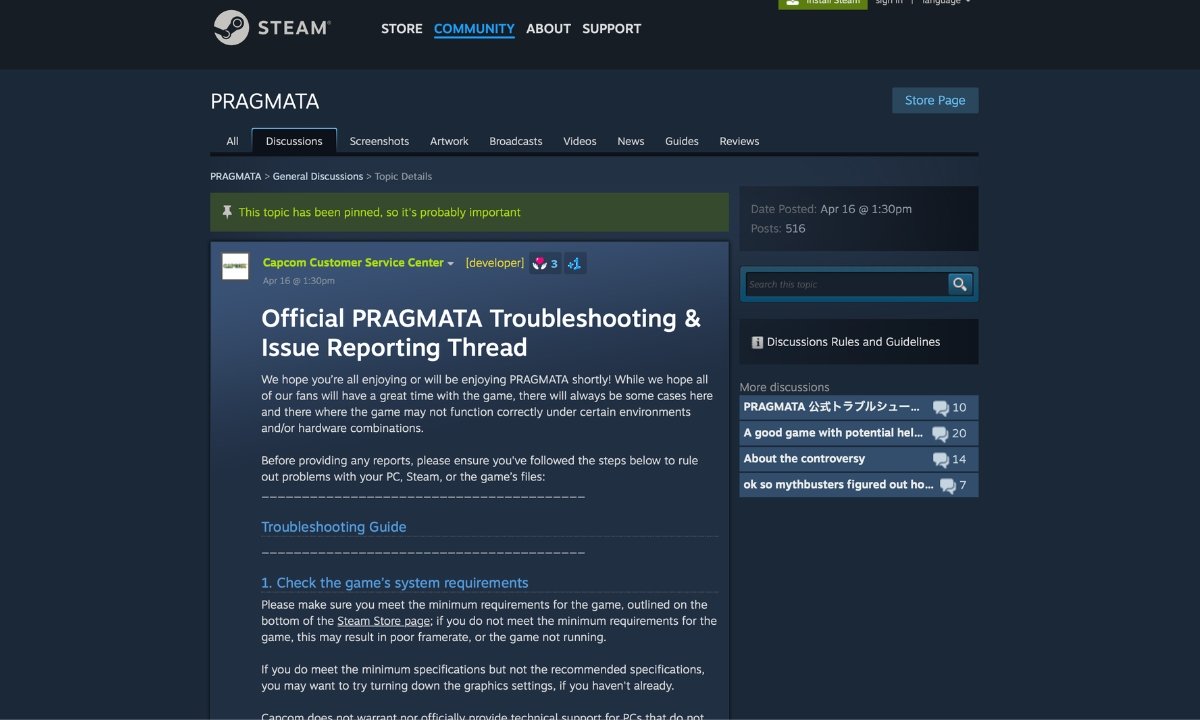
Capcom has an official Steam support thread with troubleshooting steps to improve game performance. This guide builds upon those official recommendations.
Intel has released a driver update to resolve a crashing issue for players using Intel graphics cards. You can find details in Fix 9.
Players are still experiencing issues on Steam and Reddit, so the following steps are suggestions to try, not guaranteed solutions. We’ll update this guide when Capcom officially patches the game.
Fix 1: Update Your Graphics Drivers and Windows
Capcom’s first recommendation for players is important: make sure your graphics drivers are up to date. Outdated drivers are a frequent cause of performance issues, like stuttering or crashes, in Pragmata on PC.
A graphics driver acts like a translator between the game, Pragmata, and your graphics card. If that translator isn’t up-to-date, the game won’t work correctly.
Here is what to do depending on your graphics card:
If you’re using an NVIDIA graphics card, please visit the NVIDIA website and download the newest driver. Also, if you have a feature called NVIDIA Smooth Motion enabled, we recommend turning it off before playing Pragmata. Some players have experienced crashes when Smooth Motion is on while using DLSS or Frame Generation. It’s a simple change that might fix the problem.
AMD users: Go to AMD’s website and grab the latest driver.
If you’re using an Intel Arc graphics card, you’ll need to update to driver version 32.0.101.8735, which was released on April 21, 2026. Older drivers were causing Pragmata to crash for some users when loading the game menu. You can download the new driver from Intel’s website, and you’ll find more information in Fix 9.
Updating graphics drivers can be tricky. Simply uninstalling the old driver often leaves leftover files that can interfere with the new one. Luckily, a free tool called Display Driver Uninstaller (DDU) completely removes all traces of the old driver, ensuring a clean installation. Capcom even recommends using DDU if a standard driver update doesn’t fix issues. You can find DDU for download at Guru3D.
Make sure Windows Update is current and install any available updates. Pragmata requires DirectX 12 to run properly, and older versions of Windows can sometimes cause problems.
Fix 2: Check Your Game Files on Steam
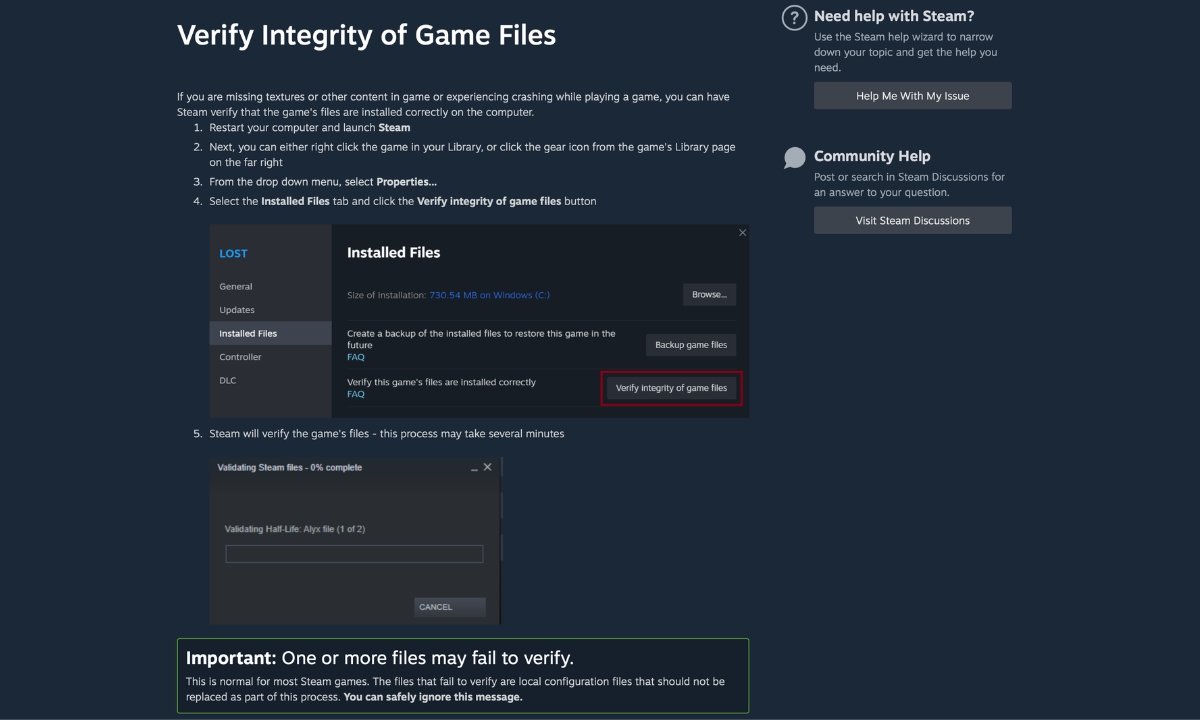
Files can occasionally become damaged while downloading or after being updated. A single corrupted file can lead to problems like crashes, slowdowns, and unexpected behavior, even if the rest of your computer is working perfectly.
Steam includes a feature that scans your game files and automatically fixes or replaces any that are damaged. Capcom suggests using this tool first if you’re having problems with one of their games.
Here is how to do it:
- Open Steam and find PRAGMATA in your library.
- Right-click it and choose Properties.
- Click Installed Files.
- Click Verify integrity of game files.
Steam checks the game files on your computer against its official versions and redownloads anything that’s missing or corrupted. This process usually takes just a few minutes and shouldn’t affect your saved game progress. Sometimes, the verification process might flag some local configuration files as incorrect, but you can safely ignore those messages – it’s normal. Just let the process finish completely before restarting the game.
Fix 3: Delete the Shader Cache Files
As a huge fan, I think this is one of the most crucial changes they’ve made – and it’s awesome because Capcom themselves confirmed it in their official guide! It really shows they’re paying attention to what we want.
Pragmata uses files to speed up the loading of graphics. However, these files can become corrupted, particularly if you’ve altered game settings or experienced a crash. When this happens, the game might run slowly or act unexpectedly because it’s using incorrect information.
The fix is simple: delete the old files. The game will make fresh ones the next time you start it.
Capcom specifically names these three files to delete:
- shader.cache
- shader.cache2
- pipelinelist.bin
You will find them inside the Pragmata game folder. The default location is:
C:\Program Files (x86)\Steam\steamapps\common\PRAGMATA
Simply open the folder and remove those three files. The game will automatically create them again when you start it. Many Steam players have reported that deleting the “shader.cache2” file specifically helped reduce crashes and improve performance.
Fix 4: The Game Freezes Every Few Seconds — Try This
If Pragmata pauses for a short moment every 20 to 30 seconds, it’s likely the game loading graphics as you play. This happens most often during your first time playing.
GameGuidesBox testers experienced freezes roughly every 25 seconds during their initial playthrough of the game. However, after clearing the game’s shader cache and allowing it to rebuild, they played for four hours without any freezes. Your experience may differ based on your computer’s specifications, but this is a helpful troubleshooting step to try.
Here is the step-by-step fix:
Step 1: Delete the three shader files from your Pragmata folder as described in Fix 3.
Next, clear the shader cache. In Steam, go to Settings > Downloads and click “Clear Download Cache”. Then, navigate to your Steam folder, open the “steamapps” folder, and then open “shadercache”. Find the folder labeled “3357650” (this is for Pragmata) and delete it.
After installing Pragmata, open the game and leave it on the main menu for a couple of minutes. This allows the game to prepare and optimize itself for a smoother experience before you begin playing.
If you’re still experiencing freezes, try using Windows Disk Cleanup. Select your C drive, then check the box next to “DirectX Shader Cache” and click OK. This will clear a temporary file folder used by your graphics card, which might resolve the issue.
This happens because games using this engine often load graphics effects a little at a time. The first time an effect appears, the game briefly pauses to prepare it. After that initial preparation, the pauses stop. Capcom doesn’t specifically mention this, but their advice to delete shader files suggests they’re aware of this process.
Fix 5: Getting a Fatal D3D Error? Here Is What to Do
The Fatal D3D error looks like this:
Fatal D3D error (24, DXGI_ERROR_DEVICE_REMOVED, 0x887a0005)
That error message might seem scary, but it simply means your computer temporarily lost communication with your graphics card. As a result, the game couldn’t continue and crashed.
This is one crash type Pragmata players are reporting. Here is how to work through it:
First, disable Path Tracing. This is a graphically intensive setting often linked to game crashes. You can turn it off within the game’s settings or by manually adjusting the configuration file (refer to Fix 8). Many players have found that simply turning off Path Tracing resolves the crashing issue.
If you’ve previously used programs like MSI Afterburner to boost your graphics card’s performance, revert those changes. Overclocking can cause Pragmata to become unstable. Reset your graphics card settings to their defaults and then test the game at a normal speed before attempting any further troubleshooting.
If you’re still experiencing crashes even with default settings, old driver files might be the cause. Completely remove your current graphics drivers using a program called DDU (as described in Fix 1), then install the latest drivers. Many players have found that a clean driver install with DDU resolves this issue when other solutions haven’t worked.
The TdrDelay registry fix should only be attempted if all other troubleshooting steps have failed. Some online guides suggest modifying a Windows registry setting to give your graphics card more time to respond, potentially preventing crashes. However, Capcom doesn’t recommend this, as it’s a system-level change that could cause further issues. Consider it a last resort if you’re still experiencing problems.
- Press Win + R, type
regedit, and press Enter. - Go to
HKEY_LOCAL_MACHINE\SYSTEM\CurrentControlSet\Control\GraphicsDrivers. - Right-click in that folder and choose New > DWORD (32-bit) Value.
- Name it
TdrDelayand set the value to 10. - Restart your PC.
If this causes any new problems, delete the TdrDelay entry to undo it.
Okay, so I was having a nightmare where the game kept crashing after I turned on Frame Generation with DLSS. Turns out, a bunch of other players were running into the same problem! The fix that worked for me – and a lot of others – was deleting the shader cache files and the config.ini file in the game’s folder. Then, when I restarted, everything rebuilt itself, and the crashes stopped. Seriously, try that if you’re stuck in a crash loop!
If you’re running into crashes with Pragmata, I found a really helpful guide that covers all sorts of issues and fixes, especially those annoying Direct3D errors. You can find it by searching for ‘Pragmata Fatal D3D Error and Crashing Fixes’.
Fix 6: Close Other Programs and Turn Off Overlays
Pragmata can sometimes have trouble running smoothly with other programs open. Capcom even notes in its official guide that things like recording software, performance monitors, and apps running in the background can cause the game to lag or crash.
Try turning these off one at a time and testing after each:
- Steam overlay — turn it off in Steam > Settings > In-Game
- Discord overlay
- NVIDIA GeForce Experience overlay
- NVIDIA Smooth Motion — found in NVIDIA App or driver settings. Players report this causes crashes with DLSS or Frame Generation
- MSI Afterburner and RivaTuner
- Xbox Game Bar
- OBS, ShadowPlay, or any other recording tool
- Browser tabs, cloud backup tools, anything updating in the background
Don’t forget to add Pragmata to the list of exceptions in your antivirus software. Many players overlook this step, but if your antivirus scans the game’s files while it’s loading or running, it can cause stuttering or crashes. Capcom recommends specifically excluding these files to prevent these issues.
PRAGMATA.exe— found atC:\Program Files (x86)\Steam\steamapps\common\PRAGMATASteam.exe— found atC:\Program Files (x86)\Steam- Your Steam AppData folder — found at
C:\Users\[your name]\AppData\Local\Steam
Fix 7: Turn Down Your Graphics Settings
If you’re still experiencing stuttering after trying the previous steps, your graphics settings are likely too high for your computer. Capcom suggests reducing them, beginning with the settings that put the most strain on your system.
First, navigate to Options then Graphics and select the Minimum preset. If this eliminates the stuttering, it confirms the issue is related to your graphics settings. From there, you can gradually increase individual settings one by one until you identify the specific setting causing the problem.
Here is what to change and why:
If your graphics card isn’t powerful enough, disable ray tracing. To run ray tracing smoothly, you’ll need at least an AMD Radeon RX 6700 XT or an NVIDIA RTX 3060, both with 12GB of memory. Turning it off on a less powerful card will significantly improve performance.
Path Tracing is a visually intensive feature, even more so than standard ray tracing. It’s often linked to crashes, especially a critical error involving DirectX (D3D). If you’re experiencing problems, the best first step to try is disabling Path Tracing.
For the best balance between visual quality and performance, we recommend setting the Texture Quality to Medium. Lowering it can help if you notice blurry textures or the game feels slow, as it reduces the strain on your graphics card. While the Low setting might seem like a good option, some players found it actually caused problems with textures not loading correctly and made the game run even worse. Medium provides a reliable and stable experience.
Reduce Volumetric Lighting and Fog settings when the game starts to lag. These controls impact how light interacts with air and smoke, and turning them down can help improve performance during intense moments.
Medium settings for shadows and hair look good without significantly impacting performance. You won’t notice much visual difference by increasing these settings, but it will likely slow down the game.
To improve performance, try enabling the game’s upscaling feature. This setting renders the game at a lower resolution and then sharpens the image, offering a good balance between visual quality and smoother gameplay.
Fix 8: Crashes When Changing Path Tracing or Frame Generation?
Some players are experiencing crashes in Pragmata whenever they attempt to toggle Path Tracing or Frame Generation in the game’s settings. The game crashes immediately, before the new setting can even take effect.
According to Wccftech, you can fix crashes happening when turning Path Tracing or Frame Generation on or off by editing the game’s configuration file. Instead of changing these settings within the game itself, adjust them in the config file before you start playing.
- Right-click PRAGMATA in Steam, choose Manage > Browse Local Files.
- Find the file called config.ini and open it with Notepad.
- Change your Path Tracing, Frame Generation, and upscaling settings directly in that file.
- Save and close the file, then launch the game.
This ensures the game launches with all settings applied, so you won’t experience any interruptions or restarts during gameplay.
If you’re overclocking your graphics card, it’s best to disable it before adjusting demanding graphics settings. The game can be easily affected by instability caused by overclocking.
Fix 9: Intel Graphics Users — Install This Driver
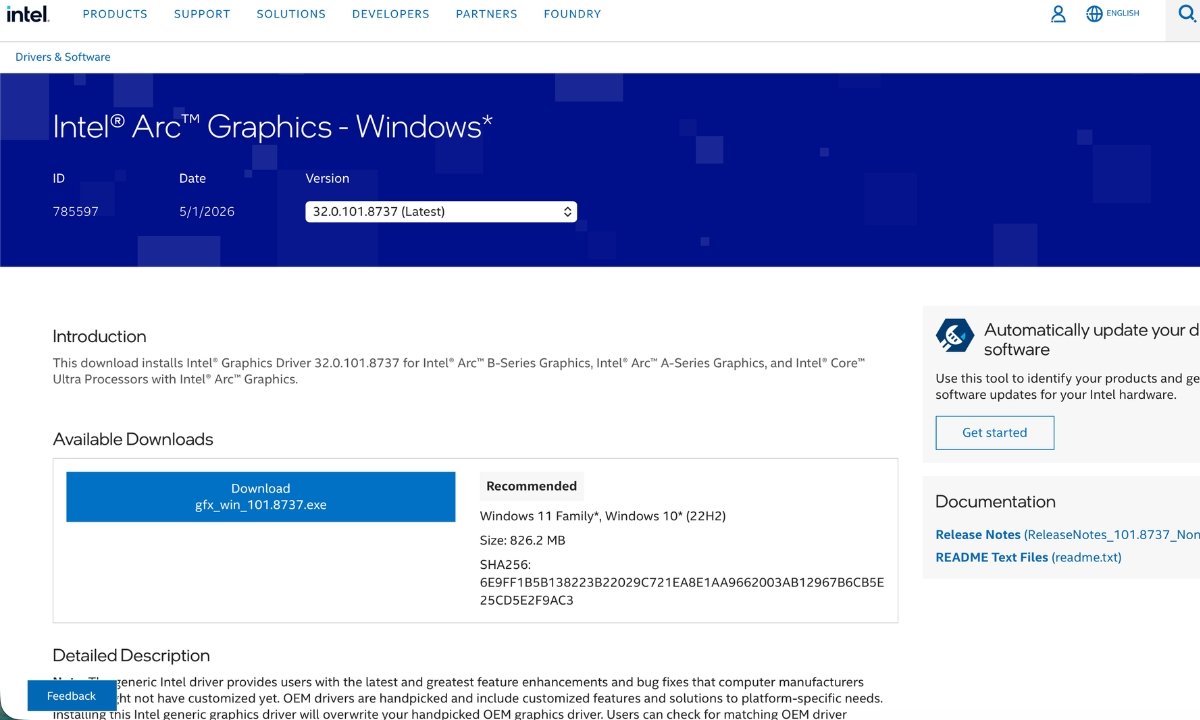
If you have a computer with an Intel Arc graphics card or a newer Intel Core Ultra processor that includes built-in graphics, a new driver update is available for you.
Intel released driver version 32.0.101.8735 on April 21, 2026. This update resolves a crashing issue in the game Pragmata that some users with Intel graphics cards were experiencing when loading the game menu.
It covers:
- Intel Arc A-Series graphics cards
- Intel Arc B-Series graphics cards
- Intel Core Ultra Series 1, 2, and 3 with built-in Intel Arc graphics
Download it from Intel’s official driver page.
Just so you know, this update only addresses the crash happening in that particular menu. It won’t fix other performance issues like stuttering, freezing, or slowdowns that can occur with Intel processors over longer periods of use. It’s a targeted fix, not a complete solution.
Fix 10: Check Your PC’s Temperature, Power Settings, and SSD
These are easy to overlook but they matter. Capcom’s own guide mentions all of them.
If your computer gets too hot while gaming, the game’s performance will decrease to help cool things down. This often happens when your graphics card overheats, causing the game to stutter and slow down over time. Restarting the game usually fixes this issue temporarily. You can use a free program like HWMonitor to check your computer’s temperature while you’re playing. If it’s running hot, double-check that your computer’s vents aren’t blocked and that the fans are working properly.
Make sure Windows is set to High Performance mode. If your computer is currently using a power-saving setting, it might be slowing down your processor and graphics card. You can find the Power Plan settings in Windows and switch to either High Performance or Balanced. This is particularly helpful for laptops to get the best performance.
If you’re playing Pragmata on a laptop, it’s important to ensure the game is using your dedicated graphics card. Many laptops have two: a less powerful one integrated with the processor, and a more powerful dedicated card. Pragmata needs to run on the dedicated card for optimal performance. You can check this in your NVIDIA or AMD graphics control panel. Using the integrated graphics will likely cause the game to run poorly.
For the best experience, install Pragmata on a solid state drive (SSD). The game loads a lot of data while you play, and Capcom recommends an SSD. If you install it on a traditional hard drive, you might experience pauses while loading and delays in textures appearing. If you have an SSD available, it’s definitely worth installing the game on it.
Quick Answers
Has Capcom solved the performance issues – the stuttering and freezing – in Pragmata? Not completely. As of today, Capcom hasn’t released a specific patch to improve performance on PCs. Currently, players are relying on official troubleshooting advice from Capcom, a fix for Intel drivers, and solutions shared by other players.
The game might be freezing because it’s preparing visual effects. A common fix is to delete the game’s shader cache files – specifically, ‘shader.cache’, ‘shader.cache2’, and ‘pipelinelist.bin’ – and allow the game to recreate them. This issue often happens during your first time playing.
The “Fatal D3D error” indicates your computer has lost communication with your graphics card and can’t re-establish the connection. First, try disabling Path Tracing and removing any performance boosts you’ve applied to your graphics card (overclocking). If the problem persists, a complete reinstallation of your graphics drivers using Display Driver Uninstaller (DDU) is recommended.
Okay, so I was wondering about deleting those shader cache files, and apparently, Capcom actually recommends it if you’re having any graphical glitches or the game feels unstable! Good news is, it’s totally safe to delete them – the game just makes new ones automatically, so no worries there.
Some players have found that turning off NVIDIA Smooth Motion can resolve crashes in the game Pragmata, particularly when using DLSS or Frame Generation. While Capcom hasn’t officially confirmed this, it’s a simple fix to try if you’re experiencing crashes.
The latest Intel driver (version 32.0.101.8735) resolves a crash that some users experienced when the game menu was loading, specifically on Intel Arc and Core Ultra graphics cards. However, this update doesn’t address issues like general stuttering or freezing during gameplay.
If Pragmata crashes, you can report it to Capcom through their pinned thread on Steam. When a crash happens, the game automatically saves a crash report file in the game’s folder, inside a folder named ‘CrashReport’. When you contact Capcom support, be sure to include that zipped crash report file, along with your DxDiag.txt and config.ini files.
Game Empress will update this guide when Capcom releases a patch for PC performance.
Read More
- Everything You Need To Know About Nikki Baxter In Stranger Things’ Animated Spinoff
- The Boys Season 5, Episode 5 Ending Explained: Why Homelander Does THAT
- Taylor Sheridan’s Gritty 5-Part Crime Show Reveals New Final Season Villain
- Mark Zuckerberg & Wife Priscilla Chan Make Surprise Debut at Met Gala
- Miranda Kerr Shares “Quick” Procedure She Got Before Met Gala 2026
- How to Build Water Elevators and Fountains in Enshrouded
- USD JPY PREDICTION
- Anna Wintour Reacts to Rumors She Approves All Met Gala Looks
- Why There’s No Ghosts Tonight (Nov 27) & When Season 5, Episode 7 Releases
- Welcome to Demon School! Iruma-kun season 4 release schedule: When are new episodes on Crunchyroll?
2026-05-11 02:35