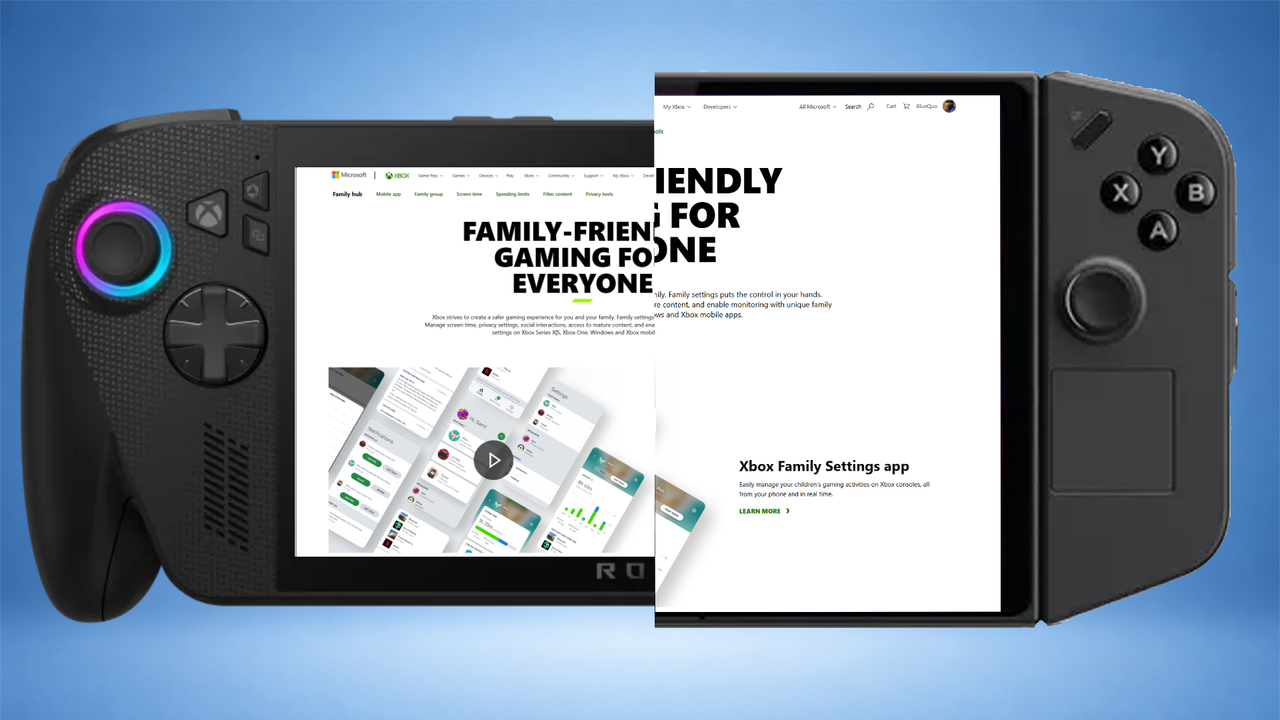
No matter if the holidays are over, a new year is beginning, or your child just got an Xbox Ally, Ally X, or another Windows handheld gaming device, setting up parental controls can help you feel more secure about their online experience.
It lets you keep track of spending, avoid unwanted purchases, and know what your child or family member is up to.
This guide walks you through everything you need to get started.
Windows 11 Parental Controls
For those unaware, the Xbox Ally, Xbox Ally X, and other Windows handhelds run Windows 11.
This covers handheld gaming devices such as the ROG Ally, ROG Ally X, MSI Claw, Lenovo Legion Go, the Windows version of the Legion Go S, and the Legion Go 2.
It does not include the Steam Deck or any other SteamOS-powered handheld.
These devices use Microsoft Family Safety and Xbox Family Settings to help parents manage their children’s online experiences and control what they access.
To begin, you’ll need a Microsoft account for each user, and you’ll need to create a family group.
How to set up a Family Group
The simplest way to manage Parental Controls is by downloading the Microsoft Family Safety App. You can find it on the Apple App Store or Google Play Store, depending on your device.
You can easily do this on your computer or in any web browser. Here’s how to set up a Family Group – the steps are simple to follow:
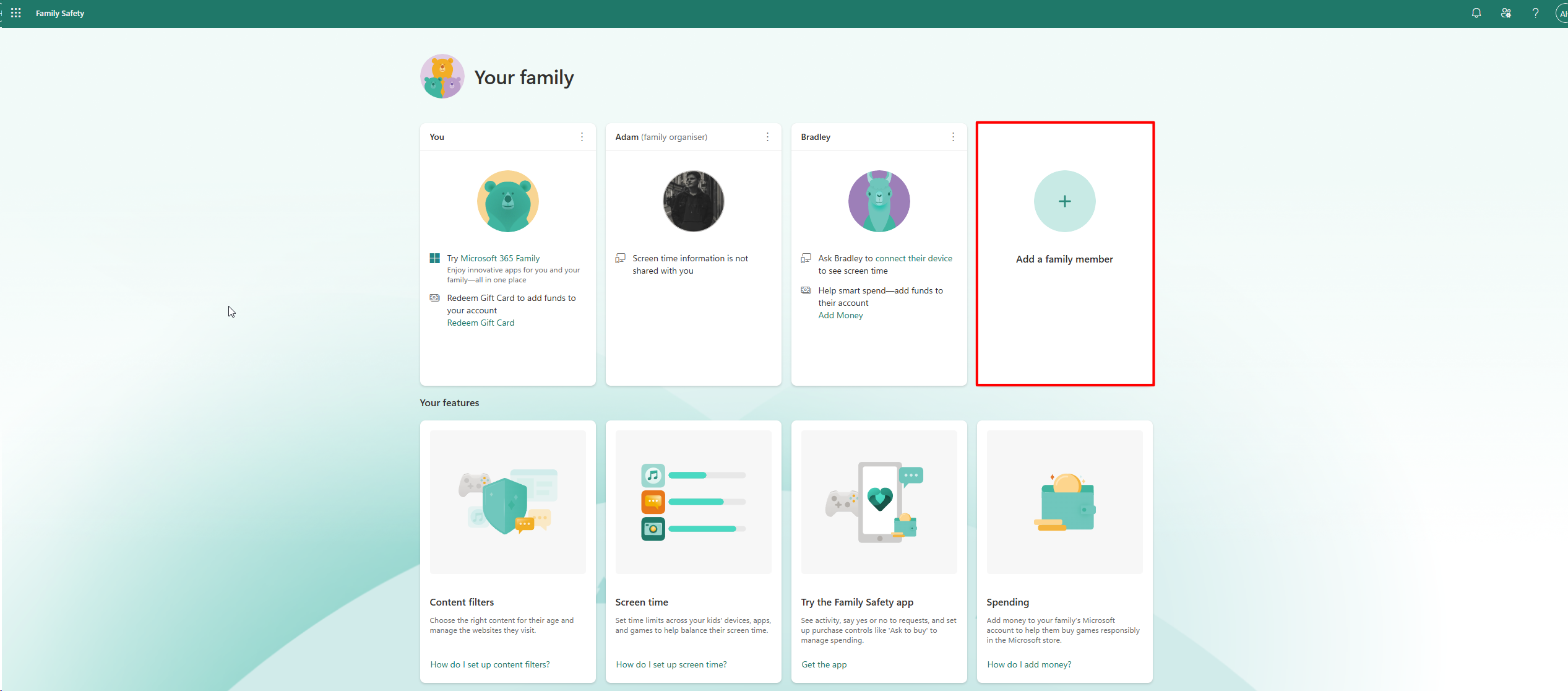
- Create or make sure your Child or Family member has their own Microsoft account, here https://signup.live.com/
- Make sure your child or family member is logged into the device you wish to manage. Instructions on how to do this are below.
- Once this is done, sign in to your own Microsoft account at: https://account.microsoft.com/family/
- Select Add a family member.
- Choose the Member option and select Next.
- Enter your Child’s or Family Members Microsoft account email or share the link via WhatsApp.
Adding your family member to a device
It’s simple to add a child or family member to your device. Just follow these steps:
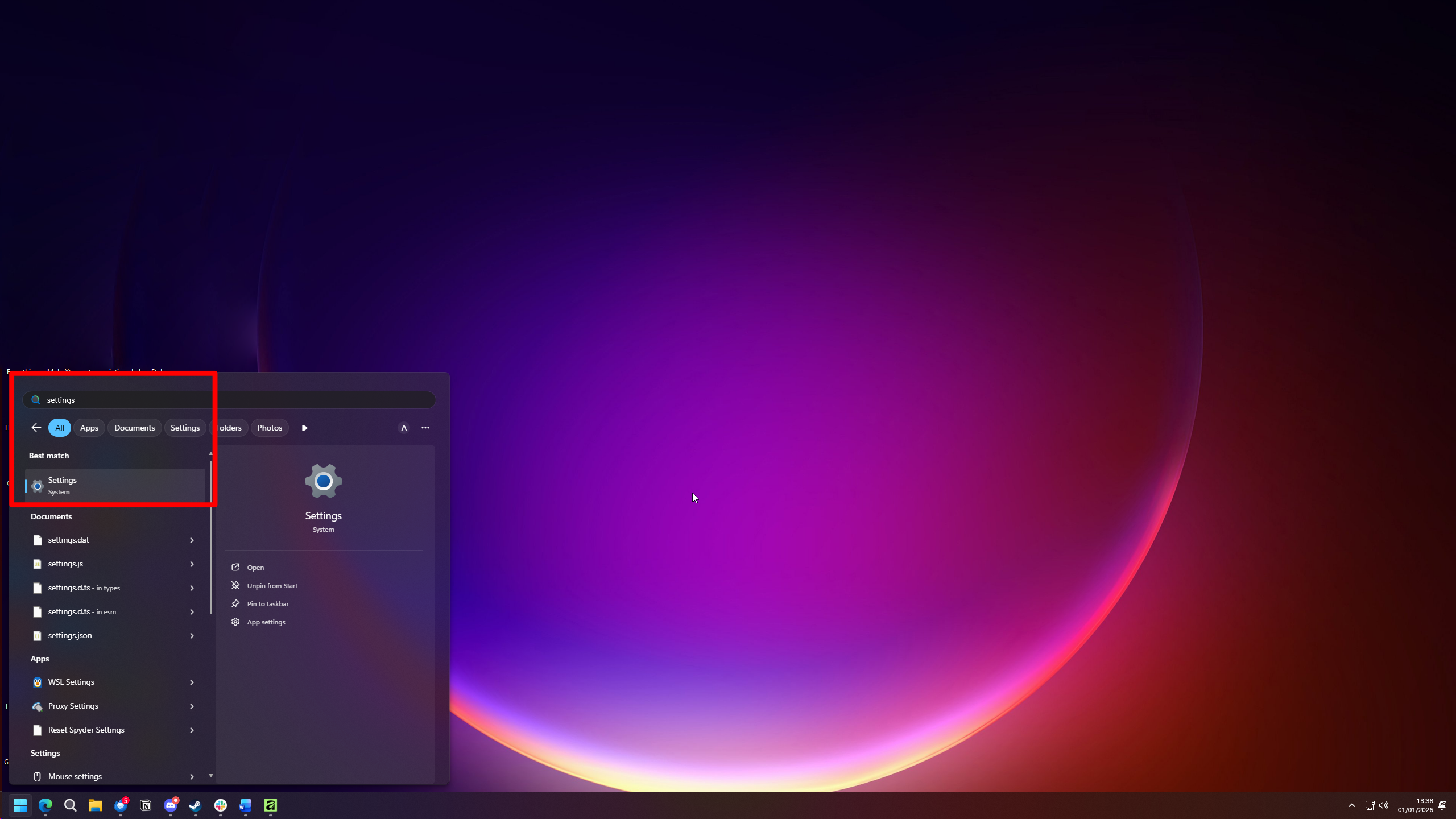
- First, log in to the device with your Microsoft Account.
- Then navigate to Windows Settings. This can be done in several ways.
- If you’re in the Xbox FullScreen Experience, swipe up from the bottom and select Windows Desktop
- Then open the Start Menu and search for Settings, and open it.
- If you’re not in Xbox FullScreen Experience, just go to the Start Menu, search for Settings, and open it.
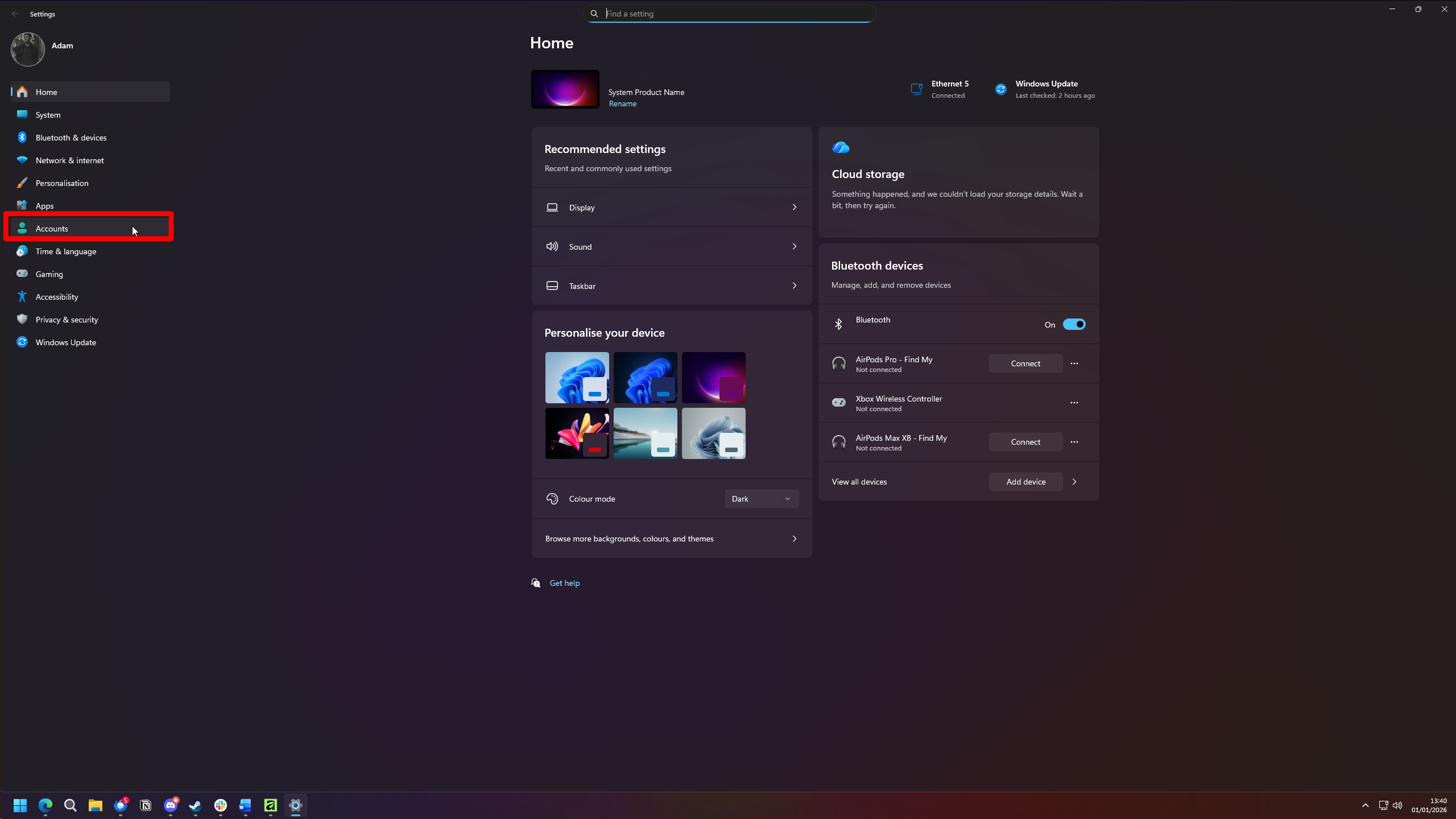
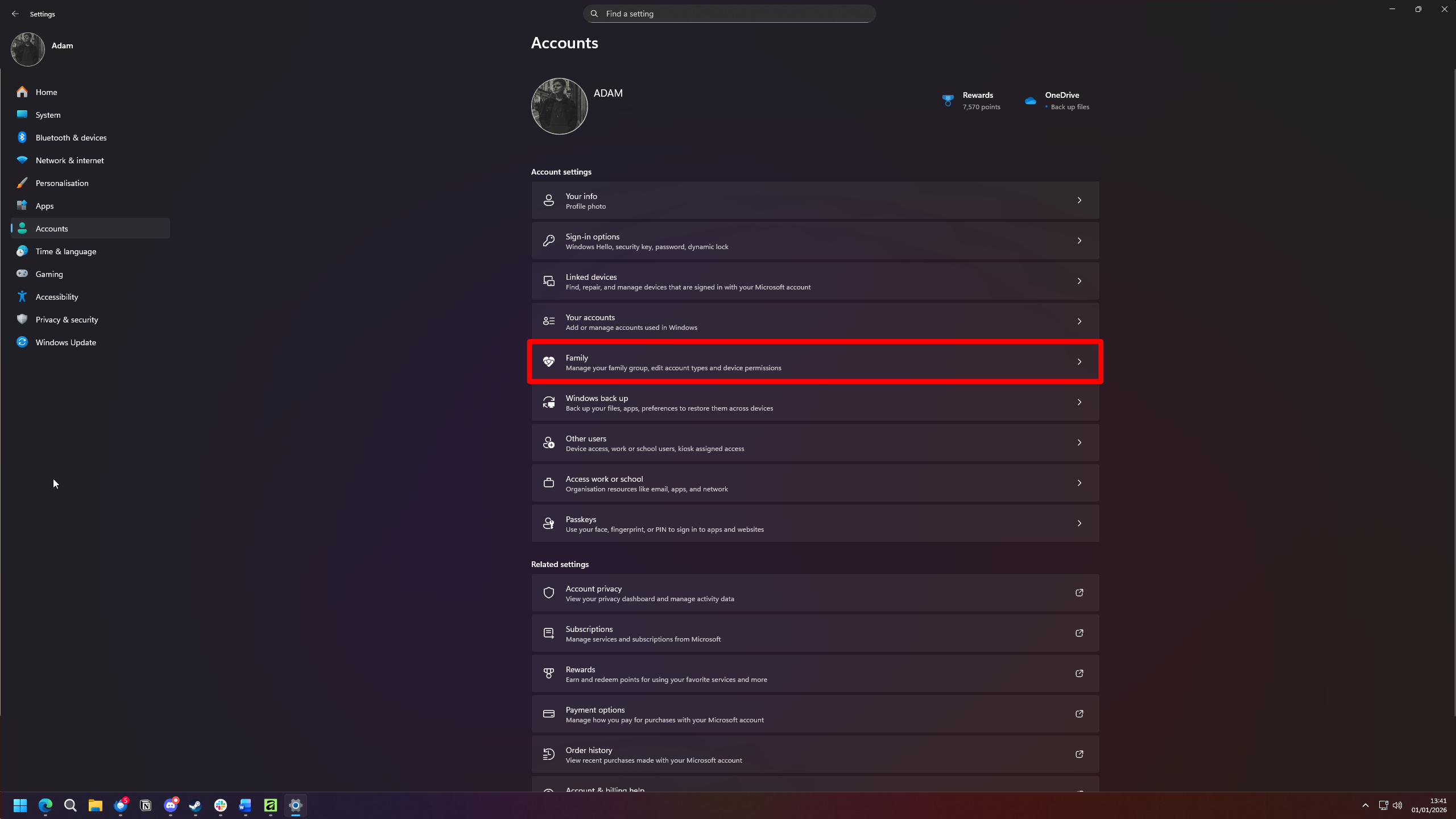
- Once in Settings, go to Accounts.
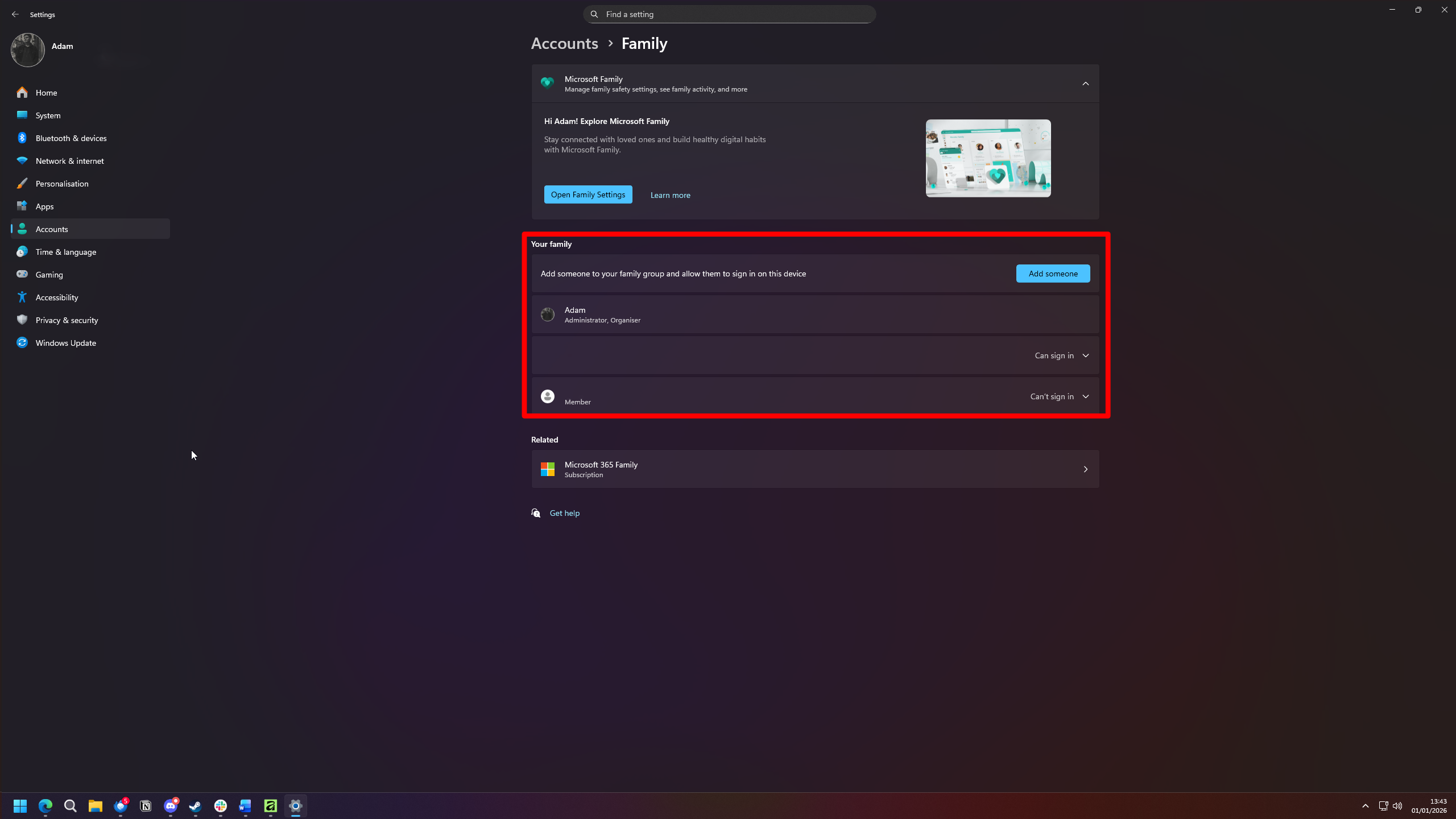
- Select Family.
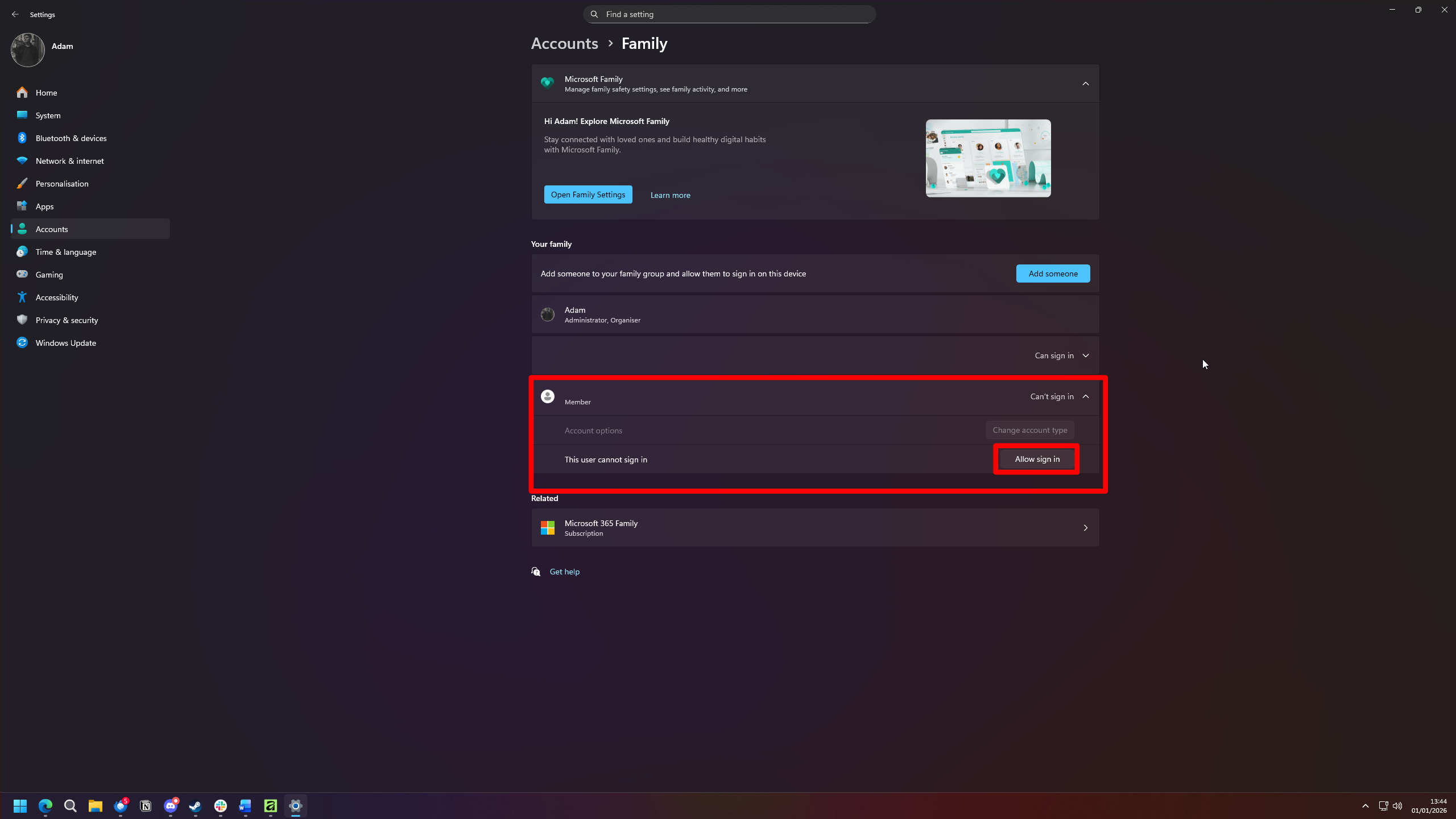
- Your Child’s or Family members’ account will appear here.
- Select it and choose the option Allow sign-in.
- Once this is done, go back to the sign-in screen of your device and select your family member’s profile, then go through the login process.
- I did have to restart my device before it would appear under my family member’s profile.
Enable Activity sharing
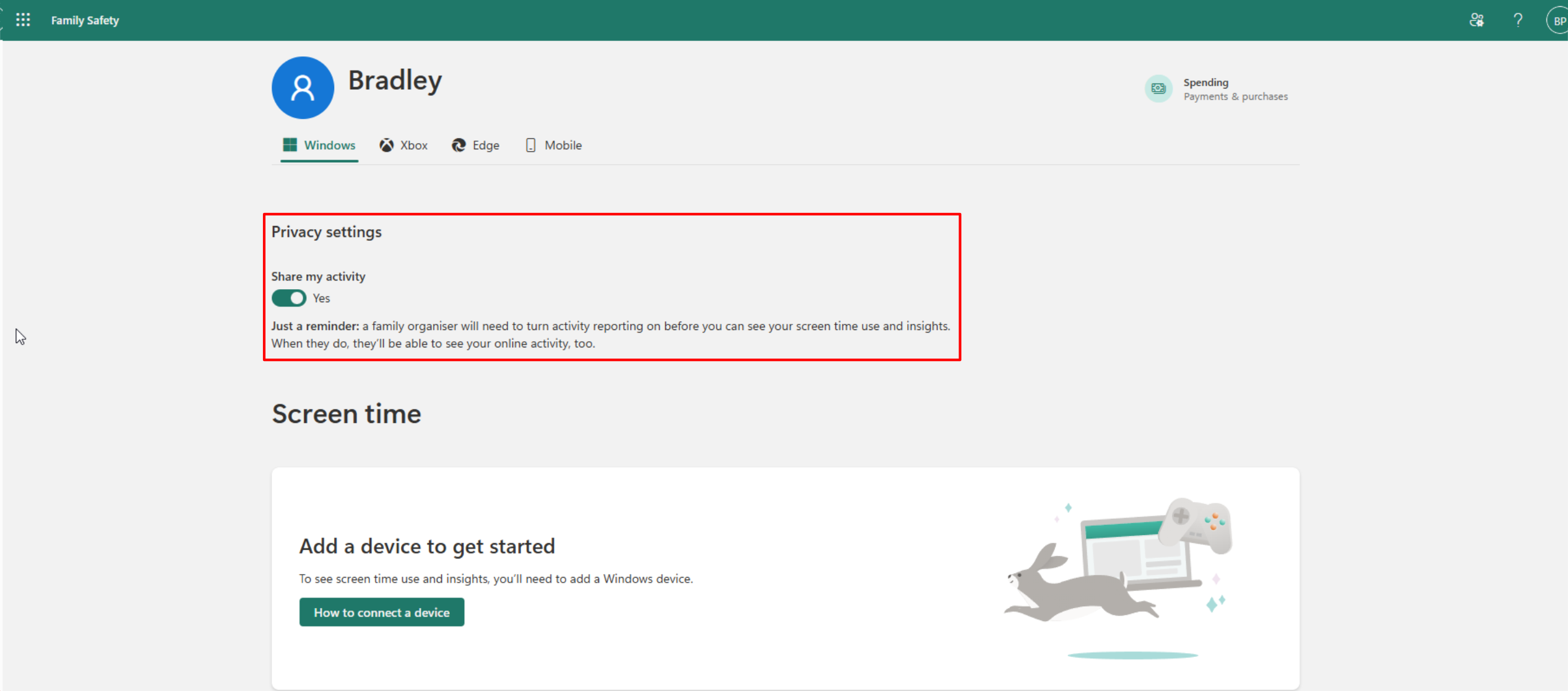
To see how much time you spend on your device or what you’ve been doing online, you might first need to make sure activity tracking is enabled.
To do this, follow these steps:
- Sign in to the Microsoft Family Safety website using your child’s or family member’s account.
- Open their profile and make sure the activity sharing toggle is set to Yes (it will turn green if enabled).
Once enabled, you’ll need to do one more step.
- Go back to your Account on the Microsoft Family Safety webpage.
- Select your child’s or Family Member’s profile.
- Enable the option “Activity reporting.”
You will now be able to view your child or family members activity on their devices.
Configuring your Parental Controls (Via your web browser)
Once a family member is added to your account, you’ll see the user profile.
To change their settings, you can do the following:
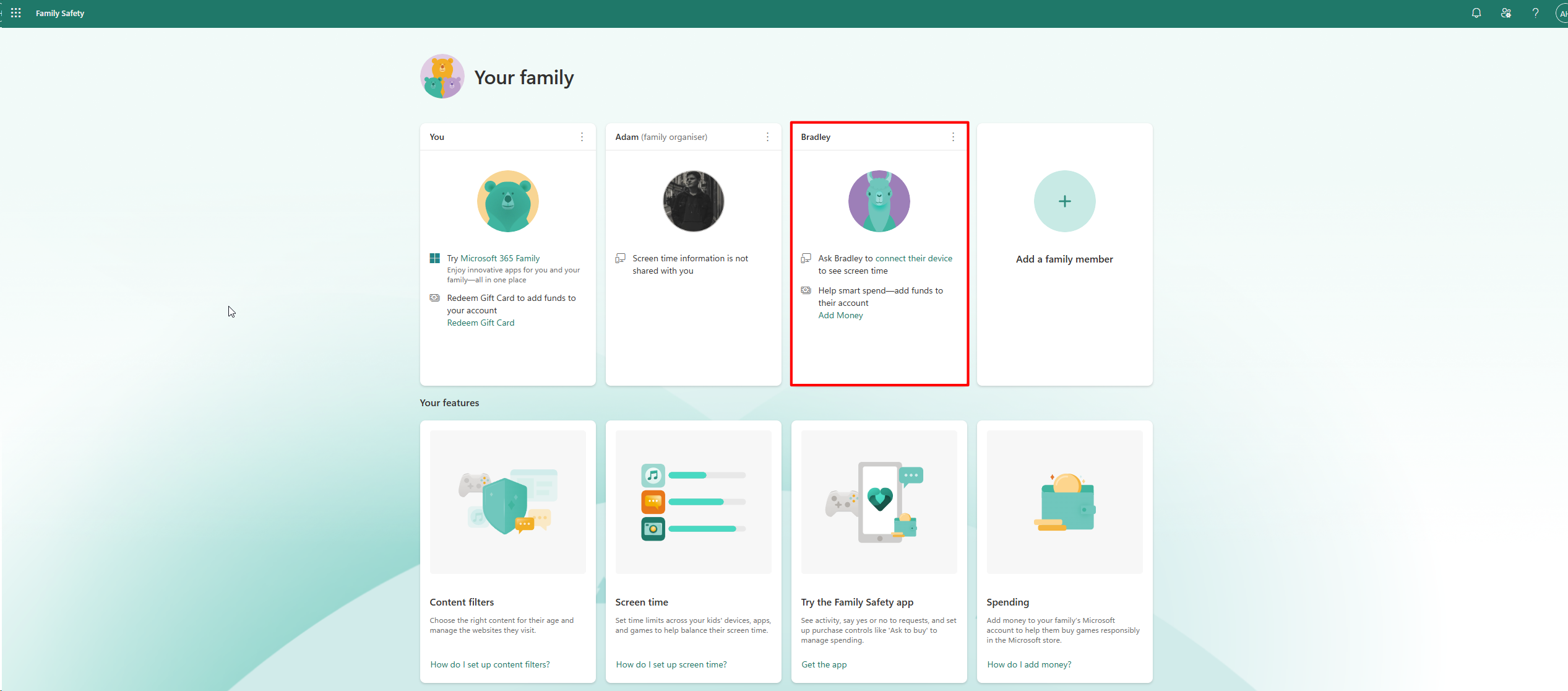
- Select their user profile.
- Make any changes you desire as per your requirements.
To control your child’s Microsoft account, visit the Microsoft Family Safety website and choose their name on the Family group page. This will give you access to tools for managing their screen time, the apps and games they use, their web browsing, and their spending.
Screen Time lets you set usage limits for Windows devices, including the Xbox Ally and other Windows handhelds. Just select ‘Windows’ in the Screen Time settings and then create daily schedules or time limits that work for you.
Your child needs to have logged in to their device at least one time before you can set it up. Otherwise, it won’t show up in the list of devices to configure.
Ensure you have followed these steps above to add your child or family member to the device.
Using the mobile app
If you downloaded the app from the Apple App Store or Google Play Store, here’s how to set up your Family Group within the app:
- Once the app has downloaded, open up the Microsoft Family Safety App.
- Log in with your Microsoft Account.
- Within the Your family page, select Add a family member.
- If you haven’t already, ensure your family member has their own Microsoft account, you can choose the “CREATE A CHILD ACCOUNT” within this page.
- Enter your Family’s email address or phone number here to add them to your Family group.
Ensure you have followed these steps above to add your child or family member to the device.
Configuring your Parental Controls (Via Microsoft Family Safety)
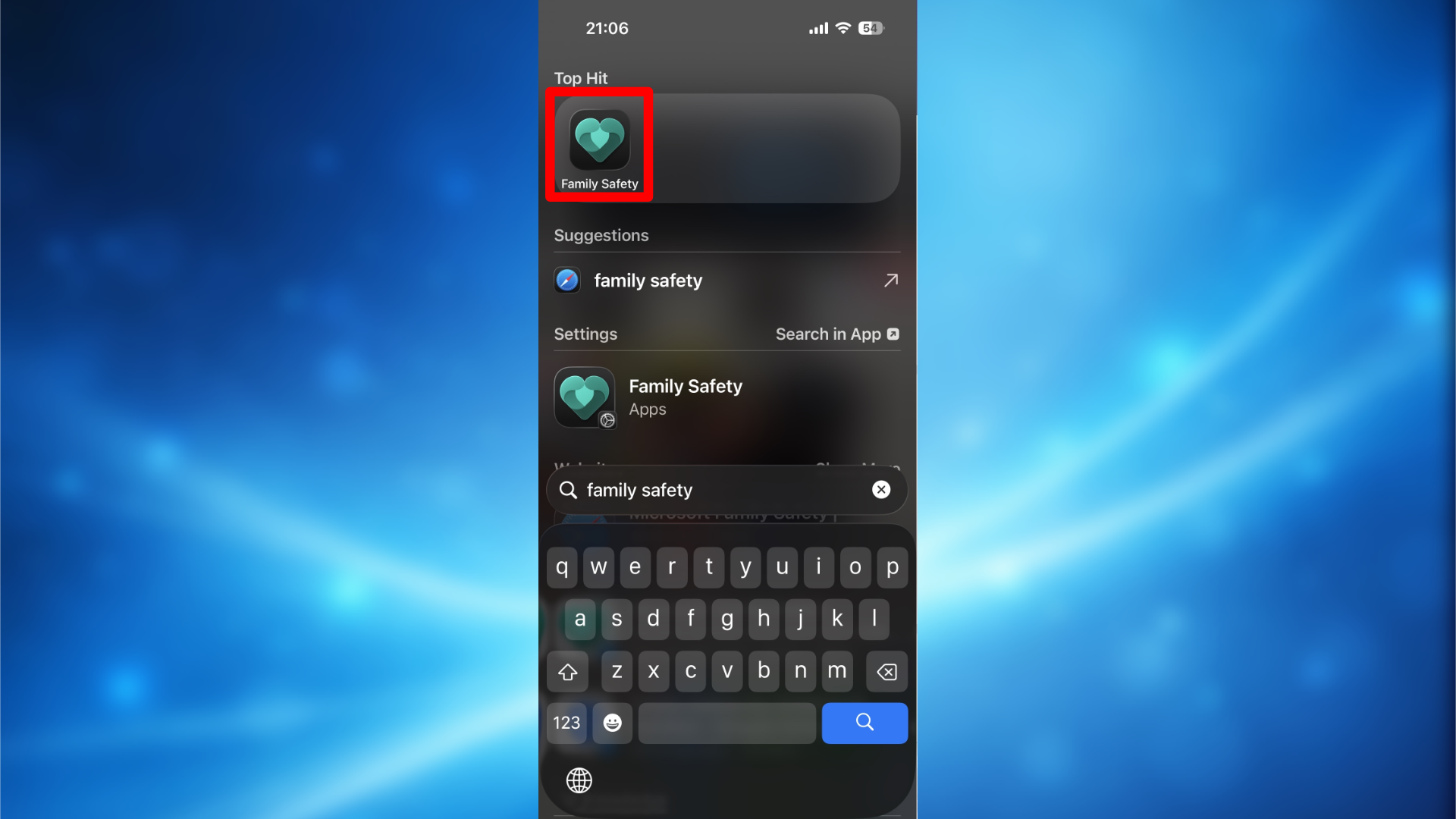
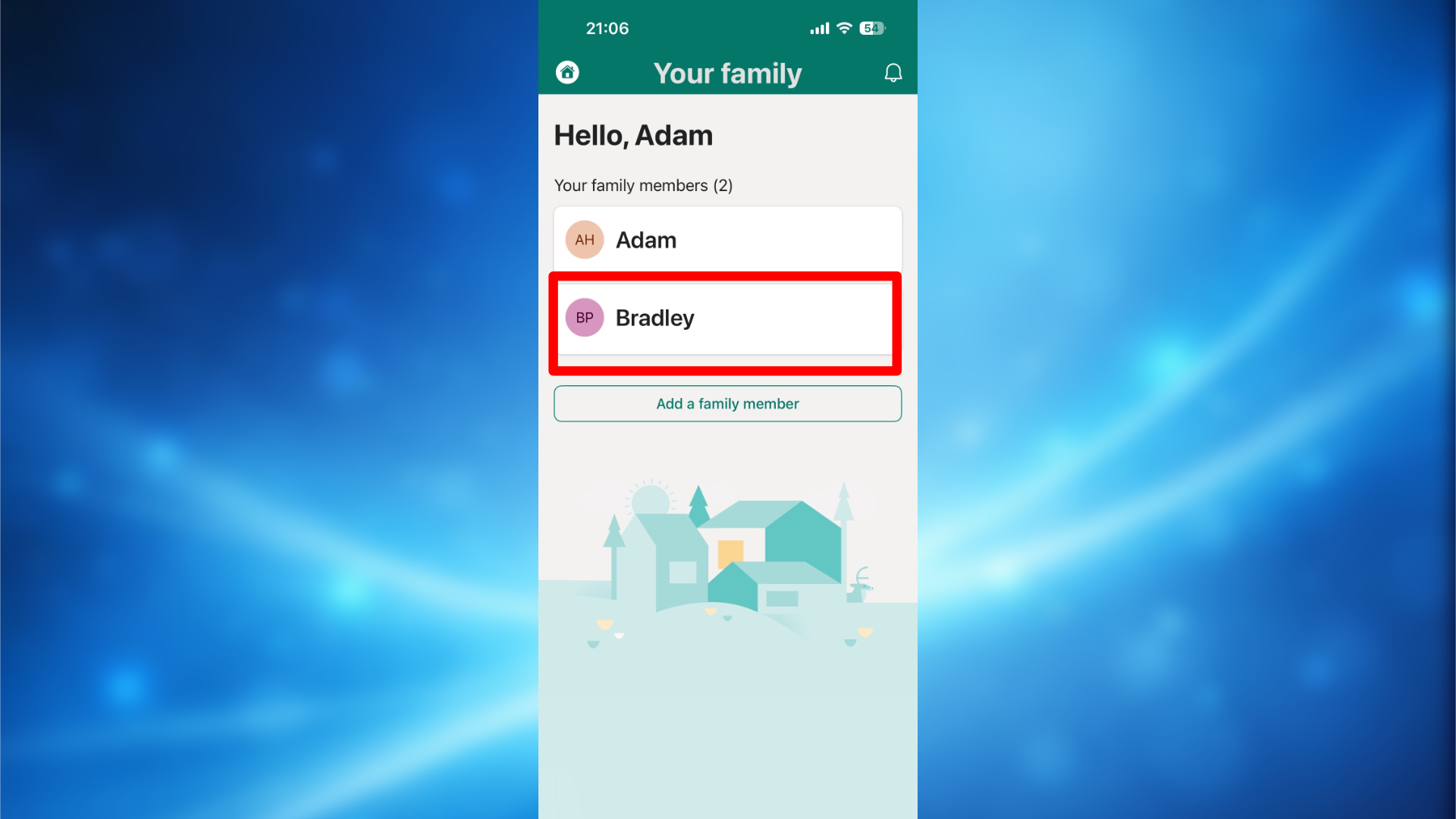
The Microsoft Family Safety app makes everything very straightforward.
Once a family member is added to your group, you can do the following:
- Select their user profile.
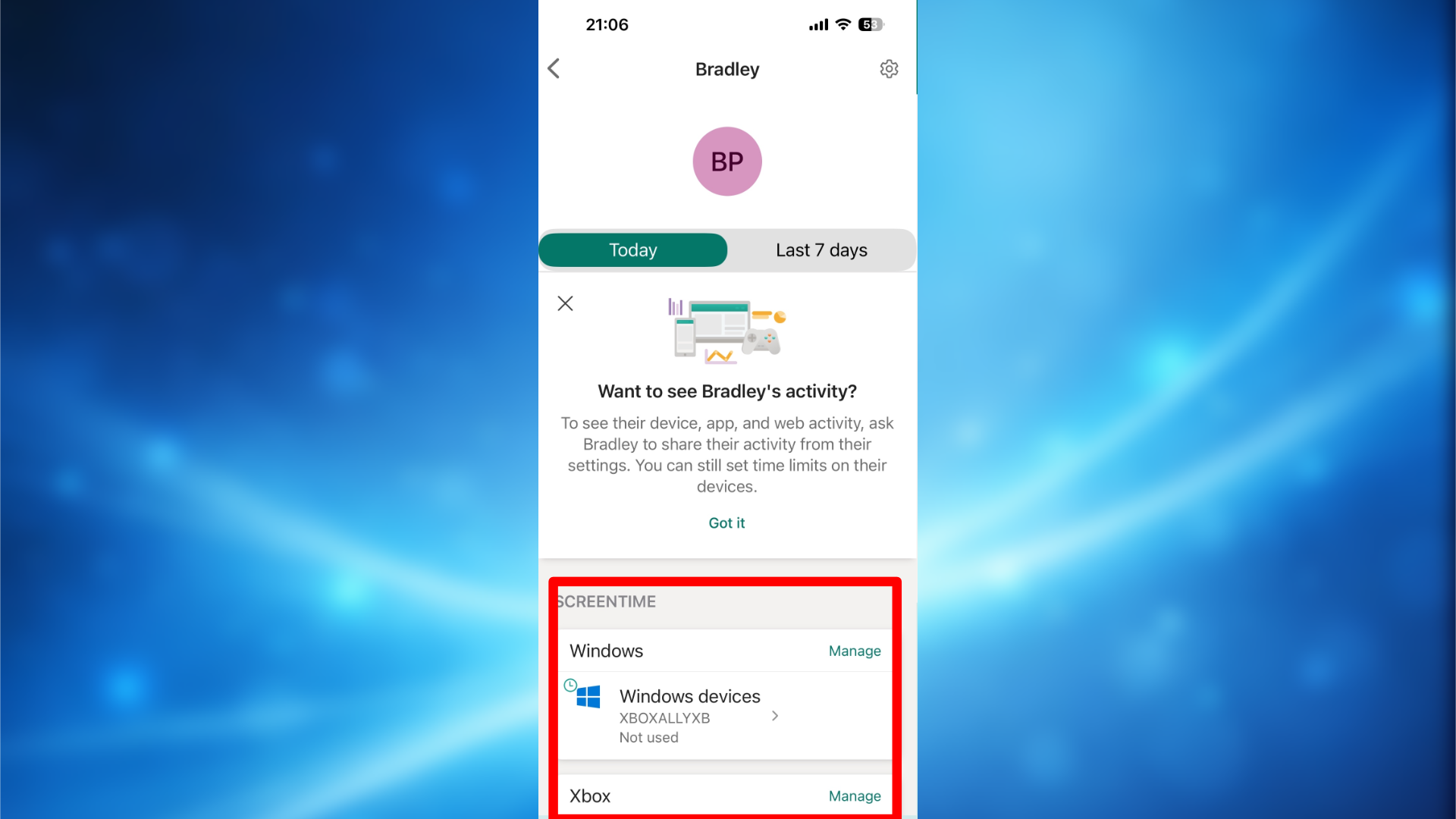
- From here, you can manage their devices. Windows Handhelds like the Xbox Ally will appear under Windows devices.
- Select Windows devices, and you can then change screentime, Apps and Games, Web and Search, spending, and more.
You can set time limits for devices like the Xbox Ally using the Screentime feature. When choosing a device, select ‘Windows’ for Windows handhelds and ‘Xbox’ for Xbox consoles.
Just a reminder that the family member you’re adding needs to have their own account set up on a device, like an Xbox handheld or another Windows PC, and be signed in.
Xbox Parental Controls
To completely manage Parental Controls for your family’s accounts, make sure you’ve followed all the previous steps, and this one too.
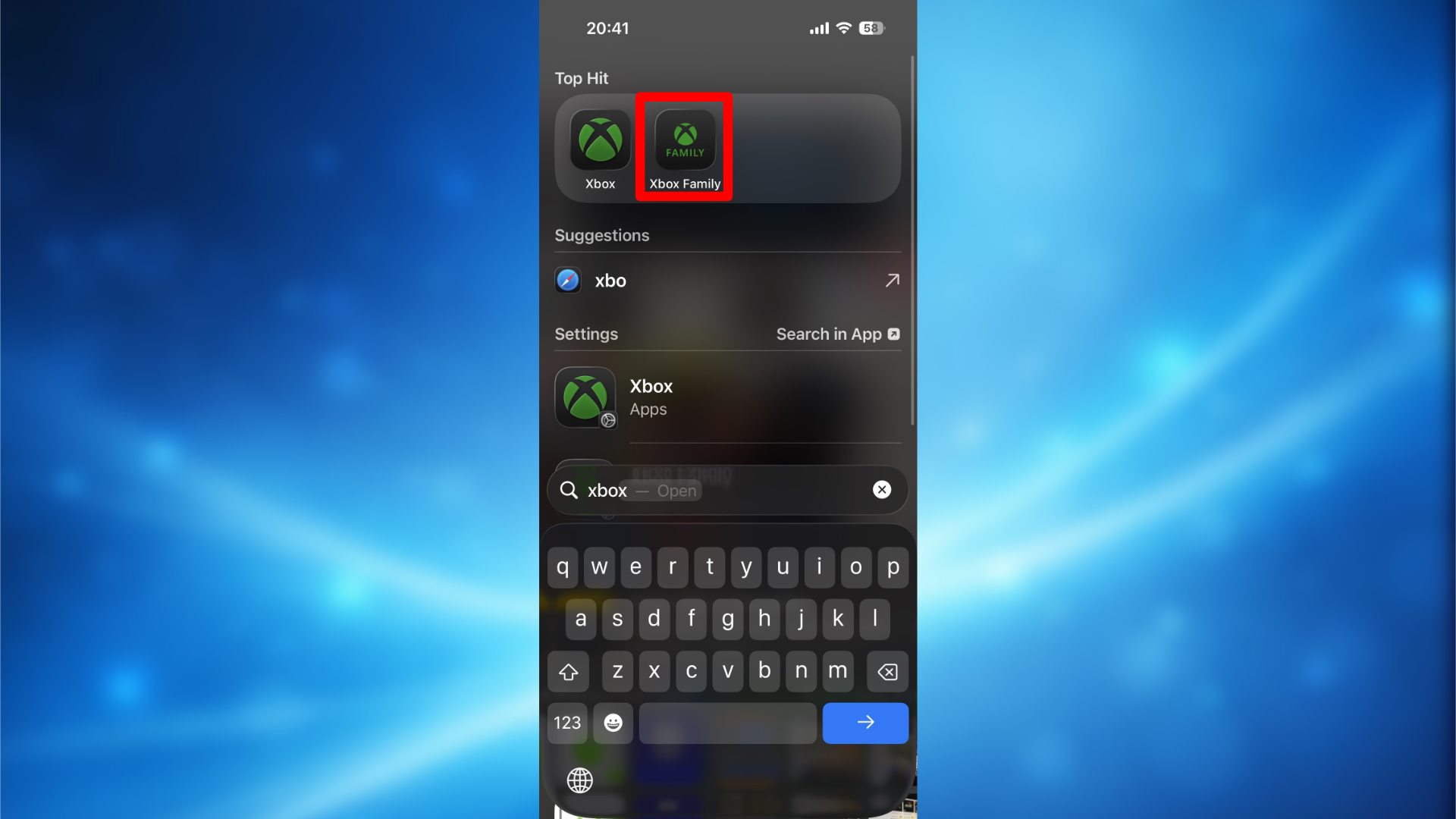
Although devices like the Xbox Ally run on Windows, it’s still a good idea to add Xbox Family Safety for extra protection. Here’s how to set it up:
- On the handheld, sign in with your child’s Microsoft Account (the same as earlier from your Family group).
- Now download the Xbox Family Settings app from either Apple’s App Store or Google’s Play Store.
- Log in with your Microsoft Account.
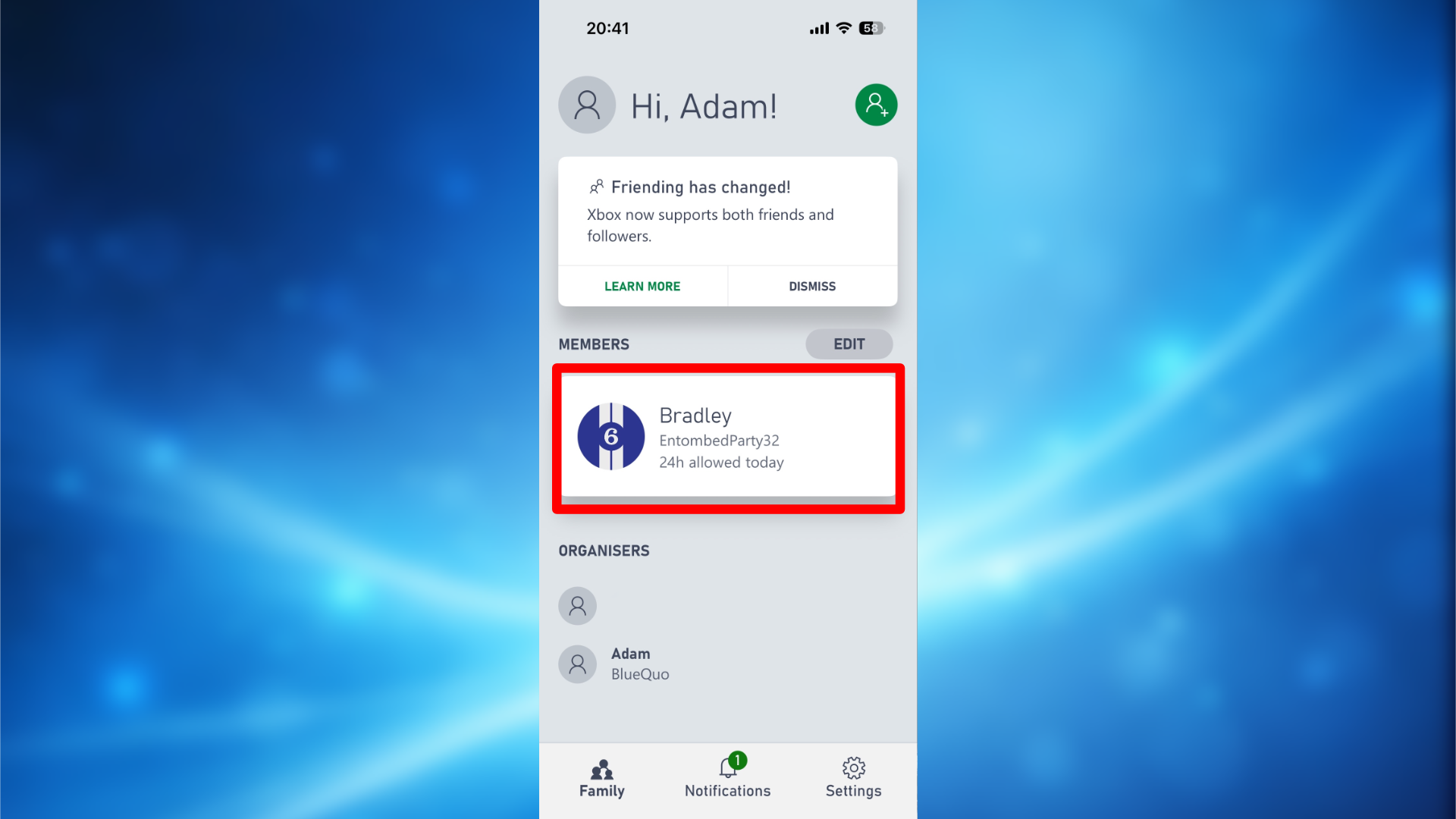
- It will recognize your added Family Member(s) from earlier.
- It will run you through a setup of your Family Member(s), choosing their age, communication preferences, and more. This is at your own discretion.
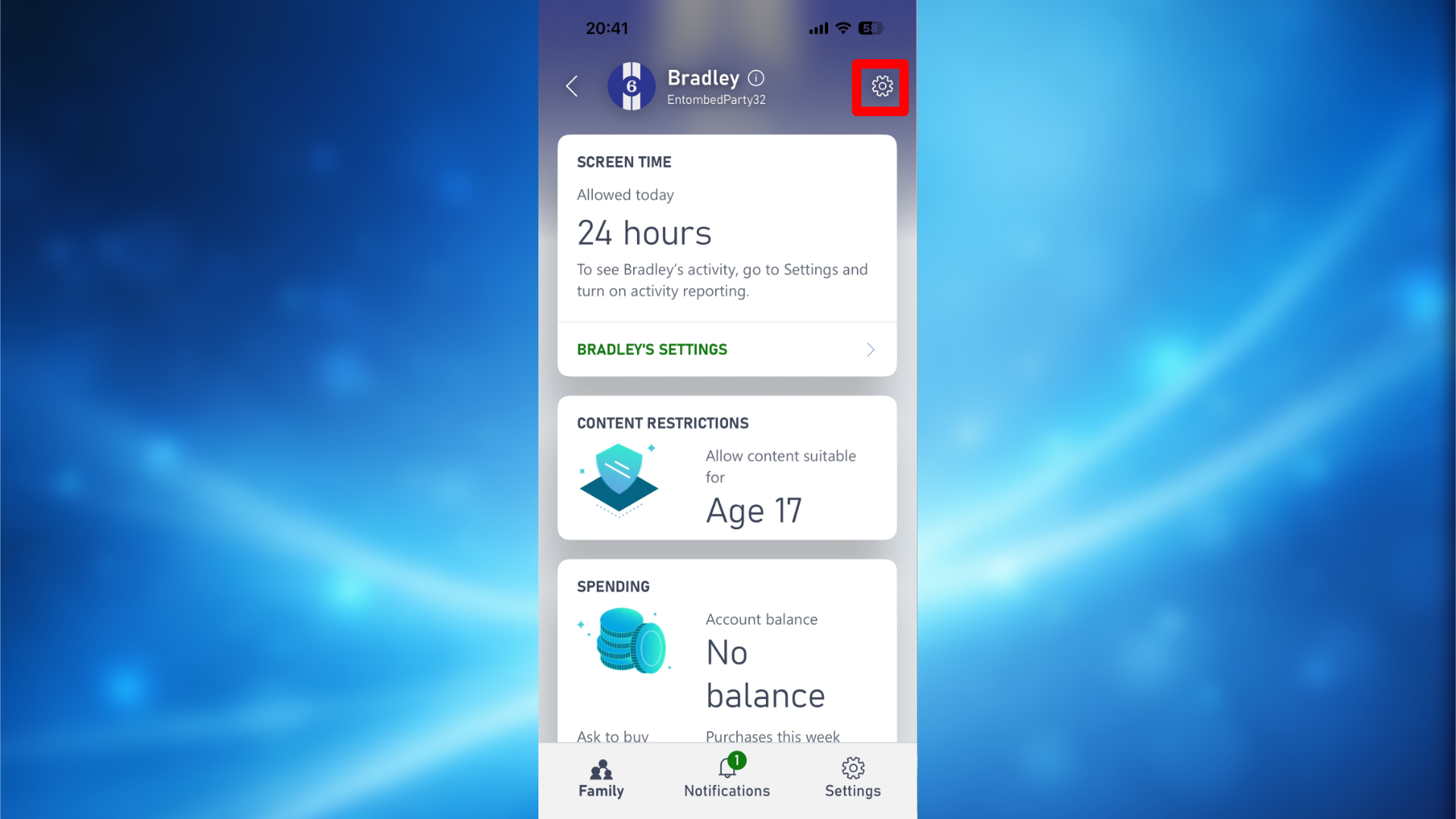
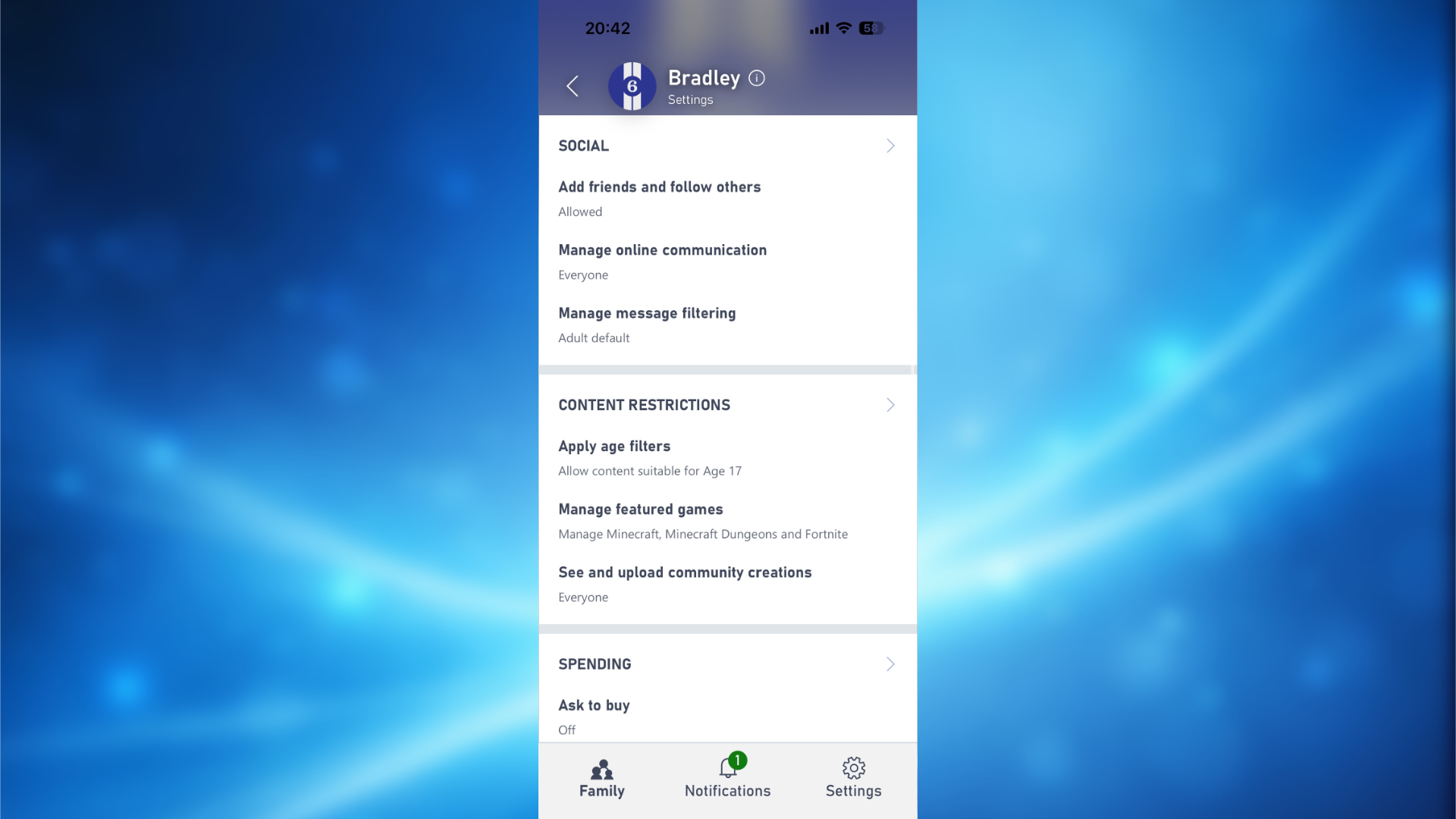
- You now select your Family Member(s) profiles and fine-tune their settings as per your requirements.
Ensure you have followed these steps above to add your child or family member to the device.
Understanding Windows controls vs Xbox controls
Windows parental controls manage what your child can do *on* the device itself – things like how long they use it, which apps and websites they access, what they download, and their overall permissions. Xbox controls, on the other hand, focus on your child’s *online* activity – including multiplayer gaming, who they communicate with, the age-appropriateness of content, friend requests, and whether they can make purchases within games.
If your child has an Xbox handheld like the Ally or Ally X, it’s best to connect both Windows and Xbox settings. Windows handles how the device runs apps and keeps track of time, and Xbox Family Settings keeps your child safe online, manages their messaging, and controls what they can buy within the Xbox world.
Read More
- What Song Is In The New Supergirl Trailer (& What It Means For The DC Movie)
- Gold Rate Forecast
- One of Hulu’s Best New Shows Lands on Disney+ Ahead of Season 2
- Eurogamer Gives ARC Raiders 2/5 Over AI Voices, Dropping Metacritic Score from 94 to 84
- Ubisoft’s Best Game From the Last 5 Years Is Surprising
- This One Stranger Things Theory Explains a 9-Year-Old Season 1 Mystery, Sets Up the Finale, & is the Key to Future Spinoffs
- Netflix Just Surprise Added a Fantasy Movie Perfect for Jackie Chan Fans
- Invincible Season 4 Confirms a Major Atom Eve Change From the Comics
- The OG Resident Evil 1, 2 and 3 Are Now Available on Steam With a Heavy Discount (and DRM)
- Why Gideon Emerges as Resident Evil Requiem’s Most Compelling Character
2026-01-07 17:41