This article first appeared on Game Empress, a website covering gaming news. You can find more articles and updates at gameempress.com.
If Pragmata is crashing on your PC with a ‘Fatal D3D’ error, a black screen, a crash report, or freezes when you turn on DLSS, Frame Generation, or Path Tracing, the issue is likely caused by a few common things. These include problems with your graphics card drivers, instability with DirectX 12, conflicts with NVIDIA Smooth Motion, damaged game files, issues with the shader cache, or your graphics card running out of memory. This guide will help you pinpoint the exact cause of your crashes and find the right solution, so you don’t have to try fixes that aren’t relevant to your problem.
Quick Fixes to Try First
Okay, so if you’re getting a Pragmata Fatal D3D error and trying to fix it, this is the place to start before you go digging through all the detailed stuff below. I’m gonna check this first if I run into that problem!
- Restart the game and your PC
- Update your GPU driver (see sections below for version numbers)
- Verify Pragmata’s game files on Steam
- Disable Path Tracing and Frame Generation temporarily
- Turn off NVIDIA Smooth Motion in the NVIDIA app if crashes happen when toggling DLSS, Frame Generation, or Path Tracing (see dedicated section below)
- Close all overlays: Steam Overlay, Discord Overlay, NVIDIA Overlay, MSI Afterburner, RivaTuner
- Remove any GPU overclock or undervolt
- Lower texture quality and shadow settings if crashes are intermittent
- Clear or rebuild the shader cache
Update Your GPU Driver First
Okay, so if I’m running into a Pragmata Fatal D3D error, or a crash saying something about DXGI_ERROR_DEVICE_REMOVED, or just general DirectX 12 problems, the very first thing I always check is my graphics card drivers. Seriously, updating or reinstalling those drivers usually fixes the issue!
NVIDIA has released a new graphics driver, GeForce Game Ready Driver 596.21 WHQL, designed to work perfectly with the game Pragmata. This driver specifically improves performance for Pragmata’s advanced visual features, including Path Tracing, DLSS Multi Frame Generation, and DLSS Ray Reconstruction. If you’re using an older driver, NVIDIA recommends updating to version 596.21 or later through the NVIDIA app or their website.
AMD now officially supports Pragmata with the release of Adrenalin Edition 26.5.1 on May 6, 2026. If you have an older version of Adrenalin installed, please update to 26.5.1 or later before trying any fixes. For ray tracing, Steam indicates you’ll need at least an AMD Radeon RX 6700 XT with 12 GB of memory. If you’re still experiencing crashes, Radeon users should also reduce ray tracing and other demanding graphics settings. You can download the newest Adrenalin Edition from AMD’s website.
If you’re using an Intel Arc graphics card, check the dedicated Intel section below for a documented driver fix addressing crashes when Pragmata’s menu loads.
Intel Arc Users: Install Driver 32.0.101.8735 or Newer — This Is Your Fix
If you’re experiencing a fatal D3D error or crashes in the Pragmata game while using an Intel Arc graphics card or a laptop with Intel Core Ultra graphics, Intel has released an official fix you should try first. Once the game is running smoothly, check out our boss guide for gameplay assistance.
Intel’s driver update notes for version 32.0.101.8735 (released April 21, 2026 – this is a non-WHQL driver) specifically mention the following problem has been resolved:
Pragmata (DX12) may experience application crash while loading into game menu.
This fix applies across all of the following Intel GPU groups:
- Intel Arc A-Series discrete graphics
- Intel Arc B-Series discrete graphics
- Intel Core Ultra Series 1 with built-in Intel Arc GPUs
- Intel Core Ultra Series 2 with built-in Intel Arc GPUs
- Intel Core Ultra Series 3 with built-in Intel Arc GPUs
This driver is designed to fix a specific crashing issue in the Pragmata DX12 menu. It doesn’t include any new features or support for other games. If you’re using an Intel Arc GPU and the game crashes when you get to the menu, this update should solve the problem. You can download it from Intel’s Arc Graphics driver page or by using the Intel Driver & Support Assistant, which will automatically detect your hardware.
Before the driver was fixed, players found a temporary solution by deleting the game’s shader cache and configuration files. If you’ve updated the driver but are still experiencing problems, this method is still worth a try (refer to the section on shader caches below).
How to Fix the Pragmata Fatal D3D Error
The Pragmata Fatal D3D error usually appears with the error code 0x887a0005, indicating that Windows temporarily lost communication with your graphics card while the game was running. Several issues could cause this to happen.
One common cause of this error is a problem with your graphics card driver. Sometimes the card freezes, causing Windows to shut it down and DirectX 12 to report a device removal. Some users have found a temporary fix by changing a setting called the TDR (Timeout Detection and Recovery) delay in Windows. However, this is a complex fix and should only be attempted by advanced users. Microsoft warns against directly editing these settings unless you’re specifically testing or developing drivers. Always back up your registry first, and be aware that this is a significant system change. You may want to try the other solutions in this guide before attempting this fix.
If you still want to try it:
- Press Win + R, type
regedit, and press Enter - Back up the registry first: File → Export, save a copy somewhere safe
- Navigate to
HKEY_LOCAL_MACHINE\SYSTEM\CurrentControlSet\Control\GraphicsDrivers - Right-click, select New > DWORD (32-bit) Value, and name it
TdrDelay - Set the value to 10 (Decimal)
- Restart your PC
This setting instructs Windows to wait as long as 10 seconds to see if the graphics card responds, rather than the usual 2 seconds. It won’t solve the root cause of any problems, but it can stop Windows from incorrectly reporting crashes when the graphics card is working hard.
Sometimes, problems with Pragmata happen because of how your graphics card (GPU) is set up. The game uses Capcom’s RE Engine, which can be unstable if your GPU is overclocked (running faster than normal) or undervolted (running with less power). If you’ve adjusted your GPU’s settings, try setting it back to its default, standard configuration for testing. Make sure to close any programs you use to control those settings, like MSI Afterburner or Precision X1, before you start the game.
Another reason for the Pragmata Fatal D3D error is running out of video memory (VRAM) on your graphics card. This is especially common with ray tracing. While 8GB of VRAM is often considered a minimum, Steam suggests 12GB for ray tracing support. If you’re playing at 1440p with ray tracing or Path Tracing enabled, an 8GB card might struggle. Try lowering settings like resolution, ray tracing, Path Tracing, and texture quality to reduce the demand on your VRAM and see if that fixes the problem.
Pragmata Crashes When Enabling DLSS or Path Tracing? Disable NVIDIA Smooth Motion First
Some NVIDIA graphics card users are experiencing crashes in the game Pragmata whenever they try to enable DLSS, Frame Generation, or Path Tracing. These crashes appear as a ‘Fatal D3D’ error, but seem to be caused by a conflict in the game’s settings, not a problem with their hardware. Several players have reported that disabling ‘Smooth Motion’ within the global settings of the NVIDIA application fixed the issue. While NVIDIA and Capcom haven’t officially confirmed this fix, it’s a good first step to try if you’re encountering the same crashes.
To disable Smooth Motion:
- Open the NVIDIA app
- Go to Graphics settings
- Find Smooth Motion and set it to Off
- Restart Pragmata
Many Steam players have found a fix for crashes on NVIDIA GPUs like the RTX 3080 Ti and RTX 4090: disabling Smooth Motion. This solution seems to work even with driver version 596.21.
Enabling Path Tracing or Frame Generation Crashes the Menu? Edit config.ini Directly
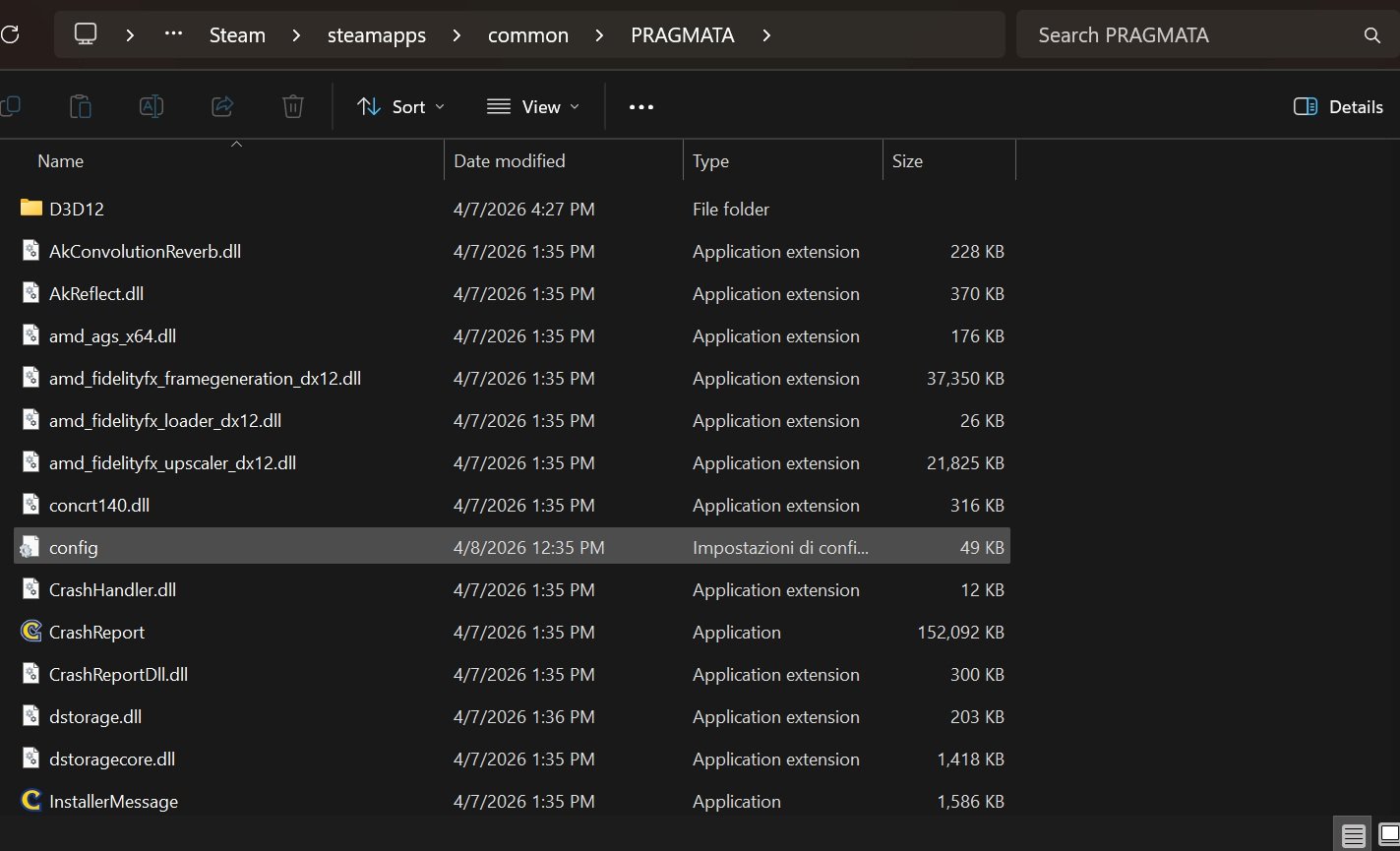
If Pragmata crashes to your desktop immediately when you turn Path Tracing or Frame Generation on in the game’s settings (and this isn’t related to the Smooth Motion problem), you can change these settings directly in the game’s configuration file instead of using the in-game menu.
- In Steam, right-click Pragmata → Manage → Browse Local Files
- Locate config.ini in the installation folder and make a backup copy first
- Open config.ini with Notepad and look for lines relating to Path Tracing, Frame Generation, and DLSS/Upscaling settings
- Edit only lines that match those categories — the exact label names may vary between game versions, so change only entries you can clearly identify, and do not guess
- Save the file and start Pragmata without changing those settings in-game
WCCFTech reported a solution, based on what players have experienced, that lets you enable certain game features without causing the menus to crash. Make sure to also turn off Smooth Motion in the NVIDIA application for this to work.
Turn Off Frame Generation If Pragmata Keeps Crashing or Stuttering
Frame Generation and DLSS Multi Frame Generation are popular features, but they can put extra strain on your graphics card and cause timing issues. Some players have reported that Frame Generation in the game Pragmata seems to worsen stuttering, especially during movement and when rotating the camera. Turning off Frame Generation and letting the game run at its natural frame rate or with VSync enabled has helped some players achieve smoother gameplay, though the results depend on your computer’s hardware. While you’re working through any potential issues, you can check out all 15 weapons in Pragmata and their locations to be prepared when the game is fully stable.
If Pragmata crashes after enabling Frame Generation:
- Disable Frame Generation in-game or via config.ini
- Ensure NVIDIA Smooth Motion is off (see above)
- Test the game with only DLSS Super Resolution enabled and no Frame Generation
- If crashes stop, Frame Generation was likely one trigger on your setup — report it to Capcom with your GPU model, driver version, and exact error
DLSS Frame Generation is available on both RTX 40 and 50 Series graphics cards. However, a more advanced version called DLSS Multi Frame Generation, which NVIDIA claims can boost performance significantly (up to 3.1x), is only compatible with the latest RTX 50 Series cards. While RTX 40 Series users can enjoy standard DLSS Frame Generation, the Multi Frame Generation features are specifically designed for and only work with RTX 50 Series hardware.
Disable Path Tracing If Pragmata Keeps Crashing
NVIDIA explains that the realistic visual effects in Pragmata, created with a technique called path tracing, are exclusive to GeForce RTX graphics cards. Tests have confirmed that AMD Radeon cards don’t have access to this path tracing option within the game. Therefore, Radeon users should consider standard ray tracing as the supported setting unless Capcom or AMD announce different support. It’s worth noting that path tracing is the most demanding visual setting in Pragmata and has been linked to crashes, especially on computers with limited video memory, overclocked GPUs, or older hardware that barely meets the ray tracing requirements.
According to Steam, you’ll need at least an AMD Radeon RX 6700 XT 12 GB or NVIDIA GeForce RTX 3060 12 GB graphics card to use ray tracing. Path tracing, a more advanced feature, requires even more powerful hardware. If your graphics card has only 8 GB or 10 GB of VRAM, you might experience crashes or instability when using path tracing at higher resolutions.
If Pragmata crashes after enabling Path Tracing:
- Disable Path Tracing in-game, or set
PathTracing=OFFin config.ini - Test the game in standard ray tracing mode or with ray tracing off entirely
- If the game becomes stable, Path Tracing was likely one of the triggers on your setup — try re-enabling it only with DLSS set to Performance mode to reduce the rendering workload
If you’re looking for advice on creating the optimal setup after successfully launching the game, check out our Pragmata best loadout guide.
Players with AMD Radeon graphics cards won’t be able to use Path Tracing in Pragmata. However, they can still enjoy standard ray tracing and FSR upscaling features.
Verify Pragmata Game Files on Steam
A “Pragmata Fatal D3D” error, or crashes while the game is loading graphics, can happen if some of the game’s files are damaged or missing. This can be caused by an incomplete download, a failed update, or problems with the graphics cache. Steam has a built-in tool to check for these issues. It verifies that all the game files are present and correct, and will automatically redownload any that are missing or corrupted. You can find detailed instructions on how to use this tool in Steam’s help section.
- Open Steam and go to your Library
- Right-click PRAGMATA → Properties → Installed Files
- Click Verify integrity of game files
- Wait for the scan to complete (this may take several minutes)
- Restart the game after verification finishes
Steam’s help pages explain that it’s common for a few files to not fully verify during a check – these are usually personal settings files that Steam doesn’t need to examine. You don’t need to worry if you see this message.
Clear Shader Cache or Let Shaders Rebuild
If the game crashes while starting up, loading, or building shaders, it’s often caused by a problem with the saved shader files, not your graphics card or computer parts. Deleting these files makes the game recreate them, which usually fixes the issue.
NVIDIA:
- Open NVIDIA Control Panel → Manage 3D Settings
- Set Shader Cache Size to Unlimited, which may help reduce cache-related stutter or rebuild issues on some systems
- To clear the existing cache, navigate to
%LocalAppData%\NVIDIA\GLCacheand delete the contents
AMD:
- Open AMD Adrenalin
- Go to Graphics → Advanced → Reset Shader Cache
Once the game is installed, start Pragmata and let it finish compiling shaders during the initial launch before you begin playing. Don’t switch to other programs or interrupt this process.
Okay, so I was having crashes after switching up the DLSS settings, and I found a fix that actually worked! Apparently, the game was saving a messed-up config file after the first crash. What I did was delete both the shader cache and the config.ini file, and that let the game start fresh. It totally solved the problem for me!
Lower VRAM-Heavy Graphics Settings
If Pragmata keeps crashing, particularly during demanding parts of the game like action sequences, large environments, or scenes with lots of reflections, it could be due to your graphics card running out of memory (VRAM). While 8 GB of VRAM is enough for standard 1080p gaming with balanced settings, Steam says you need at least 12 GB of VRAM to use ray tracing. Trying to enable ray tracing or path tracing with an 8 GB card at 1440p resolution can overload the VRAM, leading to occasional pauses or crashes.
Settings to lower if VRAM pressure is suspected:
- Texture Quality — drop one level and test again
- Shadow Quality — High to Medium
- Shadow Cache — Reduce if available
- Ray Tracing — Disable or use Standard RT instead of Path Tracing
- Resolution Scale / DLSS Mode — Switch from Quality to Balanced or Performance to lower the internal render resolution
- DLSS Frame Generation — Disable to reduce driver overhead
Increasing the shader cache size in your graphics card settings (like NVIDIA Control Panel or AMD Adrenalin) can sometimes help reduce crashes by minimizing how often the GPU needs to re-create shaders. However, it’s not a guaranteed solution.
Disable Overlays and Background Tools
Many crashes in RE Engine games, including Pragmata, are caused by programs that interact with DirectX 12 or create their own on-screen displays. These programs can lead to errors even if your graphics card drivers are up-to-date. If you’re having crashes, please close all such programs before starting Pragmata.
- Steam Overlay (right-click Pragmata in Steam → Properties → uncheck “Enable the Steam Overlay while in-game”)
- Discord Overlay
- NVIDIA Overlay (via NVIDIA app settings)
- MSI Afterburner and RivaTuner Statistics Server
- OBS Studio, Streamlabs, or other recording/streaming tools
- FPS counters and monitoring tools (HWiNFO overlay, RTSS)
- Lossless Scaling or any third-party frame generation tool
A Steam user found that launching Discord while playing Pragmata caused both the game and Streamlabs to crash. It seems Discord’s overlay, which interacts with DirectX 12, might be the cause. To troubleshoot, try playing the game with all overlays turned off, then re-enable them individually to see which one causes the problem.
Remove GPU Overclocks and Undervolts to Fix Pragmata Fatal D3D Errors
Many players have reported that pushing your graphics card too hard (overclocking) often causes crashes in games made with the RE Engine. Since Pragmata uses the same engine, the first thing to try when you encounter a graphics error or crash is to run the game with your graphics card at its default settings. This applies whether you’ve increased your card’s speed (overclocking) or reduced its power usage (undervolting), as both can lead to instability when the game demands a lot from it.
If you have an active overclock or undervolt profile:
- Close MSI Afterburner, Precision X1, or AMD Adrenalin’s tuning features
- Restore all GPU clocks to default (stock)
- Restart your PC and test Pragmata before re-applying any profile
Pragmata really pushes your graphics card when using Path Tracing, causing consistently high usage. Even a small, stable overclock might become unstable under this demanding setting.
What If Nothing Works?
If you’ve worked through all of the above and Pragmata still crashes:
- Check for patches and driver updates. Intel shipped a dedicated non-WHQL hotfix within days of launch specifically for the Pragmata menu crash on Arc hardware, and AMD added official game support in Adrenalin 26.5.1. Keep your GPU driver current and watch the Pragmata Steam community page for patch notes.
- Report persistent crashes with full details. Include your GPU model and VRAM, CPU, RAM amount, Windows version, driver version, exact error code (such as DXGI_ERROR_DEVICE_REMOVED or E_OUTOFMEMORY), and the exact circumstances that trigger the crash (startup, enabling Path Tracing, changing Frame Generation, specific area of the game). Submit through the relevant support channels: Capcom’s Steam community, NVIDIA’s driver feedback, AMD’s support site, or Intel’s Arc driver page.
- Use a conservative preset temporarily. Switch to the Balanced or Performance preset with Path Tracing and Frame Generation disabled. These presets are designed to run on a wider range of hardware and are less likely to hit driver or VRAM edge cases.
- Avoid Path Tracing and Frame Generation until stability improves. Standard ray tracing with DLSS Super Resolution is substantially less demanding and is a less demanding fallback on supported RTX hardware. Once your Pragmata Fatal D3D error is resolved and the game is stable, see our guide on how to beat the Sector Guard in Pragmata to get back into the action.
Frequently Asked Questions
The ‘Pragmata Fatal D3D’ error usually happens because of problems with your graphics card’s driver, issues with DirectX 12, or conflicts between NVIDIA features like Smooth Motion, DLSS, Frame Generation, and Path Tracing. It can also be caused by damaged game files, a full graphics card memory (VRAM), or software used to overclock your GPU. Additionally, users with Intel Arc graphics cards experienced a specific driver bug that was fixed in version 32.0.101.8735.
If Pragmata is crashing when you start it, here’s how to try and fix it: First, make sure your graphics card drivers are up to date. Then, verify the game files through Steam. Next, turn off any overlay programs you’re using. You should also clear the game’s shader cache and set the graphics settings to default. If you have an Intel Arc graphics card, update to driver version 32.0.101.8735 or newer. Finally, if the crashes started after you changed DLSS settings, delete the game’s ‘config.ini’ file – the game will create a new one automatically.
Pragmata is crashing for some players when they turn on DLSS or Frame Generation. A possible cause, reported by users with NVIDIA graphics cards, is a setting called Smooth Motion. It seems that having Smooth Motion enabled in the global NVIDIA app settings can cause Pragmata to crash as soon as you activate DLSS or Path Tracing. Disabling Smooth Motion has reportedly fixed the issue for many, although neither NVIDIA nor Capcom has officially confirmed this. It’s a good first thing to check if you’re experiencing these crashes.
Some players have experienced crashes in Pragmata when using path tracing, especially if their graphics card is running out of memory or is overclocked. NVIDIA explains that Pragmata’s path tracing features are designed for GeForce RTX cards and work with DLSS Ray Reconstruction to improve performance. The game’s minimum system requirements on Steam indicate that even basic ray tracing needs at least an RTX 3060 with 12 GB of VRAM or an RX 6700 XT with 12 GB.
Having crashes in Intel Arc Pragmata? Updating to Intel graphics driver version 32.0.101.8735 or later should fix the problem. Intel has confirmed this update resolves a crash that occurred when loading the game’s menu. This fix applies to all Arc A-Series, Arc B-Series, Core Ultra Series 1, Series 2, and Series 3 graphics cards.
Okay, so I was wondering about that ‘verify integrity of game files’ option on Steam for Pragmata, and yeah, you definitely should use it! Basically, it checks all the game files to make sure they downloaded properly and haven’t gotten messed up. If anything is missing or corrupted – maybe from a bad download or a problem with the graphics settings – it’ll re-download it for you. I’ve heard it can fix crashes when the game starts up or even crashes while it’s loading textures. You can find it by right-clicking Pragmata in your Steam library, going to ‘Properties,’ then ‘Installed Files,’ and finally clicking ‘Verify integrity of game files.’
Some players are experiencing stuttering in Pragmata when using Frame Generation. It seems to worsen issues with movement or camera work on some computer setups. Turning Frame Generation off and using traditional methods to limit frame rates – like VSync or a third-party limiter – instead of NVIDIA Reflex has helped some people, but the fix doesn’t work for everyone.
More Pragmata Guides
Read More
- Gold Rate Forecast
- 10 Most Powerful Versions of Superman, Ranked
- GBP CNY PREDICTION
- 10 Best Free Games on Steam in 2026, Ranked
- 007 First Light: Release Date, Story, Gameplay, Cast, Editions, and Platforms
- Superman’s 7 Best Power-Ups, Ranked
- Forza Horizon 6 Car List So Far: Confirmed Highlights, Cover Cars, DLC, and Rewards
- 10 Greatest Manga Endings of All Time
- DOGE PREDICTION. DOGE cryptocurrency
- BONK/USD
2026-05-10 01:04