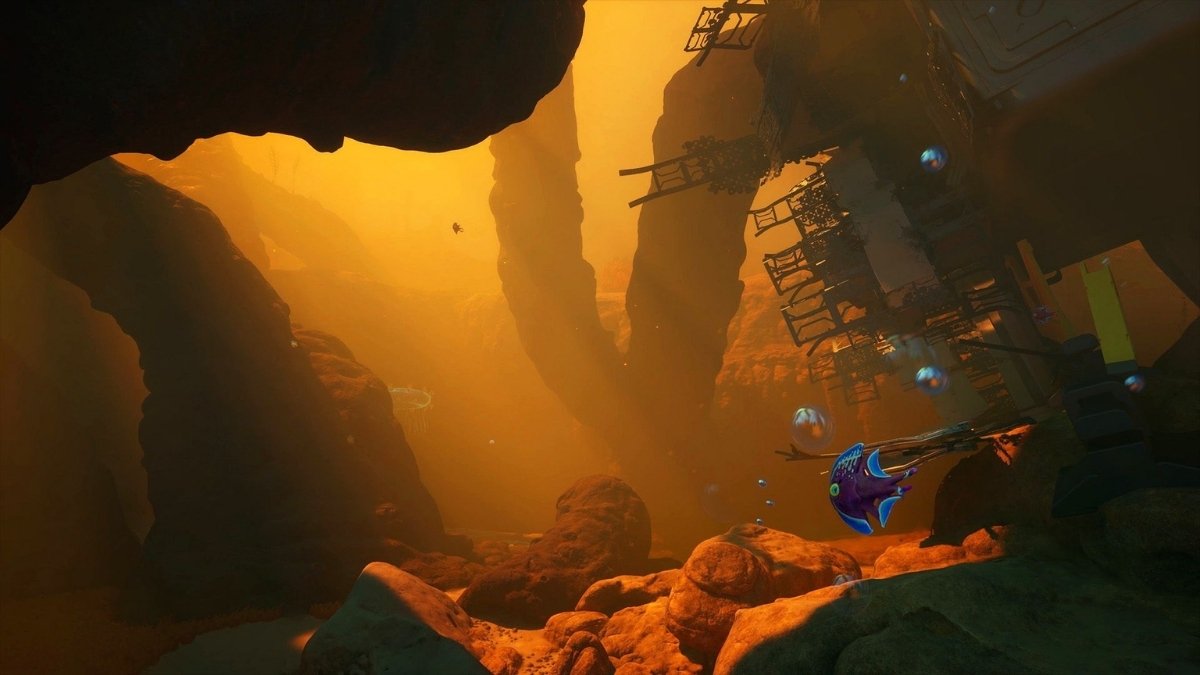
I first saw this article over on Game Empress – it’s all about getting Subnautica 2 running at the highest frame rates possible with the best 4K settings. If you’re into gaming news, their site, gameempress.com, is definitely worth checking out!
When playing Subnautica 2 at 4K resolution, aim for High graphics settings to achieve a smooth 60 frames per second – don’t try for Epic settings. Lowering details like lighting, shadows, how far you can see, and visual effects from Epic to High will significantly boost performance without making the game look bad. If you have an Nvidia RTX card, use DLSS Quality mode. For AMD and Intel graphics cards, use TSR. And until your computer can consistently run the game at higher frame rates, limit it to 60 FPS.
Best 4K Settings for Subnautica 2
| Setting | Best 4K Value | Why |
|---|---|---|
| Resolution | 3840×2160 | Native 4K target |
| Display Mode | Fullscreen or Borderless | Use whichever gives better stability for your setup |
| FPS Cap | 60 FPS | Matches the current 4K High performance target |
| Graphics Preset | High | More stable than Epic at 4K on most hardware |
| Upscaling (Nvidia RTX) | DLSS Quality | Best image quality with meaningful FPS headroom |
| Upscaling (AMD/Intel) | TSR Quality or Balanced | Native FSR is not currently available; TSR is the fallback for non-Nvidia GPUs |
| DLSS Frame Generation | On only if base FPS is stable | Do not use to mask an unstable base frame rate |
| Global Illumination | High | One of the most expensive settings in the game |
| Shadows | High | Large FPS gain compared to Epic with minimal visual loss |
| View Distance | High | Drop first if you encounter stutters during exploration |
| Shading | High | Good balance between rendering quality and cost |
| Effects | High | Stabilises performance in heavy underwater scenes |
| Textures | High or Epic if VRAM allows | Try Epic only if you have plenty of VRAM, ideally 16 GB for 4K; lower to High if hitching occurs |
| Motion Blur | Off | Cleaner image at 4K; no meaningful quality trade-off |
| V-Sync | Off with VRR/G-Sync/FreeSync; On if tearing appears | Depends on monitor |
Best 4K Settings for Nvidia RTX GPUs
Players with Nvidia graphics cards get the best upscaling options in Subnautica 2 right now, thanks to support for DLSS and DLSS Frame Generation – FSR isn’t available yet. For a great experience at 4K resolution, we recommend starting with DLSS Quality mode. It renders the game at about 67% of the native resolution, then upscales it to 4K, giving you a significant boost in frames per second without a noticeable drop in image quality during gameplay.
Okay, so as a gamer, I’ve been testing DLSS Frame Generation, and honestly, it’s a game-changer if you’re already getting good performance. Basically, it uses AI to create extra frames, making the game look way smoother. But here’s the catch: it does add a little bit of input lag. So, if you’re already hitting a stable 45 FPS or higher, definitely try it! But if you’re struggling to even get 40 FPS, focus on fixing that first – try turning down settings like Global Illumination and Shadows before you even think about enabling Frame Generation. It won’t magically fix low FPS, and you’ll just end up with a laggy mess.
If DLSS set to Quality isn’t getting you a smooth 60 frames per second, try DLSS Balanced. Only use DLSS Performance as a final option, especially at 4K resolution. It can make games playable on less powerful graphics cards, but the image will appear noticeably softer than with the Quality or Balanced settings. At 1440p, avoid using Performance mode unless absolutely necessary.
Nvidia GPU targets at 4K:
| GPU | Realistic 4K Target |
|---|---|
| RTX 3070 | 1440p High; 4K only with DLSS Performance and heavy setting reductions |
| RTX 4070 | 1440p High/60 FPS; 4K possible with upscaling and reduced settings, not guaranteed |
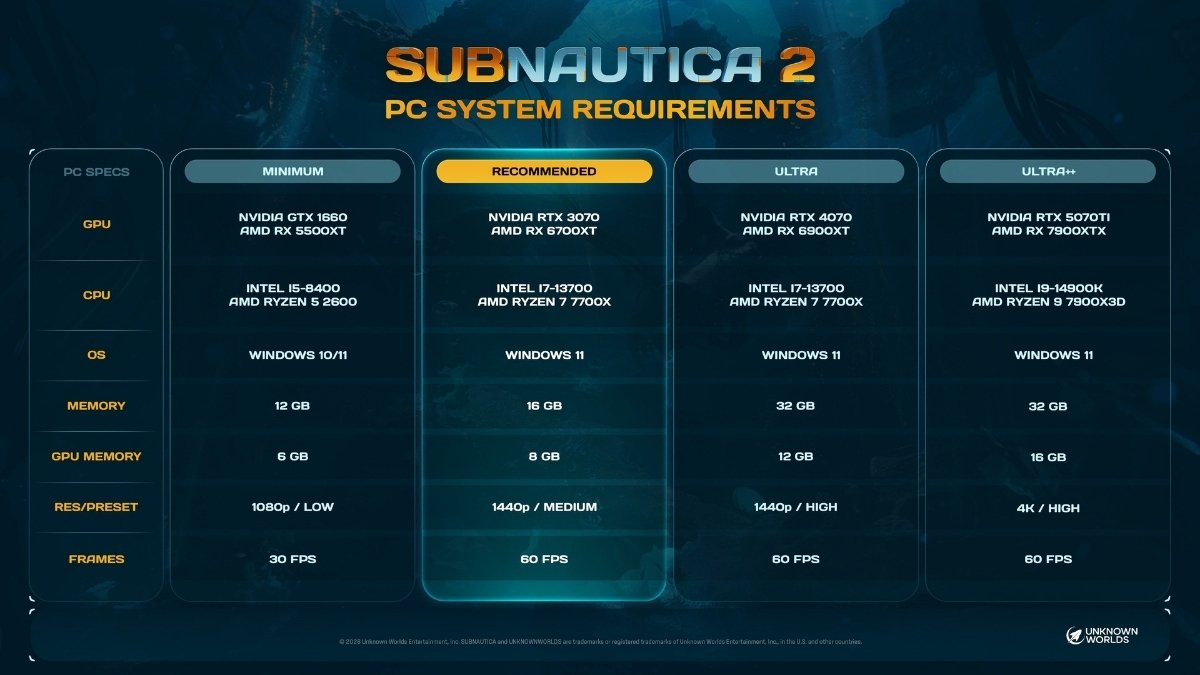
| RTX 5070 Ti | 4K High / 60 FPS — the official Ultra++ target |
| RTX 5080 / 5090 | 4K High/Epic mix, DLSS Quality, higher FPS target possible |
Best 4K Settings for AMD and Intel GPUs
Players with AMD or Intel graphics cards currently have limited options for upscaling in Subnautica 2. While AMD’s FidelityFX Super Resolution (FSR) is planned for a future update, it’s not available yet in this early version of the game. For now, Temporal Super Resolution (TSR) is the most reliable upscaling choice for those using AMD or Intel hardware.
Okay, so if you’re on Team AMD or Intel, I’d definitely start with TSR Quality. Basically, it renders the game at a lower resolution than your monitor – like, below 4K – and then smartly scales it back up. It’s a great way to boost your FPS without making the game look too much worse. If you still need even more frames, I usually drop down to TSR Balanced. It gives you a bigger performance boost, but you’ll notice a little more visual difference.
Gamers with AMD or Intel processors should carefully adjust settings like Textures and View Distance, as Temporal Super Resolution (TSR) doesn’t boost performance as well as DLSS on Nvidia graphics cards.
AMD GPU targets at 4K:
| GPU | Realistic 4K Target |
|---|---|
| RX 6700 XT | 1440p High; 4K not practical at this stage |
| RX 6900 XT | 1440p High/60 FPS; 4K may require TSR Balanced and reduced settings |
| RX 7900 XTX | 4K High / 60 FPS — the official Ultra++ target |
Settings to Lower First for Better FPS
Okay, so I’ve been trying to get a smooth 4K experience, and I’ve found that tweaking just five settings really makes a difference. If your frame rates are dipping, try lowering these from ‘Epic’ to ‘High’, and do them in this order – it seriously helped me out!
Global Illumination is a graphics setting in Subnautica 2 that has a big impact on performance. It affects how light behaves in the game’s environments, and the underwater lighting is especially taxing on your computer. Reducing this setting from ‘Epic’ to ‘High’ can noticeably improve your frame rate.
High-quality shadows in Unreal Engine 5 games, like Subnautica 2, can significantly impact performance. While there’s a visual difference between the highest (‘Epic’) and high shadow settings in static images, it’s difficult to notice during regular gameplay. For better performance, it’s recommended to lower the shadow settings early on.
The View Distance setting controls how much of the game world you can see in the distance, and how detailed it is. In the vast underwater environments of Subnautica 2, this has a big impact on how smoothly the game runs. If you experience stuttering or slowdown while exploring open water or large areas, try lowering this setting first.
Shading determines how detailed surfaces appear. It’s moderately demanding on your system, and the cost increases when combined with other high-quality settings. We recommend setting it to ‘High’ for a good balance of visual quality and performance.
Okay, so ‘Effects’ basically controls all the cool visual stuff like glowing particles, how water looks when things move through it, and what happens after an explosion. Honestly, these can really hit your performance, especially if you’re playing underwater with a lot going on. I’ve found that ‘High’ settings are usually the max most 4K setups can handle without slowing down.
Can Subnautica 2 Run at 4K 60 FPS?
While it’s possible, running the game at its highest settings demands powerful hardware. To achieve 4K resolution, high graphics settings, and a smooth 60 frames per second, you’ll need a high-end graphics card like an RTX 5070 Ti or RX 7900 XTX, along with 32 GB of RAM and a graphics card with 16 GB of video memory (VRAM).
Graphics cards below the top tier, like the RTX 4070 and RX 6900 XT, are best suited for gaming at 1440p resolution with high settings at 60 frames per second, based on their specifications. While they might be able to run games at 4K with upscaling and lower settings, consistently achieving 4K at 60fps isn’t guaranteed. The RTX 3070 and RX 6700 XT, which are the official recommended specs for Subnautica 2, aren’t powerful enough for native 4K gaming; they’re designed for 1440p at medium to high settings.
So, Subnautica 2 is still in Early Access, and honestly, it’s a bit rough around the edges performance-wise right now. The developers are working hard to improve things with future updates, which is good to know! They’re even planning to add support for AMD’s FSR, which will be a nice boost for those of us with AMD graphics cards. Just keep in mind that the settings I’m sharing are based on how the game plays right now. If you want to see how it’s been evolving, check out some of the launch coverage. And hey, if you’re playing on Xbox Game Pass, the same PC settings will work if you play through the Windows version of the game.
Best Settings for Smooth 4K Without Losing Visual Quality

Okay, so if I’m aiming for the absolute best graphics at 4K and don’t want any slowdown, this is the settings profile I’ve found that hits the sweet spot. It keeps everything that really impacts how good the game looks cranked up, but smartly cuts back on the stuff that’s super demanding so I get smooth gameplay.
- Graphics Preset: High as the base
- Global Illumination: High
- Shadows: High
- View Distance: High
- Shading: High
- Effects: High
- Textures: Epic (if you have plenty of VRAM, ideally 16 GB) or High; drop to High if texture streaming issues appear
- Motion Blur: Off
- Upscaling: DLSS Quality (Nvidia) or TSR Quality (AMD/Intel)
- FPS Cap: 60
Most players won’t notice a big difference in graphics between this profile and the highest settings during regular gameplay, making the performance boost worthwhile. Subnautica 2’s underwater areas are visually rich enough that the High settings already look great. The settings where the highest Epic preset really stands out – things like lighting and shadows – are also the most demanding on your computer.
Frequently Asked Questions
Yes, Subnautica 2 supports DLSS. Players with Nvidia RTX graphics cards can choose from DLSS Quality, Balanced, or Performance upscaling options, and those with compatible cards can also use DLSS Frame Generation.
Currently, Subnautica 2 doesn’t support FSR. While the developers plan to add support for AMD FSR in the future, it’s not available in the Early Access version. Players with AMD or Intel graphics cards can use TSR as an alternative upscaling method.
When playing at 4K resolution, ‘High’ graphics settings generally perform better than ‘Epic’ on most computers. ‘Epic’ settings demand a lot of processing power – especially for things like lighting, shadows, and visual effects – making it hard to maintain a smooth 60 frames per second. ‘High’ settings offer a better balance for 4K gaming.
If you want to play Subnautica 2 in 4K resolution at 60 frames per second, the RTX 5070 Ti or RX 7900 XTX are good choices. Graphics cards less powerful than these will likely require you to lower the graphics settings or use upscaling technology to achieve a smooth 60 FPS experience in 4K.
Okay, so about DLSS Frame Generation… I’ve been wondering about that myself! Basically, it’s awesome, but only if your game is already running smoothly. It creates extra frames, which looks great, but it also adds a little bit of delay. If your game is already struggling to hit a good frame rate, like below 45 FPS, Frame Generation won’t really help and might even make things worse. You want a solid 45 FPS or higher before you turn it on to get the best experience.
Read More
- FRONT MISSION 3: Remake coming to PS5, Xbox Series, PS4, Xbox One, and PC on January 30, 2026
- Best Controller Settings for ARC Raiders
- Taylor Sheridan’s Gritty 5-Part Crime Show Reveals New Final Season Villain
- Welcome to Demon School! Iruma-kun season 4 release schedule: When are new episodes on Crunchyroll?
- From season 4 release schedule: When is episode 2 out on MGM+?
- Mark Zuckerberg & Wife Priscilla Chan Make Surprise Debut at Met Gala
- The Boys Season 5 Officially Ends An Era For Jensen Ackles’ Soldier Boy
- ‘The Bride!’ Review: Jessie Buckley Breathes Life into a Monstrous Mess
- Invincible Season 4 Episode 4 Post-Credits Unveils a Demonic Return & More
- Meet the cast of Good Omens season 3: All the actors and characters
2026-05-15 19:31